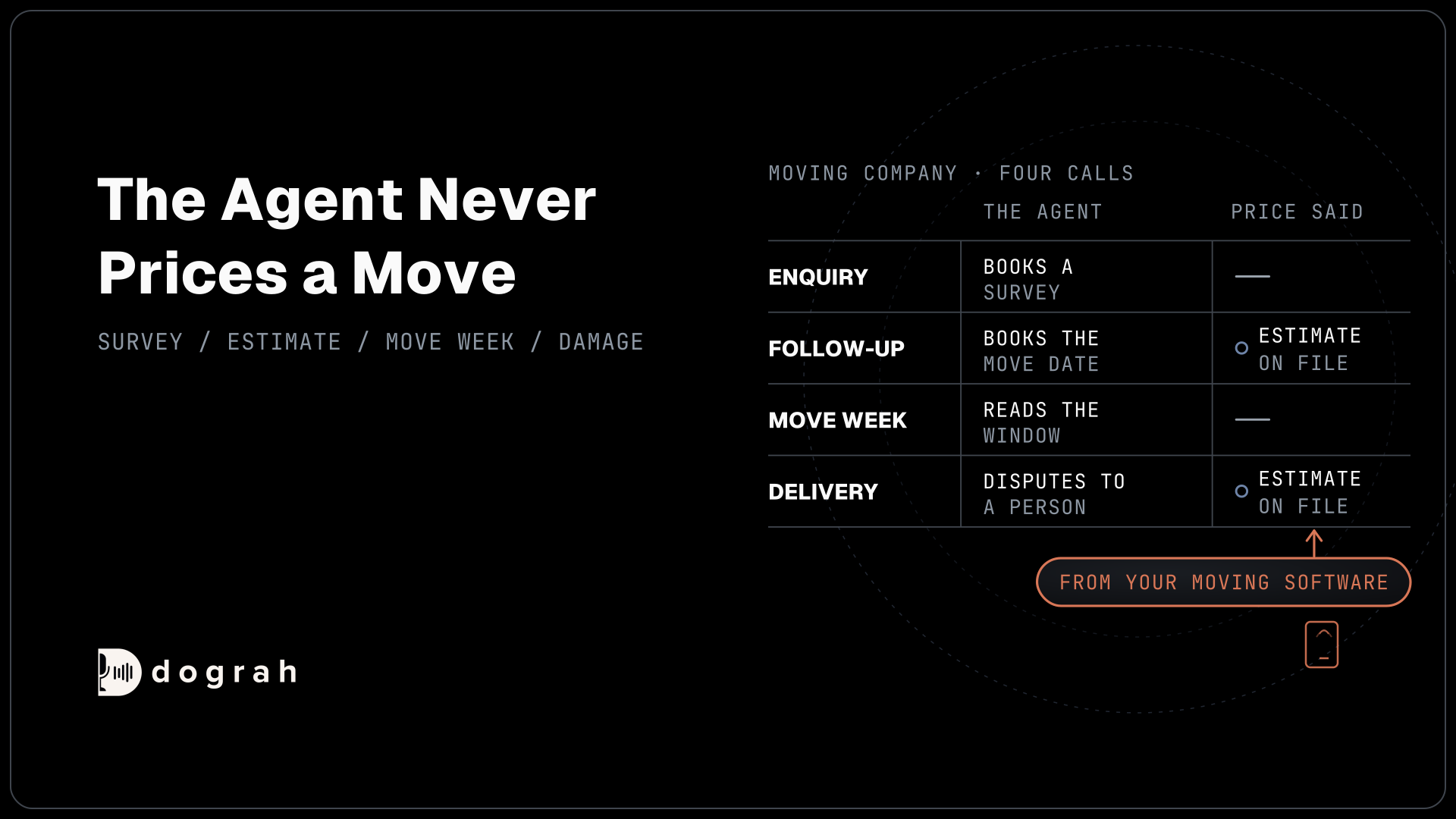
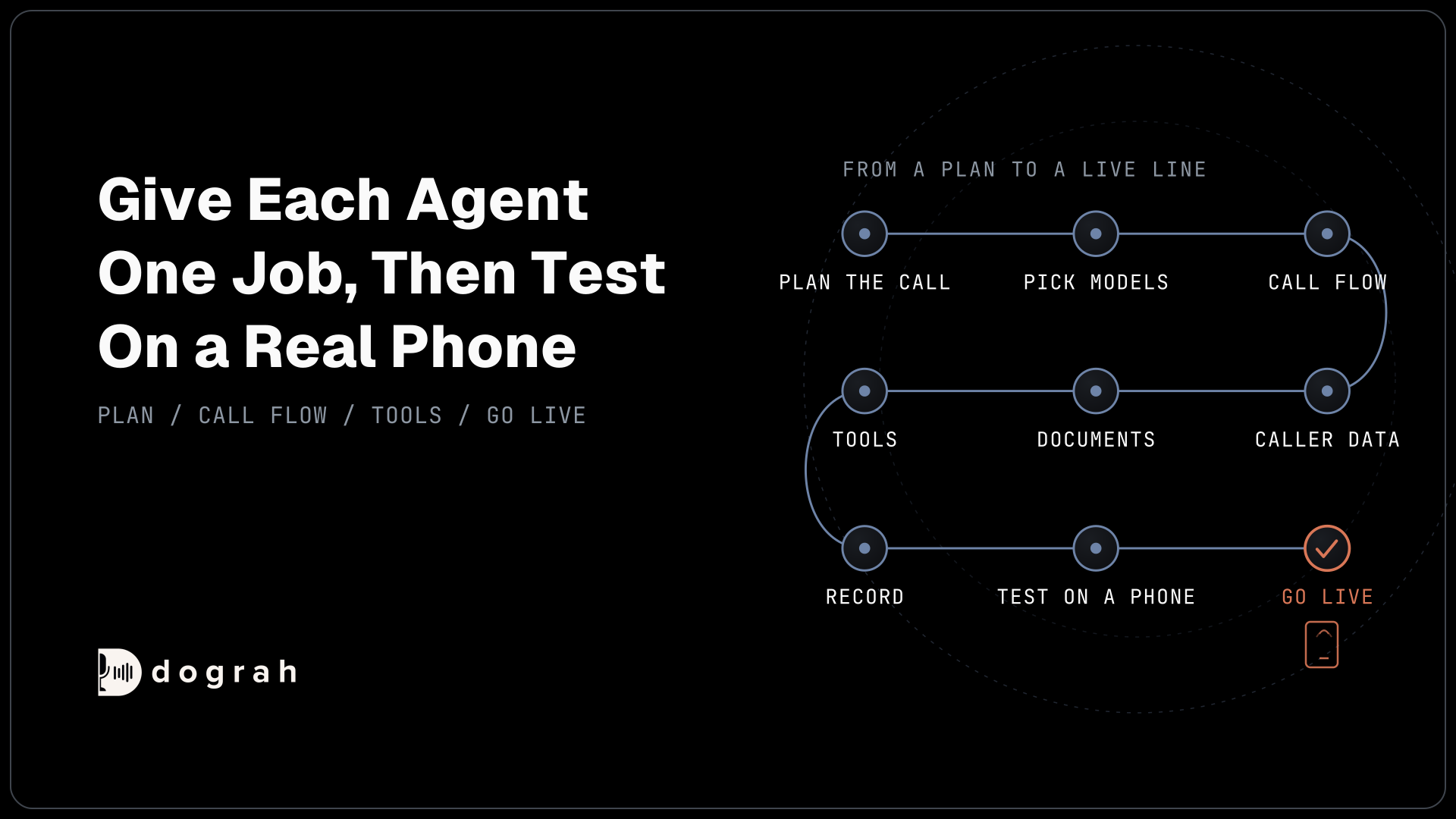

To build an AI voice agent, plan one call first: who calls whom, and when a person takes over. Then pick the speech and language models, design the call flow, connect data and tools, and record each outcome. Test in the browser and on a real phone line before you go live.
Key Takeaways
- Give each agent one job, and decide first where a person takes over.
- Most build work is getting data in before the greeting and out afterwards.
- Test on a real phone line, because most calls still arrive as 8 kHz audio.
This guide takes one voice agent from a plan to a live line and its first split test, one step at a time, and shows how each part works in Dograh, the open-source AI voice agent platform we build. You can self-host it or run it on Dograh Cloud.
Plan the call before you open a builder
A voice agent works best when it does one job on one kind of call, so write that job down before you build anything. "Answer order-status questions and hand billing disputes to a person" is a job. "Handle customer service" is not, because nobody can test it.
Next, decide the direction. An inbound agent answers calls people make to you. An outbound agent calls a list of people, which brings consent rules and retries into the build. The same Dograh agent can do both, but the setup around it changes, as our post on inbound vs outbound voice agents shows.
Both directions have room to win. Invoca's 2026 benchmarks report, drawn from more than 70 million calls, found that 56% of callers to businesses speak with a person, so 44% never do. On the outbound side, Hiya's 2026 State of the Call report found that 86% of calls from unknown numbers go unanswered. So an outbound plan needs retries and good timing as much as a good script.
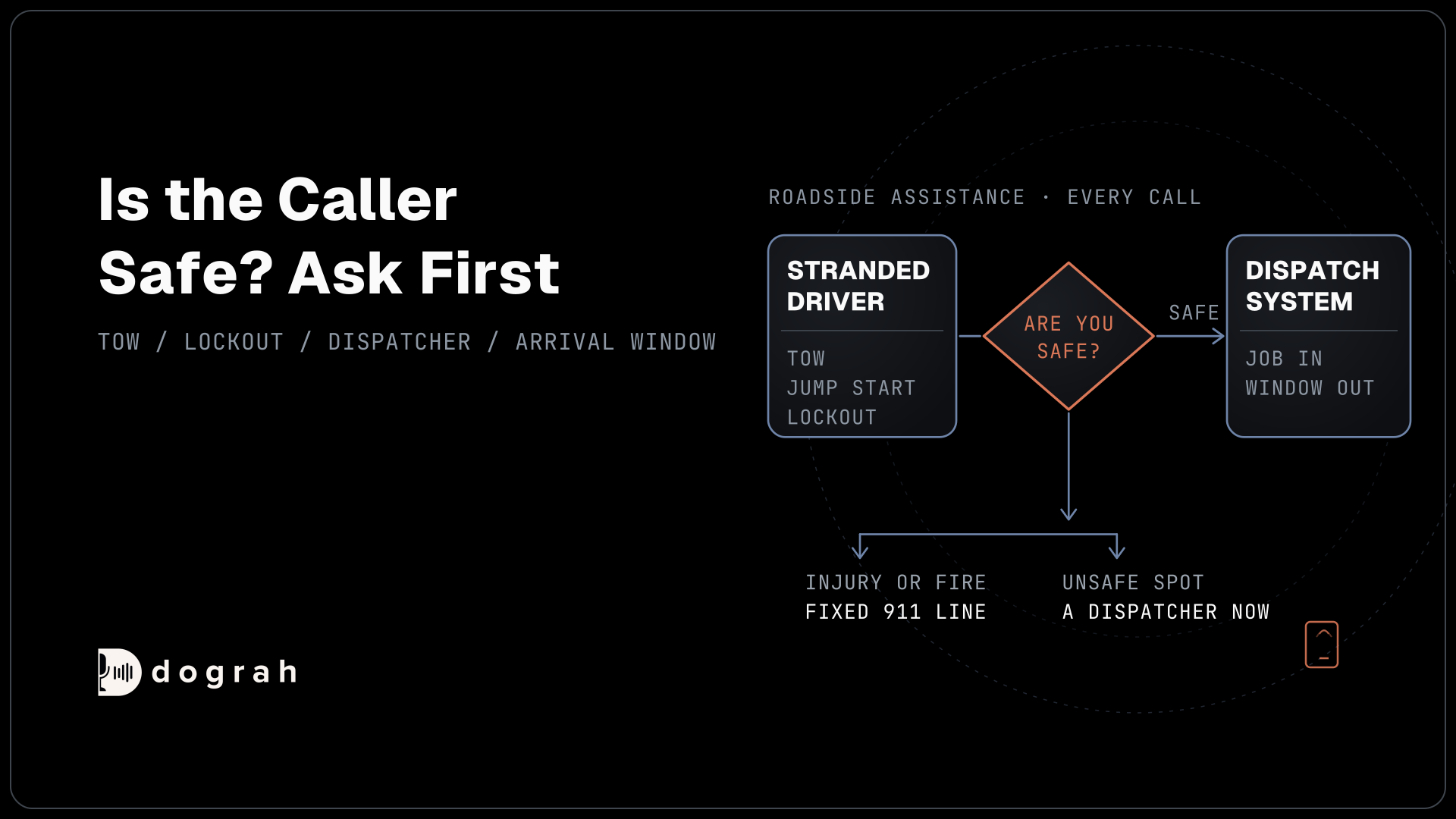
Then write down two more things. First, the system that holds the answers, such as your CRM or booking system. Second, the point where a person takes over, such as an upset caller or a question the agent cannot answer from your data. Every later step connects to one of these notes.
Pick the models that do the listening and talking
Dograh is the orchestration layer that runs the call flow, tools and telephony, and the speech and language models are a separate layer you choose. You could build the call pipeline yourself from a framework, but then you also build turn-taking, phone connections, tool calls and call records. The orchestration layer already runs those parts, so your time goes into the call itself.
You can fill the model layer in three ways, and the model providers page covers each. Dograh's own models are set up when you sign up, so a first agent needs no API keys. You can bring your own keys for any provider you already pay. Or you can run open-weight models on your own servers. Only that last option keeps the audio fully in-house, because with your own keys the audio still reaches the provider. Our guide on how to build a voice agent on fully local open-source models walks through that stack.
Next, choose between two shapes. A cascade runs speech-to-text, a language model and text-to-speech in turn, and it handles reasoning and tool calls well, with room for a cloned voice. A speech-to-speech model hears and speaks in one step, and it can stumble on calls that need many tool calls. For most business calls, start with a cascade.
Keep latency in mind as you choose. End-to-end replies under about 800 ms feel natural, and in our experience speech-to-text is usually the slowest part of the chain, slower than the language model.
Self-hosted Dograh has no per-minute platform fee (servers, model keys and phone minutes still cost); Dograh Cloud has a 1¢-a-minute platform fee. Dograh's managed models cost about $0.07 a minute for most models, billed apart from that platform fee.
Create the agent and hear it in your browser
The fastest way to a first agent is to describe it and let Dograh draft the flow. In Voice Agents, click Create Agent and choose Use Agent Builder. Pick the Call Type, "Inbound (Users call AI)" or "Outbound (AI calls users)", then fill in Use Case and Activity Description and click Create Agent.
Dograh sends your description to a language model, which drafts a workflow with a Start Call node, one or more Agent Nodes and an End Call node. Click Open and Test Agent, then Test Agent in the editor, choose Test Audio and click Run Test. On Dograh Cloud this takes under 2 minutes from sign-in to your first browser test call. Sign-up and phone setup are not part of that time.
For every click explained, follow Build Your First Voice Agent in Under 2 Minutes. If your call matches one we have already built end to end, start from that build instead:
- How to Build an AI Receptionist
- How to Build a Voice Agent for Logistics
- How to Build a Voice Agent for Healthcare
- How to Build a Voice Agent for Hotels
- How to Build a Voice Agent for Restaurants
- How to Build a Voice Agent for Automotive Dealerships
- How to Build a Voice Agent for Real Estate
- How to Build a Voice Agent for E-commerce
- How to Build a Voice Agent for Law Firms
- How to Build a Voice Agent for Insurance
- How to Build a Voice Agent for Banking
- How to Build a Voice Agent for Veterinary Clinics

Open Source Alternative to Vapi / Retell
Self-hosted voice agent platform — no per-minute fees
dograh-hq/dograh
Star on GitHub
Design the call flow one node at a time
The drafted flow is a starting point, and the real work is shaping each node around the call you planned. Open the Start Call node first. Its Greeting Text is optional fixed text, spoken word for word. If you leave it empty, the language model writes the opening line itself.
Name the business in the greeting, and say how to reach a person. If you want to tell callers they're speaking with an automated assistant, or your location requires it by law, write it in the Greeting Text along with the business's name. A greeting can use variables, but give each one a fallback, such as {{customer_name | there}}, or a missing value is spoken as empty text.
Put the rules every step shares in the Global Node, such as tone, one question at a time and when to offer a person. Its prompt is added to every node that has Add Global Prompt switched on. Then give each Agent Node one task. The model chooses a pathway by reading the condition you wrote on it, so write conditions plainly and test each one with different phrasings.
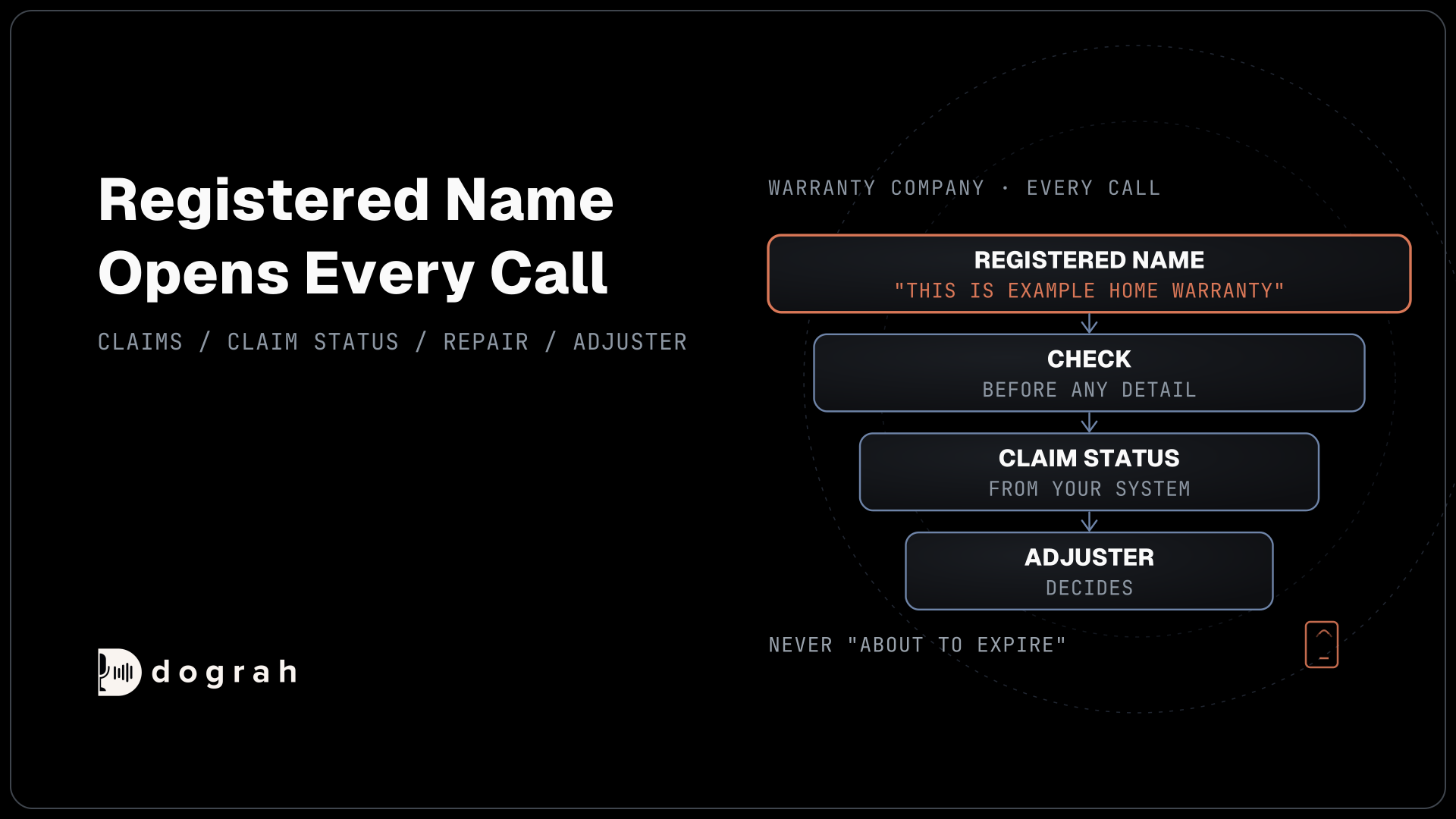
Every call that touches personal details runs greet, verify, then disclose. A phone number finds a record, but it does not prove who is calling, so the agent confirms identity with an approved check before it shares anything private.
One lesson from our own builds is that a prompt cannot guarantee wording. The model avoids a banned phrase and then says the banned meaning in other words. Exact wording holds only where Dograh plays fixed text or a recording, such as the Greeting Text or a pathway's Transition Speech.
Give the agent the caller's data before it speaks
An agent that already knows who is calling skips the questions your system can answer. Dograh brings that data in three ways. A campaign's CSV turns every extra column into a variable for that call. An API Trigger lets your own system start a call and pass details with it. Pre-Call Data Fetch asks your system about the caller once the call connects.
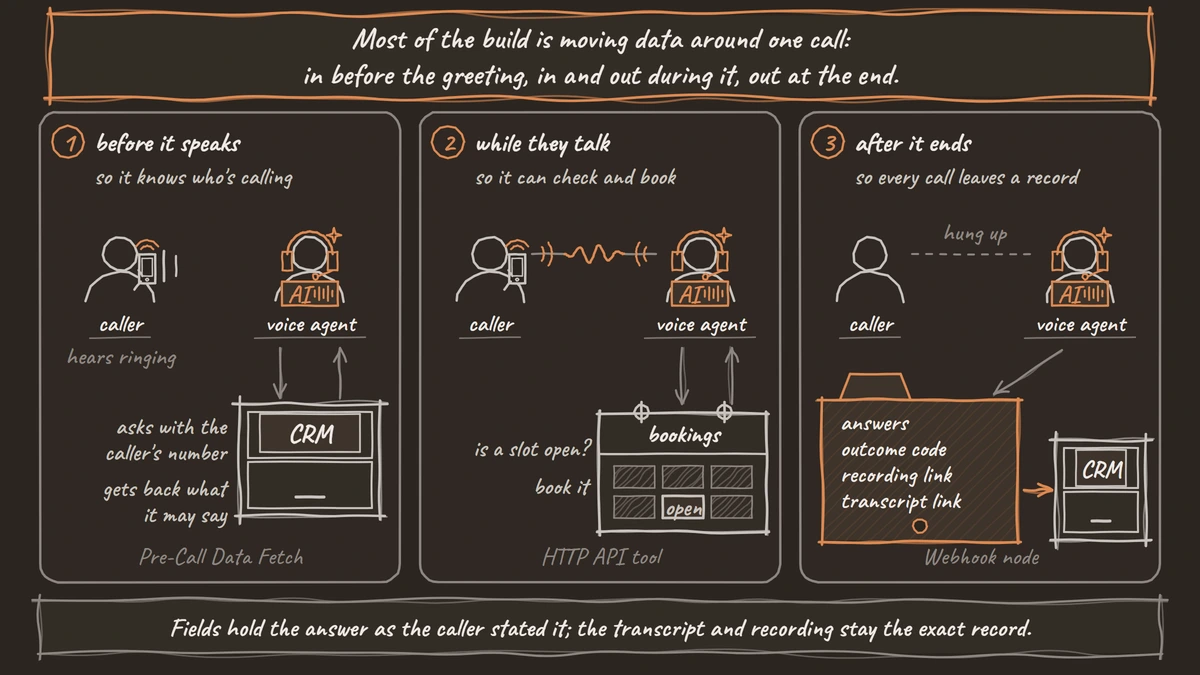
Pre-Call Data Fetch sits at the bottom of the Start Call node. Set it to Always, Inbound calls only or Outbound calls only, then add your Endpoint URL. The request carries the caller's and the called number, and the greeting waits for the reply, so the caller hears ringing until it returns. Keep that lookup fast.
Treat what comes back as a lookup that does not prove who is calling. Return only what the agent may say before the verify step, and keep account details behind it. The full setup, with the request, the reply shapes and the 10-second timeout, is in Pre-Call Data Fetch: Personalizing Calls With CRM Context.
Join the Dograh Community
Dograh is an OSS alternative to Vapi. Join our Slack community for queries, releases, best practices & community interactions.
Let it answer from your own documents
Answers about prices and policies should come from your own documents. Open Files in the sidebar and click Upload Document. Dograh's Knowledge Base takes PDF, Word (DOC or DOCX), TXT, Markdown and JSON files, up to 5 MB each.
Each file gets a mode. Full Document gives the agent the whole file on every lookup, which suits a one-page FAQ or a price list and needs no embedding key. Chunked Search splits a long file into small pieces and returns the three closest matches, and it needs an embedding model key. Then select the file under Knowledge Base Documents on each node that should answer from it.
Lookup is a tool the model chooses to call, so the prompt must say when to use it. It must also tell the agent to say so and offer a person when the answer is not in the file. Models add things even with the source in hand. On Vectara's hallucination leaderboard, as measured on 22 October 2026, gpt-5.4 (2026-03-05) added unsupported content to 7.0% of document summaries, and Llama-3.3-70B-Instruct-Turbo to 4.1%. Knowledge-Base Grounding: How a Voice Agent Answers From Files shows how to set up both rules and test them.
Connect the tools it uses during the call
Tools let the agent read and change things in your systems while the caller is still talking. The HTTP API tool sends a request to any endpoint, for example to check a slot or book it. It times out after 5 seconds by default and does not retry, so the error goes back to the agent, and the prompt should say what the agent tells the caller then. For lookups that take a moment, set a short Custom Message in the tool's settings so the caller hears something.
MCP tools connect the agent to an MCP server in the same way. Dograh has no built-in CRM or calendar integrations, so systems such as Salesforce or Google Calendar connect through these tools, the Webhook node, Pre-Call Data Fetch or the API Trigger. Integrating Voice Agents With Your Stack covers each route.
Transfer Call hands the caller to a person. It works on Twilio, Telnyx, Plivo, Cloudonix and Asterisk ARI, and not on Exotel, Vobiz or Vonage. Dograh calls the destination first and connects the caller only when someone answers. On Twilio, it can play a short spoken introduction to both people before connecting them. No summary travels with the call by default, so have an HTTP API tool write the details to your system first.
Record what happened on every call
A call that leaves no record in your system did half its job. Turn on Enable Variable Extraction on the node where an answer comes up, then list each field under Variables to Extract with a Variable Name, a Type (String, Number or Boolean) and an Extraction Hint. Extraction is an AI step, so the agent records the answer as the caller stated it, and the transcript and recording stay the exact record.
For the overall result, turn on "Extract call disposition at the end of the call" under Settings, then General. Dograh picks exactly one code per call from your own list, such as booked or callback_requested.
A Webhook node at the end of the flow sends the record to any address, with the extracted fields and links to the recording and transcript. It retries temporary failures automatically, up to 5 attempts. You can also fetch a call's results later through the run details API. How to Extract Structured Data From Calls Into Any CRM covers field design and the CRM side.
Test in the browser, then on a real phone
Test in two places, because a browser call and a phone call sound different to the agent. Test Audio and Test Chat run your draft, so you can change a node, save and call again with nothing to publish. Test Chat is quicker for checking many questions, and Test Audio is how the agent really sounds.
Then click Phone Call in the editor header and call a real phone. Most phone calls still reach the agent as 8 kHz audio, while a browser test runs at 16 kHz, the most Dograh's pipeline uses. Names and numbers that come through clearly in the browser can be misheard on a phone. Transfers only work on a phone line, so test every transfer there.
Run each part of the conversation several times. Language models give different answers to the same input. In a test by Thinking Machines, Qwen3-235B-A22B-Instruct-2507 gave 80 different completions to one prompt sampled 1,000 times at temperature 0. One good call proves little.
After launch, add a QA node. It scores each step of a call and tags problems, on editor test calls and on live calls. In production, we suggest running it on a random 5 to 10% of calls through its Sample Rate setting. Testing Voice Agents Before You Go Live gives the full test order.
Go live, then improve with a split test
Publishing turns your draft into the version real callers reach. Click Publish version in the editor. Phone numbers, campaigns and the website widget all run the published version, while your next edits stay in the draft until you publish again.
For inbound calls, open Telephony in the sidebar, edit a phone number and pick your agent under Inbound workflow. For outbound calls, create a campaign under Campaigns, upload a CSV with a phone_number column and set the calling hours, which run in one time zone per campaign. Retries default to 2, and the campaigns overview explains each setting. Self-hosted Dograh runs 10 concurrent calls by default, and Dograh Cloud's pay-as-you-go plan includes 10.
On a website, the agent sits behind a button. Open Settings, go to Add to Website and click Configure Widget. How to Add a Voice Widget to Your Website, Safely covers each setting, including Allowed Domains.
Once calls flow, improve the script with evidence. A campaign's "Agents & traffic split" sends a share of contacts to each published version and shows the outcomes side by side. It works for campaigns only, so inbound changes are tested one version after the other. How to A/B Test Voice Agent Scripts on Real Outbound Calls explains how many calls make a fair test.
Each step above has its own deep dive:
- Build Your First Voice Agent in Under 2 Minutes
- Inbound vs Outbound Voice Agents: How to Set Up Each One
- Pre-Call Data Fetch: Personalizing Calls With CRM Context
- Knowledge-Base Grounding: How a Voice Agent Answers From Files
- How to Extract Structured Data From Calls Into Any CRM
- How to Add a Voice Widget to Your Website, Safely
- How to A/B Test Voice Agent Scripts on Real Outbound Calls
Glossary
- Orchestration layer
- The software that runs everything around the models on a call: the flow, turn-taking, tool calls, telephony and call records. Dograh is this layer, and the speech and language models are a separate choice.
- Cascade
- A voice agent setup where speech-to-text, a language model and text-to-speech run one after another. It handles reasoning and tool calls well, which is why most business agents start with one.
- Chunked Search
- A Knowledge Base mode that splits a long file into small pieces and returns the three closest matches to the agent's question. It needs an embedding model key, unlike Full Document mode.
- Call disposition
- One outcome code per call, such as booked or callback_requested, picked by Dograh from a list you write. It turns a conversation into a value your CRM and reports can count.