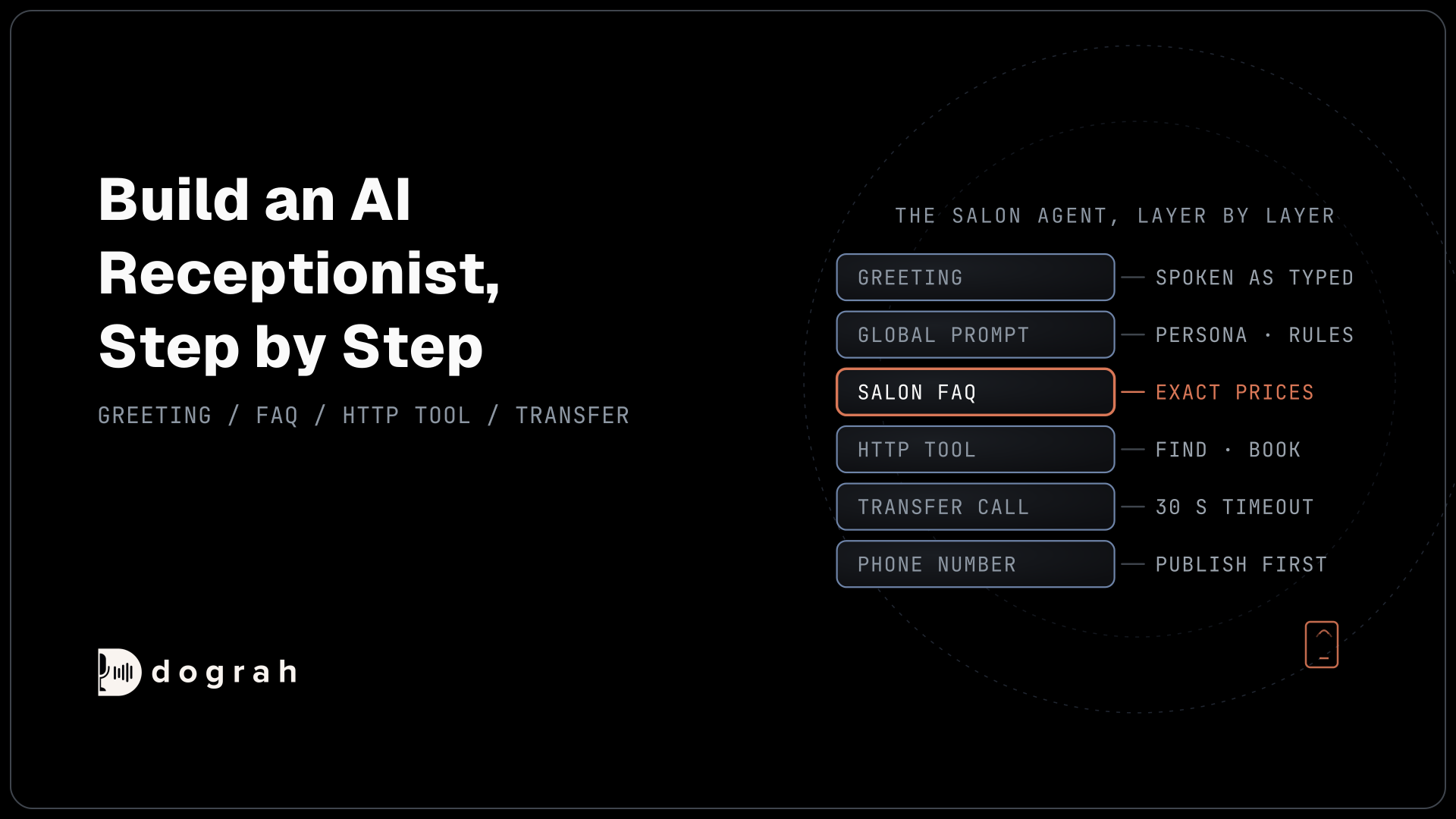

To build an AI receptionist in Dograh, create an inbound agent, write a greeting, set the persona in the Global Prompt, and attach an FAQ document with exact prices. Add an HTTP tool for booking and a Transfer Call tool for staff. Test it in a web call, connect a phone number, then test the transfer on a real call.
Key Takeaways
- Put exact prices in the FAQ file so the agent never has to guess one.
- Browser web calls cannot transfer a caller to a phone number.
- Decide what happens when nobody answers a transfer before you go live.
This post is part of our guide to AI receptionists. The guide explains what an AI receptionist does. This post builds one for a hair salon, step by step, in Dograh, the open-source, self-hostable voice agent platform we make.
What you need before you start
Decide whether to build at all, then gather the salon's details so each step has real information to work with.
If you'd rather buy than build, see our comparison of AI receptionist software.
Our example is Maple Street Salon, with four stylists. Most calls are bookings or questions about prices and opening hours. The rest are people asking for their own stylist by name.
You need a Dograh account at app.dograh.com, or Dograh self-hosted from its GitHub repository.
Write the salon's prices and opening hours into one document. Step 5 needs a paid Calendly plan. Steps 8 and 9 need a phone number from a provider that supports transfers: Twilio, Telnyx, Plivo, Cloudonix or Asterisk ARI.
Before you start the steps, watch this 2-minute video to see how a voice agent is built and tested from start to finish.
Step 1: Create an inbound agent
Create the agent in the dashboard and let Dograh draft a first call flow for you.
Start a new voice agent, pick Inbound, give it a name and describe the use case in a few words, such as "Receptionist for a hair salon: bookings, prices, hours and transfers". Dograh sends that description to a language model, which drafts a starting workflow.
For a salon, one Agent node that answers questions, books and hands over to a person is enough to start. Split it later if its prompt grows long.
Check: the canvas shows a Start Call node, at least one Agent node and an End Call node, joined by pathways.
Step 2: Write the greeting in the Start Call node
Open the Start Call node and write the first thing every caller hears.
The Greeting Text is spoken exactly as you type it, which makes it one of the few places where you control the wording. Everywhere else, the AI writes its own sentences from your prompt. Keep it to one or two sentences that name the salon and say what the caller can ask for, including a person.
For Maple Street Salon, we used: "Thanks for calling Maple Street Salon. I can book an appointment or answer questions about the salon, and I can put you through to the team if you'd rather talk to someone." Text-to-speech reads it by default, or you can use a recording of a real person, as our post on mixing pre-recorded audio with TTS explains.
Fill in the node's Prompt too, which tells the agent what to do after the greeting.
Watch: how the Start Call node works
Check: the Greeting Text field holds your one or two sentences, and the node's Prompt field is filled in.
Step 3: Set the persona and rules in the Global Prompt
Write the receptionist's tone and house rules once, in the Global Prompt, so every node follows them.
Open the Global Node. Dograh adds its prompt to every node that has Add Global Prompt switched on. Below is the salon's version. The parts that matter most are the price rule, which limits prices to the FAQ document, and the handover rule, which says when to offer a person:
You are the receptionist for Maple Street Salon, a hair salon with four stylists.
Speak in short, friendly sentences. Ask one question at a time.

Prices and opening hours: answer only from the salon FAQ document.
If a service or price is not in it, say you will check with the team
and offer to take a message. Never guess a price.

Bookings: check available times before you offer one.
Read the service, day and time back to the caller before you book.

Offer to put the caller through to the team when they ask for a person
or for a stylist by name, or after two failed attempts at the same question.
What this does: Every node now follows the same two rules. Prices come only from the FAQ document, and a caller who asks for a stylist or gets stuck twice is offered a person.
Prompts guide what the AI says. Fixed lines, such as the greeting, play word for word.
Watch: how the Global node works
Check: Add Global Prompt is switched on in every node that talks to the caller.

Open Source Alternative to Vapi / Retell
Self-hosted voice agent platform — no per-minute fees
dograh-hq/dograh
Star on GitHub
Step 4: Upload the salon FAQ to the knowledge base
Put the salon's facts in one short document and attach it to every node that answers questions.
Write exact figures. A vague line like "colour from around $80" leaves a gap the agent may fill with a number of its own. Here is part of our file. Note the price and length on every service line, and the If not listed line at the end:
Maple Street Salon: FAQ and price list
Opening hours: Tue-Fri 9:00-19:00, Sat 9:00-17:00. Closed Sunday and Monday.
Women's cut and blow-dry: $65, 60 minutes.
Men's cut: $35, 30 minutes.
Full colour with cut: $140, 2 hours 30 minutes.
Cancellations: at least 24 hours' notice, or a $20 fee.
If not listed: say you will check with the team and offer to take a message.
What this does: Every price and length the agent can quote is written down, so a caller asking about a full colour hears $140 and 2 hours 30 minutes. The last line gives the agent a safe answer for anything the file doesn't cover.
In the sidebar, open Files (the Knowledge Base Files page) and click Upload Document. Dograh accepts PDF, DOC or DOCX, TXT and JSON files up to 5 MB. Pick a retrieval mode, process the file and wait until its status shows Completed.
Choose Full Document mode, which suits a one-page FAQ and needs no embedding key.
Then tick the file in the Knowledge Base Documents section of both the Start Call node and the Agent node. The agent only searches documents attached to the node it is in, so a file on the Agent node alone is out of reach during the opening. When prices change, upload the new file and attach it in place of the old one.
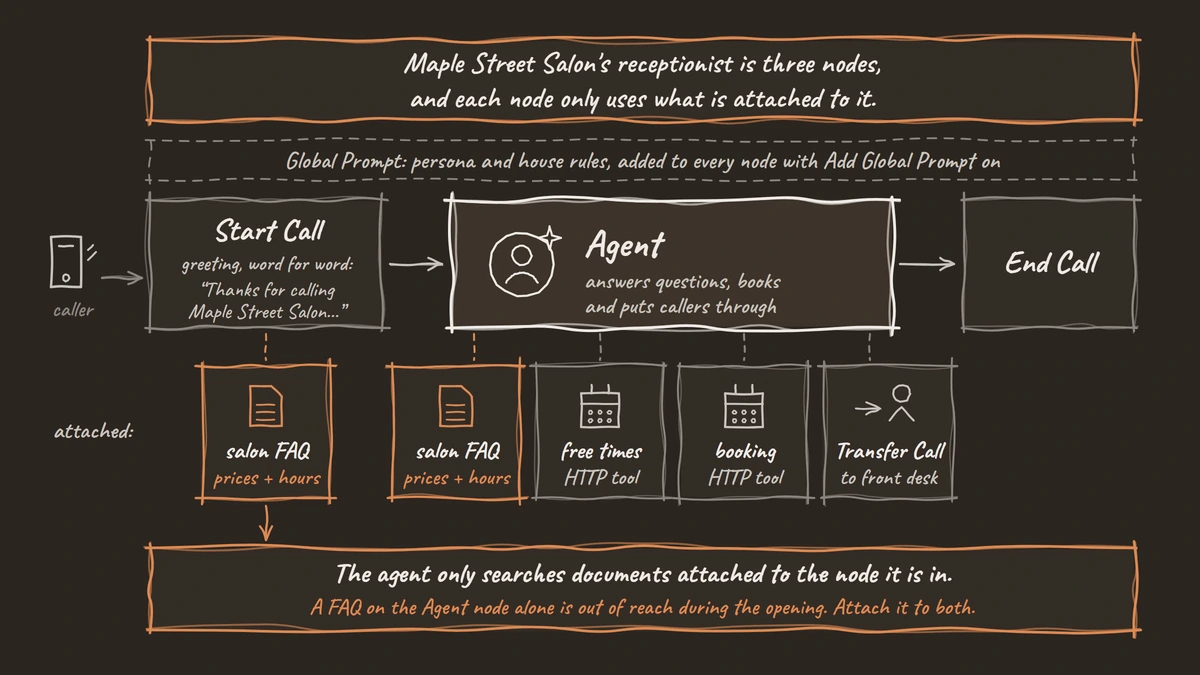
Check: the file has finished processing, and both nodes show it as attached.
Step 5: Book appointments with an HTTP tool
Connect the salon's calendar through an HTTP API tool, because Dograh has no built-in calendar connector.
Our example uses Calendly. Calendly's booking API needs a paid plan. Create one Calendly event type per service, so a 30-minute men's cut and a two-and-a-half-hour colour each block the right amount of time.
Booking takes two tools: one finds free times for a service, the other creates the booking once the caller picks a time. Open Tools in the sidebar, create a new tool and choose External HTTP API. Give it a name and a description, then add the Calendly endpoint, your Calendly token in the headers and the details the agent must collect from the caller.
The agent picks a tool from its name, its description and the node's prompt, so write each description as an instruction, even though the app marks it optional: "Use after the caller has chosen a service and a day, to find free times." Then add both tools in the Agent node's Tools section. A tool only becomes available once it is attached to the node that needs it.
Plan for a failed booking. If someone took the slot a moment earlier, Calendly returns an error and the agent sees it. Add a prompt line telling it to apologise and offer the next free time. Our tutorial on booking meetings mid-call with Calendly walks through both requests in full.
Watch: adding API tools and a knowledge base
Check: both booking tools are attached to the Agent node, and each description says when to use it.
Step 6: Add a transfer to a person
Add the Transfer Call tool so the agent can put a caller through to the salon's front desk.
Open Tools in the sidebar, create a Transfer Call tool, set Destination Source to Static / Template with the front desk number, then add it in the Agent node's Tools section. Use international format for the number, such as +1415555XXXX. The front desk can then find the stylist. Write a pre-transfer message too, the line the agent says just before it dials, such as "I'll put you through to the front desk now."
Call transfer runs on Twilio, Telnyx, Plivo, Cloudonix and Asterisk ARI. Browser web calls cannot transfer a caller to a phone number, so Step 9 tests it by phone. The Call Transfer reference lists every setting.
On Twilio you can also switch on "Play a transfer introduction to both parties", which is off by default. Both sides then hear a spoken summary of up to 25 words, so the stylist knows who is calling and why. Without it, the person who answers joins with no summary.
Next, set the Transfer Timeout: 30 seconds by default, adjustable from 5 to 120. If nobody answers in time, the transfer fails and the caller comes back to the agent. You choose what happens then, in the Agent node's prompt. The agent can carry on and take a message, page someone or promise a callback. It can also end the call, or play a voicemail screening message that asks the caller to state their name. For a salon, a message with a callback promise is a sensible default.
Check: the Transfer Call tool is attached to the Agent node with the front desk number and your chosen timeout.
Step 7: Test the receptionist in a web call
Talk to the agent in your browser and run through the salon's common calls before a phone line is involved.
Click Test Agent in the editor and choose Test Audio. The transcript shows each node change and each tool call as it happens, so you can see when the agent moved on or called the calendar.
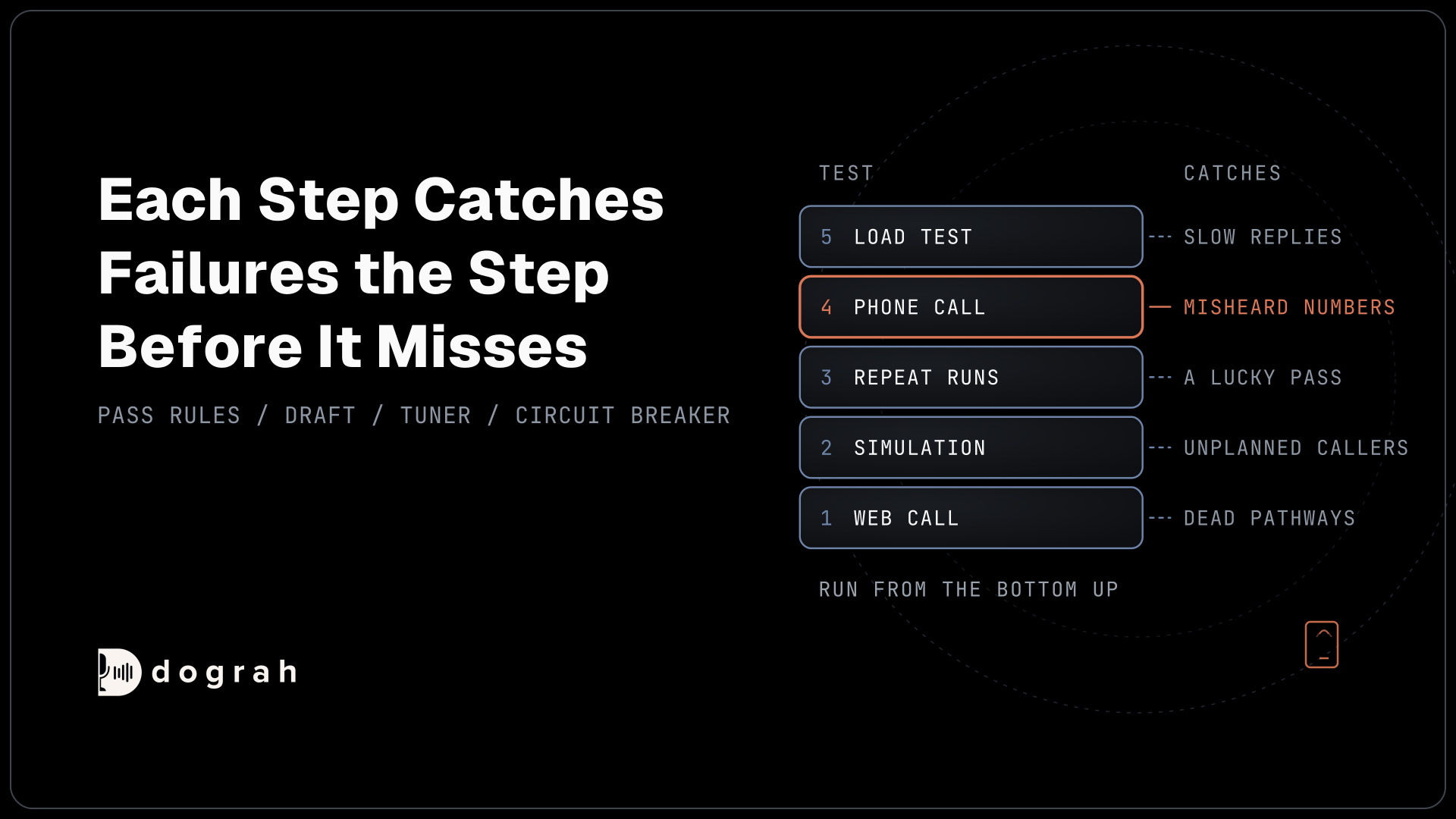
Run through the salon's common calls, using the checklist in 'Before you ship it'. The browser can't transfer a caller to a phone number, so only check that the agent offers to put you through at the right moment.
A web call runs at 16 kHz, the most Dograh's pipeline uses, while many phone lines carry 8 kHz audio. Names and numbers that come through clearly here can be misheard on a phone. Our guide to testing voice agents before you go live covers the full test order.
Check: every answer matches the FAQ file, and the test booking shows up in Calendly.
Join the Dograh Community
Dograh is an OSS alternative to Vapi. Join our Slack community for queries, releases, best practices & community interactions.
Step 8: Connect a phone number
Point a real phone number at the agent so callers can reach it.
Publish the agent first. Inbound calls always run the published version, so changes in a draft do nothing on the phone line until you publish. Then open Telephony in the sidebar and click Add configuration. For Twilio, that means your Account SID and Auth Token. Then click Add phone number and pick this agent under Inbound workflow.
Last, set your provider's incoming-call webhook to https://api.dograh.com/api/v1/telephony/inbound/run on Dograh Cloud, or the same path on your own domain if you self-host. The configuration page shows it as Inbound webhook URL, ready to copy. Dograh takes inbound calls from many providers, and the inbound calling guide covers each one. For transfers, stay with a provider that supports them.
Check: calling the number from your mobile plays the salon greeting.
Step 9: Test the transfer over a real phone call
Call the salon number from another phone and test the transfer, both when someone answers and when nobody does.
Ask for your stylist and have a colleague pick up the front desk phone. The pre-transfer message should play and the call should connect. If you use Twilio with the introduction switched on, your colleague should also hear who is calling.
Then test a failed transfer. Call again and leave the front desk phone ringing until the timeout passes. The caller should come back to the agent and get whatever you chose in Step 6, such as a message and a callback promise. This is the call a customer remembers, so get it right before launch.
Check: an answered transfer connects to the front desk, and an unanswered one comes back to the agent.
Before you ship it
Run the salon's real calls through the agent one last time, then watch it closely for the first few weeks.
| Test call | What should happen |
|---|---|
| Opening hours on a closed day | Says the salon is closed and gives the next opening time |
| Price of a listed service | Quotes the exact price from the FAQ file |
| A service that isn't listed | Offers to take a message, with no invented price |
| Book a service | Checks free times, reads the booking back, then books it |
| Slot taken during booking | Apologises and offers the next free time |
| "Can I speak to my stylist?" | Plays the pre-transfer message, then rings the front desk |
| Nobody answers the transfer | Caller returns to the agent after the timeout and leaves a message |
| Book by phone and read out your number | The booking shows in Calendly with the right number |
Once it is live, read a handful of transcripts every week, and upload a new FAQ file on the day prices change. Every change to the flow is a new draft, so test it and publish again. If you only have an hour today, build Steps 1 to 4 and make one web call. You will learn more from that call than from planning the rest.
Glossary
- Global Prompt
- Instructions Dograh adds to every node that has Add Global Prompt switched on. A receptionist's tone and house rules go here, so they hold in every part of the call.
- Full Document mode
- A knowledge base setting that gives the agent the whole file each time it looks something up. It needs no embedding key and suits short files such as a salon price list.
- Pre-transfer message
- The line the agent speaks just before it dials the transfer destination, so the caller knows they are being put through.
- Transfer Timeout
- How long Dograh waits for the transfer destination to answer: 30 seconds by default, adjustable from 5 to 120. When it runs out, the transfer fails and the caller comes back to the agent.