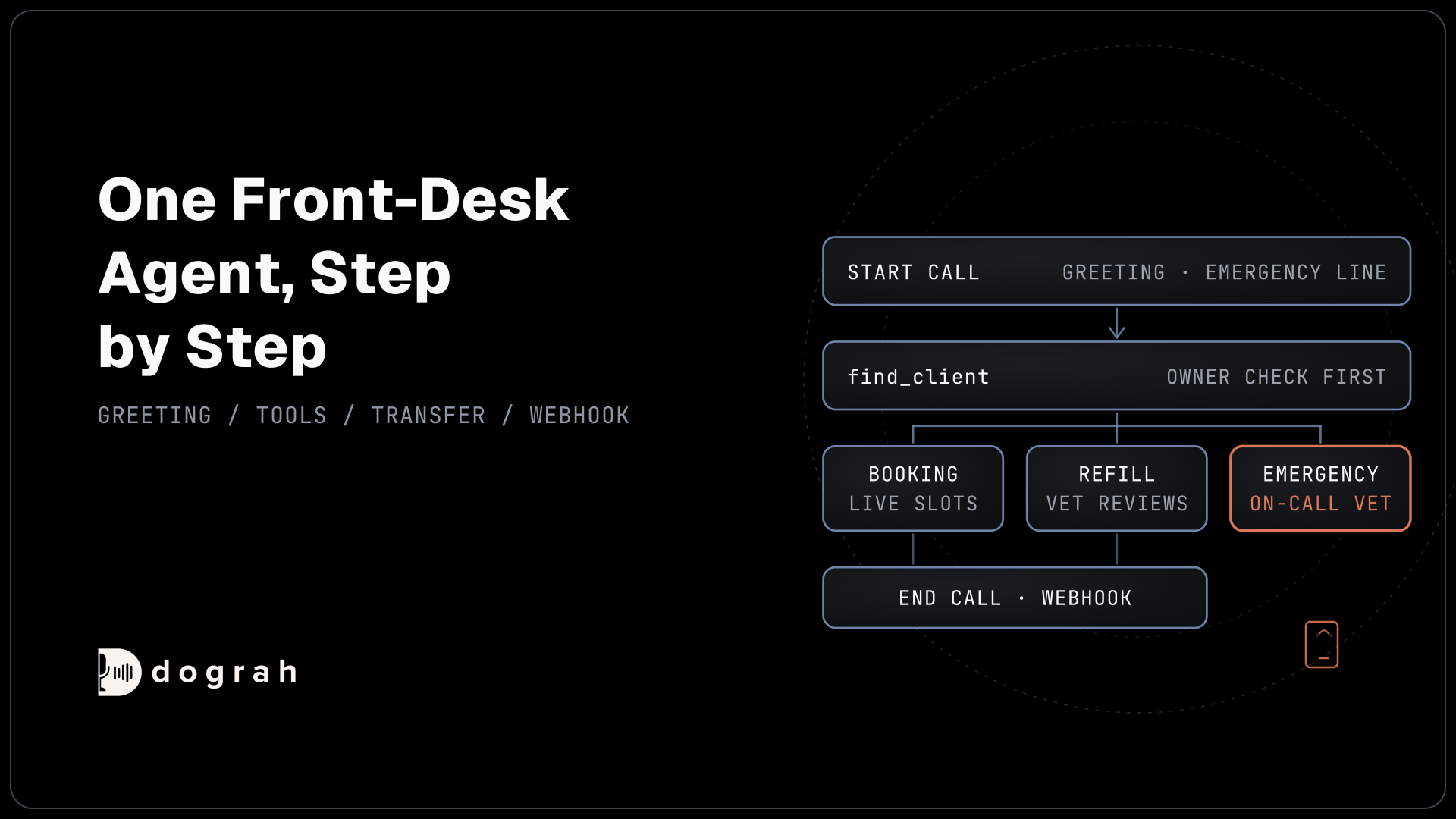

To build a voice agent for veterinary clinics in Dograh, create an inbound agent whose greeting plays the clinic's emergency line, and check the owner in your practice system. Add tools that book from live slots and log refill requests, an emergency pathway that transfers to the on-call vet, and a webhook. Test in the browser, then on a phone.
Key Takeaways
- The emergency vet line lives in the greeting and the pathway, both fixed text.
- A find_client tool checks the owner in your system before any pet is named.
- Test transfers on a real phone; browser calls cannot transfer.
This post is part of our guide to AI voice agents for veterinary clinics. The guide's section "Connecting your practice management software" points here for the build: one front-desk agent, step by step. This tutorial builds it in Dograh, an open-source, self-hostable voice agent platform.
What you need to build a vet clinic voice agent
You need Dograh, running as Dograh Cloud or on your own server, and a phone number connected to it. For the on-call transfer, the number must be on Twilio, Telnyx or Asterisk ARI. You also need endpoints on the clinic's side: web addresses your own system answers at, usually a small service in front of the practice management system (PMS) that holds its credentials. This build uses six (clinic details, owner check, open slots, booking, refill requests, callback requests) plus a resolver that returns the on-call vet's number.
What you'll build:
- An inbound agent that greets with the clinic's emergency line.
- An owner check that runs before any pet's records are named.
- Booking from live slots, and refill requests the vet reviews.
- An emergency pathway that transfers to the on-call vet.
- A webhook that writes every call's outcome to the PMS.
Self-hosted Dograh has no per-minute platform fee (servers, model keys and phone minutes still cost); Dograh Cloud has a 1¢-a-minute platform fee.
Step 1: Create the agent and write the greeting
Start with an empty agent and a greeting that tells every caller where to go in an emergency. In the sidebar, open Voice Agents, click Create Agent and choose Blank Canvas. The canvas opens with one Start Call node. Rename the agent in the header, for example "Riverside front desk".
Double-click the Start Call node to open Edit Start Call. Keep Greeting Type on Text (TTS) and replace the sample Greeting Text with your clinic's line, approved by your vets:
"Thank you for calling {{clinic_name | the clinic}}. If your pet is having an emergency, please call your nearest emergency vet now. Otherwise, I can book a visit or take a refill request."
Greeting Text is spoken word for word, so every caller hears the emergency line unchanged. Never tell an owner to call 911 about a pet. The fallback after the pipe is what callers hear if no clinic name was loaded.
Then add the shared rules. Click Add node, choose Global Node, and write in its Global Prompt: never diagnose, never give first aid or medicine advice, never confirm a refill, and never name a pet or its records before the owner check passes. New Agent nodes include the Global Prompt by default (Add Global Prompt is on). On a Blank Canvas the Start Call node starts with Add Global Prompt off, so open Start Call, turn it on and click Save.
Check: on a browser test call, you hear the greeting with "the clinic" in place of the name, and the emergency line word for word.
Step 2: Load the clinic's details at call start
Pre-Call Data Fetch loads the clinic's details as the call connects, so one agent can serve several clinic numbers. At the bottom of the Start Call node, set Pre-Call Data Fetch to Inbound calls only and enter your clinic-details endpoint as the Endpoint URL. Pick a saved credential under Authentication if your endpoint needs one.
Dograh sends a POST with the caller's number and the number they dialled, to_number. The caller hears ringing until your endpoint answers, and then the greeting plays. Your endpoint looks up the clinic by to_number and returns its details inside initial_context:
{
  "initial_context": {
    "clinic_name": "Riverside Vet Clinic",
    "clinic_id": "riverside",
    "clinic_hours": "Monday to Saturday, 8 am to 6 pm"
  }
}
What this does: It gives the agent the clinic's name for the greeting and its hours for questions, and
clinic_idtells later tools which calendar and rota to use. Prompts read these values directly, such as{{clinic_hours}}.
Browser test calls count as inbound by default, so the fetch runs on them too (a variable direction set to outbound would test the outbound path instead). A browser call has no dialled number, so open the Variables tab at the top of the editor, add the Key called_number with your clinic's number as the Value (for example +1415555XXXX), click Add Variable, then Save Variables. The fetch sends it as to_number.
Check: a browser test call now greets with "Riverside Vet Clinic".
Step 3: Check the owner before naming any pet
The owner check runs in your system, so the agent learns only whether to go on. In the sidebar, open Tools, click Create Tool, and in Create New Tool choose External HTTP API as the Tool Type, name it find_client and click Create Tool. On the tool page, set the HTTP Method to POST and the Endpoint URL to your owner-check endpoint. Every tool in this build except the transfer is an HTTP API tool created the same way.
On the Parameters tab, click Add Parameter three times and add owner_last_name, pet_name and postcode, each a String. Then add a Preset Parameter named clinic_id, type String, with the value {{initial_context.clinic_id}}. Click Save. Your endpoint matches all three answers against the client record and returns only this:
{
  "verified": true,
  "client_id": "C-1042",
  "pets": [
    { "animal_id": "A-881", "name": "Biscuit", "species": "dog" }
  ]
}
What this does: It tells the agent the owner passed, with the IDs it needs for booking. On a failed check your endpoint returns
{"verified": false}and nothing else, so the agent has no records to repeat.
Open the Start Call node, add find_client under Tools, and write the order into its Prompt: ask what the caller needs, then the owner's last name, the pet's name and the postcode on file, then call find_client. If the check fails, offer to take a message and say nothing about any pet.
Check: with a wrong postcode, the agent names no pet. With the right one, it uses Biscuit's name.
Step 4: Book visits from live slots
The booking node offers only times your calendar returns and writes one appointment per request. Click Add node, choose Agent Node, and name it "Booking". Drag a connection from the Start Call node to it, then double-click the new pathway to open Edit Condition. Set the Condition Label to "Booking" and the Condition to "the owner passed the check and wants to book a visit".
Create two tools. get_open_slots uses GET, with LLM Parameters animal_id, visit_type and preferred_date (all String) and the same clinic_id preset; on GET, Dograh sends these as query parameters. book_appointment uses POST, with LLM Parameters client_id, animal_id and slot_id and the same clinic_id preset. Add a Preset Parameter named workflow_run_id, type Number, value {{initial_context.workflow_run_id}}, with Required on. Your booking endpoint receives one flat JSON body:
{
  "workflow_run_id": 58214,
  "clinic_id": "riverside",
  "client_id": "C-1042",
  "animal_id": "A-881",
  "slot_id": "S-20931"
}
What this does: It books one slot for Biscuit and ties it to this call through
workflow_run_id. Your endpoint uses that ID and the slot to ignore a repeated request.
Behind your endpoint, ezyVet's booking guide shows the usual order: look up the appointment type and the resource, check /ezycab/availability, then create the booking at /v4/calendar/booking. Attach both tools to the Booking node. In its Prompt, tell the agent to offer only returned slots, read the choice back, call book_appointment, and call it booked only when the response holds an appointment ID. For a second pet, it repeats the steps.
Check: one test booking creates one appointment, and sending the same body twice still leaves one.

Open Source Alternative to Vapi / Retell
Self-hosted voice agent platform — no per-minute fees
dograh-hq/dograh
Star on GitHub
Step 5: Take refill requests with a fixed closing line
The refill node writes the request for the vet and ends with words that can never sound like an approval. Add an Agent Node named "Refill request" with a pathway from the Start Call node: Condition Label "Refill", Condition "the owner passed the check and asks for a medication refill".
Create log_refill_request (POST) with LLM Parameters client_id, animal_id, medicine, strength, pickup_choice and health_change (String: anything new about the pet's health, as the owner said it), plus the workflow_run_id preset. Attach it to the node. Only the vet decides, because the federal definition of a veterinarian-client-patient relationship requires that the vet "has recently seen and is personally acquainted with the keeping and care of the animal(s)".
Add an End Call node. Draw a pathway from Refill request to End Call with the Condition Label "Done" and the Condition "the refill request was logged", and put the closing line in Transition Speech: "The vet will review this request, and the clinic will contact you." Dograh plays it as written. Draw a second pathway from Booking to End Call, Condition Label "Done", Condition "the booking is confirmed and the owner needs nothing else". AI voice agents for vet prescription refill requests covers what the request should hold.
Check: a test refill call ends with that exact sentence, and the request appears in your system with the medicine as you said it.
Step 6: Add the emergency pathway and on-call transfer
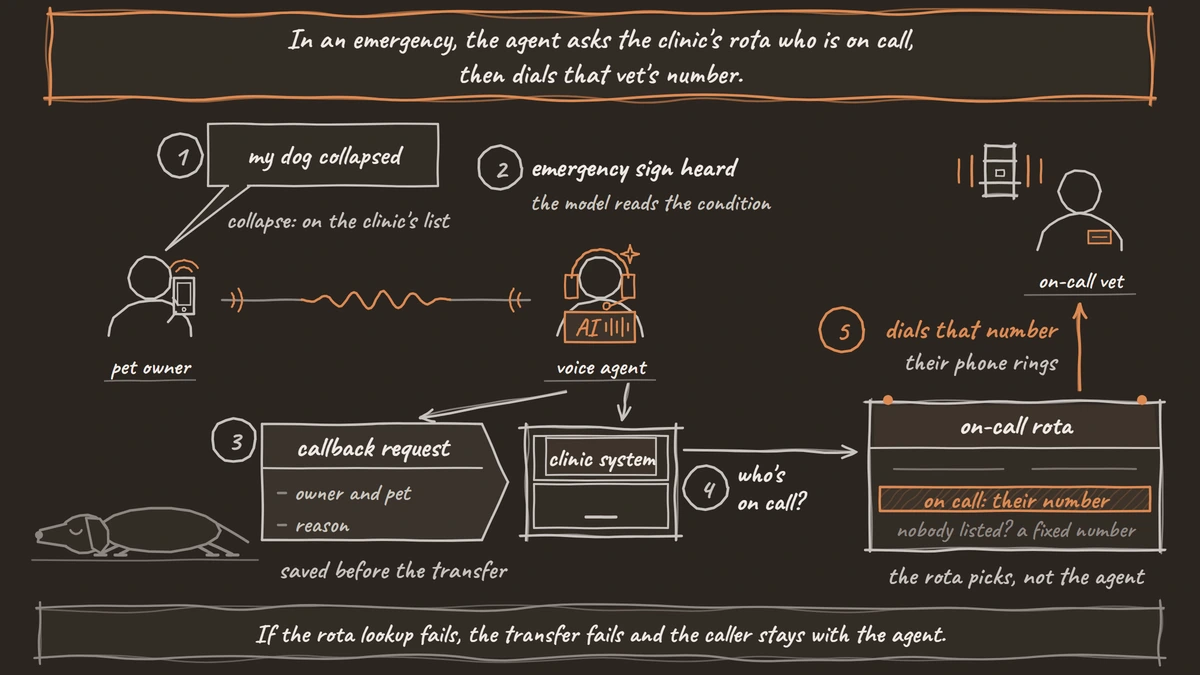
The emergency path repeats the fixed line and tries the on-call vet. Add an Agent Node named "Emergency". Draw a pathway to it from Start Call, Booking and Refill request. On each, set the Condition Label to "Emergency", list your clinic's emergency signs in the Condition, such as collapse, trouble breathing, heavy bleeding or a suspected poisoning, and write this Transition Speech: "If your pet is having an emergency, please call your nearest emergency vet now. I'm also trying our on-call vet." Moving along this pathway is still the model reading the condition, which is why the greeting already said the line. Keep this agent on separate speech and language models, because on speech-to-speech models text Transition Speech is skipped and a text greeting is reworded.
In Tools, click Create Tool and choose Transfer Call as the Tool Type. Transfer Call works on Twilio, Telnyx and Asterisk ARI. It passes no summary by default; on Twilio it can play a short spoken introduction to both people. Write the details to your system with an HTTP API tool before the transfer. Create log_callback_request (POST) with LLM Parameters owner_name, pet_name and reason (all String), plus the clinic_id preset and a Preset Parameter caller_number with {{initial_context.caller_number}}.
Under Destination Source, choose Dynamic HTTP Resolver. The Transfer Call tool's Dynamic HTTP Resolver asks the clinic's system who is on call and dials that number. Have the system always return a number, falling back to a fixed one when no one is on the rota. Set the Resolver URL, keep Resolver Timeout at its 3000 ms default (5000 at most), and add a Preset Parameter clinic_id with {{initial_context.clinic_id}}. Your resolver returns:
{
  "transfer_context": {
    "destination": "+1415555XXXX"
  }
}
What this does: It hands Dograh the on-call vet's number for this clinic at the moment of transfer. If your resolver fails, times out or returns no
destination, the transfer fails and the caller stays with the agent.
Leave Transfer Timeout at 30 seconds. Attach the transfer tool and log_callback_request to the Emergency node, and tell the agent in its Prompt to log the reason first, then transfer. If nobody answers, the caller stays with the agent; tell it in the prompt to offer a callback. Tell it also to repeat the emergency line and say the clinic has the owner's number. AI voice agents for after-hours vet triage calls covers the poison lines and what else to say.
Check: on a phone test, say "my dog collapsed". You hear the line, your on-call phone rings, and the callback request is already in your system.
Join the Dograh Community
Dograh is an OSS alternative to Vapi. Join our Slack community for queries, releases, best practices & community interactions.
Step 7: Send each call's outcome to your system
A webhook writes every call to the PMS, booked or not. Open the End Call node, turn on Enable Variable Extraction and, under Variables to Extract, add call_reason (String, Extraction Hint: "booking, refill, emergency or other") and outcome (String, Extraction Hint: "what was booked or logged, as stated"). Then click Add node and choose Webhook. Set the HTTP Method to POST, the Endpoint URL to your PMS endpoint, and this Payload Template:
{
  "call_id": "{{workflow_run_id}}",
  "clinic_id": "{{initial_context.clinic_id}}",
  "call_reason": "{{gathered_context.call_reason}}",
  "outcome": "{{gathered_context.outcome}}",
  "transcript_url": "{{transcript_url}}"
}
What this does: After each call, Dograh fills the braces with that call's values and posts one record per call, so staff see the reason and the transcript link in the PMS.
The Webhook node retries a temporary failure automatically, up to 5 times. Extraction runs only on calls that reach End Call, so a transferred call sends its record with those two fields empty.
Check: one finished test call adds one record with a working transcript link.
Step 8: Test in the browser, then on a real phone
Click Save, then Test Agent. Use Test Chat to walk the prompts quickly, and Test Audio to hear the greeting and the Transition Speech lines. Try a wrong postcode, a booking, a refill and an emergency.
Browser calls cannot transfer, so the on-call path needs a phone. Click Publish, then Publish version: live calls run the published version, while test calls use your draft. In the sidebar, open Telephony, open your configuration, edit your clinic's number under Phone numbers, set its Inbound workflow to this agent and click Save changes. On Twilio, Telnyx and Vonage numbers, saving also sets the carrier webhook; check it once in the carrier's console. Then call the number from a mobile.
Phone calls usually reach the agent as 8 kHz audio, while a browser test runs at 16 kHz, so pet names and postcodes that worked in the browser can mishear on the phone. Add hard words to the Dictionary in the agent's Settings. Testing Voice Agents Before You Go Live sets out the full order.
Check: a call from your mobile greets with the clinic's name from Pre-Call Data Fetch, and an emergency call rings the on-call phone.
Before you ship it
Check the build once more. The greeting and both fixed lines play word for word. A failed owner check names no pet. Every booking comes from a returned slot and lands once. Refill calls end with the review line, never an approval. The resolver always returns a number, and a missed transfer leaves a callback request. Every call sends a webhook record.
Then decide where the call audio goes. Dograh is the orchestration layer: it runs the call flow, tools and telephony, and the speech and language models are a separate layer you choose. The call audio stays in-house only when the speech and language models run on your own servers too. Dograh starts every account on its own managed models. To keep call audio away from Dograh, open Models, switch the Organization default to BYOK with your own speech and language providers (or local models), and check that no agent has its own model override. In the app: open Models, click Add Configuration, choose BYOK, save, then click Make org default on that row.
Once live, read every emergency call's transcript and a random sample of the rest. For the same skeleton built for human patients, see How to Build a Voice Agent for Healthcare.
Glossary
- Pre-Call Data Fetch
- A Start Call setting that POSTs the caller's and the dialled number to your endpoint as the call connects, and merges what comes back into the call's initial_context. Here it loads the clinic's name, ID and hours.
- Preset Parameter
- A value Dograh adds to a tool request itself, from a fixed value or a template such as {{initial_context.workflow_run_id}}. The language model never sees or types it, so IDs stay exact.
- Dynamic HTTP Resolver
- A Transfer Call setting that asks your own system, at the moment of transfer, which number to dial. The response must hold transfer_context.destination, or the transfer fails and the caller stays with the agent.
- Transition Speech
- Fixed text or a recorded clip that Dograh plays word for word when a call moves along a pathway. In this build it carries the emergency vet line and the refill closing line.