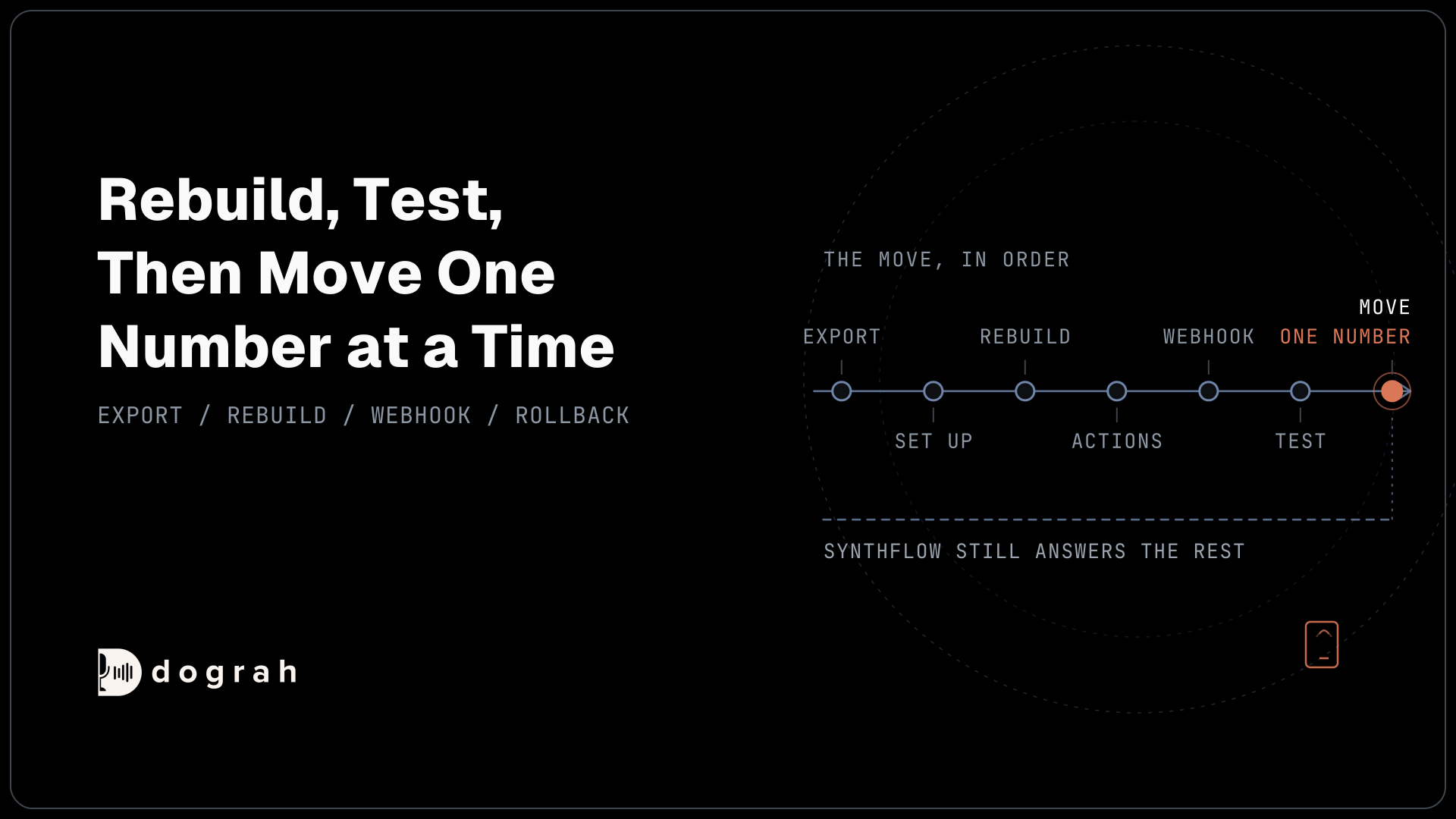
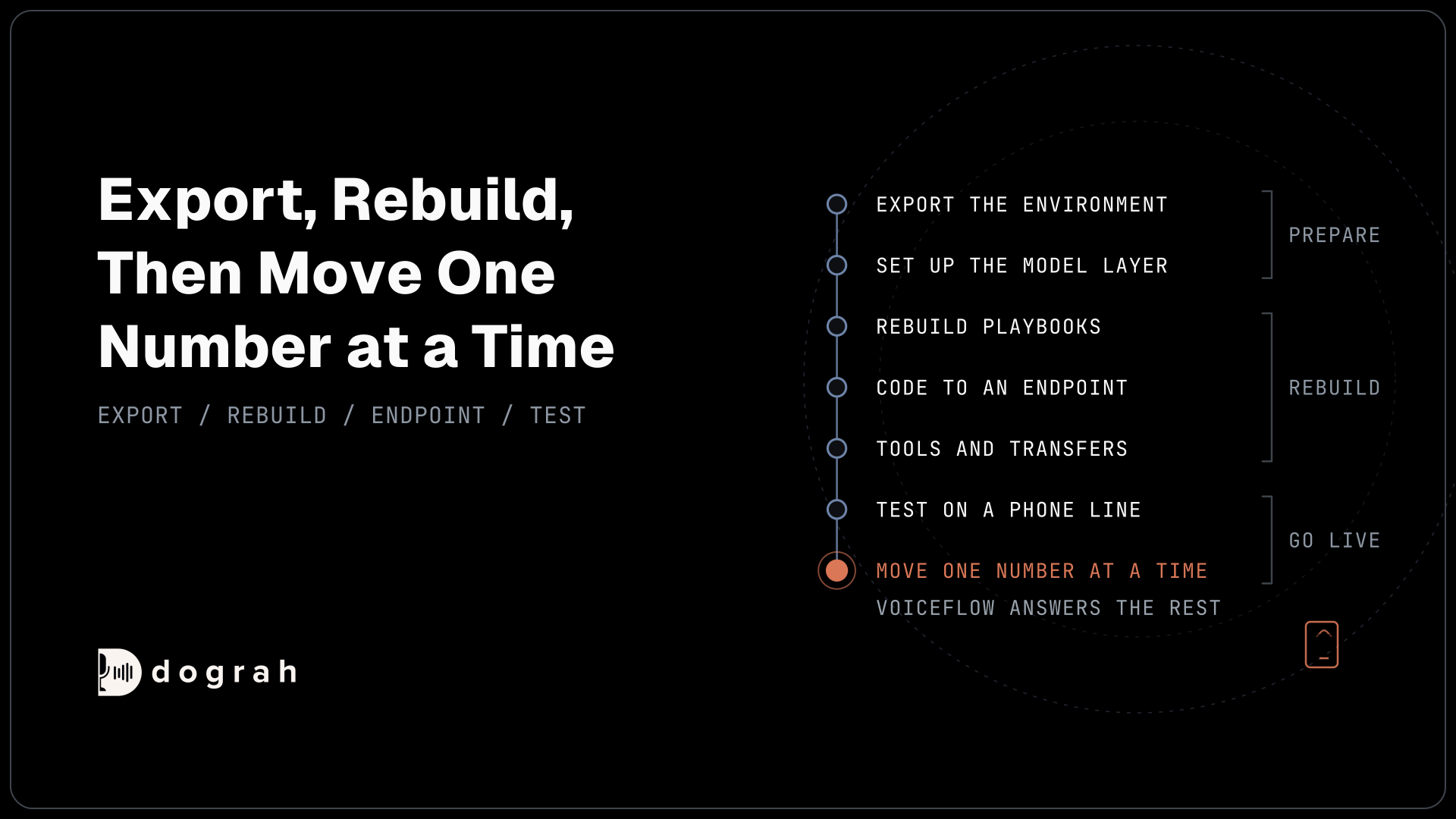

To migrate from Voiceflow to open-source voice AI, export each environment through Voiceflow's API, then rebuild the agent in Dograh, an open-source, self-hostable voice agent platform. Code and Function logic moves to an endpoint you host, called by an HTTP API tool. Test on a spare number, then move one number at a time, keeping Voiceflow as the fallback.
Key Takeaways
- Voiceflow's export API returns the whole environment as one JSON file to rebuild from.
- Code and Function steps become an endpoint you host, called by an HTTP API tool.
- Move one number at a time, with Voiceflow still answering the rest.
This post is part of our guide to Voiceflow alternatives. The guide's section "What moving off Voiceflow takes" says it plainly: "Dograh has no Voiceflow importer, so each agent is rebuilt." This tutorial walks that rebuild step by step onto Dograh, an open-source, self-hostable voice agent platform.
What you need to migrate from Voiceflow
You need a Voiceflow personal access token, your project ID, a Dograh account, keys for the model providers you plan to use, and a spare phone number for testing.
Dograh runs as managed Dograh Cloud or self-hosted on your own server. Self-hosted Dograh has no per-minute platform fee (servers, model keys and phone minutes still cost); Dograh Cloud has a 1¢-a-minute platform fee, with 10 concurrent calls included. The spare number should sit on Twilio or Telnyx if you want to test transfers to a person.
Plan for real effort. In a Zapier survey of US enterprise executives, 89% believed they could switch AI vendors within four weeks, yet 58% of those who had tried said the move failed or took far more effort than expected. That is why this guide moves one number at a time, with a way back.
Hold off if Voiceflow does things your agent can't lose. Dograh is built for phone calls and also offers a text chat widget for websites. Teams whose main channel is text chat may prefer Voiceflow. The same goes for agents that rely on keypad input or on Voiceflow's PII redaction add-on, neither of which Dograh has.
Step 1: Export your Voiceflow environment
Pull the whole environment out of Voiceflow as one file and keep it as your rebuild spec. Create a personal access token in Voiceflow under Settings, then Access tokens. It starts with vfp_, is shown only once, and expires on the date you pick. Copy the project ID from Settings, then General. A new project's environment is called main. The command below calls Voiceflow's export environment API with your token in the Authorization header and your project in projectID:
export VF_PAT="vfp_your_personal_access_token"
export VF_PROJECT_ID="your_project_id"

curl -s "https://realtime-api.voiceflow.com/v2/stable/environment/main/export?projectID=$VF_PROJECT_ID" \
  -H "Authorization: Bearer $VF_PAT" \
  -o voiceflow-main-export.json
What this does: It saves the
mainenvironment asvoiceflow-main-export.json: the agent with its global prompt, every playbook, workflow, tool, function and variable, and the knowledge base documents. Nothing in Voiceflow changes, since the request only reads.
Your secrets come back by name only, without their values, so make a list of every API key and credential the agent uses, because you will enter them again in Dograh. Repeat the export for any other environment you use in a traffic split.
Then open the Behaviour tab in Voiceflow and note the voice settings: the text-to-speech provider, voice and model, the speech-to-text provider and model, the Keywords list, and whether keypad input is on.
Check: you have one export file per environment, a list of secret names, and your voice settings written down.
Step 2: Set up Dograh and the model layer
Create your Dograh workspace, then choose the models and voice your agent will use. On Dograh Cloud, sign up at app.dograh.com. To self-host, follow the Docker setup, which runs Docker Compose on a server with at least 8 GB of RAM and 4 vCPUs. No GPU is needed when your models run through API keys.
Dograh is the orchestration layer: it runs the call flow, tools and telephony, and the speech and language models are a separate layer you choose. With your own keys, the audio still reaches those providers. The call audio stays in-house only when the speech and language models run on your own servers too.
Connect your provider keys under Providers. Dograh starts every account on its own managed models. To keep call audio away from Dograh, open Models, switch the Organization default to BYOK with your own speech and language providers (or local models), and check that no agent has its own model override. In Models, click Add Configuration, give it a name, choose BYOK, pick your providers, save, then click Make org default on that row. Many of Voiceflow's providers, such as Deepgram, ElevenLabs and Cartesia, are available in Dograh on your own keys. If you used a custom ElevenLabs voice ID in Voiceflow, enter the same ID with your own ElevenLabs key.
Check: under Models, the Organization default is a BYOK configuration with the speech-to-text, language model and voice you picked.
Step 3: Rebuild playbooks and workflows in Dograh
Turn each Voiceflow part into its Dograh match, working through the export file. Under Voice Agents, create an agent: set Call Type to Inbound or Outbound, enter a Use Case and an Activity Description, and click Create Agent. In the Model tab, leave Configuration on Organization default, so the agent uses the BYOK setup from Step 2. In the Settings tab, open Dictionary, paste the words from your Voiceflow Keywords list, separated by commas, and click Save Dictionary. Then go back to the Canvas tab, the visual workflow builder.
What maps to what
| Voiceflow | Dograh |
|---|---|
| Global prompt | Global Node, added to each step that has Add Global Prompt switched on |
| Playbook | An Agent node whose prompt carries the playbook's instructions |
| Workflow steps, Condition and Operator | Agent nodes joined by pathways, each with a written condition the AI reads |
| Opening message | Greeting Text on the Start Call node, played word for word |
| End step | End Call node, or an End Call tool with a fixed goodbye message |
| API step or API tool | An HTTP API tool |
| MCP step or MCP tool | An MCP tool |
| Code step, Function step or Function tool | An endpoint you host, called by an HTTP API tool (Step 4) |
| Initialization workflow | Pre-Call Data Fetch on the Start Call node, which runs once the call is connected |
| Knowledge base | Knowledge Base files attached to the node |
| Call forward | The Transfer Call tool (Step 5) |
| Outbound call API | Campaigns, or the API Trigger from your own system |
| Answering machine detection | Voicemail and screening handling in Settings |
| Zendesk, Salesforce, HubSpot or Shopify tool | An HTTP API tool or MCP tool against that system's own API |
| Twilio SMS tool | An HTTP API tool that asks your own provider to send the text |
| Keypad (DTMF) input | No match; callers answer by voice |
| PII redaction add-on | No match; never ask for a full card, account or Social Security number |
Where the design changes
A Voiceflow workflow can branch on a Condition step with a fixed rule. In Dograh, the AI reads each pathway's written condition and picks the route, so write conditions in plain words and test values near the edge. Any line that must be spoken word for word belongs in the Greeting Text or the goodbye message, which play exactly as saved.
For a faster rebuild, let an AI assistant do it through Dograh's MCP server. Create an API key under Developers first. The command below registers the server in Claude Code, with your key in the X-API-Key header:
claude mcp add --transport http dograh https://app.dograh.com/api/v1/mcp/ \
  --header "X-API-Key: YOUR_DOGRAH_API_KEY"
What this does: It connects Claude Code to your Dograh workspace. On a self-hosted install, swap the URL for your own backend address followed by
/api/v1/mcp/.
Then give the assistant the export file and ask it to plan, then build, a Dograh agent that does the same job. A new agent created this way publishes as version 1 at once, while edits to an existing agent save as drafts, so test it before any number points at it. Teams that prefer code can convert the export into Dograh's own nodes-and-edges format and load it with Upload Agent Definition or the Create from Definition API. Either way, expect to convert the file by hand or with the assistant, since there is no one-click import.

Open Source Alternative to Vapi / Retell
Self-hosted voice agent platform — no per-minute fees
dograh-hq/dograh
Star on GitHub
Check: the canvas shows a Start Call node with your old opening line, an Agent node for each playbook and workflow branch, and a pathway for each route.
Step 4: Move Code and Function logic to an endpoint
Dograh runs no JavaScript inside the call flow, so logic from Code steps and Function tools moves to a small endpoint you host, and an HTTP API tool calls it during the call.
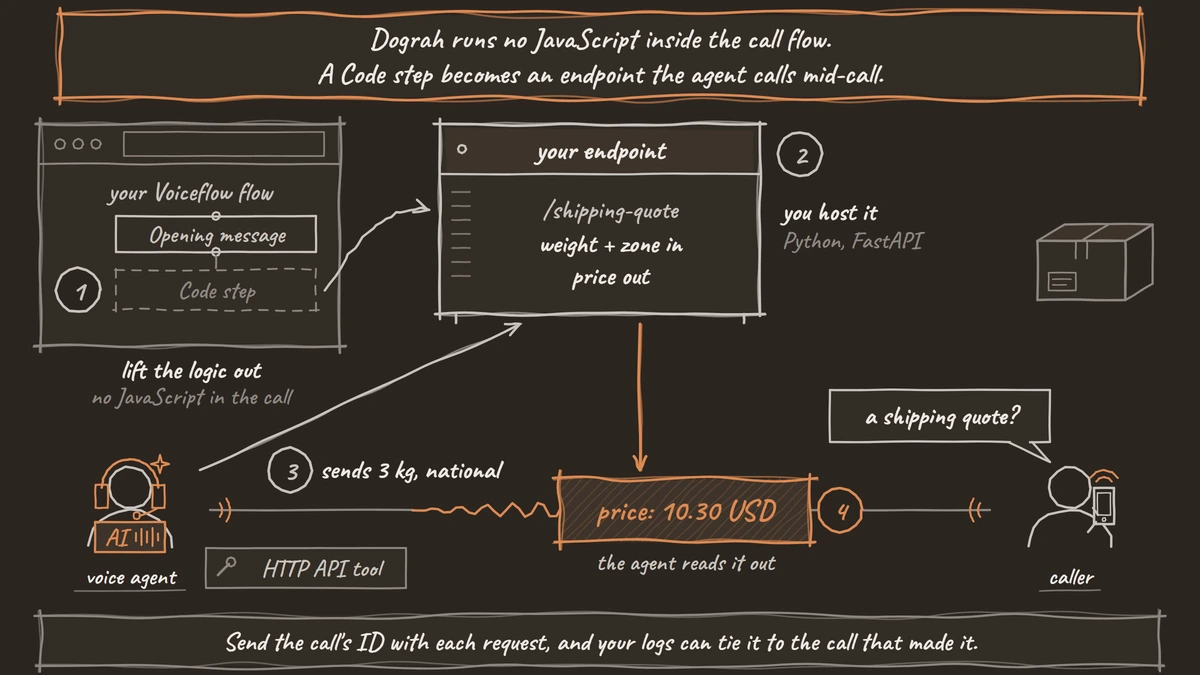
Take one Voiceflow Function as the example: it works out a shipping price from the parcel's weight and zone. The endpoint below does the same job in Python with FastAPI. It reads weight_kg and zone from the JSON body and returns price:
from fastapi import FastAPI
from pydantic import BaseModel

app = FastAPI()

RATES = {"local": 4.50, "national": 7.90}


class QuoteRequest(BaseModel):
    weight_kg: float
    zone: str
    workflow_run_id: int | None = None


@app.post("/shipping-quote")
def shipping_quote(req: QuoteRequest):
    base = RATES.get(req.zone, 9.90)
    extra = 1.20 * max(req.weight_kg - 1, 0)
    return {"price": round(base + extra, 2), "currency": "USD"}
What this does: It answers a POST to
/shipping-quotewith the price for that weight and zone, so a 3 kg national parcel comes back as 10.30 USD. The optionalworkflow_run_idlets your logs tie each request to the Dograh call that made it.
In Dograh, create an HTTP API tool under Tools. On the Settings tab, set HTTP Method to POST and Endpoint URL to your endpoint. On the Parameters tab, add weight_kg (Number) and zone (String) under LLM Parameters, each with a description the AI can follow, and under Preset Parameters add workflow_run_id, type Number, value {{initial_context.workflow_run_id}}, with Required on. Attach the tool to the Agent node that quotes prices, and say in that node's prompt when to call it.
The tool sends the parameters as a JSON body and gives the agent the response's status code and data. It waits 5 seconds by default and does not retry, so keep the endpoint fast. Tell the agent in the prompt what to say if the tool returns an error, such as offering a callback.
Check: a browser test call that asks for a quote shows the tool call and the returned price in the transcript.
Step 5: Re-create tools, transfers and knowledge
Each Voiceflow tool that acts during the call becomes a Dograh tool or a knowledge file. Every API step or API tool becomes an HTTP API tool with the same URL, method, headers and parameters, and you enter the credentials from your secrets list by hand. Native Zendesk, Salesforce, HubSpot or Shopify tools become HTTP API tools against that system's API, or MCP tools if the system has an MCP server. A Twilio SMS tool becomes an HTTP API tool that asks your own provider to send the text. If a tool takes a moment, its Custom Message, as text or a recorded clip, plays once just before it runs.
Each Call forward step becomes a Transfer Call tool. Under Tools, create one, set Destination Source to Static / Template and enter the number in E.164 format, such as +1415555XXXX. Transfer Call works on Twilio, Telnyx and Asterisk ARI. It passes no summary by default; on Twilio it can play a short spoken introduction to both people. Write the details to your system with an HTTP API tool before the transfer. If nobody answers, the caller stays with the agent; tell it in the prompt to offer a callback. Transfer Timeout defaults to 30 seconds.
For the knowledge base, upload the original files under Files, then select them on each node under Knowledge Base Documents. Dograh takes PDF, DOCX, DOC, TXT, JSON and MD files of up to 5 MB each, so save other formats as one of those first.
Check: a browser test call that needs each tool shows it completing in the transcript.
Step 6: Test in the browser, then on a phone line
Prove the agent in the browser first, then on a real phone line, before any caller reaches it. In the editor, click Test Agent and, in the Test Audio tab, talk through the calls your Voiceflow agent handled, using old transcripts as scripts. Browser tests count as inbound calls by default, so Pre-Call Data Fetch runs when it is set to Always or Inbound calls only. To test an outbound agent, add the variable direction with the value outbound in the Variables tab and click Save Variables. Before the phone tests, click Publish, then Publish version, because edits reach test calls straight away but live calls only after publishing. Then add your spare number under Telephony, set the agent as that number's Inbound workflow, and call it from a real phone. Browser test calls cannot run Transfer Call, so test every transfer on the phone, answered and unanswered.
Most phone calls still reach the agent as 8 kHz audio, while a browser call runs at 16 kHz, the most Dograh's pipeline uses. Depending on the speech model, that can mean more misheard names and numbers, so listen for them and open View Trace on any call that goes wrong. Our checklist for testing voice agents before you go live has the full order of tests.
Check: the phone test appears as a run under Agent Runs, with the transfer and every tool call in its transcript.
Step 7: Move numbers one at a time
Keep Voiceflow answering while you move your quietest number first, knowing exactly what switches it and what undoes it. How a number moves depends on where it lives. Dograh can't split inbound calls between versions, and a number answers on one platform at a time, so the number is the unit you move. First connect your carrier account in Dograh under Telephony, then set the agent as the number's Inbound workflow, as the inbound calling setup describes.
For a number on your own Twilio account, copy its current voice settings in the Twilio console first. Saving the Inbound workflow in Dograh sets the number's webhook for you and switches it at once, so check it in the console rather than setting it by hand. To roll back, paste the old settings back.
For a Vonage or Telnyx number, the webhook sits on an application, and every number assigned to that application follows it. So give Dograh its own application. On Telnyx, leave the Call Control App ID blank in Dograh's configuration and Dograh creates one on save. On Vonage, create a new Voice application for Dograh. Then move one number at a time onto Dograh's application. Saving the Inbound workflow sets that application's webhook for you, provided the credentials are correct, so check it in the carrier's portal rather than setting it. For Vonage, the number must also be linked to the Vonage application, and a Signature Secret must be set. To roll back, put the number back on the application it used before. Transfer Call works on Twilio, Telnyx and Asterisk ARI, so plan transfers before moving a Vonage number that forwards calls today.
For a number Voiceflow provisioned, ask Voiceflow support how to port it out. A ported number must land with a carrier Dograh supports, such as Twilio or Telnyx. Keep it answering on Voiceflow until the port completes.
Outbound is easier to share. Split the contact list, send a small share through a Dograh Campaign and keep the rest on Voiceflow's outbound API, then compare outcomes. Once Dograh carries everything, split the campaign between two versions of the agent to test openings, and Dograh shows each version's share of calls and outcomes. When a number has moved for good, remove it from the Voiceflow project, or delete it under Phone numbers in the Voiceflow dashboard to unlink it fully. Our guide to migrating from Bland AI covers the same pattern from another hosted platform.
Join the Dograh Community
Dograh is an OSS alternative to Vapi. Join our Slack community for queries, releases, best practices & community interactions.
Check: a call to the moved number appears as a new run in Dograh, and Voiceflow's transcripts show no new calls on it.
Before you ship it
Run this list for each number before you call its move finished.
| Item | Where | Done when |
|---|---|---|
| Export saved | Your files | Every environment is stored outside Voiceflow, with a list of secret names |
| Models and voice chosen | Models, Providers | A test call speaks in the voice you picked |
| Flow rebuilt | Workflow builder | Every playbook, workflow and tool has a Dograh match or a planned change |
| Code moved | Your endpoint | Each Code and Function step answers from your endpoint within 5 seconds |
| Transfer tested | Real phone call | Answered and unanswered transfers both end well |
| Rollback written | Your runbook | The number's old Twilio settings, or the application it was on, are saved |
| Voiceflow kept active | Voiceflow dashboard | Every number has moved and a week of calls look right |
Once your quietest number runs cleanly on Dograh for a week, move the next one the same way.
What you end up with is a platform you control. Dograh is open source under BSD-2-Clause, so the whole platform is yours to run from GitHub with Docker Compose, and self-hosted it has no per-minute platform fee. Outbound calls run as campaigns on your own numbers, and you choose every model, including open-weight ones on your own servers. Our Dograh vs Voiceflow comparison sets out what changes for the team day to day.
Glossary
- Environment export
- The JSON file Voiceflow's export API returns for one environment: the agent, playbooks, workflows, tools, functions, variables and knowledge base documents, with secrets by name only.
- Inbound workflow
- The Dograh agent a phone number is set to answer with. Saving it sets the carrier's webhook for you, so that number's calls go to Dograh.
- Global Node
- In Dograh, a shared prompt added to every step that has Add Global Prompt switched on. It takes the place of Voiceflow's global prompt.
- HTTP API tool
- A Dograh tool that calls one of your systems during the call, with the URL, method, headers and parameters you set. It waits 5 seconds by default and does not retry.