
To build a voice agent for restaurants in Dograh, create an inbound agent with a fixed greeting, load the menu into the Knowledge Base, price each order through an HTTP API tool that asks your POS, read every item and the total back, and place the order only when the POS accepts it. Allergy questions go to staff.
Key Takeaways
- Prices and sold-out dishes come from the POS, never from the model.
- Confirm the order only after the POS returns an order number.
- Any allergy question goes to a person, even when the menu lists ingredients.
This post is part of our guide to AI voice agents for restaurants. The guide's build section names the phone-ordering agent as the best first build, because it uses every rule the guide sets. This tutorial builds that agent in Dograh, an open-source, self-hostable voice agent platform, one screen at a time.
What you need before you start
You need a Dograh account, a menu file, a small order service and a phone number. The order service is a web address your own team runs in front of the POS (point of sale) system. It prices and places orders for the agent, and logs anything that needs a person. Putting it in front of the POS keeps POS credentials and quirks out of the agent.
What you'll build:
- A greeting that names the restaurant and, if you choose or your location requires it, says the line is automated.
- A menu file the agent answers from, with prices taken from the POS.
- A read-back of every item and the total before the order is sent.
- An order placed through an HTTP API tool, confirmed only on the POS's yes.
The call design behind these steps is in AI voice agents for phone ordering. For a general front-desk agent, see How to Build an AI Receptionist.
Check what your POS allows before you write the order service. Square's Orders API creates orders with line items and modifiers, but it pushes orders with pickup details to Square Point of Sale once they are fully paid, so test how an unpaid pay-at-pickup order shows up. Toast's API overview allows creating orders only for partner and custom integrations.
For the allergy step you need a phone number on Twilio, because Transfer Call works on Twilio only. Self-hosted Dograh has no per-minute platform fee, though servers, model keys and phone minutes still cost money. Dograh Cloud has a 1¢-a-minute platform fee.
Step 1: Create the agent and write the opening line
Open the Create Voice Agent form. Set Call Type to Inbound, enter Phone Ordering as the Use Case, and write the Activity Description: "Take pickup orders from the menu, price them through the restaurant's system, read them back and place them only when the system accepts." Dograh generates a prompt from that description for you to edit.
Put the hard rules in the global prompt in plain words. The agent takes new pickup orders only. It answers menu questions from the menu file and prices only from the pricing tool. It never says a dish is safe for an allergy, never takes a card number, never offers a discount or refund, and never says an order is placed until the POS has accepted it.
Now write the Greeting Text in the Start Call node. It is optional fixed text that Dograh speaks word for word, so it is the right place for the lines that must never change: "Thanks for calling Luca's Kitchen on Elm Street. You're speaking with our automated ordering assistant. If anyone in your party has a food allergy, just say so and I'll get a member of staff." The automated-assistant line is your choice, unless your location requires it by law.
Groups with several branches need one more setting. At the bottom of the Start Call node, set Pre-Call Data Fetch to Inbound calls only and point it at your order service. When the call connects, it receives the caller and called numbers and returns a branch_id for the number dialled, plus a caller_phone for the order.
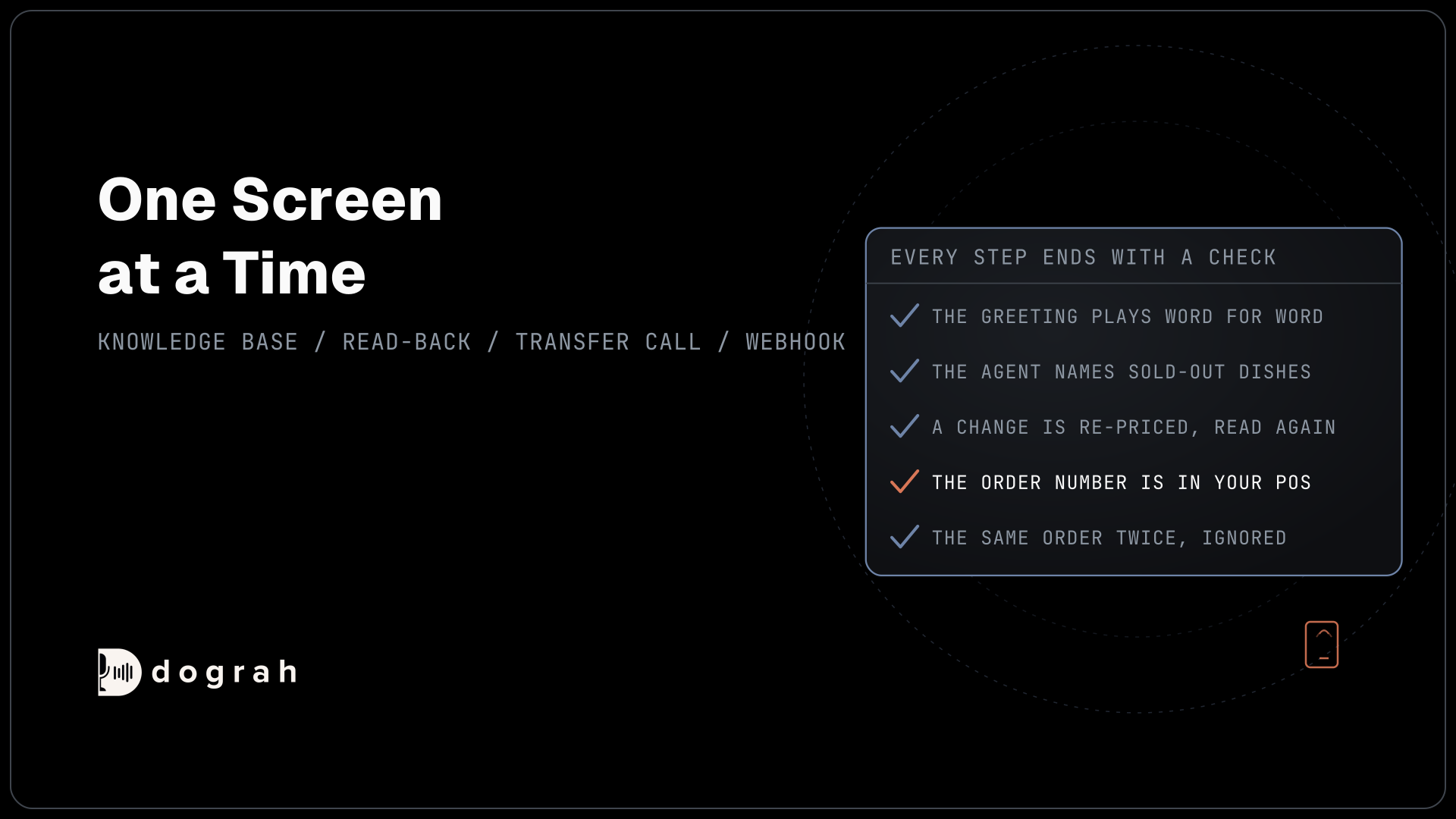
Check: on a web call, you hear the greeting word for word, with the restaurant's name and the allergy line.
Step 2: Put the menu in the Knowledge Base
The menu file is what the agent answers from, so it must be the menu the kitchen cooks today. The Knowledge Base accepts PDF, DOCX, DOC, TXT and JSON files up to 5 MB each. A JSON export gives the agent the cleanest view of sizes and modifiers. Leave prices out of the file, because they come from the POS in the next step:
{
  "items": [
    {
      "name": "Rigatoni alla Vodka",
      "sizes": ["regular", "large"],
      "modifiers": ["add chicken", "add burrata", "extra chilli"],
      "notes": "Cream sauce. Ask staff about allergies."
    },
    {
      "name": "Margherita Pizza",
      "sizes": ["10 inch", "14 inch"],
      "modifiers": ["gluten-free base", "extra basil", "add nduja"]
    }
  ]
}
What this does: It tells the agent what exists and which options each dish takes, using the same names the POS uses. The
notesline keeps allergy questions pointed at staff, even for a dish whose ingredients look obvious.
Upload the menu under Files in the left menu (the page is headed Knowledge Base Files) and choose Full Document as the retrieval mode, so the agent sees the whole menu on every question. It needs no embedding key, and menus work best that way. Attach the file to the order node under Knowledge Base Documents in its settings. Then add the dish names that speech recognition trips on, such as "nduja" or "burrata", to the Dictionary in the agent's Settings, as comma-separated Words. It works with Deepgram and Dograh speech-to-text, how much it helps depends on the provider, and the screen notes it may add cost.
Check: ask "what comes on the margherita?" and "can I get the rigatoni large?". The agent answers from the file and names only modifiers that exist.
Step 3: Price the order with an HTTP API tool
The POS decides what an order costs and whether the kitchen can make it. Open Create New Tool, choose External HTTP API and name it price_order. Set the method to POST and the endpoint to your order service's pricing address. Give it one parameter the agent fills, items, a string with the description "Every item the guest asked for, with size, modifiers and quantity, in the menu's own names". Add a preset parameter branch_id with the value {{initial_context.branch_id}}, so the model never chooses the branch.
Your order service asks the POS and returns something like this, with the total in total and anything the kitchen cannot make in unavailable:
{
  "lines": [
    { "item": "Rigatoni alla Vodka", "size": "large", "modifiers": ["add chicken"], "qty": 1, "price": "24.50" },
    { "item": "Margherita Pizza", "size": "14 inch", "modifiers": ["gluten-free base"], "qty": 2, "price": "39.00" }
  ],
  "unavailable": ["add burrata"],
  "total": "68.37",
  "total_includes_tax": true
}
What this does: It gives the agent the POS's own prices and total, including tax, plus the one modifier that sold out tonight. The agent tells the guest burrata is gone and offers the rest, and it never adds up a bill itself.
A POS call can take a couple of seconds. On the tool's own page, add Messages: a start announcement such as "Let me check that with the kitchen", and a delayed update at 2,500 ms, "Nearly there". Text variants do not play on speech-to-speech models, so record the lines if you run one.
Check: order something your test POS marks sold out. The agent says it is unavailable, and you hear the start line during the lookup.

Open Source Alternative to Vapi / Retell
Self-hosted voice agent platform — no per-minute fees
dograh-hq/dograh
Star on GitHub
Step 4: Read the order back before anything is sent
The read-back is the guest's last chance to catch a mishearing, so it covers everything. In the order node's prompt, tell the agent to read each item with its size, modifiers and quantity, then the total exactly as price_order returned it, and to ask "Is that all correct?".
Any change goes back through price_order, so the total read out is always the POS's.
Give the pathway from the order node to the placing node a written condition: the guest said yes to the full read-back with the latest total. Dograh's AI reads that condition and picks the pathway, so test it with half answers such as "yeah, I think so, wait".
Check: change one item after the read-back. The agent re-prices, reads the whole order again and waits for a new yes.
Step 5: Place the order and confirm only on the POS's yes
The POS's reply decides what the guest hears. Create a second HTTP API tool, place_order, using POST to your order service. It takes the same items and a pickup_name from the conversation.
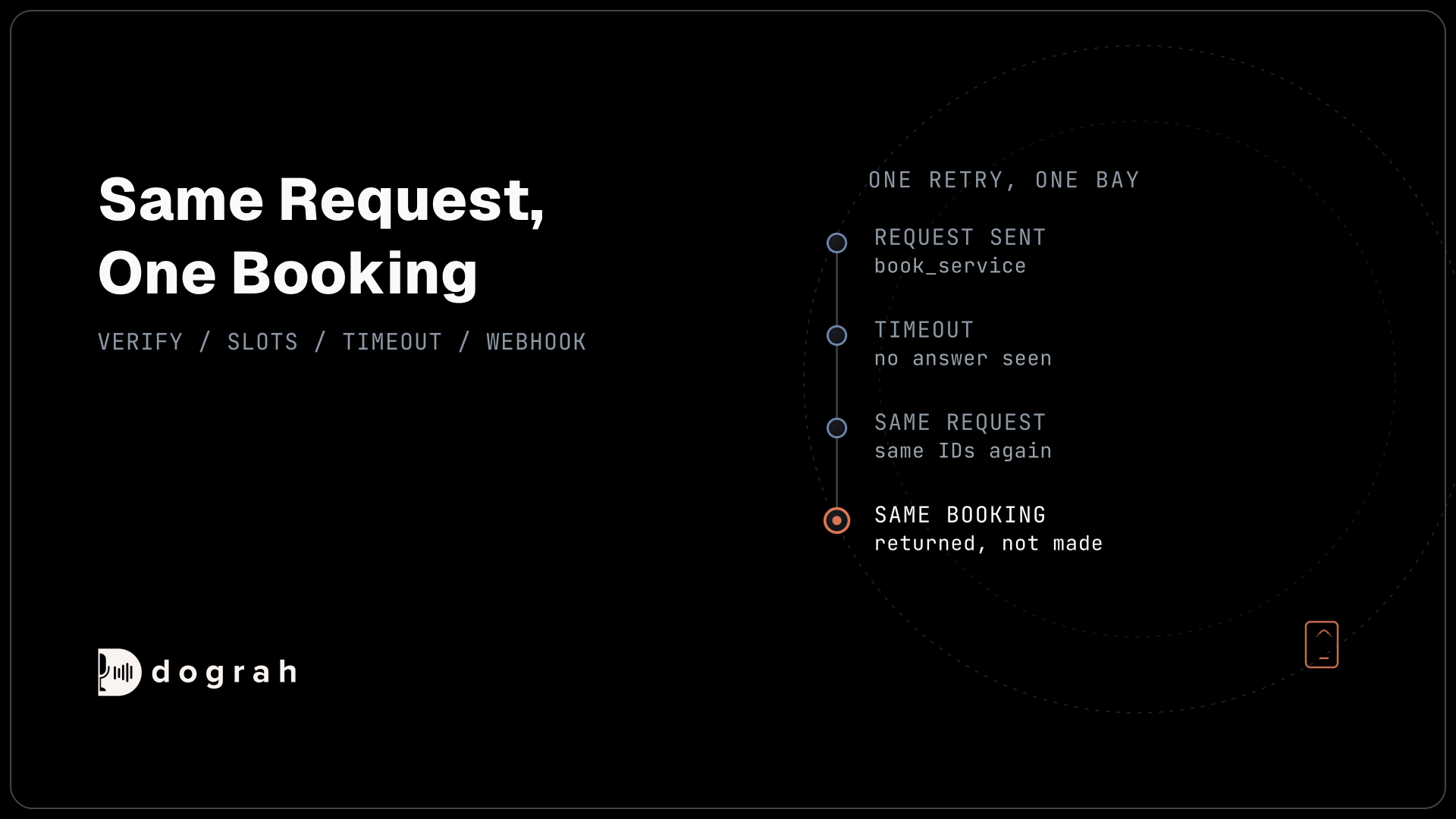
Add two preset parameters. caller_phone takes {{initial_context.caller_phone}} from Step 1. workflow_run_id takes {{initial_context.workflow_run_id}}. Dograh adds no Idempotency-Key header itself, so your order service uses that ID to ignore a second request for the same call.
Your service answers with the POS's decision, in status and order_number:
{
  "status": "accepted",
  "order_number": "A-1047",
  "pickup_time": "18:40",
  "total": "68.37"
}
What this does: Only this reply lets the agent say the order is placed. It reads back order A-1047 and the 18:40 pickup time, both straight from the POS.
Every 4xx or 5xx, timeout or connection failure reaches the agent as status error. Write that case into the node prompt: the agent says "I haven't been able to place that order yet", offers a member of staff or a callback, and logs the request with a third tool, log_staff_request. It never says "you're all set" without an order number.
Payment stays off the call. The guest pays at pickup, or an HTTP API tool named send_payment_link asks the restaurant's own system to send a secure payment link by text or email. Dograh has no keypad tool and no feature for taking customer payments on a call, and no card number is ever taken by voice.
Check: a test order appears in your POS with its order number, and pointing place_order at a failing endpoint makes the agent say the order is not placed.
Step 6: Hand allergy questions to staff
The agent never says a dish is safe for an allergy, because cross-contact in a busy kitchen is a judgement only staff can make. Add a pathway out of the order node with the condition: the guest mentions an allergy or intolerance, or asks whether a dish is safe for one.
Give that pathway a Transition Speech line: "I can't check allergens myself, so I'm getting a member of staff for you now." Transition Speech plays fixed text word for word, on a cascade agent, while anything written in a node prompt is still worded by the model. Choosing the pathway is the AI reading your condition, so it is never a hard rule. Test real phrasing such as "I'm coeliac" or "no nuts at all, please".
In the allergy node, the agent first calls log_staff_request with the order so far and the allergy as the guest stated it. Then it uses Transfer Call, which works on Twilio only and passes no summary, so the note is the only thing staff see. The transfer waits 30 seconds by default, settable from 5 to 120. If nobody answers, the guest stays with the agent, which offers a callback and logs it. The order is not placed.
Check: on a phone call, say "does the rigatoni have nuts?". You hear the fixed line, staff see the note, and the call rings through.
Join the Dograh Community
Dograh is an OSS alternative to Vapi. Join our Slack community for queries, releases, best practices & community interactions.
Step 7: Send the call record with a webhook
The webhook adds a record of the call itself, for the day a guest says the agent got it wrong.
On the End Call node, turn on Enable Variable Extraction and write the Extraction Prompt. Ask for outcome (placed, not placed, transferred or callback requested), order_number and allergy_mentioned, recorded as the guest said them. The AI fills these from the transcript and leaves a value empty rather than guessing. They land in gathered_context, which the webhook can read.
Then add a Webhook node. Its fields are Name, Enabled, HTTP Method, Endpoint URL, Authentication, Custom Headers and Payload Template. This payload links the call to the order through order_number:
{
  "call_id": "{{workflow_run_id}}",
  "branch_id": "{{initial_context.branch_id}}",
  "outcome": "{{gathered_context.outcome}}",
  "order_number": "{{gathered_context.order_number}}",
  "allergy_mentioned": "{{gathered_context.allergy_mentioned}}",
  "recording_url": "{{recording_url}}",
  "transcript_url": "{{transcript_url}}"
}
What this does: After the call, Dograh fills the braces with this call's values and posts the JSON to your order service, so each order has its transcript and recording one click away.
A temporary failure, such as a timeout, a 5xx or a 429, is retried automatically, up to 5 attempts. Wrong URLs or credentials are not retried. The wider pattern is in Webhook-Driven Voice Agents: Real-Time Data In and Out.
Check: one finished test call leaves one call record with the outcome and a recording link.
Step 8: Test on a web call, then on a real phone line
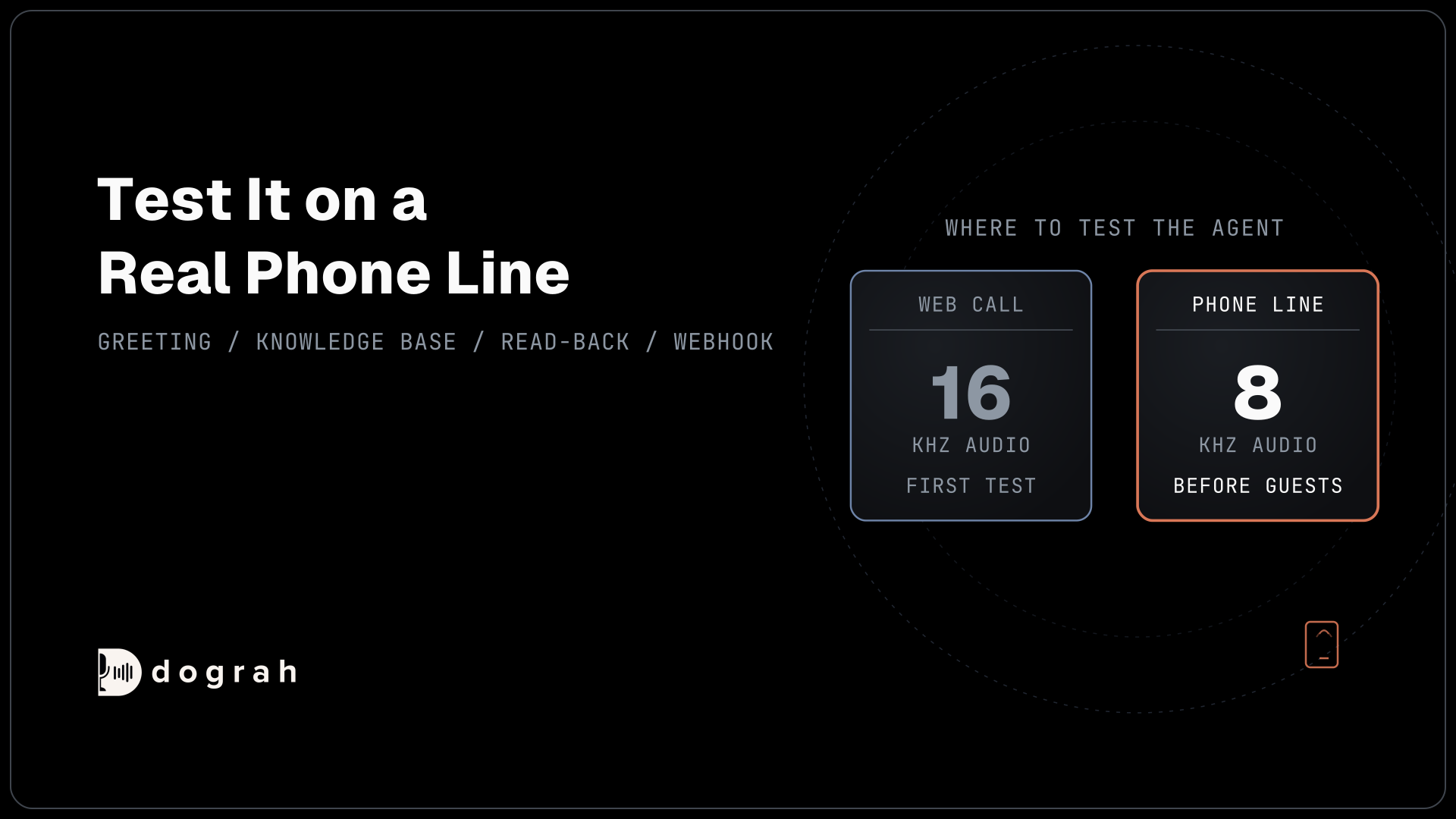
A web call runs at 16 kHz, the most Dograh's pipeline uses, and it cannot run Transfer Call. Web calls have no inbound or outbound direction, so Pre-Call Data Fetch, set to Inbound calls only in Step 1, does not run on them. To test from the browser, open the Variables tab at the top of the agent editor and add the values the fetch would return, such as branch_id and caller_phone.
Then call the real number. Most phone calls still reach the agent as 8 kHz audio, and a restaurant adds a fryer and a full dining room. Dish names suffer most. How much depends on the speech-to-text model and the phone path, so measure it on your line.
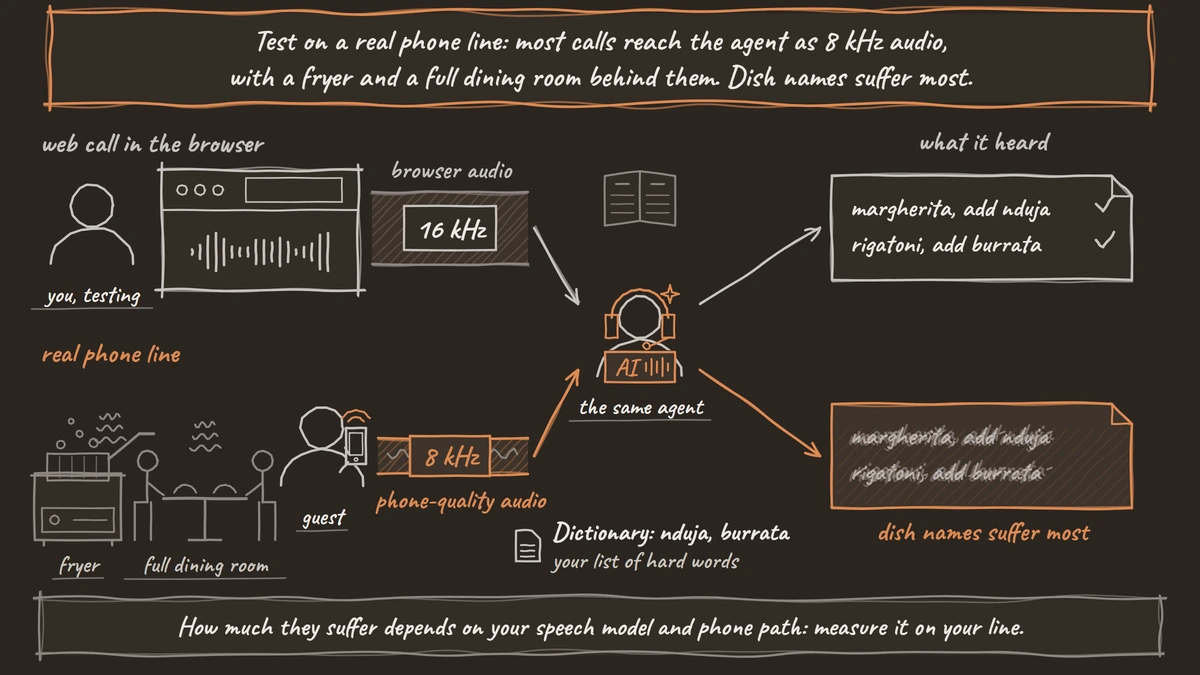
Run each leg several times, because AI replies vary. Correct yourself mid-order ("two, no, three garlic breads"), ask for a sold-out dish, and place the same order twice from one call to see the duplicate ignored. For each call, open View Trace to see which tool the AI called and how long each turn took. How to Read Call Traces to Debug a Voice Agent walks through a trace, and Testing Voice Agents Before You Go Live gives the tests in order.
Check: five phone calls with background noise give five correct tickets, five order numbers read back and no duplicates.
Before you ship it
Add a QA node so a sample of live calls is reviewed step by step, and read every call that took the allergy pathway. Then publish.
Start narrow. Take pickup orders only for the first weeks, because delivery adds addresses and the checks that come with them. The POS holds every order throughout.
Glossary
- Read-back
- The agent repeats every item, size, modifier and the POS's total to the guest before the order is sent. It is the last point where a mishearing costs nothing to fix.
- Full Document
- The Knowledge Base retrieval mode that gives the agent the whole file on every question, with no embedding key. It suits menus, where the answer often depends on the full list of options.
- Preset parameter
- A tool parameter Dograh fills from the call's own data, such as the branch or the run ID, not from the conversation. The model never types the value, so it cannot change it.
- Transition Speech
- Fixed text or a recorded clip that Dograh plays word for word when the agent takes a pathway. It suits the allergy handover line, which must never be reworded.