
To build a voice agent for real estate in Dograh, create an inbound agent, let Pre-Call Data Fetch load the listing from the number the caller dialled, ask every caller the same qualification questions, write the lead to your CRM with an HTTP API tool, book a viewing from live slots and transfer offer-ready buyers to an agent.
Key Takeaways
- The dialled number tells your endpoint which listing the caller saw.
- Write the lead to your CRM before any transfer or booking.
- Every caller hears the same questions and the same open viewing slots.
This post is part of our guide to AI voice agents for real estate. The guide's section on building a real estate voice agent sums up the build: an agent that qualifies a lead and books a viewing, with HTTP API tools for the listing and slots and a webhook to the CRM. Here it is one screen at a time in Dograh, an open-source, self-hostable voice agent platform, as an inbound agent that qualifies a buyer and books a viewing.
What you need before you start
You need a Dograh account, a Twilio number for each listing, because Transfer Call in Step 7 works on Twilio only, and a few endpoints. An endpoint is a web address your own system answers at.
Dograh has no built-in customer relationship management (CRM) or calendar integration, so every connection here is an HTTP API tool pointing at an endpoint you control, in front of your CRM and showing calendar, directly or through an n8n workflow. You need five: a listing lookup, a lead writer, a slot reader, a viewing booker and a receiver for the call record.
What you'll build:
- Pre-Call Data Fetch loads the listing from the number the caller dialled.
- A qualification node asks every caller the same four questions.
- HTTP API tools write the lead to your CRM and book a viewing from live slots.
- Transfer Call sends offer-ready buyers to an agent, and a webhook files the call record.
The rules behind the questions are in AI voice agents for real estate lead qualification. This post is the build.
Dograh is the orchestration layer: it runs the call flow, tools and telephony, and the speech and language models are a separate layer you choose. Self-hosting Dograh keeps recordings and transcripts on your servers, and the caller's audio stays inside your infrastructure only when the speech and language models run there too. Self-hosted Dograh has no per-minute platform fee, though servers, model keys and phone minutes still cost money. Dograh Cloud has a 1¢-a-minute platform fee.
Step 1: Create the agent and write the greeting
Start with the Create Voice Agent form. Set Call Type to Inbound (Users call AI), enter Lead Qualification as the Use Case, and describe the job in Activity Description: "Answer questions about the listing the caller rang about from the listing data only, ask every caller the same four questions, save the lead and book a viewing from live slots." Dograh generates a prompt from that description for you to edit.
Put the hard rules in the global prompt in plain words. The agent answers only from the listing fields and asks every caller the same questions in the same order. It never suggests or describes an area. Price talk stops at the list price, and whether a caller qualifies is never the agent's call.
Now write the Greeting Text in the Start Call node, optional fixed text that Dograh speaks word for word: "Thanks for calling Harbor Lane Realty about {{listing_address | one of our listings}}. Hi {{caller_name | there}}, you're speaking with our automated assistant."
Both variables come from Step 2, and Dograh fills them in before the greeting plays. The text after the bar is the fallback, which plays when the lookup returns nothing; without it, the caller hears the raw placeholder. The first name comes from a phone number match in your CRM, which is only a guess about who is holding the phone, so the agent never mentions a past viewing or an offer because of it.
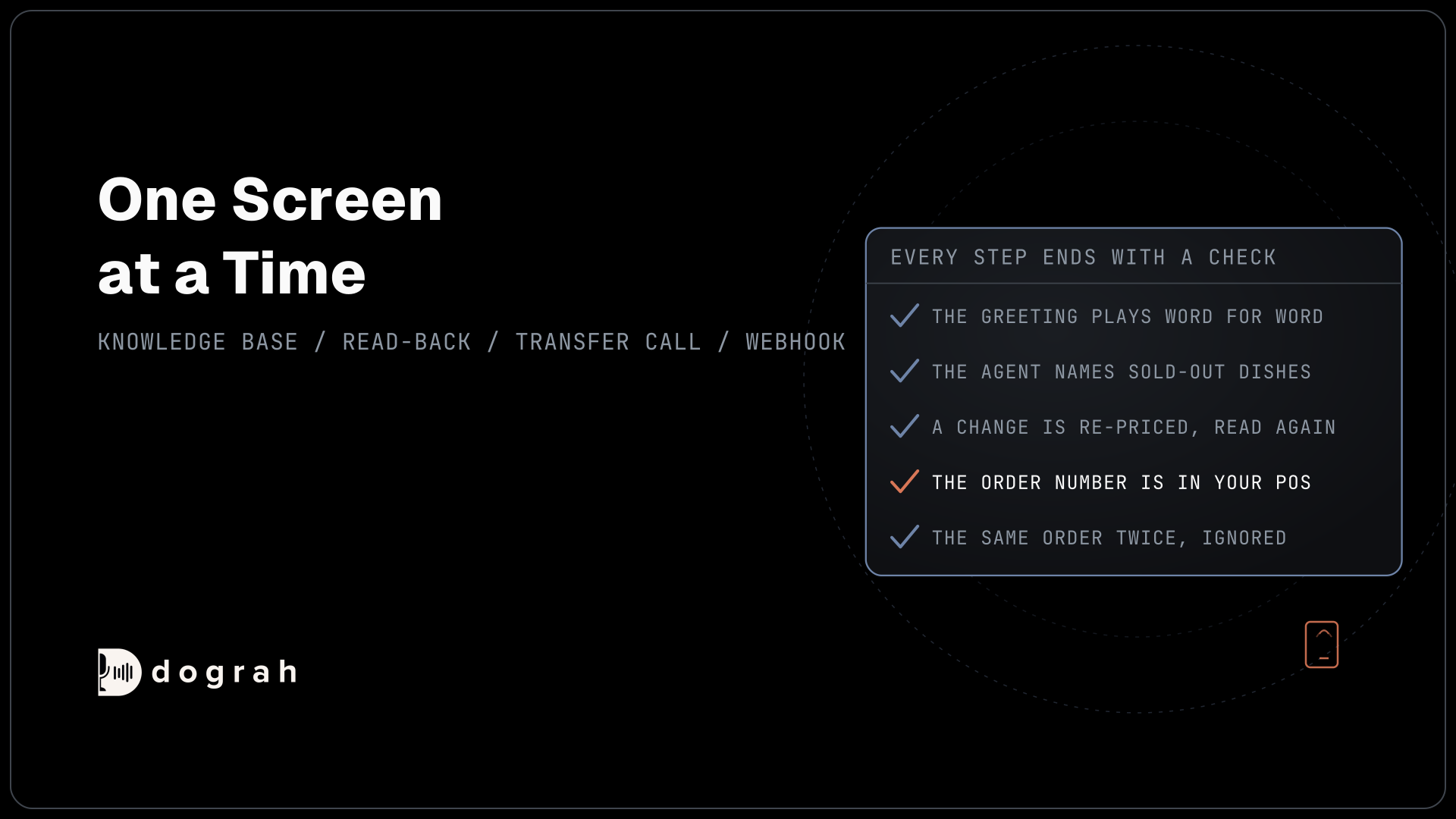
Check: on a web call with no test values, you hear "one of our listings" and "Hi there", never a placeholder.
Step 2: Load the listing with Pre-Call Data Fetch
Pre-Call Data Fetch tells the agent which home the caller saw. Open the Start Call node and scroll to Pre-Call Data Fetch at the bottom. Set it to Inbound calls only, enter the Endpoint URL of your listing lookup and, if it needs one, an Authentication credential. The request runs while the caller hears ringing and times out after 10 seconds. If it fails, the call continues and the greeting's fallbacks play. Several tracking numbers can point at this one agent, because each phone number has its own inbound workflow setting.
The request below is what Dograh sends. The listing comes from to_number, the tracking number the caller dialled, and any existing contact from from_number:
{
  "event": "call_inbound",
  "call_inbound": {
    "agent_id": 412,
    "workflow_run_id": 3307,
    "from_number": "+1312555XXXX",
    "to_number": "+1312555XXXX"
  }
}
What this does: It hands your endpoint both numbers once per call. Your endpoint maps the dialled number to its listing and the caller's number to a CRM contact, if one exists.
Your endpoint answers under initial_context. Return the listing fields the agent may read out, plus an opaque contact_id and a first name:
{
  "call_inbound": {
    "initial_context": {
      "listing_found": "true",
      "listing_id": "L-1407",
      "listing_address": "14 Alder Court",
      "listing_status": "active",
      "list_price": "$629,000",
      "bedrooms": "3",
      "hoa_monthly": "$210",
      "open_house": "Saturday 11am to 1pm",
      "contact_id": "C-5512",
      "caller_name": "Maria"
    }
  }
}
What this does: Every field becomes a variable the prompts and tools can use, such as
{{list_price}}. A listing is public, so its fields can load before the agent speaks. The contact side carries nothing about past viewings or offers.
Check: your endpoint logs one request per test call. An unknown dialled number returns listing_found false, and the agent asks which property the caller means.

Open Source Alternative to Vapi / Retell
Self-hosted voice agent platform — no per-minute fees
dograh-hq/dograh
Star on GitHub
Step 3: Answer from the listing fields only
The Start Call node's prompt can use the variables from Step 2, so put the listing there. Write a short block such as "Listing facts: price {{list_price}}, status {{listing_status}}, bedrooms {{bedrooms}}, HOA {{hoa_monthly}} a month, open house {{open_house}}."
Then give the rule. Answer only from those facts. If a question is not covered, say "I don't have that detail, I'll have the agent confirm it." Questions about negotiation, disclosures, schools, who lives in the area or whether it is safe get one reply, the same for every caller, with an offer to have an agent follow up.
Add a pathway from the Start Call node to a Qualification node, with the condition "the caller's listing questions are answered and they are happy to answer a few questions." Dograh's AI reads that condition and picks the pathway, so test it with real phrasing. The design of this part of the call is in AI voice agents for inbound property inquiries.
Check: ask whether the house has a basement. The agent says it will have the agent confirm, and never describes one.
Step 4: Ask every caller the same qualification questions
The Qualification node asks four questions, in this order, of every caller: their budget range, the area they want, when they hope to move, and where their financing stands, such as a mortgage pre-approval. Write the order into the node prompt and tell the agent to keep it.
Add the fair housing rules next to the questions. The agent records the area as the caller states it, such as "close to the train line", and never offers one. It never asks about family, faith, origin or disability, and if a caller volunteers something like that, it is not recorded. A caller can skip any question. The agent never says a caller does not qualify, because your CRM or your agents decide that.
Check: run two test calls with different personas, one a first-time buyer and one an investor. Both hear the same four questions in the same order.
Step 5: Write the lead to your CRM during the call
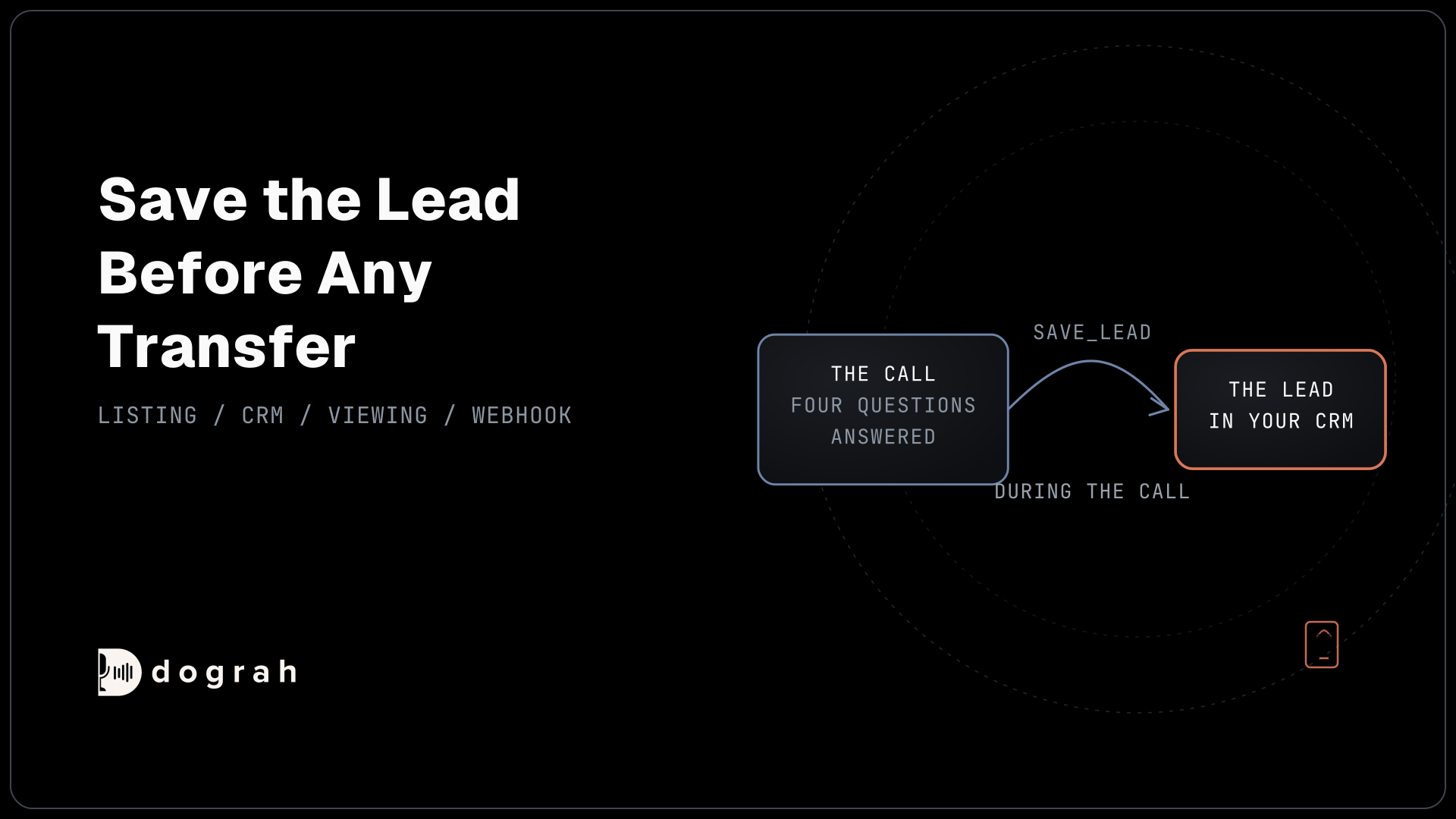
A lead saved during the call survives a hang-up or a transfer. Create an HTTP API tool named save_lead that uses POST, with the description "Save or update this caller's lead after the four questions, and before any transfer."
Give it five parameters the agent fills from the conversation: caller_name, budget_range, preferred_area, move_timeline and financing_status, each described as "in the caller's own words". Then add three preset parameters, which Dograh fills from the call's data: listing_id with {{initial_context.listing_id}}, contact_id with {{initial_context.contact_id}}, and workflow_run_id with {{initial_context.workflow_run_id}}. Attach the tool to the Qualification node.
Your lead endpoint receives a body like this, with the answers in the caller's words and the call's ID in workflow_run_id:
{
  "workflow_run_id": 3307,
  "listing_id": "L-1407",
  "contact_id": "C-5512",
  "caller_name": "Maria",
  "budget_range": "around 600 to 650 thousand",
  "preferred_area": "close to the train line",
  "move_timeline": "by March",
  "financing_status": "pre-approved with a lender"
}
What this does: Your endpoint creates one lead per
workflow_run_idand updates it on any later call to the tool, so a second save never makes a duplicate. It already saw the caller's number in Step 2 under the same run ID, so it can attach the number to the lead.
Any 4xx or 5xx, timeout or connection failure reaches the agent as an error. Tell it to carry on, since the webhook in Step 8 still sends a call record.
Check: a lead appears in your CRM with the four answers as spoken, before the test call ends.
Step 6: Book a viewing from the listing's live slots
Your endpoint, not the agent, decides which slots exist. Create find_viewing_slots with GET, a parameter preferred_day and the preset listing_id. Create book_viewing with POST, a parameter slot_id and the presets listing_id, contact_id and workflow_run_id. Attach both to the Qualification node.
Your slots endpoint applies the seller's showing window and notice period before it answers. The agent never sees a slot the seller has not allowed, and every caller asking about the same listing hears the same open slots:
{
  "slots": [
    { "slot_id": "V-881", "start": "2026-11-07T10:00", "address": "14 Alder Court" },
    { "slot_id": "V-884", "start": "2026-11-07T15:30", "address": "14 Alder Court" }
  ]
}
What this does: It gives the agent two allowed slots, each with an ID it can book. The agent reads the day, time and address back and calls
book_viewingonly after a clear yes.
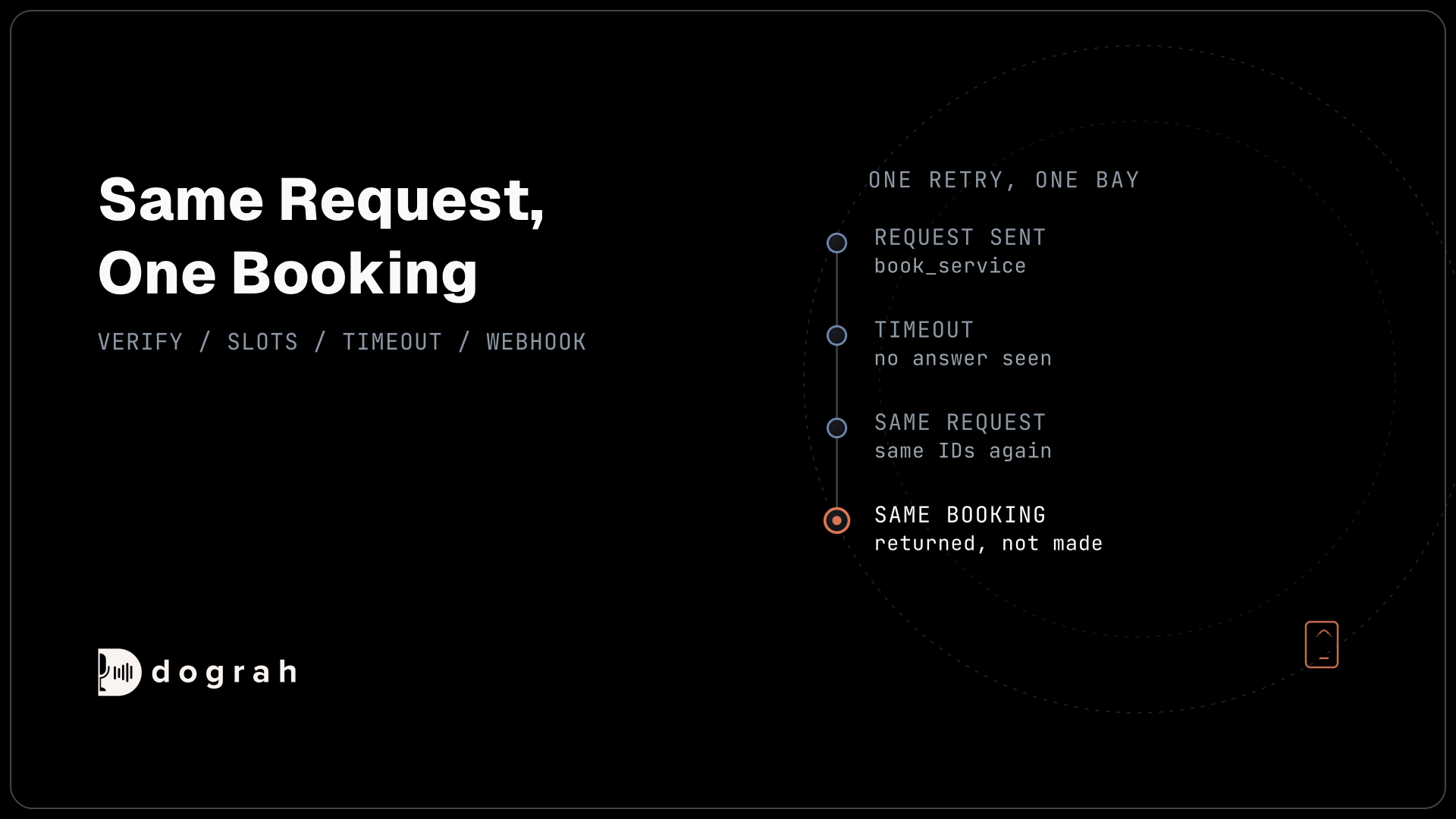
Calls drop and tools retry, so your booking endpoint uses workflow_run_id with the slot_id to ignore a duplicate. Dograh adds no idempotency header of its own on tool calls.
On the tool's own page, give find_viewing_slots a start announcement in its tool Messages, "Let me check the viewing calendar," and a delayed update at 2,500 ms, "Still looking, one moment." Text messages do not play on realtime models, so record them if you use one. Dograh has no SMS tool, so your own system sends the confirmation text. Changes and cancellations are covered in AI voice agents for property-visit scheduling.
Check: a test viewing appears in your calendar, and booking the same slot twice on one call creates one viewing.
Join the Dograh Community
Dograh is an OSS alternative to Vapi. Join our Slack community for queries, releases, best practices & community interactions.
Step 7: Hand offer-ready buyers to an agent
Offers and price talk belong to a person. Add a pathway from the Qualification node to a Transfer node, with the condition "the caller wants to make an offer, discuss the price or speak to an agent."
The agent calls save_lead first, so the listing agent sees the lead on screen as the phone rings. Transfer Call works on Twilio only and passes no summary by default. On Twilio you can add a short spoken introduction that both sides hear; it is off by default. The transfer waits 30 seconds by default, settable from 5 to 120. If nobody answers, the agent is told, the caller stays on the call, and the agent saves a callback request through save_lead.
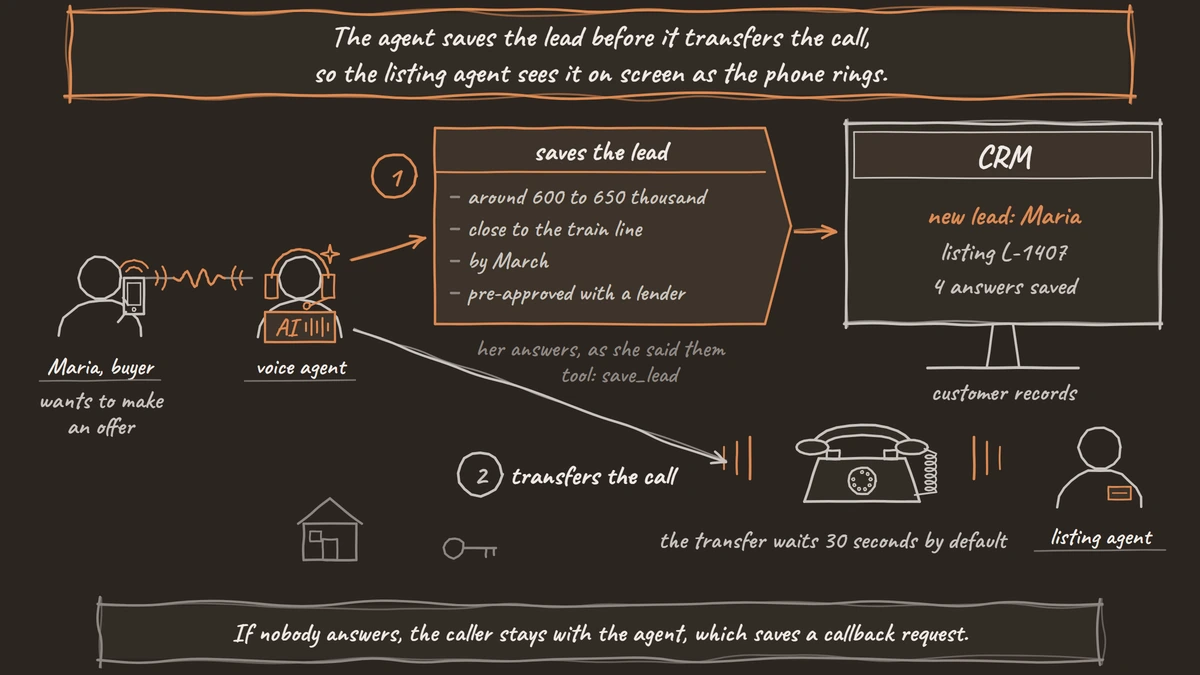
Check: on a phone call, say "I'd like to make an offer." The lead updates in your CRM and the agent's phone rings.
Step 8: Send the call record with a webhook
The lead is already in your CRM, so the webhook adds a note about the call itself. On the End Call node, turn on Enable Variable Extraction and write the Extraction Prompt. Ask for outcome (viewing booked, transferred, callback requested or questions only), unanswered_questions and interest_notes, each as the caller said it. Extraction is an AI step, and the transcript stays the exact record. The values land in gathered_context, which webhooks can read. Later prompts in the same call cannot use them.
Then add a Webhook node. Its fields are Name, Enabled, HTTP Method, Endpoint URL, Authentication, Custom Headers and Payload Template. The payload below ties the note to the lead through call_id, which carries the workflow run ID:
{
  "call_id": "{{workflow_run_id}}",
  "listing_id": "{{initial_context.listing_id}}",
  "contact_id": "{{initial_context.contact_id}}",
  "outcome": "{{gathered_context.outcome}}",
  "unanswered_questions": "{{gathered_context.unanswered_questions}}",
  "interest_notes": "{{gathered_context.interest_notes}}",
  "recording_url": "{{recording_url}}",
  "transcript_url": "{{transcript_url}}"
}
What this does: After the call, Dograh fills the braces with this call's values and posts the JSON to your receiver. The lead gets a call note with the outcome, the questions to answer and links to the recording and transcript.
A temporary failure, such as a timeout, a 5xx or a 429, is retried automatically, up to 5 attempts. Wrong URLs or credentials are not retried.
Check: one finished test call adds one call note to the lead.
Step 9: Test with the Variables tab, then on a real phone line
Web test calls have no phone numbers and no call direction, so Pre-Call Data Fetch set to Inbound calls only does not run on them. Open the Variables tab at the top of the agent editor and add the values the fetch would return, such as listing_address set to 14 Alder Court and a caller_name.
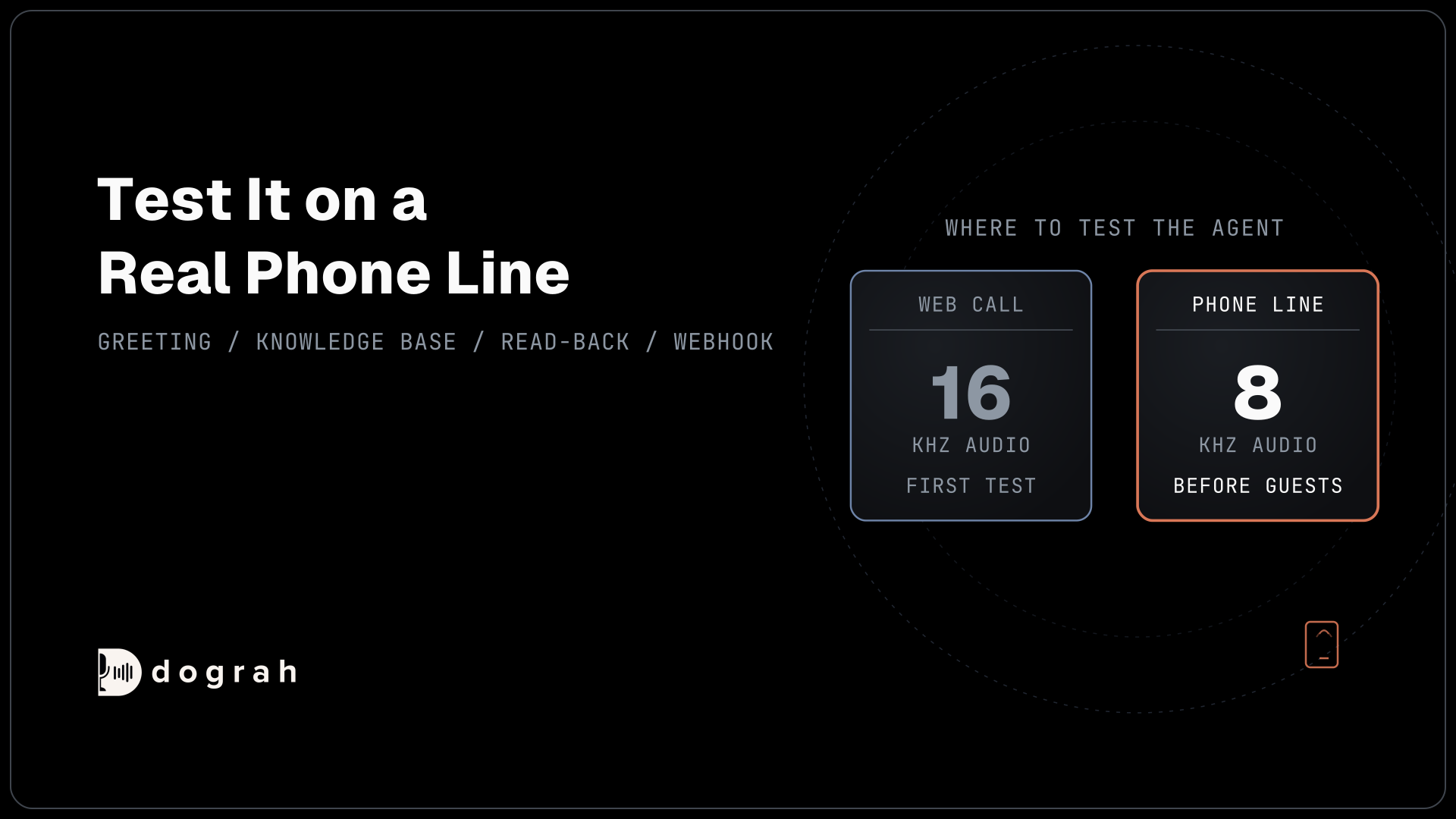
A web call runs at 16 kHz, the most Dograh's pipeline uses, and it cannot run telephony-only tools such as Transfer Call. Most phone calls still reach the agent as 8 kHz audio, where street names and listing references get misheard more. How much depends on the speech-to-text model and the phone path, so measure it on your own line. Add street names and the agency's name to the Dictionary in the agent's Settings, which works with Deepgram and Dograh speech-to-text.
Run every leg several times, because AI replies vary, and open View Trace on each phone call to see which tool the AI called. How to Read Call Traces to Debug a Voice Agent walks through a trace, and Testing Voice Agents Before You Go Live gives the tests in order.
Check: five phone calls in a row each load the listing and leave one lead and one call note.
Before you ship it
Add a QA node and set its Sample Rate (%) below 100, so a random share of live calls is reviewed step by step. Read every call where a caller asked about schools, safety or who lives in an area, and check that the reply was the same each time. Then publish.
The same agent can later call new web leads through the API Trigger. Browser test calls have no inbound or outbound direction, so test that call from the browser with test values in the Variables tab (Pre-Call Data Fetch runs on browser tests only in Always mode). The Federal Communications Commission's (FCC) February 2024 ruling confirmed that "the TCPA's restrictions on the use of 'artificial or prerecorded voice' encompass current AI technologies", so trigger calls generally only for leads with a consent record in your CRM. This is general information, not legal advice. API Triggers: Start a Voice Agent Call From Any System covers the trigger itself.
Start with one listing's tracking number for a week, and keep every answer going back into your CRM and calendar throughout.
Glossary
- Tracking number
- A phone number used for one listing only, printed on its sign and portal page. Pre-Call Data Fetch sends it as the called number, so your endpoint knows which home the caller saw before the agent speaks.
- Preset parameter
- A tool parameter Dograh fills from the call's own data, such as the listing ID from Pre-Call Data Fetch or the workflow run ID. The model never types the value, so it cannot change it.
- Showing window
- The days and times a seller allows viewings, plus the notice they need. In this build, the slots endpoint applies it before the agent sees any slot.
- Tool Messages
- Short lines set on an HTTP API tool's own page that play when the tool starts and, if it is still running, after a set number of milliseconds. They keep the line from going quiet during a slow lookup.