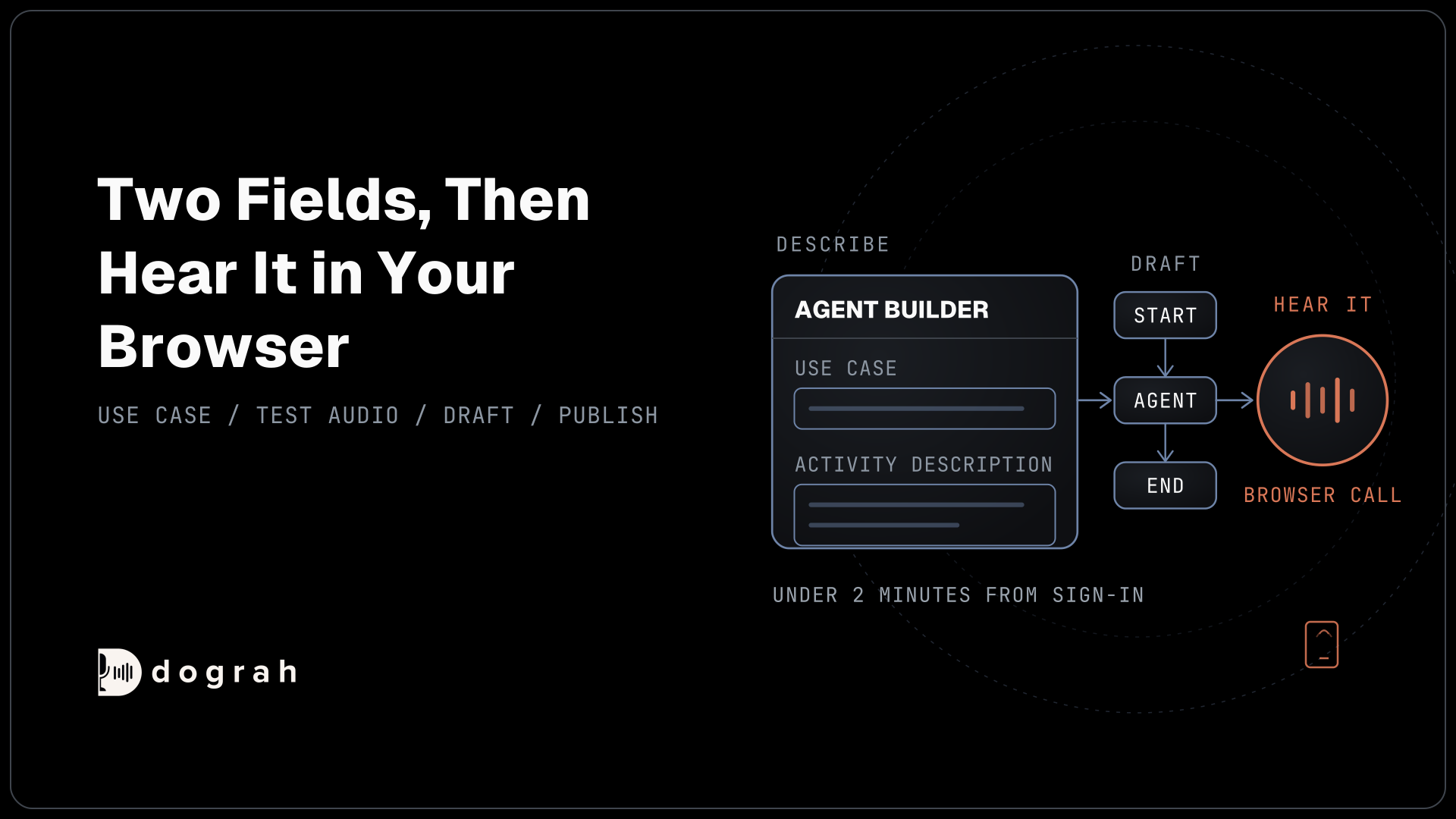

To build your first voice agent without code in Dograh, open Voice Agents, click Create Agent and choose Use Agent Builder. Describe the call in two fields, and Dograh drafts the call flow. Then talk to it in your browser with Test Audio. You can self-host Dograh or run it on Dograh Cloud.
Key Takeaways
- Two short fields, Use Case and Activity Description, are enough for a first call flow.
- Editor test calls run the draft, so you can save a change and call again.
- The 2 minutes end at a browser call. Phone numbers and tools come after.
This post is part of our guide to how to build an AI voice agent, where creating the agent and hearing it in the browser is step three. Here we build a callback-request agent for a bike repair shop, step by step, in Dograh, our open-source AI voice agent platform.
What you need before you start
You need a Dograh account and a browser with a microphone, and nothing else. On Dograh Cloud, the build takes under 2 minutes from sign-in to your first browser test call. Signing up comes before that clock starts, and a phone number comes after it.
You don't need any API keys. Dograh sets up its own speech and language models when you sign up, so a first agent runs on them. You can add your own provider keys later, as the model providers page explains.
Your browser will ask to use the microphone the first time you call the agent. According to MDN's getUserMedia reference, browsers allow microphone access only on secure pages, such as HTTPS or localhost, and always ask you first. Dograh Cloud runs on HTTPS, so you just click Allow.
If you'd rather run Dograh on your own machine, follow How to Self-Host a Voice AI Agent With Docker first. Every step below works the same way there.
Our example agent answers calls for a bike repair shop when the mechanics are busy. It asks the caller's name and what is wrong with the bike, then says a mechanic will call back today.
Step 1: Describe the agent in Agent Builder
Describe the call in plain words, and Dograh writes the first version of the flow for you. Open Voice Agents in the sidebar, click Create Agent and choose Use Agent Builder. The other choice, Blank Canvas, starts you with an empty workflow.
The Create Voice Agent page has three fields. Call Type is "Inbound (Users call AI)" or "Outbound (AI calls users)", and it shapes only the starting prompt, so the same agent can still take calls in either direction later. Pick Inbound for the bike shop. Our post on inbound vs outbound voice agents shows what changes between the two builds.
In Use Case, write the purpose in a few words, such as "Callback requests". In Activity Description, write what the agent should do on the call. Dograh sends this description to a language model, which writes the call flow and its prompts from it, so be concrete:
"Answer calls for Spoke and Chain Bike Repair when the mechanics are busy. Ask for the caller's name and what is wrong with the bike, then tell them a mechanic will call back today."
The Create Agent button stays greyed out until both Use Case and Activity Description are filled in. Click it, and Dograh sends your description to a language model, which drafts the workflow. The first agent walkthrough shows the same screens.
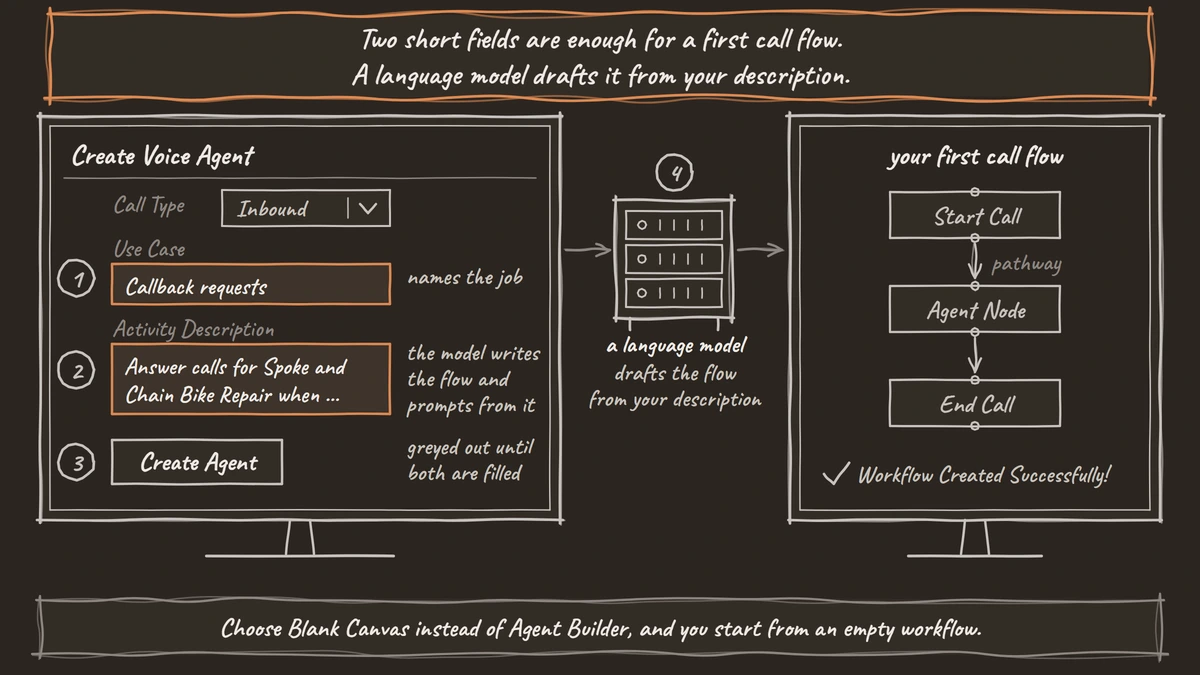
Check: a dialog titled "Workflow Created Successfully!" appears.
Step 2: Read the flow Dograh drafted
Look at the drafted flow before you call it, so you know what the agent will try to do. The success dialog says the workflow comes with some artificial data and sample actions, and that the voice is set to English with an American accent. Click Open and Test Agent.
The canvas shows a Start Call node, one or more Agent Nodes and an End Call node, joined by pathways. A pathway is a link between two nodes, and the agent follows it when the condition written on it matches the conversation. Click a node to open its prompt.
Open the Start Call node and look at Greeting Text. Whatever you type here is spoken word for word as the call opens. If it is empty, the language model writes the opening line itself. For the shop, type a fixed line:
"Thanks for calling Spoke and Chain Bike Repair. Our mechanics are busy, but I can take your details for a callback."
Sample data in the draft can include made-up details, so read each Agent Node prompt once and delete anything that doesn't belong to your shop. Click Save in the editor header.
Check: the canvas shows Start Call, at least one Agent Node and End Call, and your greeting is saved.

Open Source Alternative to Vapi / Retell
Self-hosted voice agent platform — no per-minute fees
dograh-hq/dograh
Star on GitHub
Step 3: Talk to it with Test Audio
Now call the agent from the editor and hear the first version. Click Test Agent in the editor header and open the Test Audio tab. It reads "Call this agent in the browser". Click Run Test, and allow the microphone when the browser asks. On your very first agent, a tip labelled "Try Your First Web Call" points at the same button.
Play a real caller. Give a name and describe a flat tyre. While you talk, the panel shows the transcript, with each move between nodes and any tool call marked in it, so you can see why the agent said what it said.
Browser calls have two limits. Telephony-only tools, such as call transfer, don't run here, so this agent should not promise to put anyone through yet. And a web call runs at 16 kHz, the most Dograh's pipeline uses, while many phone lines carry 8 kHz audio. A name that comes through clearly in the browser can be misheard on a phone, so a phone test comes later.
Check: the agent greets you with your fixed line, asks for your name and the problem, and ends by promising a callback.
Step 4: Change one prompt and call again
The second call teaches you more than the first, because it shows a change taking effect. Pick one thing you didn't like, for example the agent asking two questions at once. Open that Agent Node, add a line to its prompt such as "Ask one question at a time and wait for the answer", and click Save.
Run Test again. Editor test calls run the draft, so there is nothing to publish between tries. Anything callers reach, from a phone number to a website widget, runs the published version, which is why the draft is the safe place to experiment.
Call more than once after each change. Language models don't always give the same answer to the same input. In a test by Thinking Machines, Qwen3-235B-A22B-Instruct-2507 gave 80 different completions when one prompt was sampled 1,000 times at temperature 0. Two or three calls show you whether the fix holds.
For quick checks, use the Test Chat tab and type instead of talking. It runs the same draft, and you can edit a turn you typed and run it again to see how the agent handles a different answer.
Check: on the next call, the agent asks one question at a time.
Join the Dograh Community
Dograh is an OSS alternative to Vapi. Join our Slack community for queries, releases, best practices & community interactions.
Before you ship it
You now have a drafted, tested agent, and the clock stopped at your first browser call. A live agent needs a few more pieces, and each one is a separate step.
First, publish. Click Publish version in the editor, because phone numbers and widgets only ever run a published version. Then connect a phone number under Telephony and test on a real call, where transfers work and the audio is phone quality. If the agent should answer from your price list or book appointments, it needs a document in the Knowledge Base and an HTTP API tool.
How to Build an AI Receptionist takes one agent through all of those steps, from the greeting to a transfer tested on a real phone. Before you move on, run through this short list:
- The Greeting Text names your business and says what the agent can do.
- Every Agent Node prompt is free of the sample data.
- You have called the agent at least three times after your last change.
- The agent never promises a transfer it can't make yet.
Glossary
- Agent Builder
- Dograh's way to create an agent from a description. You fill in the Create Voice Agent form, and a language model drafts the workflow, which you then edit node by node.
- Draft
- The copy of an agent you edit in the editor. Test Audio and Test Chat run it, while anything callers reach runs the published version, so changes are safe to try.
- Pathway
- A link between two nodes in the workflow. The language model follows it when the condition written on it matches the conversation, so plain conditions make the flow easier to predict.
- Greeting Text
- Optional fixed text on the Start Call node, spoken word for word when the call opens. If it is empty, the language model writes the opening line itself.