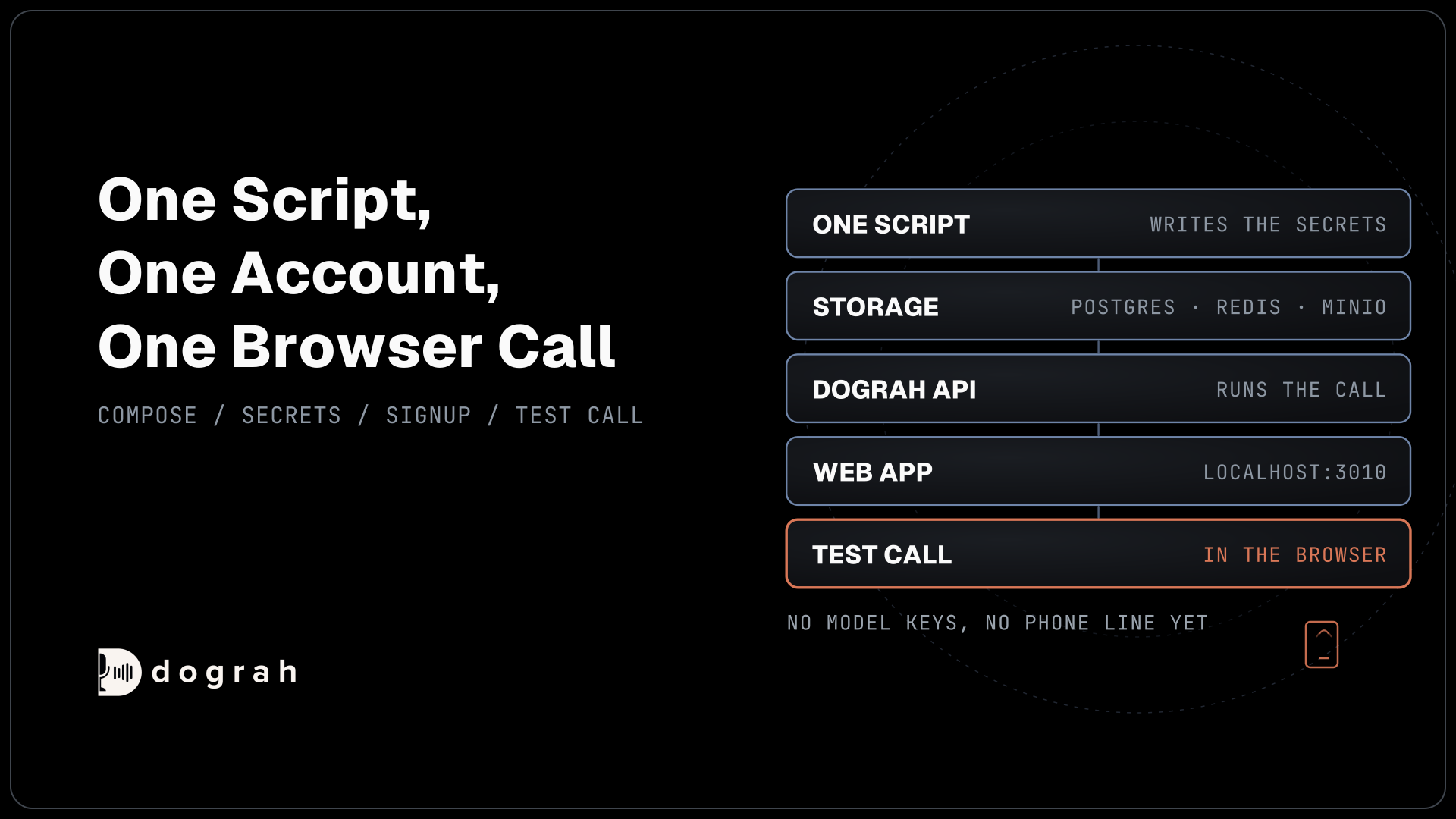

To self-host a voice AI agent with Docker, install Docker, download Dograh's compose file and start script, and run the script. It writes secrets to a .env file and starts the stack. Open localhost:3010, create an account and an agent, then click Test Agent for a browser call. Dograh Cloud runs the same platform with no servers.
Key Takeaways
- One script writes the secrets and starts every container Dograh needs.
- Your first browser call needs no model keys and no phone line.
- Close signup, telemetry and the public tunnel before real callers arrive.
This post is part of our guide to open-source voice AI agents, where a self-hosted install is a set of containers started by one script. Here we install Dograh, our open-source AI voice agent platform, with Docker, step by step, and finish with a first test call in the browser.
What you need before you start
You need a machine with Docker and enough room for six containers. Dograh's system requirements ask for 8 GB of RAM, with 4 GB available to Docker, 10 GB of free disk and 2 CPU cores. It runs on macOS, on Linux and on Windows 10 or 11 with WSL2. Install Docker version 20.10 or later, and start it before you begin.
The stack uses ports 3010 for the web app, 8000 for the API, 5432 for Postgres, 6379 for Redis, and 9000 and 9001 for MinIO storage. To see whether something already holds a port, run lsof -i :3010 on macOS or Linux, or netstat -ano | findstr :3010 in Windows PowerShell.
Keep the machine online for this tutorial. Docker pulls the images, and your first test call runs on Dograh's model service, set up at first sign-in, so you need no model keys yet. Dograh is the orchestration layer that runs the call flow, tools and telephony, and the speech and language models are a separate layer you choose later. Self-hosted Dograh has no per-minute platform fee (servers, model keys and phone minutes still cost). Dograh Cloud has a 1¢-a-minute platform fee.
Step 1: Download Dograh and start the stack
Download the compose file and the start script into an empty folder, then run the script. The command below fetches docker-compose.yaml and start_docker.sh, makes the script executable with chmod +x and runs it:
curl -o docker-compose.yaml https://raw.githubusercontent.com/dograh-hq/dograh/main/docker-compose.yaml && curl -o start_docker.sh https://raw.githubusercontent.com/dograh-hq/dograh/main/scripts/start_docker.sh && chmod +x start_docker.sh && ./start_docker.sh
What this does: It downloads the two files and starts the script. Nothing runs in Docker until you answer the script's question.
On Windows, the same step in PowerShell uses Invoke-WebRequest and the start_docker.ps1 script:
Invoke-WebRequest -OutFile docker-compose.yaml https://raw.githubusercontent.com/dograh-hq/dograh/main/docker-compose.yaml; Invoke-WebRequest -OutFile start_docker.ps1 https://raw.githubusercontent.com/dograh-hq/dograh/main/scripts/start_docker.ps1; .\start_docker.ps1
What this does: It does the same job on Windows, with the PowerShell version of the script.
The script first writes the secrets the stack needs into a .env file, but only the ones that are missing. It creates a login secret, passwords for Postgres and Redis, and a MinIO user and password. Then it prints the Docker command it will run and warns you that it starts a public trycloudflare.com tunnel to the API and leaves signup open. It asks "Start Dograh now? [Y/n]". Press Enter to start.
Docker then pulls the newest images and starts Postgres, Redis, MinIO, the Dograh API, the web app and the tunnel. The Docker guide says the first start takes 2 to 3 minutes.
These commands install the newest release. To stay on the version this tutorial was checked against, open docker-compose.yaml and set both Dograh image lines to the same tag before you start. The api and ui lines should end like this:
image: ${REGISTRY:-dograhai}/dograh-api:1.49.0
image: ${REGISTRY:-dograhai}/dograh-ui:1.49.0
What this does: It pins the API and the web app to release 1.49.0. The two must always carry the same tag, or the web app breaks.
Check: in a second terminal, curl http://localhost:8000/api/v1/health answers, and docker compose ps lists every service as running.
Step 2: Open Dograh and create an account
Open http://localhost:3010 in your browser and create the first account. On the sign-in page, click Sign up. Fill in Email, Password (at least 8 characters) and Confirm password, then click Create account. The account lives in your own Postgres database.
Your browser accepts localhost as a secure page, so the microphone works later without an HTTPS certificate. A server reached over the network needs HTTPS for the same reason.
At first sign-in, Dograh sets up a connection to its own model service for your organization. That is what lets the first agent talk without any keys of your own.
Check: after sign-in, Dograh opens the Create Voice Agent page, because there are no agents yet.

Open Source Alternative to Vapi / Retell
Self-hosted voice agent platform — no per-minute fees
dograh-hq/dograh
Star on GitHub
Step 3: Create your first agent
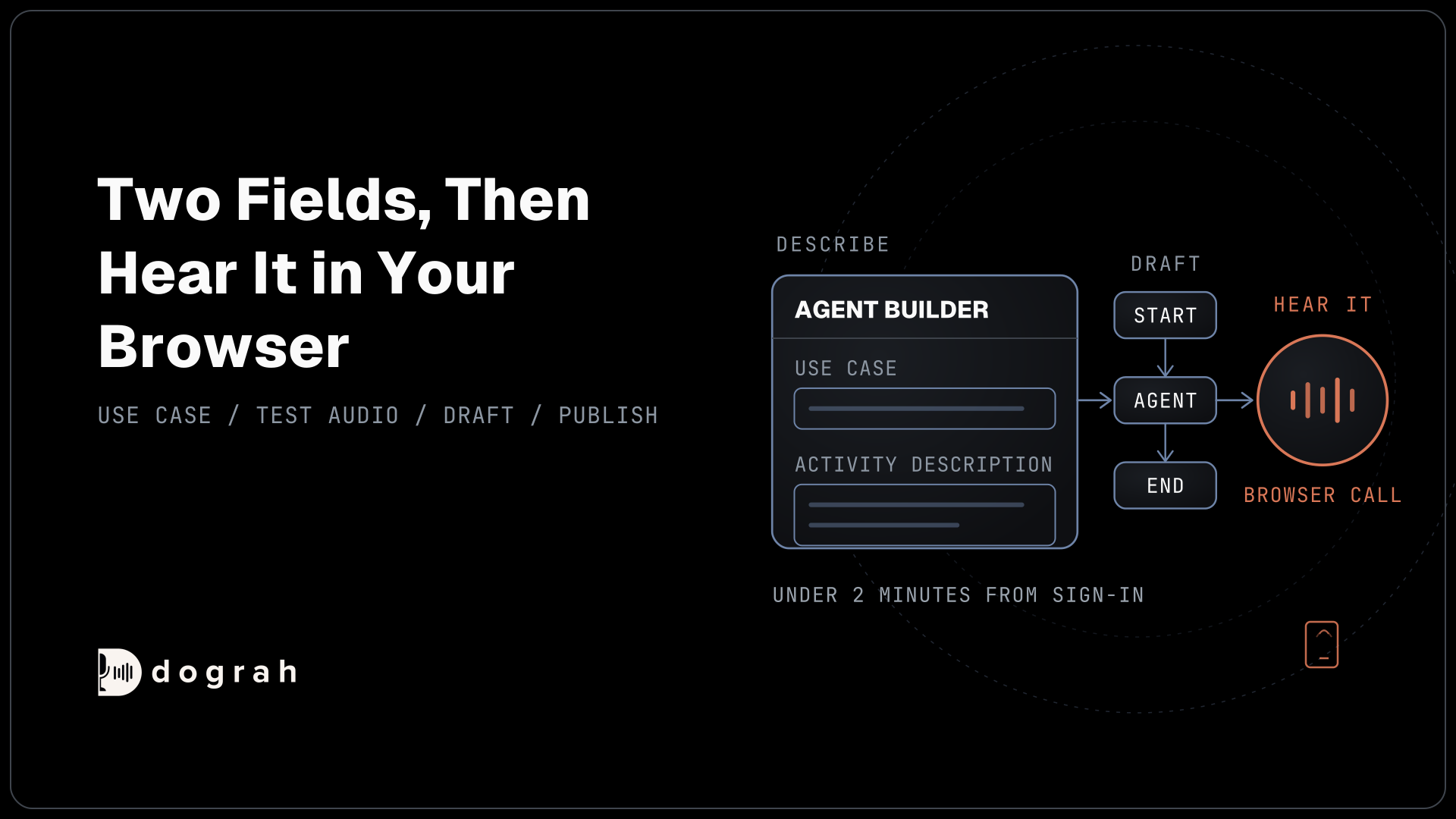
Describe the agent in plain words and let Dograh draft the call flow. On the Create Voice Agent page, under Agent Details, set Call Type to Inbound (Users call AI). In Use Case, type something short, such as "Customer Support". In Activity Description, write what the agent should do, for example "Answer questions about our opening hours and take a callback request with the caller's name and number". Click Create Agent.
When you see "Workflow Created Successfully!", click Open and Test Agent. Writing the flow from your description runs on Dograh's model service, so it needs the internet. On a machine with no internet, build the flow by hand in the editor instead, as our post on air-gapped voice agents explains. Our guide to building a voice agent with no code covers editing the prompts and steps.
Check: the editor shows a Start Call node, one or more Agent nodes and an End Call node, joined by pathways.
Step 4: Make the first test call
Call the agent from the browser to prove the whole stack works. In the editor, click Test Agent. Stay on the Test Audio tab, where the panel reads "Call this agent in the browser", and click Run Test. Then click Start Call and allow the microphone when the browser asks.
Talk to the agent as a caller would. Ask about opening hours, then ask for a callback. The panel shows the live transcript and which node the call is in. When you are done, click End Call.
Browser test calls count as inbound by default, and they cannot run phone-only tools such as call transfer. Test those later on a real phone line.
If the call connects but you hear nothing, a firewall, VPN or another device on your network is often in the way. Dograh's setup_local.sh script adds a TURN server, which relays the audio, alongside the rest of the stack.
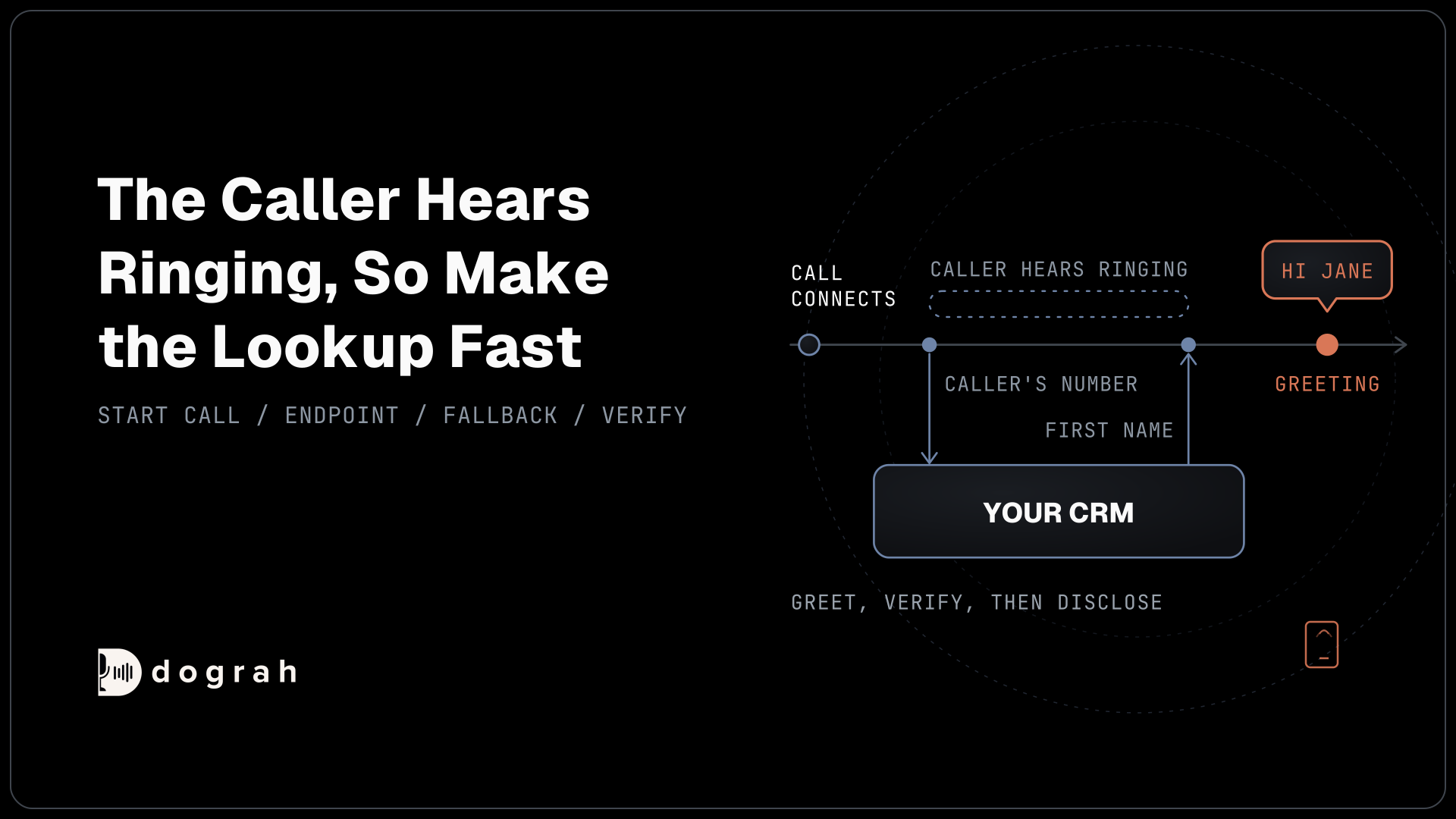
Check: you hear the agent's greeting and see both sides of the conversation in the transcript.
Join the Dograh Community
Dograh is an OSS alternative to Vapi. Join our Slack community for queries, releases, best practices & community interactions.
Before you ship it
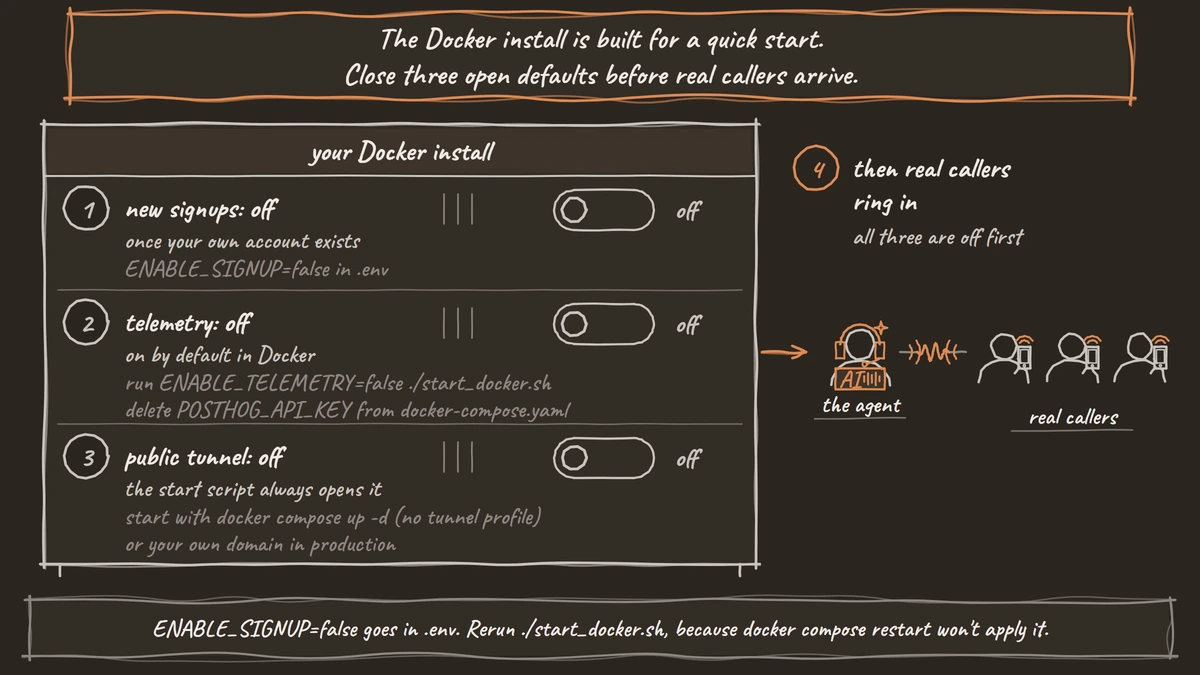
The install is built for a quick start, so close its open defaults before anyone else can reach it. Signup is open by default. After you create your account, add ENABLE_SIGNUP=false to .env and run ./start_docker.sh again, because docker compose restart does not apply .env changes. Telemetry is on by default in the Docker setup, and the start script ignores a telemetry setting in .env. To switch it off, run ENABLE_TELEMETRY=false ./start_docker.sh and delete POSTHOG_API_KEY from docker-compose.yaml.
The start script always turns on --profile tunnel, a Docker Compose profile that opens the public trycloudflare.com address so phone calls can reach a laptop. If you don't need it, start the stack with docker compose up -d, without the tunnel profile. In production, use your own domain instead.
Then move off the starter models. In Model Configurations, open Providers and click Add Provider to connect your own keys or local model servers. Then open Models, click Add Configuration, choose BYOK and click Make org default.
Updates mean downloading the newest compose file and script, running docker compose down, then running the script again. Your Postgres data volume keeps agents and call history. Self-hosted Dograh runs 10 concurrent calls by default, adjustable with DEFAULT_ORG_CONCURRENCY_LIMIT.
That is the whole path: one script, one account, one agent and one browser call. For real phone calls, our guide to telephony for voice AI covers connecting a carrier.
Glossary
- Docker Compose profile
- A label on optional services in a compose file, started only when you name it. Dograh's tunnel profile starts the public quick tunnel, and the remote and local-turn profiles add HTTPS and TURN services.
- Quick tunnel
- The public trycloudflare.com address Dograh's start script opens to the API, so phone calls can reach a test install on a laptop. A production install replaces it with its own domain.
- TURN server
- A relay that carries browser call audio when a direct connection between the browser and the server is blocked. Dograh's local and remote setup scripts can add coturn for this.