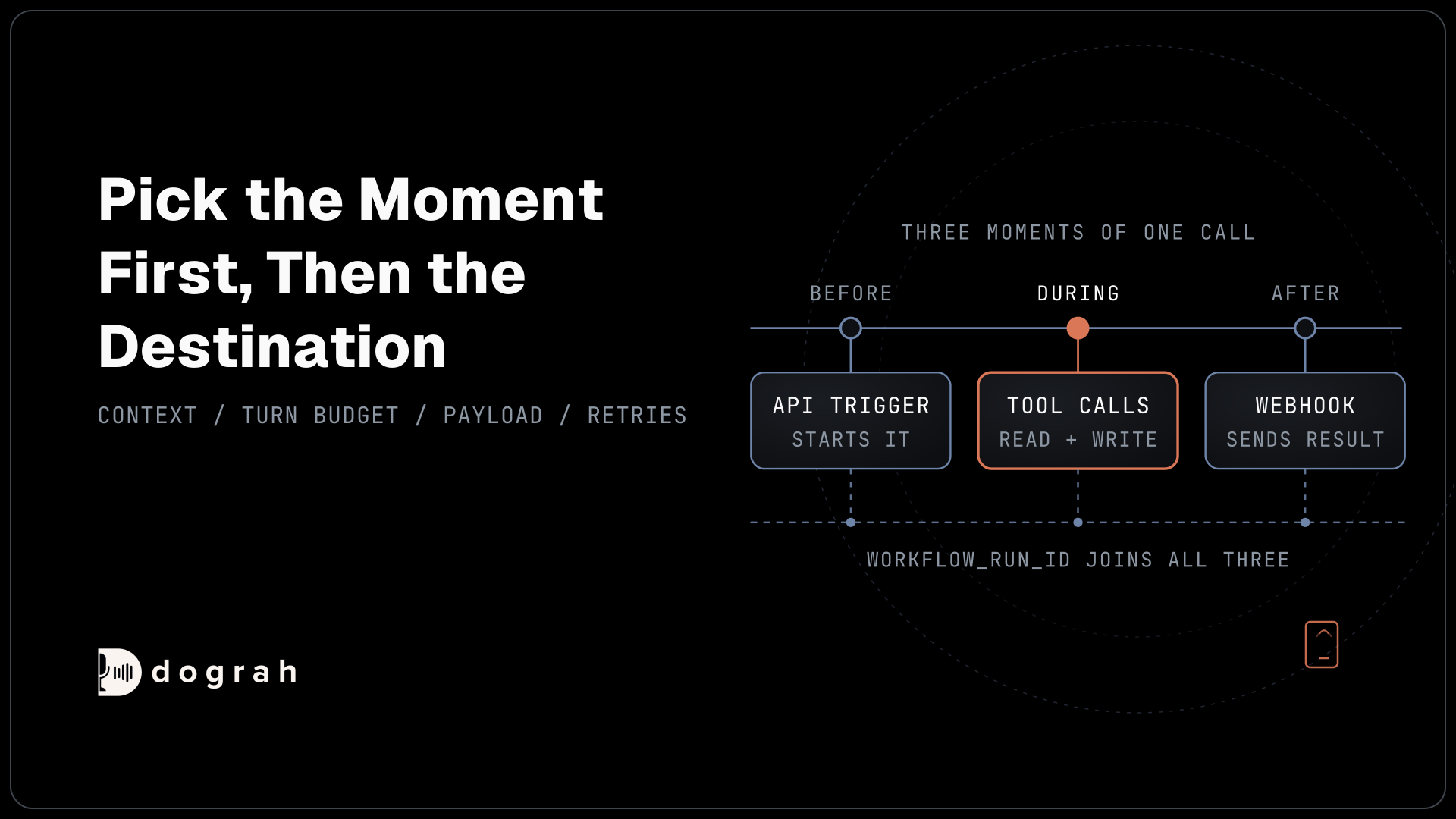

Integrating a voice agent with your stack comes down to three moments in a call. An API Trigger starts the call from any system with context. Tool calls read or write live data during the conversation. A Webhook sends the result anywhere once the call ends. Any system that can send or receive a web request can connect.
Key Takeaways
- Decide when the data moves (before, during or after the call), then where.
- A third-party lookup mid-call can blow the turn budget, so plan a filler line.
- Save each call's ID so you can spot results that never arrive.
A voice agent that cannot see your customer records, or update them, is a very polite answering machine. The part that makes it useful is the plumbing around the call. This guide shows how that plumbing works in Dograh, the open-source voice agent platform we build.
Why integrations decide how useful a voice agent is
A voice agent earns its keep by reading from and writing to the systems your team already runs.
That sounds obvious until you count those systems. The 2026 Connectivity Benchmark Report from Salesforce and MuleSoft surveyed 1,050 IT leaders in October and November 2025. The number of apps in their enterprises grew from 897 to 957 in a year, and only 27% of them were integrated together.
The same survey found that 96% of IT leaders agree AI agent success depends on data being integrated across all their systems. And 94% agree it will need their architecture to become more API-driven, built on application programming interfaces (APIs) that connect apps and data. The model matters. The connections matter more.
So waiting for a ready-made connector for every app is a losing plan. A typical stack has a customer relationship management (CRM) system, a helpdesk, a scheduling tool, an order database and a few internal services, and they change every year. What a voice agent needs is a small number of generic doors that any of those systems can walk through.
That is how we built Dograh. It is an open-source voice agent orchestrator under the BSD-2 licence. It runs the workflow, turn-taking, telephony, tool calls and the whole call lifecycle. You pick the speech and language models separately. Everything else in your stack connects through three mechanisms, each tied to a moment in the call.
Every integration is one of three moments in a call
Before you pick a tool or an endpoint, decide which moment of the call the integration belongs to.
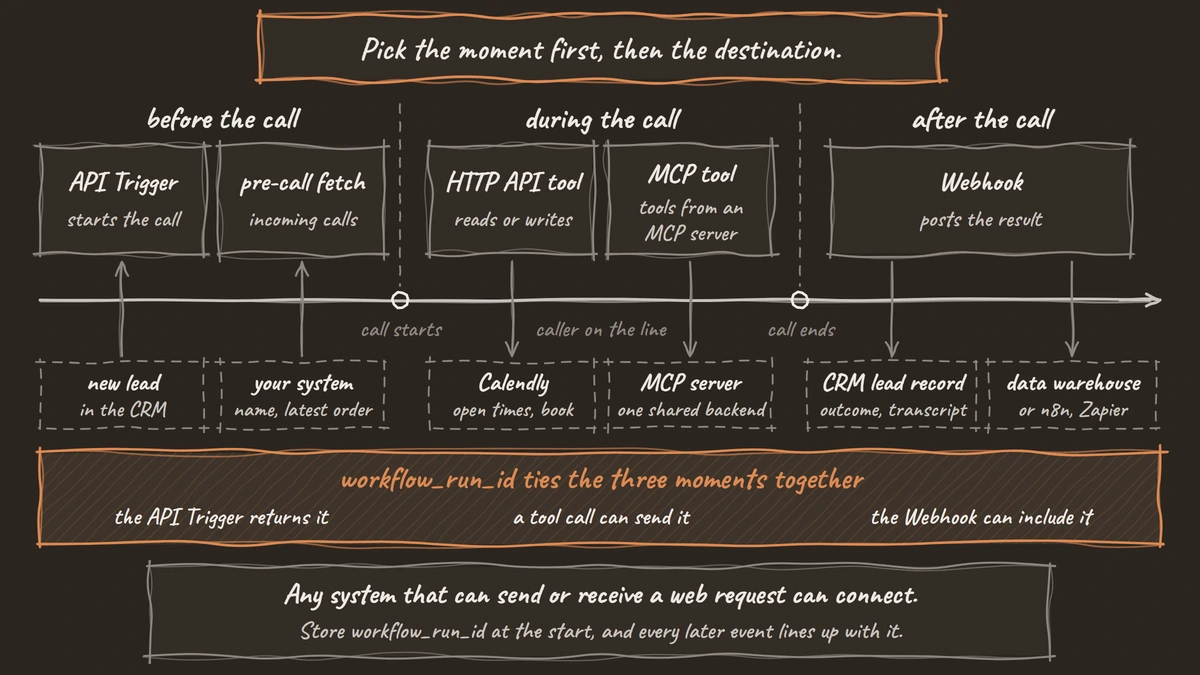
Before the call, an API Trigger starts it and hands over context, such as a customer's name or an appointment date. During the call, a tool call reads or writes live data while the caller is on the line. After the call, a Webhook sends the result wherever it needs to go. Pick the moment first, then the destination.
The same destination often shows up in all three moments. Take a CRM. A new lead in the CRM can fire the API Trigger so the agent calls within minutes. During that call, a tool call can look up the lead's plan or open tickets. When the call ends, a Webhook writes the outcome and the transcript link back to the lead record. One system, three different mechanisms, and each one has its own rules for speed and failure.
The data flow follows the same shape. What you pass in at the start is called initial_context, and the agent can use it in its prompts. What the agent extracts during the call is called gathered_context. The agent's prompts cannot read gathered_context. It leaves the call through a Webhook, so plan to catch it there.
One value ties the three moments together: workflow_run_id. The API Trigger returns it, a tool call can send it, and the Webhook can include it. If you store it at the start, every later event about that call lines up with the record that caused it.
Before the call: start it from any system with an API Trigger
The API Trigger turns any system that can send an HTTP request into something that can start a call.
When you add an API Trigger node to a workflow, Dograh assigns it a unique UUID, and you copy the trigger URL from the node's settings dialog. There are two URLs. One is for testing, and one is for production. The production URL only runs a published workflow. If you edit the workflow and forget to publish, production keeps running the older version. The two addresses below differ only in the /test/ part:
POST https://your-dograh-instance/api/v1/public/agent/{uuid}        # Production
POST https://your-dograh-instance/api/v1/public/agent/test/{uuid}   # Test
What this does: Use the test address while you build, and switch to the production one once the workflow is published.
Here, your-dograh-instance is the address of your own Dograh deployment. The request below carries your API key in the X-API-Key header, who to call in phone_number, and what the agent should know in initial_context:
curl -X POST https://your-dograh-instance/api/v1/public/agent/{uuid} \
  -H "Content-Type: application/json" \
  -H "X-API-Key: dg_your_api_key" \
  -d '{
    "phone_number": "+1415555XXXX",
    "initial_context": {
      "customer_name": "Jane",
      "appointment_date": "March 15"
    }
  }'
What this does: It starts the call. Because the agent already knows the customer's name and appointment date, it can open with the caller's name instead of a generic greeting.
If the call starts, Dograh replies with a short confirmation and the call's unique number, workflow_run_id:
{
  "status": "initiated",
  "workflow_run_id": 12345,
  "workflow_run_name": "WR-API-7823"
}
What this does: It confirms the call is under way. Everything that happens to this call later, including the result the Webhook sends, carries that same
workflow_run_id.
Store that workflow_run_id in the system that made the request. It is the key you will match the Webhook against later.
To create a key, open Settings and go to the API Keys page. Dograh shows the full key only once, so copy it somewhere safe straight away. If you archive a key, it stops working immediately, and any request that uses it gets a 401 error.
Everything inside initial_context becomes a template variable in your prompts. In the example above, the agent can say {{customer_name}} and {{appointment_date}}. Nested values work with dot notation, such as {{user.name}}. Two optional integer fields, telephony_configuration_id and from_phone_number_id, let you choose which telephony setup and caller ID a given call uses.
When a request fails, the status code tells you why:
| Status | Cause |
|---|---|
400 | Telephony provider not configured, or call failed to initiate |
401 | Missing or invalid API key |
403 | API key does not have access to this agent |
404 | Trigger not found or not active |
422 | The request body failed validation |
Incoming calls can start with context too. Before answering, Dograh can send the caller's number to your system and ask for their details, such as their name or latest order. The agent can then use those details from its first sentence. The caller hears ringing while this happens. If your system has not replied within 10 seconds, the agent answers anyway, just without the details. You turn this on in the Start Call node, under Advanced Settings.
The API Trigger is also where most outbound programs start. Whether the cause is a CRM stage change or a missed payment, the pattern is the same one we cover in our guide to outbound calling that converts.
For test URLs, keys, caller IDs and error codes step by step, see how API triggers start a voice agent call from any system.

Open Source Alternative to Vapi / Retell
Self-hosted voice agent platform — no per-minute fees
dograh-hq/dograh
Star on GitHub
During the call: tool calls that read and write live
A tool call lets the agent reach an external system while the caller is still talking to it.
In Dograh, this is the HTTP API tool. It attaches a REST call to a node in your workflow. The language model then decides when to call a tool and what to send it. It makes that choice from your node prompt, the tool's name, its description and its parameter definitions. The tool's description matters most, because it is how the model decides when to use the tool.
A tool definition has a name, such as create_crm_contact, a plain-English description, a full endpoint URL, any auth headers and a list of parameters. Each parameter has its own description, and those descriptions matter more than the types, because the model reads them to decide what to send. You can also preset workflow_run_id so your backend knows which call is asking.
The response contract is simple, and your prompt should use it. The agent gets the response's status_code and the parsed body as data. Anything under 400 comes back as success. Any 4xx or 5xx response comes back as error, and so do timeouts and connection failures. So write the error path into the node prompt. The agent should say it could not check and offer a callback. It must never tell the caller a booking went through when it did not.
The turn budget decides where the lookup lives
A live lookup has to fit inside the pause between the caller finishing and the agent answering. We hold that whole round trip to the sub-800ms bar for natural conversation, and the speech and language models already use most of it.
So keep live lookups fast, and cover the slow ones with a short spoken line. A lookup to an outside service can take longer than the whole pause on its own. One team measured a CRM lookup during live calls at about 0.4 seconds on a typical call and over 1.2 seconds on the slowest ones.
The fix depends on where the data lives. If it sits in a database on the same network as a self-hosted Dograh, the lookup adds very little and the caller never notices. That is how order status calls can answer at once. If the data has to come from an outside service, plan a short line such as "Let me pull that up for you", so the conversation keeps moving. Either way, look up only what this call needs.
Example: booking a meeting in Calendly during the call
Calendly is not a built-in Dograh integration, and it does not need to be. You reach it the way you reach any API, with two HTTP API tools: one that checks open times and one that books.
Calendly's Scheduling API books a meeting through its Create Event Invitee endpoint with no redirect or hosted page. Two limits matter for a voice agent. First, the plan: a Free Calendly account gets a 403 and cannot book through the API at all, while an account on a trial can book, but only 5 times per user per day. Second, the pace: on paid plans below Enterprise, Calendly allows each user 10 bookings a minute, 50 an hour and 100 a day. In a busy outbound campaign, the 10-a-minute cap is the one you hit first, so spread bookings across several hosts.
If several tools share one backend, Dograh's MCP tool is the other option. It connects an external MCP (Model Context Protocol) server and exposes its tools to the model. If that server goes down, the call can continue without those tools.
The guide to booking meetings mid-call with Calendly walks through both tools, the paid-plan requirement and what to do when a slot is taken.
After the call: the Webhook sends the result anywhere
The Webhook node posts the outcome of each call to any URL you choose, once the call is over.
Dograh runs Webhook nodes in the background once a call is over. It fills your payload template with the call's data and sends it as a JSON POST. You can add more than one Webhook node to the same agent, for example one to the CRM and one to a data warehouse. In the payload below, the name on the left of each line is yours to choose, and Dograh fills in the value on the right after the call:
{
  "call_id": "{{workflow_run_id}}",
  "first_name": "{{initial_context.first_name}}",
  "rsvp": "{{gathered_context.rsvp}}",
  "disposition": "{{gathered_context.call_disposition}}",
  "duration": "{{cost_info.call_duration_seconds}}",
  "recording_url": "{{recording_url}}",
  "transcript_url": "{{transcript_url}}"
}
What this does: It tells your system who was called, what they answered, how the call ended and how long it lasted, with links to the recording and transcript.
You shape the payload yourself, so the receiving system gets its own field names. The variables cover the run ID and name, call_time, the full initial_context and gathered_context, the call status and disposition, the call duration, and links to the recording and transcript. If your template leaves out call_disposition, Dograh adds it at the top level anyway. Variable names must match your context fields exactly, or they come through as empty strings.
For auth, the Webhook node supports no auth, an API key header, a bearer token, basic auth, or any custom header. Pick the one your receiver already checks.
Your receiving system has two jobs. First, reply fast: send back a success response within 30 seconds, and do slow work, like updating several records, after replying. Second, make sure the same result arriving twice does no harm. Use workflow_run_id as the key for every write, so a second copy updates the same record instead of creating a new one.
Now the part to plan for. If your system is down when a result is sent, that delivery fails, and by default Dograh does not send it again. You can switch on automatic retries with the retry_config setting, but test how they behave on your own setup before you rely on them. Either way, keep the workflow_run_id of every call you start, compare it with the results that arrive, and follow up on any call that is missing.
Before you build reports on these results, test the Webhook with every call outcome you rely on, such as answered calls, voicemails and unanswered calls.
The guide to webhook-driven voice agents goes further into payload templates, auth options and building a receiver that handles duplicates and missing results.
Where workflow tools and your other apps fit
Workflow tools and business apps are simply destinations for the same three mechanisms, so none of them needs a special connector.
n8n sits on both sides of the call. Its HTTP Request node can call the API Trigger, and its Webhook node can receive Dograh's Webhook. The HTTP API tool can also trigger n8n automations mid-call, so n8n can serve the during moment as well. It is fair-code and self-hostable under its Sustainable Use License, which pairs well with a self-hosted Dograh when the data has to stay in your network.
Zapier works the same way through a Catch Hook, which gives you a URL to paste into the Webhook node. Webhooks by Zapier is not on Zapier's Free plan, so check your plan first.
Writing straight into a CRM is fine too, but watch the API limits on the CRM side. HubSpot's usage guidelines allow privately distributed apps 100 requests per 10 seconds on Free and Starter, and 190 on Professional and Enterprise. A mid-call lookup on every live call in a busy campaign can reach that.
The rule we follow is to keep the field mapping in one place. Either shape the payload for the CRM directly in the Webhook template, or send a neutral payload to n8n and map it there. Doing a bit of both is how records end up half-updated.
To wire both ends of a call to n8n, follow our walkthrough on automating voice workflows with n8n and webhooks.
Join the Dograh Community
Dograh is an OSS alternative to Vapi. Join our Slack community for queries, releases, best practices & community interactions.
Plan for the failures before a caller hears them
Every integration fails sometimes, so decide in advance what happens at each moment when it does.
APIs are down more often than most teams assume. Uptrends' State of API Reliability 2025, built from over 2 billion monitoring checks, put average weekly API downtime at 55 minutes in Q1 2025. Across a campaign that runs every day, some of your calls will land in that window.
At the trigger, read the status code and act on it. A 400 usually means telephony is not set up or the call did not start. A 404 often means the trigger is not active. The quiet failure is the unpublished edit. The production URL runs the last published version, so a change you tested on the test URL does nothing in production until you publish it.
During the call, the failure is dead air or a false promise. Keep each tool narrow, with one action and precise parameter descriptions. Write the error path into the prompt, so a timeout becomes an honest "I could not check that just now" plus a callback offer.
After the call, the failure is silent. Nobody hears a Webhook fail. That is why you need the reconciliation check on workflow_run_id, and a receiver that is safe to call twice.
Built-in connectors vs open mechanisms
Hosted, closed voice platforms usually sell integrations as a list of built-in connectors, and that choice decides who owns your integration.
A built-in connector is quick to switch on, but the field mapping lives in the vendor's settings and the app list is theirs. Open mechanisms ask a little more of you, because each destination needs its own auth and field mapping. We keep that mapping in one layer you own, a Webhook template or one workflow tool. And because Dograh can be self-hosted, the lookup service can run next to the agent, the same reasoning behind running voice AI on local, self-hosted models.
| Question | Built-in connector on a closed platform | Generic mechanisms on Dograh |
|---|---|---|
| Which apps can you reach | The ones on the vendor's list | Anything with an HTTP API or a webhook URL |
| Who owns the field mapping | The vendor's connector settings | Your payload template or workflow tool |
| When an app's API changes | You wait for a connector update | You change your own mapping |
| Can the lookup run next to the agent | No, it runs from the vendor's cloud | Yes, when you self-host |
| Where call data goes | Through the vendor's cloud first | Only where you point the Webhook |
Glossary
- initial_context
- The data a Dograh call starts with, passed in by the API Trigger or a pre-call fetch. The agent can use it in prompts as template variables such as {{customer_name}}.
- gathered_context
- The values the agent extracts during a call, such as a disposition or an RSVP. Prompts cannot read it, so it reaches your systems through a Webhook.
- Turn budget
- The time between a caller finishing a sentence and the agent starting its reply. Any live lookup has to fit inside it, or the caller hears silence.
- workflow_run_id
- The call's unique number. The API Trigger returns it, a tool call can send it and the Webhook returns it, so it ties the whole call together and keys every write so nothing is saved twice.
Start with the moment and let the vendor follow. The Webhook is the cheapest first step, because it gets every call's outcome into your own systems from day one. Tool calls come last, one narrow tool at a time, each one measured against the turn before a real caller hears it.