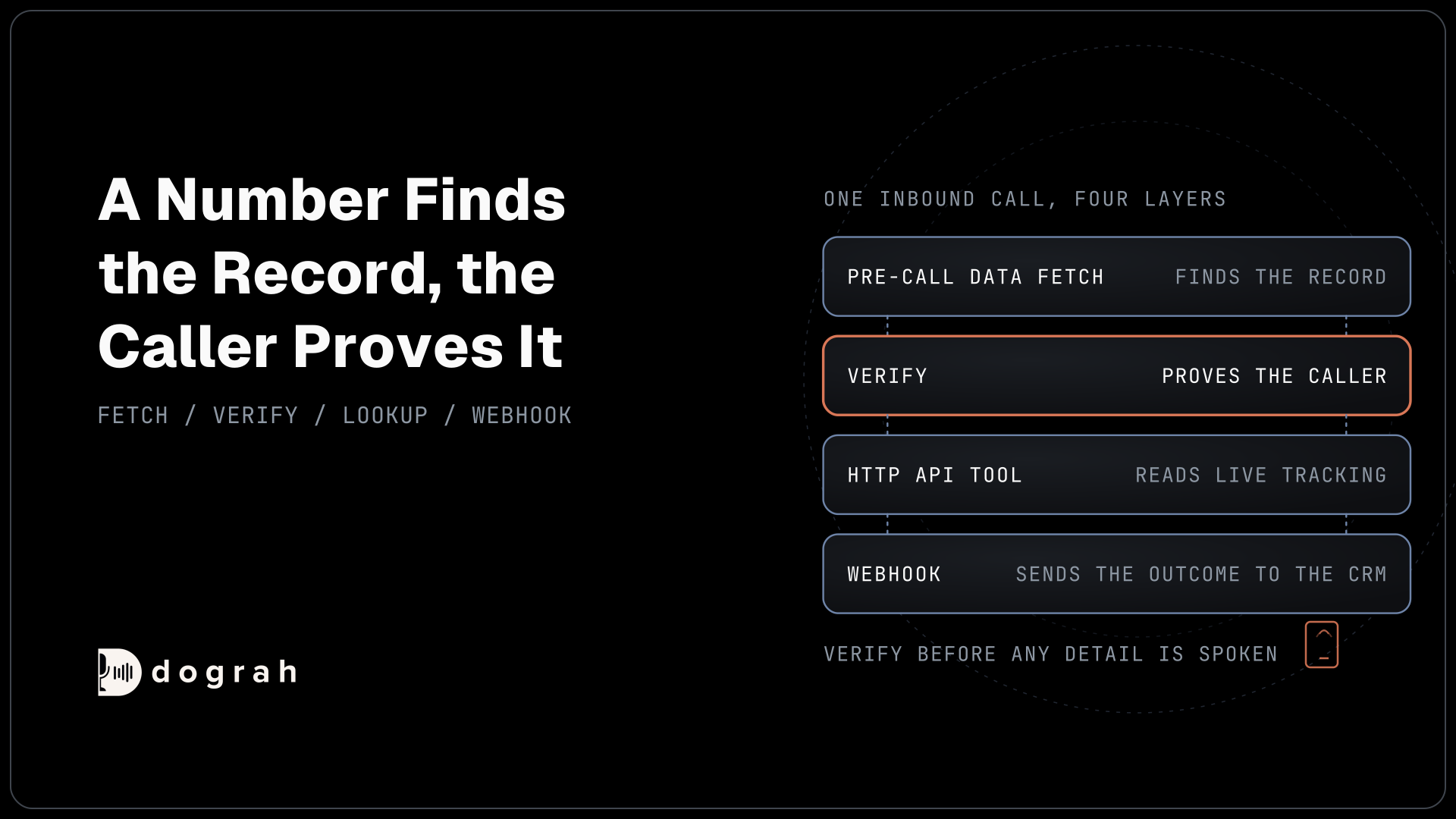

To build a voice agent for logistics in Dograh, create an inbound agent, let Pre-Call Data Fetch pull the caller's shipments when the call connects, verify identity before any detail is spoken, read live tracking through an HTTP API tool while tool Messages cover the lookup, then record the outcome and send it to your CRM by webhook.
Key Takeaways
- Pre-Call Data Fetch finds the shipment. A verification step proves who is calling.
- Tool Messages play while the tracking lookup runs, so nobody hears dead air.
- Test on a web call first, then five real phone calls, before you publish.
This post is part of our guide to AI voice agents for logistics and delivery. This guide builds an inbound logistics voice agent in Dograh, an open-source, self-hostable voice agent platform, step by step. It recognises the caller, checks it's really them, reads live tracking, and sends the outcome to your CRM, with no code.
What you need before you start
You need a Dograh account, a tracking endpoint, a CRM endpoint and a phone number, and no code. An endpoint is simply a web address your own system answers at. The tracking endpoint is any URL that takes a tracking number and returns JSON, whether that is your transportation management system (TMS), a visibility platform or a carrier's developer API. The CRM endpoint is any URL that accepts a JSON record. The phone number is needed for the last step.
The agent answers one question well. A consignee or shipper calls, the agent greets them by name, confirms they are who the record says, reads back the live status, records what was agreed and hands anything unusual to a person. For the call design, see AI voice agents for order status in logistics. This post is the build.
What you'll build:
- Pre-Call Data Fetch finds the caller's record before the greeting.
- A verification node proves the caller before any detail is spoken.
- An HTTP API tool reads live tracking, with a tool Message covering the pause.
- Extraction fields record the outcome and a webhook sends it to your CRM.
A voice agent with a logistics prompt and no connection to your systems is a demo. These four features are what make it an operations tool.
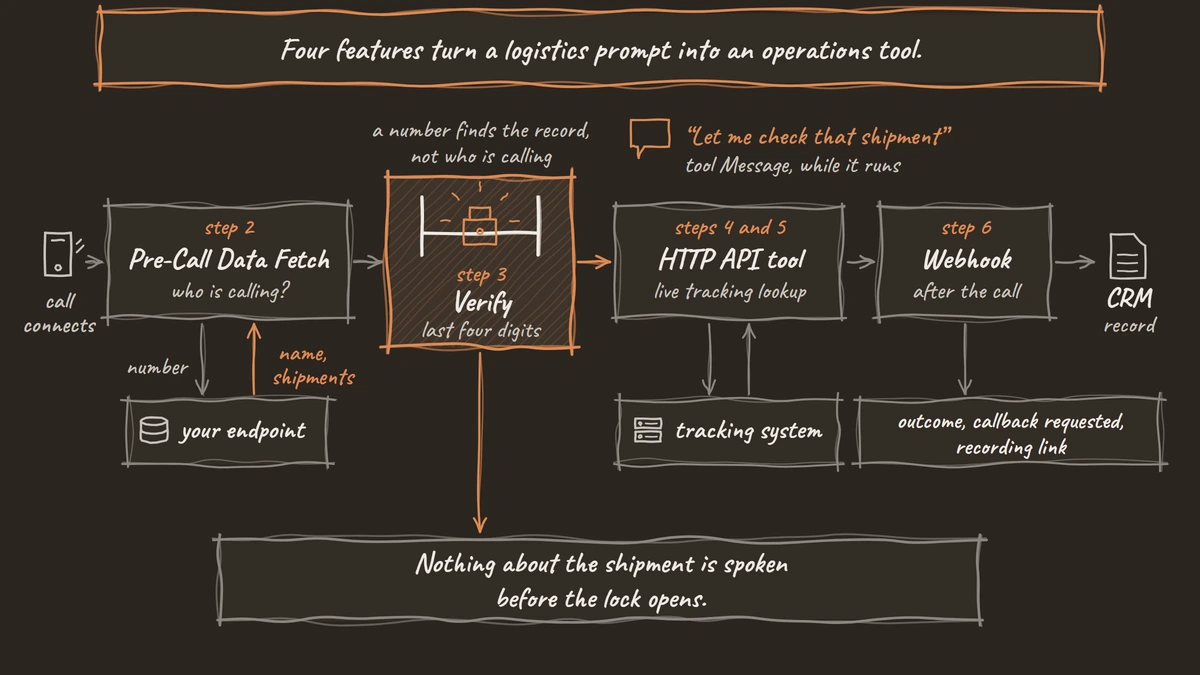
Step 1: Create the agent and set the greeting
Start with the Create Voice Agent form. Set Call Type to Inbound, type Customer Support as the Use Case, and describe the agent in Activity Description: "Answer shipment status questions for verified callers using live tracking data, and record the outcome." Dograh generates a prompt from that description, and you edit it from there.
In the global prompt, set the rules in plain words. The agent handles shipment status only, says nothing about any shipment until the caller has passed verification, and calls the tracking tool only once it has a tracking number or has found one in the caller's record.
In the Start Call node, write the greeting so it can use a name once Step 2 supplies one. For unknown callers, give the name a default: "Hi {{customer_name | there}}, you've reached the delivery line."
Check: on a web call with a test name set in the Variables tab, the agent greets you by that name.
Step 2: Recognise the caller with Pre-Call Data Fetch
Pre-Call Data Fetch asks your system who is calling before the agent says hello. Open the Start Call node, scroll to Pre-Call Data Fetch at the bottom of the node, and set it to Inbound. Enter the Endpoint URL of a small service you control and, if it needs one, an Authentication credential. The fetch runs once the call is connected, times out after 10 seconds, and if it fails the call simply continues without the extra context.
The request below is what Dograh sends to your endpoint; the caller's number arrives in from_number, and workflow_run_id identifies this call:
{
  "event": "call_inbound",
  "call_inbound": {
    "agent_id": 789,
    "workflow_run_id": 1012,
    "from_number": "+1415555XXXX",
    "to_number": "+1415555XXXX"
  }
}
What this does: It gives your service the caller's number and a run ID, once per call, with an
Idempotency-Keyheader. Your service looks the number up in your TMS or customer database and decides what the agent should know.
Your endpoint answers with the values the agent may use, under initial_context; here that is the customer's name, the open shipments on the account and the last four digits of the order the agent will verify against:
{
  "call_inbound": {
    "initial_context": {
      "customer_name": "Sam Lee",
      "open_shipments": "1",
      "order_last4": "4471",
      "primary_tracking": "1Z999AA10123456784"
    }
  }
}
What this does: Everything in
initial_contextbecomes a variable the agent can use, such as{{customer_name}}in the greeting and{{primary_tracking}}in the lookup. The number found the record; the next step decides whether the caller may hear it.
Web test calls have no phone numbers. To test the fetch from the browser, open the Variables tab at the top of the agent editor, add caller_number and called_number, and save.
Check: your endpoint's logs show one request per test call, and the greeting uses the name your endpoint returned. The full field list is in the Pre-Call Data Fetch reference.

Open Source Alternative to Vapi / Retell
Self-hosted voice agent platform — no per-minute fees
dograh-hq/dograh
Star on GitHub
Step 3: Verify before you disclose
A phone number finds a record. It does not prove who is holding the phone. So the agent verifies with an approved check before it names a shipment, an address or a delivery date.
Build verification as its own node. A node is one step of the call, and a pathway is the route from one node to the next, with a written condition the AI reads before it moves. The verification node's prompt asks for the last four digits of the order number, or the postcode on the delivery address, and compares the answer with {{order_last4}} from the fetch. The pathway from this node to the lookup node carries the condition: the caller gave a matching value. Dograh's AI reads that condition and picks the pathway, so the agent moves to the lookup only when the check has passed. Tell the verification node never to say the expected digits out loud.
Give the failure path a real destination. After two wrong answers, the agent offers a callback from the delivery team or hands the call to a person with Transfer Call. Transfer Call works on Twilio only and doesn't pass a summary, so save the caller's details to your CRM first with an HTTP API tool (as in Step 4).
Check: on a test call, ask for your shipment status before verifying. The agent asks for the last four digits and refuses to read anything until you give them.
Step 4: Add the HTTP API tool that looks up the shipment
The HTTP API tool is how the agent reads your tracking system during the call. Open Create New Tool and choose External HTTP API. Give it a name such as get_shipment_status, a description the AI will read to decide when to call it ("Look up the live status, last scan and estimated arrival for one tracking number"), the endpoint URL, the method, and your authentication. Add one parameter, tracking_number, type string, required.
Then attach the tool to the lookup node. A tool is callable only from the nodes it is attached to, and the node prompt says when to call it and what to read back: the status in plain words, the last scan location and time, and the estimated arrival. Tell the agent to use {{primary_tracking}} when the caller has one open shipment and to ask for the number otherwise.
The agent receives the response's status_code and the parsed body as data. Any 4xx or 5xx comes back as status "error", never as a success, and so do timeouts and connection failures. Write that case into the node prompt: if the lookup fails, the agent says the tracking system is not answering right now, offers to call back, and records the request.
Check: a test call with a real tracking number reads back the right status. A made-up number lands on the error path and the agent offers a callback instead of inventing a status.
Step 5: Fill the lookup pause with tool Messages
A lookup against an outside API often takes a few seconds, and silence that long sounds like a dropped call. Tool Messages fix that. They are set on the tool's own page, not inside the agent node, and they come in two kinds. Start announcements play the moment the tool is called, while the request runs. Delayed updates play after a set number of milliseconds if the request is still running.
For get_shipment_status, add a start announcement such as "Let me check that shipment for you". Add a delayed update at 3,000 ms: "Still looking, one moment." The delay can be anywhere from 1 to 120,000 ms, you can add up to 20 variants per event and up to 10 delayed timings, and each variant can be text or a recording.
One limit matters for the model you pick. Text variants do not play on speech-to-speech models. If you run a realtime agent, record the lines and use the audio variants instead.
Check: point the tool at a deliberately slow test endpoint. You hear the start line, then the delayed line, then the answer, with no silence between them.
Join the Dograh Community
Dograh is an OSS alternative to Vapi. Join our Slack community for queries, releases, best practices & community interactions.
Step 6: Record the outcome and send it to the CRM
The call is only useful to your operation if it leaves a record. Two features do that: extraction fields capture what was agreed, and the webhook node delivers it.
Open the End Call node and add extraction fields: outcome as a string ("status given", "callback requested", "transferred"), callback_requested as a boolean, and new_delivery_window as a string for the case where the caller asked for a change. The AI fills them from the transcript when the node is reached. A value it cannot determine is left empty rather than guessed, and the agent records the answer as the caller stated it, with the transcript and recording as the exact record. These values land in gathered_context, which webhooks and run records can read.
Now add a Webhook node. Its fields are Name, Enabled, HTTP Method, Endpoint URL, Authentication, Custom Headers and Payload Template; point it at your CRM endpoint with its authentication. The payload below sends the call's identity, who called, what the agent found and the links to the evidence; gathered_context.outcome is the field you defined a moment ago:
{
  "call_id": "{{workflow_run_id}}",
  "customer_name": "{{initial_context.customer_name}}",
  "tracking_number": "{{initial_context.primary_tracking}}",
  "outcome": "{{gathered_context.outcome}}",
  "callback_requested": "{{gathered_context.callback_requested}}",
  "new_delivery_window": "{{gathered_context.new_delivery_window}}",
  "disposition": "{{gathered_context.call_disposition}}",
  "duration_seconds": "{{cost_info.call_duration_seconds}}",
  "recording_url": "{{recording_url}}",
  "transcript_url": "{{transcript_url}}"
}
What this does: After the call ends, Dograh fills the braces with that call's values and posts the JSON to your CRM, so the shipment record shows who called, what they were told and whether anyone owes them a callback.
The webhook runs after the run completes. Your receiver should answer with a 2xx within 30 seconds and tolerate the occasional duplicate. If your receiver has a temporary problem (timeout, 5xx, 429), Dograh retries automatically, up to 5 attempts spaced from about 30 seconds to 10 minutes apart, with no setting to switch on. Wrong URLs or credentials aren't retried, so test the webhook before going live. The general pattern is in Webhook-Driven Voice Agents: Real-Time Data In and Out.
Check: a finished test call creates one record in your CRM with the outcome and a recording link.
Step 7: Test on a web call, then on a real phone call
A Web Call runs at 16 kHz, the most Dograh's pipeline uses, and it cannot run telephony-only tools such as Transfer Call. Then move to the phone number, because most phone calls still reach the agent as 8 kHz audio and speech recognition gets harder.
Run each leg several times. AI replies vary and tool calls fail most; Full-Duplex-Bench-v3 found every system struggled most when callers corrected themselves mid-sentence, as happens when reading out a tracking number.
For each phone call, open View Trace. It shows the speech-to-text, AI and voice time for every turn and which tool the AI called. How to Read Call Traces to Debug a Voice Agent walks through the trace, and Testing Voice Agents Before You Go Live gives the five tests in order.
Check: five phone calls in a row with the same tracking number give the same status, pass verification each time, and leave five records in the CRM.
Before you ship it
Before you publish, add a QA node so a sample of live calls is scored step by step, and keep the sample high for the first week. Then publish.
If you also want to start this agent from your tracking system rather than wait for calls, the API Trigger gives you two URLs. The test URL runs the latest draft; the production URL runs the published agent only.
The same agent turns outbound with one change: your tracking system starts the call through the API Trigger when a shipment slips, passing the shipment in initial_context. That is the pattern in API Triggers: Start a Voice Agent Call From Any System. Build the inbound agent first.
Glossary
- Pre-Call Data Fetch
- The request Dograh sends to your endpoint when a call connects. The JSON your endpoint returns becomes the call's initial context, so the agent can greet the caller by name.
- tool Messages
- The start announcement and delayed updates a tool plays while its request runs, set on the tool's own page. Text variants do not play on speech-to-speech models.
- gathered_context
- The values the agent extracted during the call, such as the outcome and whether a callback was requested. Webhooks and run records can read it; agent prompts cannot.
- initial_context
- The variables a call starts with, supplied by Pre-Call Data Fetch, the API Trigger or the Variables tab.