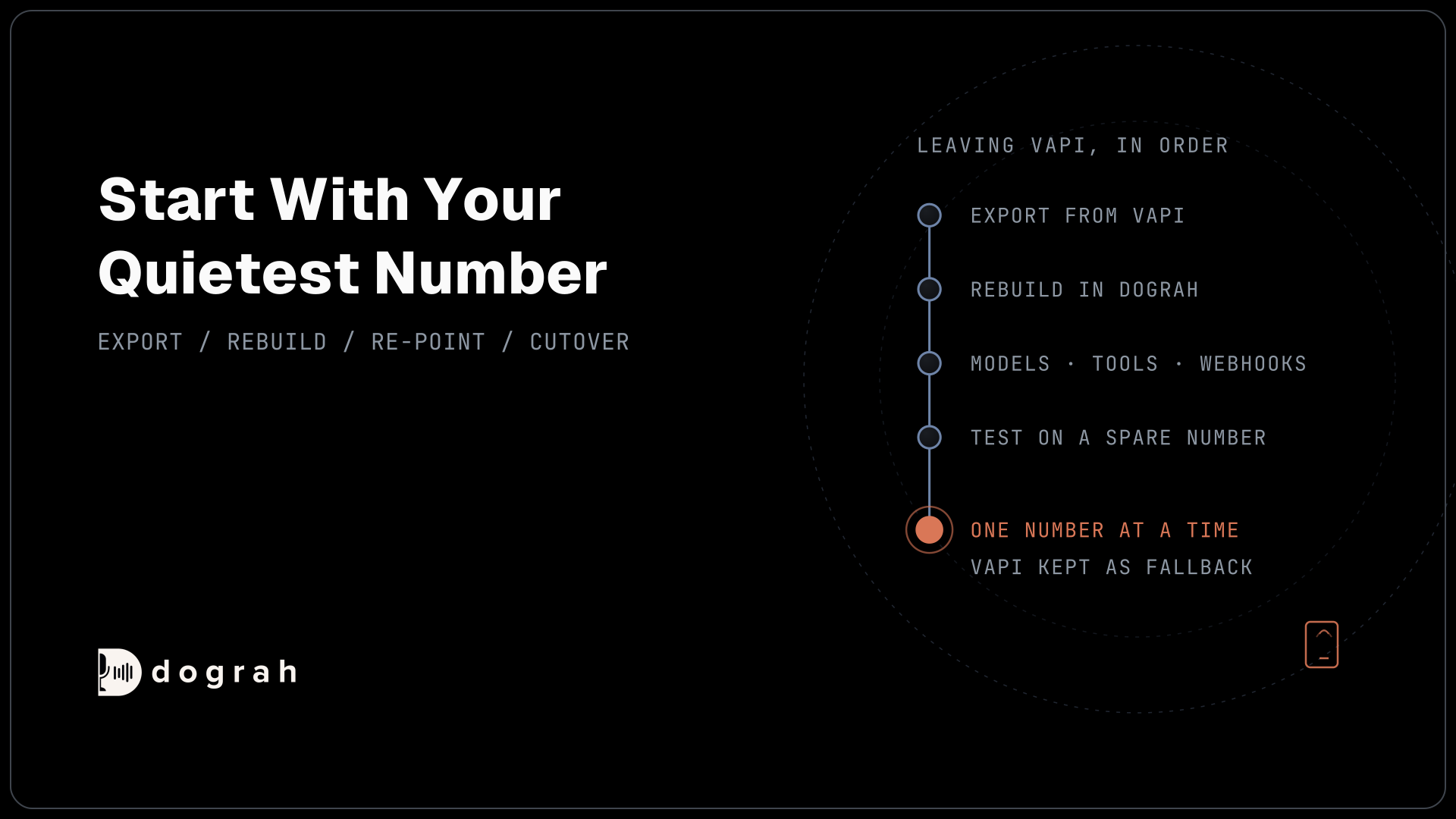

To migrate from Vapi to open-source voice AI, export each assistant, squad and tool through Vapi's API, then rebuild the call flow in Dograh by hand or through its MCP server. Re-enter your model keys, recreate tools and the end-of-call webhook, test on a spare phone number, then move live numbers one at a time.
Key Takeaways
- Copy each Twilio number's old Voice URL before you save it in Dograh.
- Free Vapi numbers cannot be ported out, so plan to replace them.
- Move incoming numbers one at a time, with Vapi kept as fallback.
This post is part of our guide to Vapi alternatives. The guide helps you pick a platform; this post moves you onto one, step by step, using Dograh, an open-source voice agent platform.
Vapi retired its visual Workflows flow builder, and existing workflows stopped running on 19 August 2026. If you built your call flow on that graph, you are rebuilding it anyway. Dograh still builds the call as a visual flow of nodes joined by pathways, so the rebuild can look like the flow you already drew.
What you need before you start
Gather access to both platforms and a spare phone number, and plan for real work before anything moves.
You need a Vapi private API key, a Dograh account and your model providers' API keys. Dograh runs as managed Dograh Cloud, with a 1¢/min platform fee, or on your own servers, where the open-source platform has no per-minute platform fee. Servers, models and phone lines still cost money. If you are still choosing between the two, our guide to the open-source alternative to Vapi covers the trade-off.
Buy one spare Twilio number for testing. A US local number costs $1.15 a month on Twilio. Keep your Vapi account active until the last number has moved and a week of calls look right.
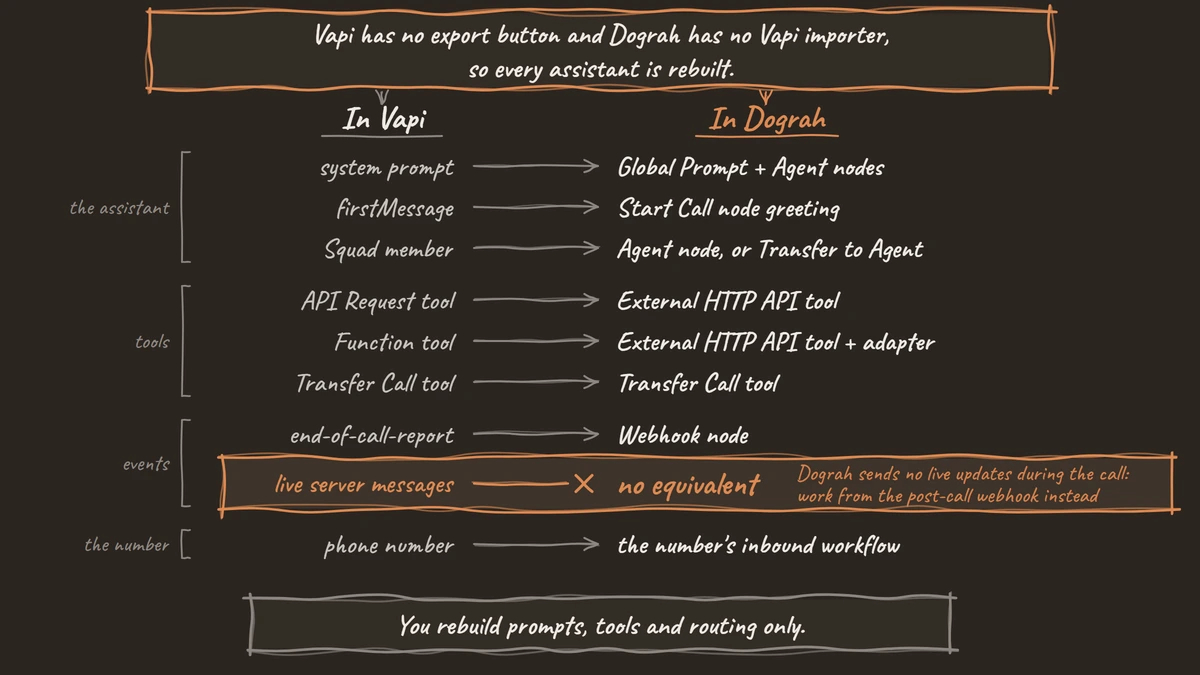
Be honest about the effort. Vapi has no export button and Dograh has no Vapi importer, so every assistant is rebuilt. Free Vapi numbers can't be ported out, so those numbers change. And a tool server written for Vapi's message format needs a small adapter. Plan for that work before you move a single number.
Moving to a raw open-source framework means writing every pipeline step in code, plus live-call monitoring, QA and scaling. Dograh already ships telephony, turn-taking, call transfer, QA and call traces, so you rebuild prompts, tools and routing only. The work is moving your agent, not building a platform around it, and Vapi keeps answering your calls until each number has moved.
Step 1: Export every assistant, squad and tool from Vapi
Read your whole Vapi setup out through its API, because there is no export button and Dograh has no Vapi importer.
The loop below calls Vapi's list endpoints for assistant, squad, tool and phone-number, and saves each answer to its own file. Your private key goes in VAPI_PRIVATE_KEY:
export VAPI_PRIVATE_KEY="your-vapi-private-key"

for resource in assistant squad tool phone-number; do
  curl -s "https://api.vapi.ai/$resource?limit=100" \
    -H "Authorization: Bearer $VAPI_PRIVATE_KEY" \
    -o "vapi-$resource.json"
done
What this does: It writes four files, such as
vapi-assistant.json, holding your prompts, first messages, voices, tool definitions and server URLs. Each list returns up to 100 items, so page through if you have more.
In each assistant, the system prompt sits in model.messages, the opening line in firstMessage, and the voice and speech-to-text settings in voice and transcriber. These files are your spec for the rebuild.
Then write down, for every phone number, which assistant or squad answers it and where the number lives: your Twilio account, Telnyx, a SIP trunk, or a free Vapi number.
Check: you have four JSON files and a list of every number with its provider and the assistant behind it.
Step 2: Rebuild the call flow in Dograh
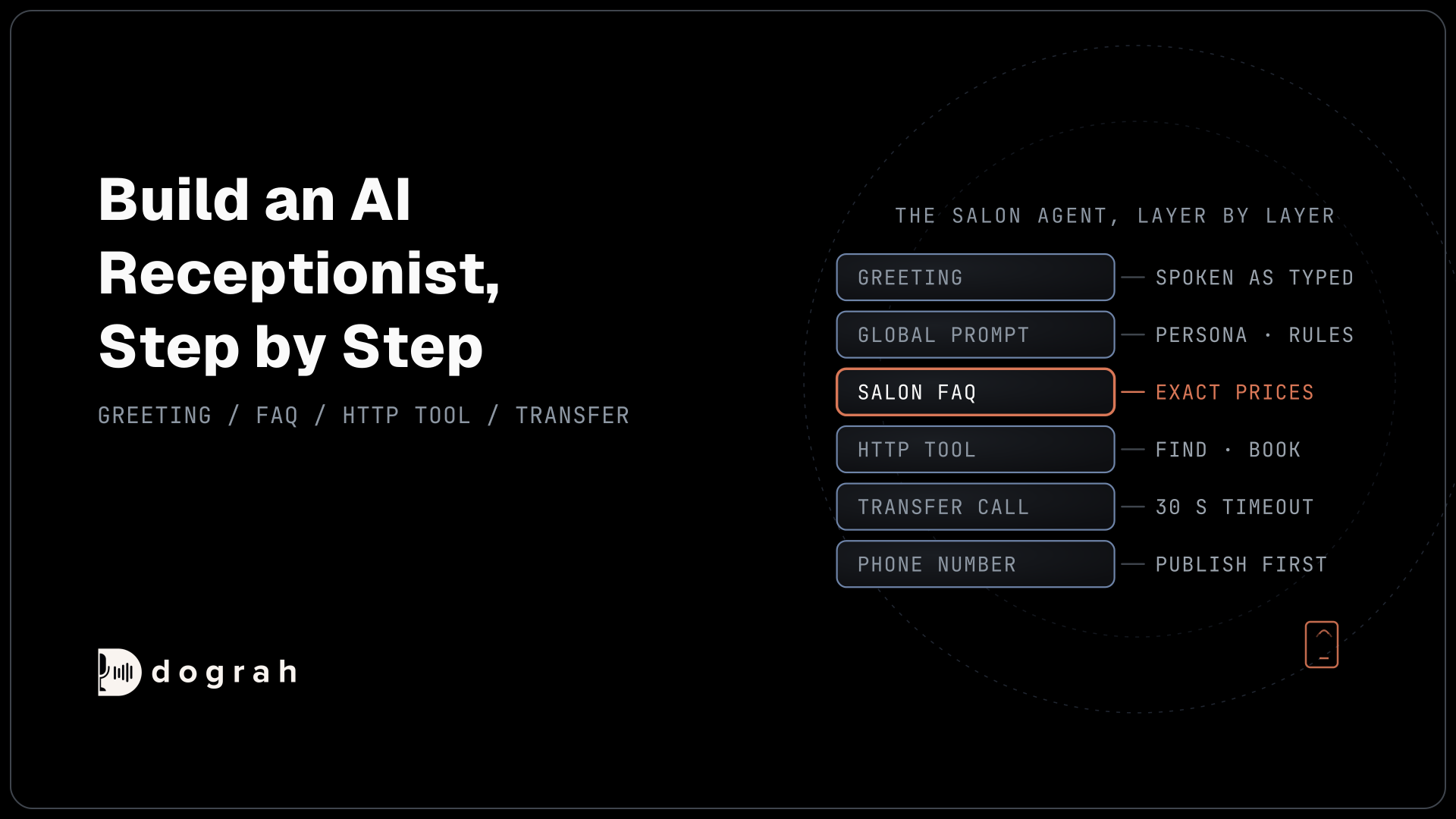
Recreate each assistant as a Dograh agent, splitting its prompt into a shared part and per-task steps.
Create a new voice agent, choose Inbound or Outbound, and describe the use case in a sentence. Dograh drafts a starting flow from that description, which you then fill with your exported prompts.
Split the Vapi system prompt in two. Persona, tone and house rules go into the Global Prompt, which Dograh adds to every node. The task steps go into Agent nodes, one per job the call does. Vapi's firstMessage becomes the greeting on the Start Call node, as text or as the same audio file, and {{variables}} work there too.
Each squad member, or each node from a retired Workflow, becomes an Agent node. The handoff description becomes a pathway's condition, which the AI checks before moving the call on. If a squad member was really a separate agent, keep it as its own Dograh agent and hand the live call over with the Transfer to Agent tool. Values you passed per call through assistantOverrides become template variables, sent in initial_context when you start a call through an API trigger.
Put any line that must be said word for word, such as a legal disclosure, in the greeting. Inside an Agent node, the AI writes its own sentences.
There is a faster route. Dograh's MCP server lets an AI coding assistant such as Claude Code, Cursor or Codex build and edit agents for you. The command below registers the server with Claude Code. The parts that matter are the MCP address, https://app.dograh.com/api/v1/mcp/, and your Dograh API key in the X-API-Key header:
claude mcp add --transport http dograh https://app.dograh.com/api/v1/mcp/ \
  --header "X-API-Key: YOUR_API_KEY"
What this does: It connects Claude Code to your Dograh workspace. On a self-hosted install, swap in your own backend address followed by
/api/v1/mcp/.
Paste one assistant's JSON and ask: "Plan a Dograh agent that does the same job as this Vapi assistant." It asks questions and shows a plan before building. Its edits to an existing agent save as drafts. A brand-new agent built this way is published as version 1 straight away, so test it before you attach a phone number. Dograh's MCP setup page has the config for other clients.

Open Source Alternative to Vapi / Retell
Self-hosted voice agent platform — no per-minute fees
dograh-hq/dograh
Star on GitHub
Check: the canvas shows a Start Call node with your old first message and one Agent node for each job your assistant or squad did.
Step 3: Re-enter the same models and voices
Use the same providers and voice IDs you ran on Vapi, so the only thing that changes is the platform.
Add your provider API keys in Dograh, then pick the same language model, speech-to-text model and voice in Model Configurations. Voice IDs from providers such as ElevenLabs or Cartesia move across as they are.
Vapi's own voices do not. They exist only inside Vapi, and Vapi already retired eight of them on 1 March 2026, moving those assistants to a default voice. If you used one, pick a new voice now and listen to it on a test call.
Your own keys keep your contracts with each provider, but the audio still goes to them. Only open-weight models you host yourself keep it on your servers.
Check: a test call speaks in the voice you chose and answers with the model you picked.
Step 4: Recreate tools and transfers
Rebuild each Vapi tool as a Dograh tool and attach it to the nodes that need it.
A Vapi API Request tool maps to Dograh's External HTTP API tool. Copy the name, description, URL, method, headers and parameter descriptions, then attach the tool to every Agent node that should call it. The agent picks tools by name and description, so keep those clear. If your API returns an error, the agent sees it.
Vapi Function tools need more care. Vapi wraps every call in a tool-calls message and expects a reply keyed by toolCallId. Dograh calls your endpoint directly, so a server written for Vapi's format needs a small adapter route that accepts the plain request.
A Vapi Transfer Call tool becomes Dograh's Transfer Call tool. Set the destination as a phone number such as +1415555XXXX or a SIP address, plus the short message the caller hears before the transfer. It waits 30 seconds for an answer by default. Transfers to a person work on Twilio today. A browser test call cannot transfer, so you will test this in Step 6.
If you used Vapi's knowledge base, upload the same files to Dograh and attach them to the nodes that answer questions.
Check: each tool is attached to the right node, and a web call that needs it shows the tool call as completed in the transcript.
Step 5: Re-point your webhooks
Move your Vapi end-of-call webhook to a Webhook node, and decide what replaces any live events you used.
Vapi sends events to your server URL, and the one most teams rely on is end-of-call-report. In Dograh, a Webhook node sends a JSON payload you design once the call ends. In the template below, each name on the left is what your receiver gets, and each {{variable}} is filled in by Dograh, including call_disposition, recording_url and transcript_url:
{
  "call_id": "{{workflow_run_id}}",
  "customer_id": "{{initial_context.customer_id}}",
  "outcome": "{{gathered_context.call_disposition}}",
  "duration": "{{cost_info.call_duration_seconds}}",
  "recording_url": "{{recording_url}}",
  "transcript_url": "{{transcript_url}}"
}
What this does: It sends one record per call with the outcome, the length and links to the recording and transcript. Rename the left-hand keys to match what your old Vapi receiver reads, and that code needs fewer changes.
Point the node at webhook.site first and read a real payload. Dograh does not retry a failed delivery unless you turn retries on, so make your receiver safe to call twice. Our post on webhook-driven voice agents covers auth and failed deliveries.
Some Vapi events have no direct match. Dograh sends no live updates during the call, so a dashboard fed by Vapi's transcript or status events needs to work from the post-call webhook instead. If you used assistant-request to pick an assistant per call, assign one inbound agent per number and fetch caller data with Pre-Call Data Fetch.
For outbound calls, replace your Vapi create-call request with Dograh's API trigger. Its Test URL runs the latest draft, and its Production URL runs only the published agent.
Check: webhook.site shows one POST after a test call, with every field your receiver reads.
Step 6: Test on a web call, then a spare phone number
Prove the rebuilt agent in the browser first, then on a real phone line, before any customer reaches it.
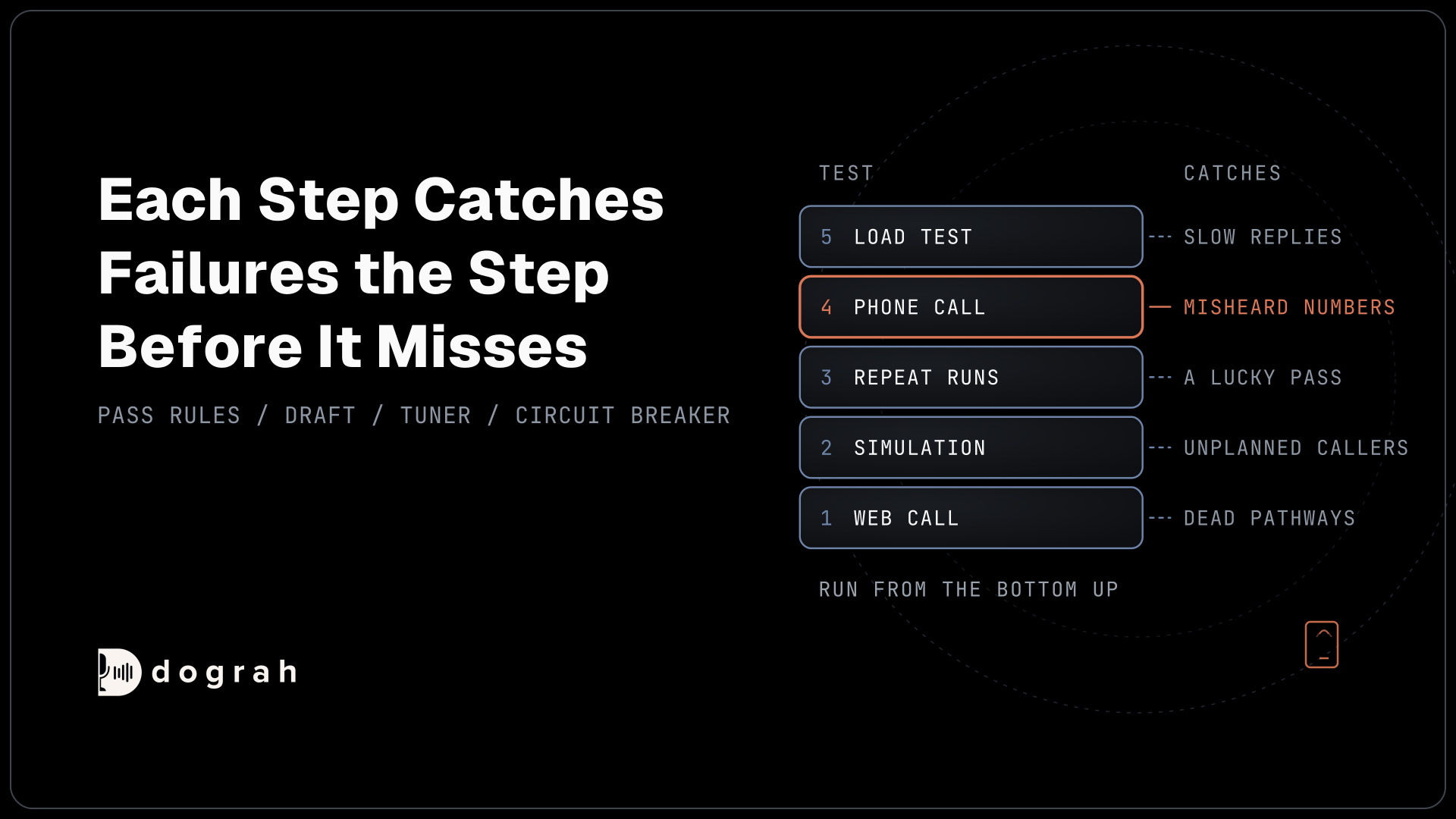
Click Test Agent in the editor, choose Test Audio, and run the scripted calls you used on Vapi. The transcript shows each node change and tool call, so you can compare it with your old Vapi transcripts.
Then publish the agent, connect your spare Twilio number in Dograh's telephony settings, choose this agent as the number's inbound workflow, and call it from a real phone. Test every transfer twice: once when someone answers and once when nobody does. A web call runs at 16 kHz, the most Dograh's pipeline uses, while many phone calls run at 8 kHz. Depending on the speech model and phone path, recognition can get worse on phone audio, so listen for misheard names and numbers.
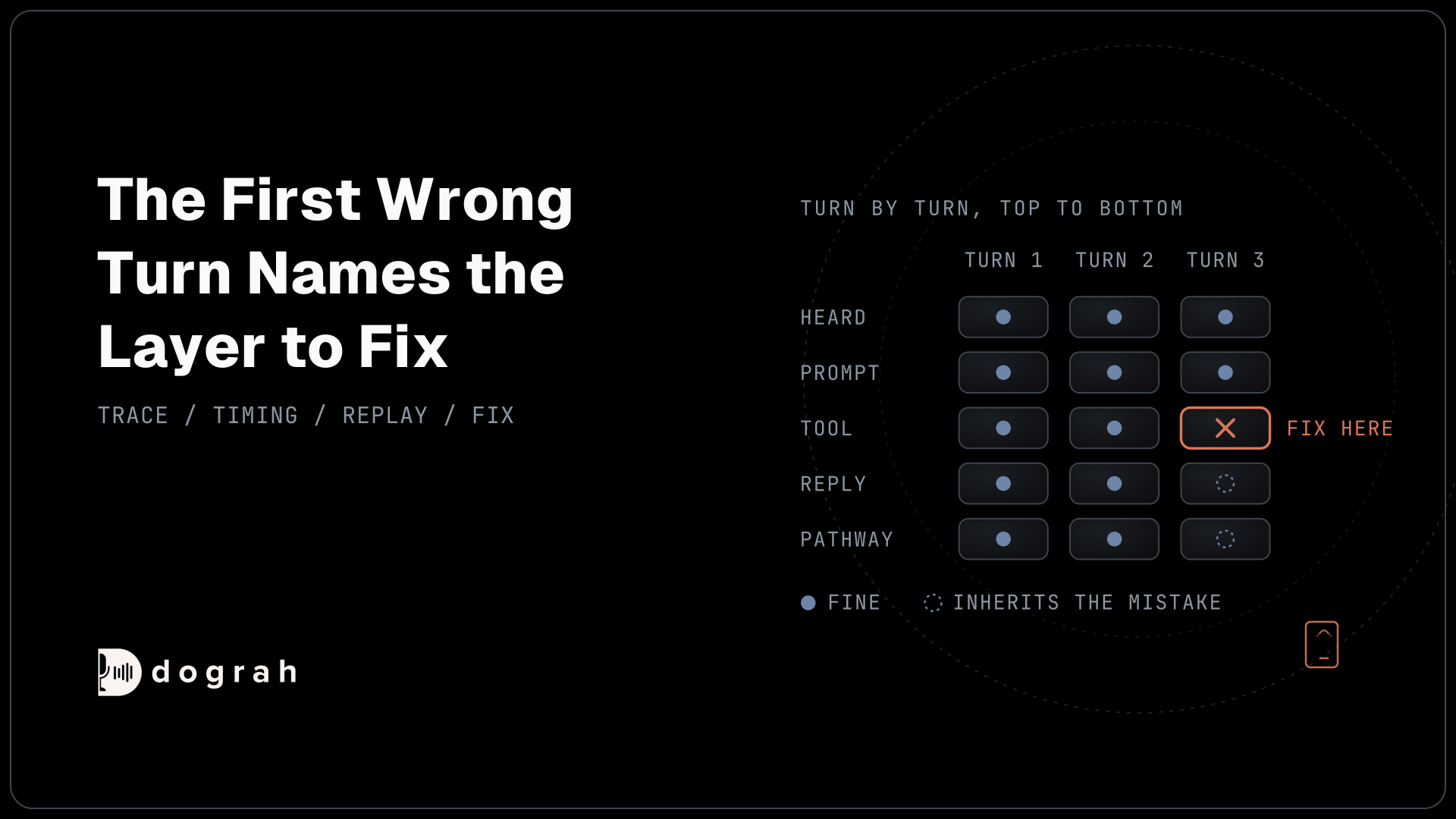
Add a QA node too. It scores each node separately, on test calls as well, so you can see which step went wrong. Our guide to testing voice agents before you go live has the full checklist.
Join the Dograh Community
Dograh is an OSS alternative to Vapi. Join our Slack community for queries, releases, best practices & community interactions.
Check: the phone test shows up as a run in Dograh, with the transfer in its transcript and the webhook delivered.
Step 7: Move one phone number at a time
Switch your quietest number first, with its old settings saved so you can switch it back fast.
For a Twilio number, open it in the Twilio console and copy the URL under "A call comes in" into your runbook. Then make sure the Dograh agent is published, set it as the number's inbound workflow in Dograh, and save. That save switches the number to Dograh immediately. There is no separate go-live button, so treat the save as the cutover. Dograh's Twilio guide walks through the connection.
To roll back, paste the saved URL back into Twilio. Removing the workflow in Dograh leaves the number blank and does not switch it back to Vapi. Keep your Vapi assistants running until every number has moved. Our Vapi migration page sums up the move on one page, with a checklist for each number.
For Telnyx, create a separate Call Control Application for Dograh. Dograh updates that application's webhook when you save, and the change applies to every number on it. Move a number by assigning it to Dograh's application, and move it back the same way.
A free Vapi number cannot be ported to another carrier. Buy a new number, update it everywhere the old one is published, and keep the old one answering on Vapi during the change.
If calls reach Vapi through a SIP trunk, the SIP connection is ready-made on Dograh Cloud. A self-hosted Dograh connects through Asterisk ARI or your own Cloudonix account.
Move numbers one at a time because incoming calls cannot be split between two agents. Splitting works only for outbound campaigns, where you can send a share of contacts to the new agent first.
Check: a call to the moved number appears as a new run in Dograh, and Vapi logs no new calls on it.
Before you ship it
Run through this list for each number before you call its move finished.
| Item | Where | Done when |
|---|---|---|
| Old Voice URL saved | Your runbook | The URL is written down next to its number |
| Agent published | Dograh agent editor | The phone test ran the published version |
| Tools tested | Web call and phone call | Success, timeout and auth failure each behave sensibly |
| Webhook checked | Your receiver | A real payload parsed, and a repeat delivery created no duplicate |
| Transfer tested | Real phone call | Answered and unanswered transfers both end well |
| QA on | QA node | A sample of live calls is scored after cutover |
| Vapi kept active | Vapi dashboard | Every number has moved and a week of calls look right |
Start with your quietest number this week. Once one number has run cleanly on Dograh for a week, the rest follow the same steps.
Glossary
- Voice URL
- The address a phone provider calls when someone rings your number. Whichever platform it points at answers the call.
- Pathway
- A link between two Dograh nodes, with a label and a written condition the AI checks before moving the call to the next node.
- Published version
- The version of a Dograh agent that takes real calls. Edits save as a draft until you publish them.
- Cutover
- The moment a live number starts reaching the new agent. In Dograh, it happens when you save the number's inbound workflow.