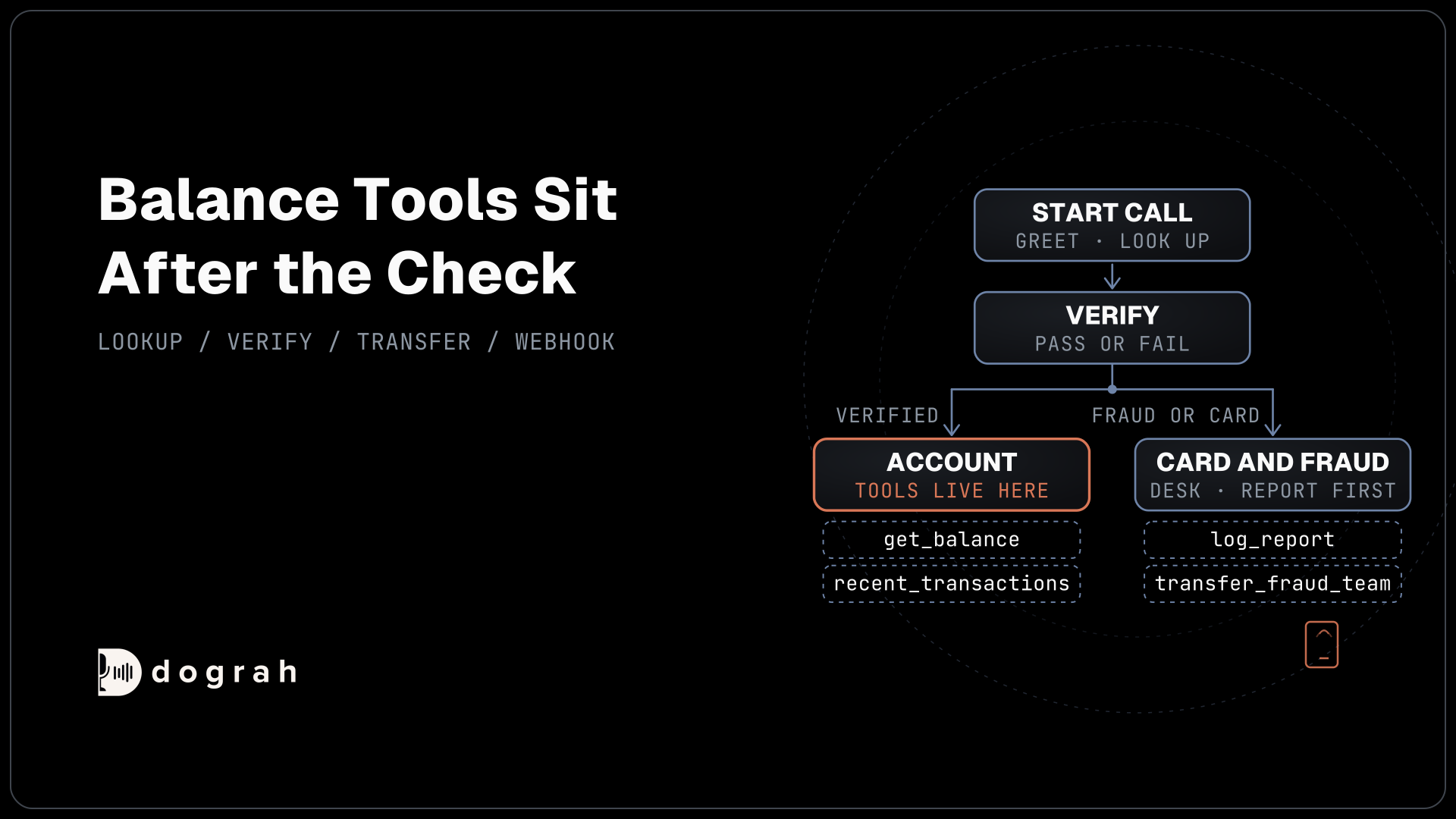

To build a voice agent for banking in Dograh, greet with the bank's name, look up the caller without loading account data, and verify them through the bank's system. Attach balance tools only to the step after the check, route fraud and lost cards through fixed Transition Speech to Transfer Call, post outcomes by webhook and test by phone.
Key Takeaways
- The lookup loads no account data, and the check returns only pass or fail.
- Balance and transaction tools sit only on the step after the check.
- Test transfers on a phone line, because browser tests cannot run Transfer Call.
This post is part of our guide to AI Voice Agents for Banking and Credit Unions. Here we build an inbound member service line, step by step, in Dograh, our open-source AI voice agent platform, from the greeting and the check to fraud hand-offs and phone tests.
What you need before you start
You need a Dograh setup, a phone number on Twilio, Telnyx, Plivo, Cloudonix or Asterisk ARI connected to it (Transfer Call works only on those), and a few endpoints on the bank's side. The platform runs on Dograh Cloud or on your own machine, and a local install needs at least 2 CPU cores, 8 GB of RAM (4 GB available for Docker), 10 GB of free disk and Docker 20.10 or later.
Endpoints are web addresses your bank's systems answer at, usually a small middleware service in front of the core. This build uses a caller lookup, a verification check, a balance lookup, a transactions lookup, a report writer, a payment-link request and a webhook receiver. No core comes connected out of the box, so each one points at an API your core or middleware already offers. How to Build an AI Receptionist covers the editor basics if this is your first agent.
Which way you run it sets the platform bill. Self-hosted Dograh has no per-minute platform fee (servers, model keys and phone minutes still cost). Dograh Cloud has a 1¢-a-minute platform fee.
Step 1: Create the agent and choose its models
Start in Voice Agents in the sidebar. Click Create Agent, then Use Agent Builder. On the Create Voice Agent form, set Call Type to "Inbound (Users call AI)", enter Member Service as the Use Case and describe the job in Activity Description: "Answer member calls for a credit union, verify the caller before any account detail and pass fraud, disputes and lost cards to staff." Click Create Agent, and Dograh drafts a workflow for you to edit.
Next, set up the models. Because Dograh is the orchestration layer that runs the call flow, tools and telephony, the speech and language models are yours to pick. New accounts start on managed models. To use your own, go to Models in the sidebar, click Add Configuration, choose BYOK, pick your providers (or local models), save, then click Make org default on that row. The call audio stays fully in-house only when those models run on your own servers too. Back in the agent, open the Model tab and leave the Configuration list under Preset configuration on "Organization default".
Then put the bank's rules in plain words in the Global Prompt of a Global Node (add one from the Add New Node panel if the draft has none). The agent never asks for a full card number, account number or Social Security number. It never resets a password or online banking login, never changes a phone number, email or address, and never says an amount that a tool did not return.
Check: the Model tab shows "Organization default" with your own configuration's name in brackets.
Step 2: Greet and look up the caller
The greeting and the lookup run before anyone is verified, so neither may carry account data. Open the Start Call node, keep Greeting Type on "Text (TTS)" and write the Greeting Text, which Dograh speaks word for word: Thanks for calling Harbor Federal Credit Union. It uses no name, because whoever holds the phone hears it. If you want to tell callers they're speaking with an automated assistant, or your location requires it by law, write it here along with the credit union's name.
At the bottom of the Start Call node, set Pre-Call Data Fetch to "Inbound calls only", enter your lookup's Endpoint URL and pick its Authentication credential (created under Credentials in the sidebar). It runs once the call connects, and the caller hears ringing until it answers. The request below carries the caller's number in from_number, the dialled number in to_number and the call's run ID in workflow_run_id:
{
  "event": "call_inbound",
  "call_inbound": {
    "agent_id": 412,
    "from_number": "+1415555XXXX",
    "to_number": "+1650555XXXX",
    "workflow_run_id": 58214
  }
}
What this does: It tells your lookup who is calling and which call this is. Your middleware finds the member by
from_numberand ties that match to run 58214, so later steps can refer to the call by its run ID alone.
Your endpoint answers with an initial_context object that holds only "member_found": true or false. A phone number finds a record but does not prove who is calling, so no name, balance or account detail enters the call yet.
If the lookup fails or takes over 10 seconds, the call carries on with no values, and the agent still asks for the check.
Check: a test call opens with the credit union's name and no member details.
Step 3: Add documents, then verify the member
Branch hours, fees and the routing number are the same for every caller, so they need no check. Under Files in the sidebar, upload the fee schedule, branch hours and a routing-number sheet to the Knowledge Base, as PDF, DOCX, DOC, TXT or JSON files of up to 5 MB each. On the canvas, open the Agent Node that follows Start Call, name it "Verify", and select those files under Knowledge Base Documents. In its prompt, say that general questions are answered from the documents at any time, and anything about the member's own account waits for the check.
Your system decides whether the caller matches the record, and the agent only asks. The FFIEC guidance on authentication warns that attackers target call centers to get credentials reset, so the check is the one your bank already uses, and the answer stays inside your system.
Create the tool. In Tools in the sidebar, click Create Tool, choose "External HTTP API" as the Tool Type and name it verify_member. On its Settings tab, set HTTP Method to POST, enter the Endpoint URL, keep the Timeout (ms) at its default of 5000, and add a Custom Message such as "One moment while I check that." In Description, write: "Check the caller's date of birth and the last four digits of their account number before sharing any account detail." On the Authentication tab, pick your credential.
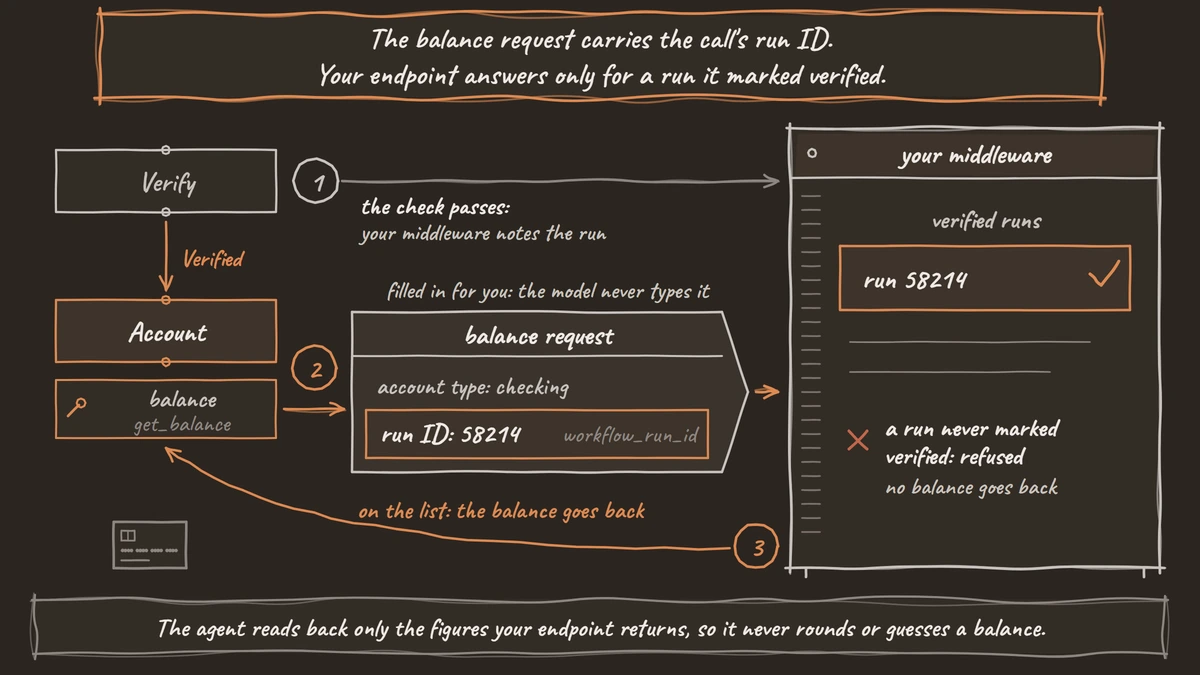
Add the parameters. On the Parameters tab, add two Required LLM Parameters, date_of_birth and account_last4, both String. These are values the agent fills in from the conversation. Then add a Preset Parameter named workflow_run_id, type Number, with the value {{initial_context.workflow_run_id}} and Required on. Save the HTTP API tool, then attach it to the Verify node under Tools.
Your endpoint matches the answers against the member found in Step 2 and replies with pass or fail only:
{
  "verified": true
}
What this does: It gives the agent one fact, whether the check passed. No balance comes back here, and your middleware records run 58214 as verified, so the account endpoints in Step 4 can refuse any run that never passed.
Allow one retry. In the Verify node's prompt, allow one retry. On a second failure, the agent offers a callback and never says which answer was wrong. The tool does not retry on its own, so tell the prompt to treat an error the same way.
Check: ask "What time does the Main Street branch close on Saturday?" and the agent answers from the hours sheet without a check. Then give a wrong date of birth, and the agent says nothing about the account and offers a callback.
Step 4: Read the account after the check
The account step is the only place the agent can read balances, and the flow itself enforces that.
Add the Account node. Draw a pathway from the Verify node to a new Agent Node named "Account". In the Edit Condition dialog, set the Condition Label to "Verified" and the Condition, the rule the model reads before taking this path, to "verify_member returned verified true".
Create the lookups. Create two HTTP API tools, get_balance and recent_transactions, each with the method GET or POST your middleware expects and the same workflow_run_id Preset Parameter. Give get_balance an LLM Parameter account_type (String, such as checking, savings, card or loan). Attach both tools to the Account node only. Tools belong to the step they are attached to, so a caller who never passed the Verify node has no tool that can read an account. The agent reads back only the figures your endpoint returns, so it never rounds or guesses a balance.
Handle payment requests. A member who wants to pay a card or loan gets a link, never a card number on the call. Create a third tool, send_payment_link, that asks your system to text or email its secure payment link to the contact details on file, and attach it to the Account node. Dograh has no keypad (DTMF) tool and no payment feature, and transcripts keep whatever is said, as Handling Payment-Sensitive (PCI) Calls in a Voice Agent Safely explains.
Check: after passing the check, ask for your checking balance and hear the figure from your endpoint. Ask the same question on a call that failed the check, and the agent offers a callback instead.

Open Source Alternative to Vapi / Retell
Self-hosted voice agent platform — no per-minute fees
dograh-hq/dograh
Star on GitHub
Step 5: Send fraud, disputes and lost cards to a person
These calls skip the agent's own logic. Draw a pathway from the Verify node to a new Agent Node named "Card and fraud desk", and a second pathway from the Account node to the same node, so a member with a lost card never has to pass the check first.
Write the condition and the fixed line. Set each pathway's Condition Label to "Fraud or card" and its Condition to "the caller reports fraud, a suspicious call or text, a charge they don't recognise, or a lost or stolen card". In Transition Speech, choose Text and write "I'm connecting you to our card team now." Dograh plays it word for word.
Write the report first. Create an HTTP API tool, log_report, with LLM Parameters report_type (String, one of fraud, dispute or lost_card) and caller_words (String), plus the workflow_run_id Preset Parameter. Attach it to the Card and fraud desk node and tell the prompt to call it before any transfer. Under Regulation E, a notice of error can be oral, per Regulation E's error resolution rule, so the time of this call matters to your dispute team.
Create the transfers. Create two tools with the Tool Type "Transfer Call", transfer_fraud_team and transfer_card_services. Set Pre-Transfer Message to No Message, since the Transition Speech already spoke, and leave Transfer Timeout at its 30-second default. Under Destination Source, choose Static / Template and enter each team's number in E.164 format, such as +1415555XXXX. Attach both to the Card and fraud desk node, with the prompt sending lost and stolen cards to card services and the rest to the fraud team.
Transfer Call calls the destination first and connects the caller only when someone answers. On Twilio, it can play a short spoken introduction to both people. If nobody answers, the caller stays with the agent, so add a rule that it offers a callback and writes it with log_report. AI voice agents for inbound support in banking covers why these three calls go to a person.
Publish first. Before the first phone test, publish the agent with Publish version, because live calls only get the published version. Then in Telephony, set your phone number's Inbound workflow to this agent.
Check: on a phone call, say "I think my card was stolen". You hear the fixed line, a report with the time appears in your system, and the card services phone rings.
Step 6: Send the outcome to the bank's system
A webhook writes every call's outcome to your system, including calls that end early. On the End Call node, turn on Enable Variable Extraction. Under Variables to Extract, add outcome (String, Extraction Hint: "answered, transferred, callback or not verified") and topic (String, Extraction Hint: "the main request, as the caller stated it").
Then add a Webhook node from the Add New Node panel. Set HTTP Method to POST, enter the Endpoint URL, pick the Authentication credential and write a Payload Template that sends the run ID, the two extracted fields and the transcript link:
{
  "call_id": "{{workflow_run_id}}",
  "outcome": "{{gathered_context.outcome}}",
  "topic": "{{gathered_context.topic}}",
  "transcript_url": "{{transcript_url}}"
}
What this does: After each call, Dograh fills the braces with that call's values and posts one record to your system, so staff see every member call, answered or not, in one place.
A temporary failure, such as a timeout or a 5xx, is retried automatically, up to 5 attempts. A caller who hangs up before End Call still sends a record, without the two extracted fields.
Check: one finished test call adds one record to your system, with a working transcript link.
Join the Dograh Community
Dograh is an OSS alternative to Vapi. Join our Slack community for queries, releases, best practices & community interactions.
Step 7: Add banking words, then test by phone
Product names and banking terms are where speech-to-text slips. In the agent's Settings, open Dictionary, type the words into the box separated by commas and click Save Dictionary. Good candidates are "routing number", "ACH", "share draft", "HELOC" and your own product names, such as the name of your rewards card.
Then test. A browser test proves the flow, and a phone test proves the call. Browser test calls count as inbound, so Pre-Call Data Fetch runs on them too, but a web call has no caller number. Open the Variables tab at the top of the editor, add the Key caller_number with a test member's number as the Value (masked here as +1415555XXXX), click Add Variable, then Save Variables. Your lookup receives it as from_number.
Click Test Agent, choose Test Audio and click Run Test. A web call runs at 16 kHz, and it cannot run telephony-only tools such as Transfer Call. Then call your number from a phone. Most phone calls still reach the agent as 8 kHz audio, where digits are misheard more often, by an amount that depends on the speech-to-text model and the phone path.
Run each leg several times, because AI replies vary. Read account digits fast, give a date of birth in two formats and report a lost card in different words. Testing Voice Agents Before You Go Live gives the tests in order.
Check: five phone calls in a row verify correctly, every fraud and lost-card call reaches the right team with a report written first, and "share draft account" and your card's name are spelled right in the transcript.
Score live calls with QA, then launch
Add a QA Analysis node and set its Sample Rate (%) to 10, so a random tenth of calls is scored step by step (the default is 100). Read every call that ended in a transfer or a failed check, and confirm that no call reached the Account node without passing Verify. Recordings and transcripts keep whatever is said, which is why the check uses only the last four digits of the account number.
Then publish, and start with one line, such as calls after the branches close. Outbound payment reminders need a separate agent, with their own consent rules.
Glossary
- Pre-Call Data Fetch
- A request Dograh sends to your endpoint once a call connects, carrying the caller's and dialled numbers and the run ID. Whatever your endpoint returns in initial_context joins the call, and in this build it returns only whether a member was found.
- Preset Parameter
- A value Dograh fills into an HTTP API tool's request itself, such as the call's workflow_run_id, so the model never types it. Here it lets the bank's endpoints refuse any call that did not pass the check.
- Transition Speech
- A fixed line, typed or recorded, that Dograh plays word for word when the call moves along a pathway. The hand-off line for fraud and lost cards goes here, because a line the model writes can drift.
- LLM Parameter
- A value the agent fills in from the conversation and sends in an HTTP API tool's request, such as the caller's date of birth. The agent collects these answers, and the bank's endpoint decides pass or fail.