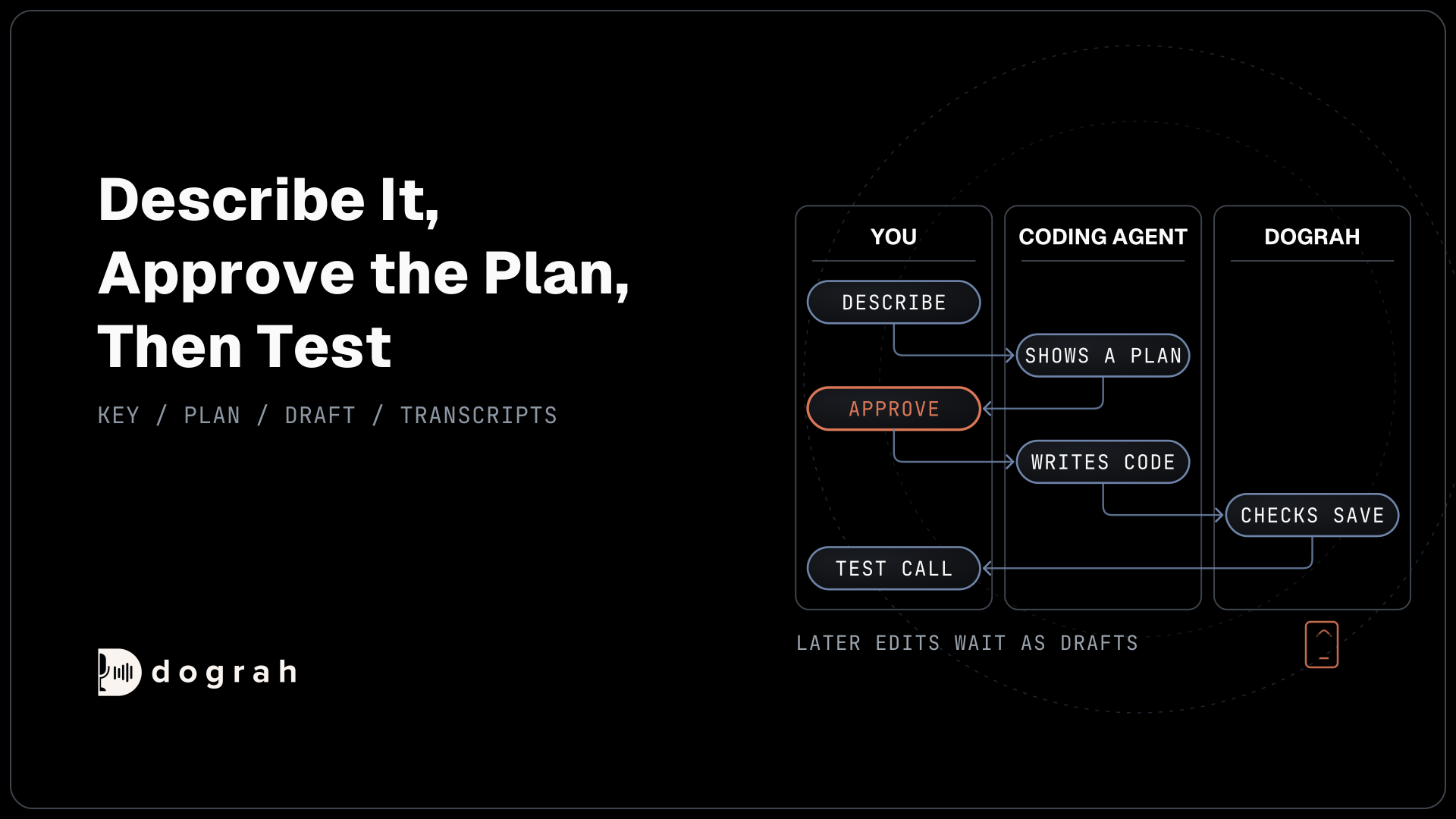

To add MCP support to a voice agent in Dograh, create an MCP Server tool that points at the server's URL and says when to use it. Dograh fetches the server's tools. Allow only the ones you need, tick them on the right step of the call flow, and say in that step's prompt when to call each one.
Key Takeaways
- Allow only the remote tools you need, server-wide and on each step.
- If the MCP server is down, the call continues without its tools.
- MCP tools play no filler line, so the step's prompt must say one.
This post is part of our guide to MCP for voice agents, which covers the idea of giving a voice agent MCP tools. Here we connect an MCP server to a voice agent, step by step, in Dograh, our open-source AI voice agent platform.
What you need before you start
This tutorial covers a voice agent using someone else's MCP server during a call, such as your inventory system or a booking service. A coding agent working on Dograh through Dograh's own MCP server is the other direction, with its own post. If the protocol is new to you, what MCP is and how it connects voice agents to your tools explains servers, clients and tools first.
You need an MCP server the platform can reach over the network, at an address starting with http:// or https://. Its voice agents speak Streamable HTTP, so a server that only runs as a local stdio program has to be exposed over HTTP first. You also need an agent to attach it to, hosted or self-hosted. Self-hosted Dograh has no per-minute platform fee (servers, model keys and phone minutes still cost). Dograh Cloud has a 1¢-a-minute platform fee.
Most servers will also want a token. Astrix Security's study of more than 5,200 open-source MCP servers found that about 88% require credentials, so check the server's own docs for how it expects to be called.
Step 1: Add a credential if the server needs one
Store the server's token in Dograh before you create the tool, so the tool can point at it. Open Credentials in the sidebar and click Add Credential. Give it a Name, set Credential Type to Bearer Token, and paste the token into the Token field.
Bearer Token fits most hosted MCP servers, and Dograh sends it as an Authorization header on the connection. If the server's docs ask for something else, the same dialog offers API Key, Basic Auth, Custom Header and No Authentication. Dograh has no interactive OAuth sign-in for MCP servers, so a server that only accepts one needs a token issued another way. A server with no sign-in needs no credential at all.
Check: the new credential appears in the Credentials list with the type you chose.
Step 2: Create the MCP Server tool
Create one tool for the server, and give it a description that tells the model when this server is useful. Open Tools in the sidebar, click Create Tool, and choose MCP Server as the Tool Type. The fields in the Create New Tool dialog are these:
| Field | What to enter |
|---|---|
| Tool Name | A clear label for the server, such as Store Inventory |
| Description (Optional) | When the agent should use it, for example "Look up product stock and prices for the store" |
| MCP Server URL | The server's address, starting with http:// or https:// |
| Transport | Streamable HTTP (fixed) |
| Credential (Optional) | The credential from step 1, or empty for a server with no sign-in |
| Tools Filter (Optional) | Leave it empty for now. Step 3 fills it in |
Click Create Tool. When the tool is saved, Dograh opens a short connection to the server and fetches its list of tools, each with a description and the inputs it needs. The MCP Server tool page has the full reference.
Check: the tool appears in your Tools list, and Dograh accepted the URL. A URL without http:// or https:// is rejected.

Open Source Alternative to Vapi / Retell
Self-hosted voice agent platform — no per-minute fees
dograh-hq/dograh
Star on GitHub
Step 3: Allow only the tools the agent needs
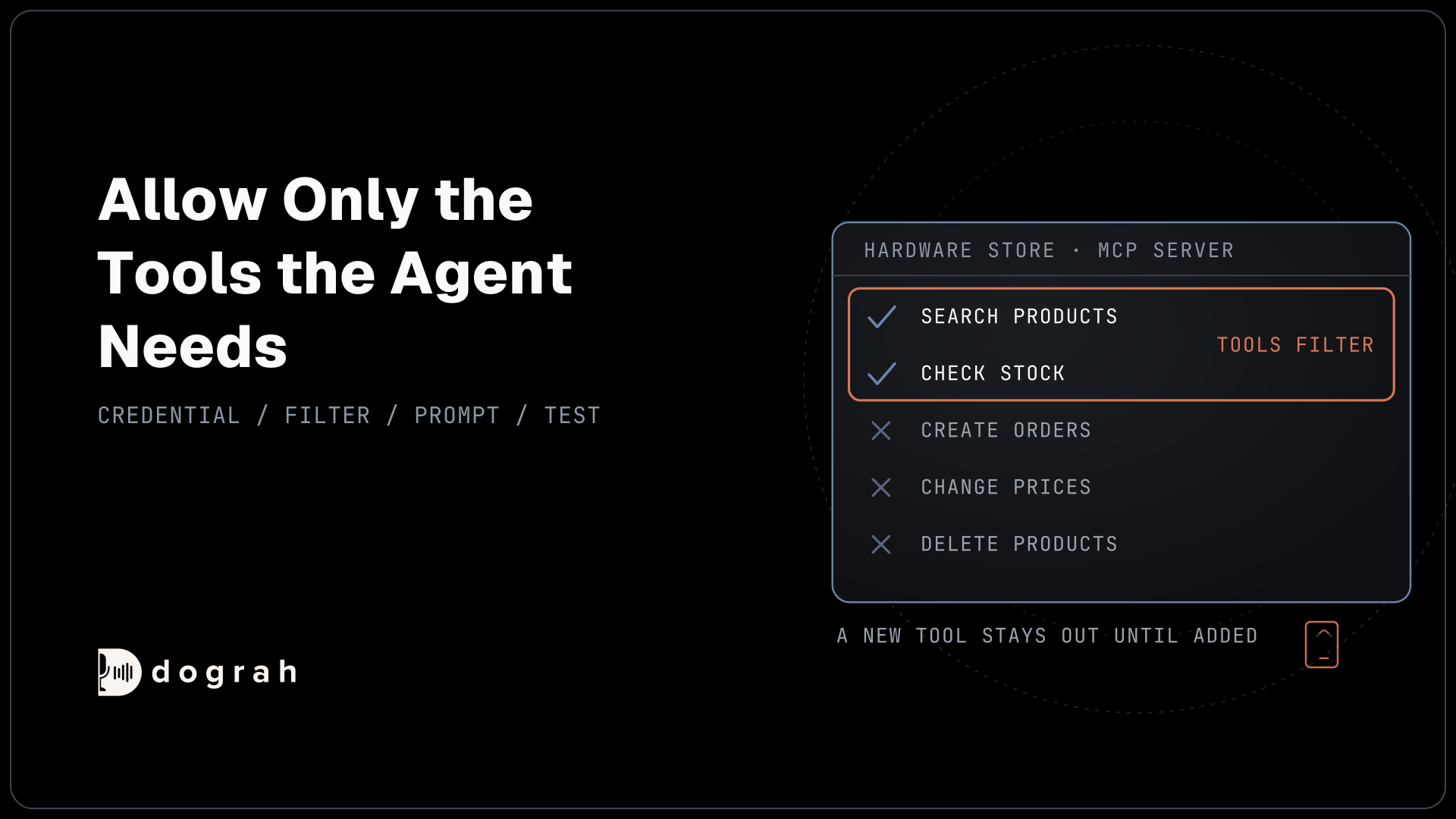
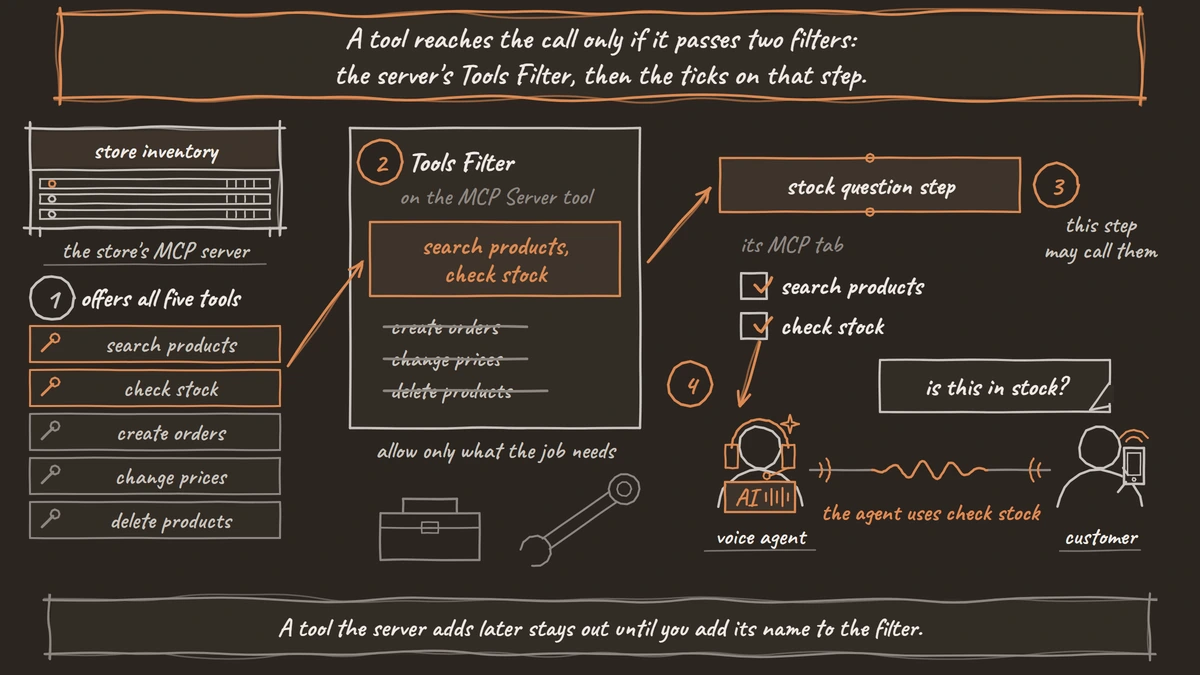
Name the remote tools the agent may use in the Tools Filter, and leave everything else out. Open the tool, find Tools Filter (Optional) in the MCP Server Configuration card, enter a comma-separated list of tool names, and click Save. Left empty, every tool on the server is offered.
Say a hardware store's inventory server offers tools to search products, check stock, create orders, change prices and delete products. A phone agent that answers "do you have this in stock?" needs the first two. Enter those two names and nothing else.
There are two reasons to be strict. The first is safety. Dograh passes each allowed tool's description to the model, and Invariant Labs showed in 2025 that a server can hide instructions inside a description, an attack it calls tool poisoning. The second is focus. Every tool definition the model sees takes up its context, and Anthropic's engineering team described one example where passing tool definitions and results through the model took 150,000 tokens. Fewer tools also leaves the model fewer wrong choices mid-call.
The filter also keeps the agent's tool set fixed. If the server adds a tool next month, the agent will not see it until you add its name here.
Check: the Tools Filter lists only the tools the agent's job needs.
Step 4: Tick the tools on the right step
Attach the server to the step of the call flow that needs it, then tick its functions there. Open the agent, click the step, and find its Tools field. It has two tabs, HTTP & Tools and MCP. On the MCP tab, each MCP server lists its functions with a checkbox next to each.
Tick only the functions this step uses. A function has to pass both filters, the server's Tools Filter and this step's ticks, before the model on this step can call it. If the list says "No tools discovered - Refresh.", click Refresh tools to fetch the list again.
Check: the MCP tab shows the store server with only the stock functions ticked on this step.
Join the Dograh Community
Dograh is an OSS alternative to Vapi. Join our Slack community for queries, releases, best practices & community interactions.
Step 5: Tell the agent when to call each tool
Write in the step's prompt when to call each function and what to say before it does. The model decides when to use a tool, and the prompt is where you steer that decision.
An MCP tool cannot play a filler line on its own, so a slow lookup is silence unless the prompt fills it. Keep MCP tools to quick lookups. The prompt lines below tell the agent to say a short line before the stock check, and what to do if the check fails:
When the caller asks whether we have a product, first say "Let me check
that for you." Then use the product search tool to find it, and the stock
tool to check how many we have. If the lookup fails, say you could not
check right now and offer to have the store call them back.
What this does: The caller hears a line before the lookup instead of silence, and a failed lookup ends in a callback offer instead of a guess.
Where a recorded filler matters, use an HTTP API tool for that call instead, since it can play a Custom Message before its request runs. Our guide to integrating voice agents with your stack compares the two with the other ways to connect your systems.
Check: the step's prompt names each ticked function and says what the agent says first.
Step 6: Test with a real call
Test the whole path on a call before callers reach it. In the agent editor, run a Test Audio call and ask for a product. Then place a real call with the Phone Call button, because a phone line can behave differently from a browser.
After each call, read the transcript and open View Trace, which shows the call's trace in Langfuse. Check that the agent called the stock function, with the product the caller named. If it picked the wrong function or never called one, sharpen the tool's Description or the step's prompt and test again.
Check: the trace shows the stock function called once, with the product the caller named.
Before you ship it
Plan for the server being slow or down before callers depend on it. If Dograh cannot reach the MCP server, the call carries on without those tools, so the prompt's fallback line from step 5 is what the caller hears. Connect only servers you trust, and keep both filters tight.
On a self-hosted install, the voice agent and its connection to your MCP server both run on your own servers, which suits internal systems that should never face the open internet. A coding agent can also create the same MCP Server tool for you through Dograh's own MCP server, as shown in spinning up a voice agent from Claude Code or Codex. You still tick the functions and test the call yourself.
Glossary
- Tools Filter
- The allowlist on a Dograh MCP Server tool: a comma-separated list of the remote tool names the voice agent may use. Left empty, every tool on the server is offered, and a tool the server adds later stays out once the list is set.
- Refresh tools
- The button on a step's MCP tab that makes Dograh connect to the MCP server again and fetch its tools, each with its description and inputs. The list is also fetched when the MCP Server tool is saved.
- Fallback line
- What the step's prompt tells the agent to say when a lookup fails, such as an offer to have the store call back. If Dograh cannot reach the MCP server, the call carries on without its tools, so this line is what the caller hears.