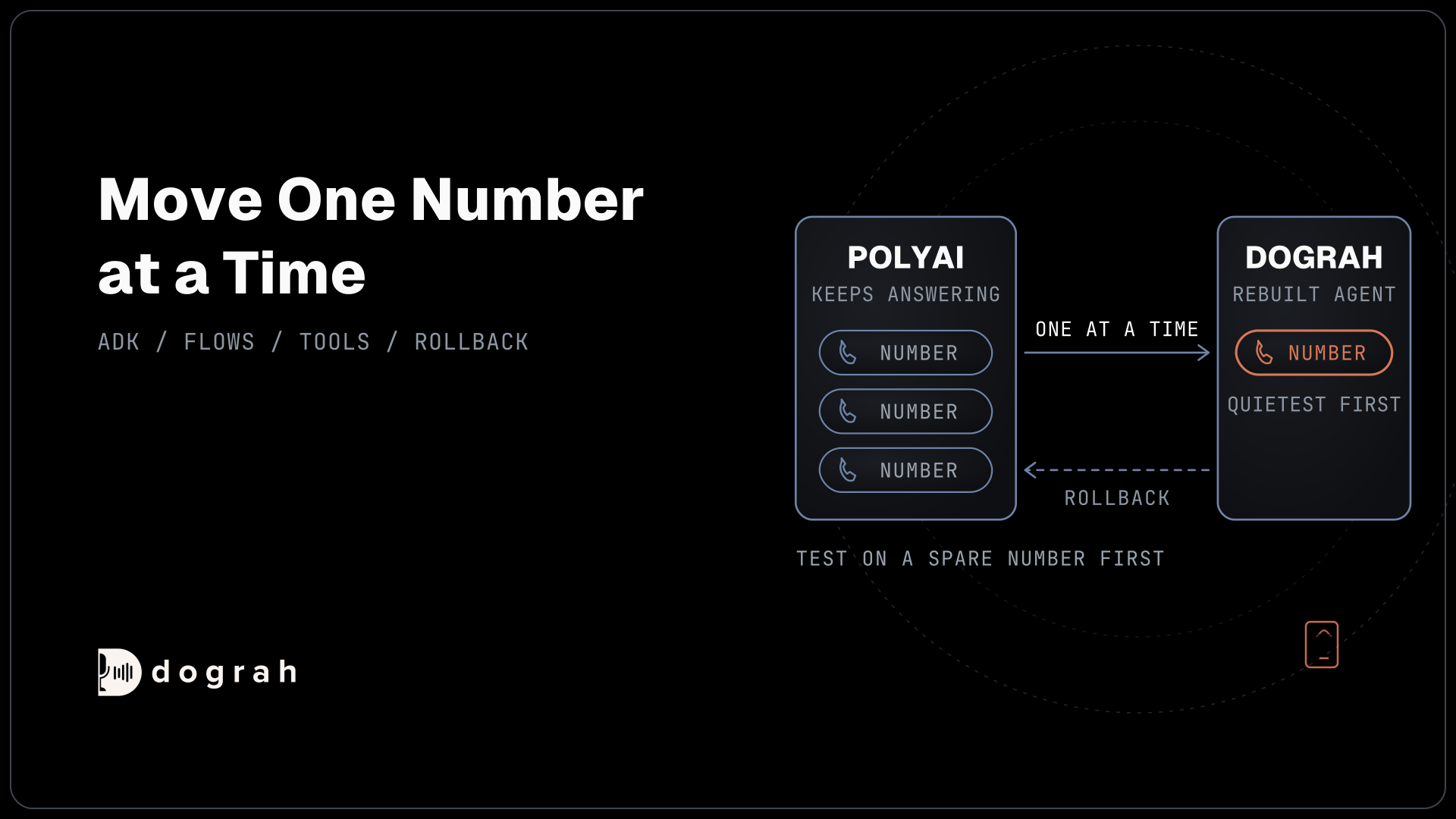

To migrate from PolyAI to open-source voice AI, pull the agent's configuration with PolyAI's Agent Development Kit (ADK), map each file to Dograh and rebuild the flow there. Move Python functions into your own service behind HTTP API tools, retest prompts on your new model, then move one phone number at a time while PolyAI answers the rest.
Key Takeaways
- PolyAI's ADK pulls the whole agent into files that run only on PolyAI.
- Python functions move to your own service, called through HTTP API tools.
- Take each Twilio number off PolyAI's SIP trunk, one at a time, with rollback.
This post is part of our guide to PolyAI alternatives, which covers the move in brief. Here we move a PolyAI agent, step by step, to Dograh, our open-source AI voice agent platform, while PolyAI keeps answering calls.
What you need before you start
You need a PolyAI login with access to the project, a Dograh workspace, keys for the models you plan to use and a spare phone number for testing.
On the PolyAI side, install the ADK, PolyAI's open-source command-line kit, with Python's pip. On the other side, choose the cloud version or self-host with Docker Compose on your own server. Self-hosted Dograh has no per-minute platform fee (servers, model keys and phone minutes still cost). Dograh Cloud has a 1¢-a-minute platform fee.
This guide moves one number at a time, with a way back, so PolyAI keeps answering calls until each rebuilt agent passes its tests.
Hold off if you rely on PolyAI's team improving the agent, its 24/7 support, built-in SMS or redacted recordings. Dograh leaves those to your own team.
Step 1: Pull the agent with PolyAI's ADK
Start with an ADK pull of the full agent configuration, because it is your spec for everything that follows. The commands below sign in to your region with --region, create a local project for one agent with --account_id and --project_id, then fetch the latest settings:
pip install polyai-adk
poly login --region us-1
poly init --account_id YOUR_ACCOUNT_ID --project_id YOUR_PROJECT_ID
poly pull
What this does: It saves your PolyAI agent as a folder of files at
YOUR_ACCOUNT_ID/YOUR_PROJECT_ID. Useeuw-1oruk-1instead ofus-1if your account lives in the EU or UK region, and runpoly pullagain before the rebuild so the files match what is live.
PolyAI's ADK command reference lists every option. If the pull is refused, ask your PolyAI account team for access to the project.
The folder holds the whole agent, laid out as PolyAI describes. Rules and persona sit in agent_settings, flows in flows, knowledge topics in topics, Python functions in functions, and handoffs, entities and SMS templates in config. These files run only on PolyAI, since the ADK has no local runtime, so nothing imports them elsewhere directly.
Save your call data too. PolyAI's Conversations API returns each call's recording as a WAV file, redacted for users without PII access, and its Data MCP can query transcripts and metrics. Old transcripts make good test scripts later.
Check: you have one pulled folder per live agent, a copy of recent transcripts, and a table of numbers with where each one lives.
Step 2: Map each PolyAI file to Dograh
Every part of the pulled folder has a place in Dograh, and writing the map down first keeps anything from being lost.
| PolyAI (pulled folder) | Dograh |
|---|---|
| agent_settings: personality, role, rules | Global Node, added to each step that has Add Global Prompt switched on |
| The agent's fixed greeting | Start Call node, with the opening line in Greeting Text |
| flows | Agent nodes joined by pathways in the visual builder |
| topics and context documents | Knowledge Base files attached to the nodes that need them |
| functions (Python) | HTTP API tools calling your own service, or MCP tools |
| config: handoffs | The Transfer Call tool |
| config: sms_templates | An HTTP API tool that asks your own provider to send the text |
| config: entities | Variable extraction on the Agent node |
| voice: speech recognition settings | The agent's Model tab, plus Dictionary for hard words |
| test_suite | Browser and phone test calls, plus a QA node |
| Sandbox and Live environments | Draft edits and the published version |
Check: each file in the pulled folder has a row, and each row names the Dograh part it becomes.
Step 3: Rebuild the flow in Dograh
Turn each PolyAI flow into Dograh nodes and pathways, working from the pulled files. Under Voice Agents, create an agent, then open the Canvas tab, the visual workflow builder.
Put the persona, tone and rules from agent_settings into the Global Node, a shared prompt added to every step that has Add Global Prompt on. Put the opening line into Greeting Text on the Start Call node.
Each step of a PolyAI flow becomes an Agent node, and each route between steps becomes a pathway with a written condition. The AI reads that condition, so it is never a hard rule. Write it in plain words and test values near its edge. Lines that must be spoken word for word belong in Greeting Text or a pathway's Transition Speech.
For a faster rebuild, let an AI assistant draft it through Dograh's MCP (Model Context Protocol) server. Create an API key under Developers first. The command below registers the server in Claude Code, with your key in the X-API-Key header:
claude mcp add --transport http dograh https://app.dograh.com/api/v1/mcp/ \
  --header "X-API-Key: YOUR_DOGRAH_API_KEY"
What this does: It connects Claude Code to your Dograh workspace. On a self-hosted install, swap the URL for your own backend address followed by
/api/v1/mcp/.
Then give the assistant the pulled folder and the Step 2 table, and ask it to plan, then build, a Dograh agent that does the same job. A new agent created this way publishes as version 1 at once, while edits save as drafts, so test before any number points at it. Teams that prefer code can write Dograh's nodes-and-edges format and load it with the Create from Definition API. There is no one-click PolyAI import, so check every node yourself.

Open Source Alternative to Vapi / Retell
Self-hosted voice agent platform — no per-minute fees
dograh-hq/dograh
Star on GitHub
Check: the canvas shows a Start Call node with your old greeting, one Agent node per flow step, and a pathway for each route between steps.
Step 4: Move functions and handoffs to tools
Python functions are the hardest part of the move, because they ran inside PolyAI. Each one becomes an endpoint in your own service, and an HTTP API tool calls that endpoint during the conversation. Under Tools, click Create New Tool, choose External HTTP API, enter the Endpoint URL, HTTP Method, headers and parameters, then attach it to the Agent nodes that need it.
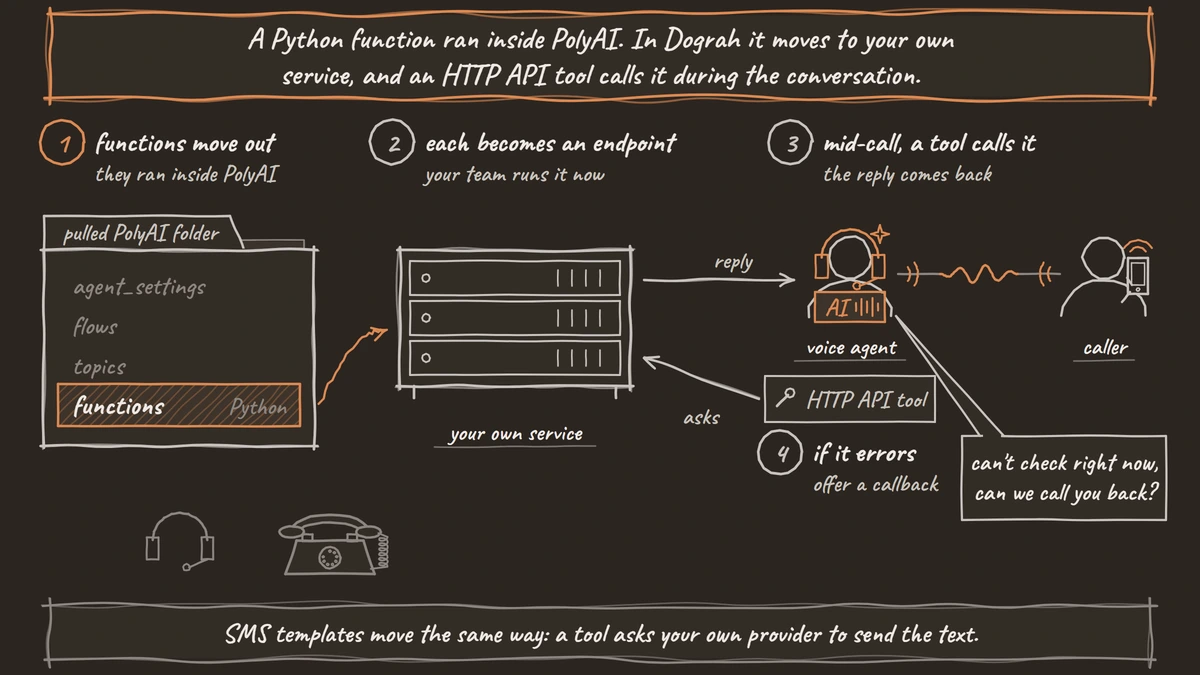
These tools wait 5 seconds by default and do not retry. Add a prompt line to each node that uses one, telling the agent that if the tool returns an error, it should say it can't check right now and offer a callback. Keep lookups quick so the conversation keeps moving.
Each handoff becomes a Transfer Call tool, with the destination in E.164 format, such as +1415555XXXX. Transfer Call works on Twilio, Telnyx, Plivo, Cloudonix and Asterisk ARI. It passes no summary by default. On Twilio it can play a short spoken introduction to both people. Write the details to your system before the transfer.
Dograh has no SMS tool. For each SMS template, a tool asks your own messaging provider to send the text during the call.
Check: a browser test call that needs each tool shows the tool call completing in the transcript.
Step 5: Choose models and retest prompts
Pick the models that replace Raven, then retest every prompt on them. Dograh is the orchestration layer that runs the call flow, tools and telephony, and the speech and language models are a separate layer you choose. Under Models, save a model configuration with your speech-to-text, language model and voice, using Dograh's own models, your own keys, or open-weight models on your own servers. Then make it the organization default.
Prompts tuned for Raven will not behave the same on another model. Run each flow's hardest turns several times, because a language model can answer the same input differently. In the agent's Settings, open Dictionary and add the product names and terms that speech-to-text often mishears, as PolyAI's speech settings did.
Check: a browser test call speaks in the new voice, and each flow's hardest turns give the answer you expect on repeated runs.
Step 6: Test in the browser, then on a spare number
Prove the agent in the browser first, then on a real phone line, before any caller reaches it. In the editor, click Test Agent and talk through the calls your PolyAI agent handled, using old transcripts as scripts. Click Publish before phone tests, because live calls run only the published version.
Add your spare number under Telephony, set the agent as that number's Inbound workflow, and call it from a real phone. Browser test calls cannot run Transfer Call, so test every transfer on the phone, answered and unanswered. Most phone calls reach the agent as 8 kHz audio, while a browser call runs at 16 kHz, so listen for misheard names and numbers. Our checklist for testing voice agents before you go live has the full order of tests.
Check: the phone test appears as a run under Agent Runs, with the transfer in its transcript.
Step 7: Move one number at a time
Keep PolyAI answering while you move your quietest number first, knowing exactly what switches it and what undoes it. If you connected your own Twilio account to PolyAI, PolyAI's Twilio setup created a SIP trunk in that account and routed each number to it. The number stays in your Twilio account, but Twilio ignores a number's own voice settings while it sits on a trunk.
So, in the Twilio console, note which trunk the number is on in your runbook, then remove the number from that trunk. Connect the same Twilio account to Dograh and set the agent as the number's Inbound workflow. Saving it switches calls over at once. To roll back, clear the workflow and put the number back on PolyAI's trunk.
For a number bought from PolyAI, ask PolyAI how to port it out to a carrier Dograh supports, such as Twilio, Telnyx, Plivo or Vonage. Numbers on your own SIP trunk or PBX connect through Dograh Managed SIP on Cloud, or Asterisk ARI when self-hosted.
Join the Dograh Community
Dograh is an OSS alternative to Vapi. Join our Slack community for queries, releases, best practices & community interactions.
Check: a call to the moved number appears as a new run in Dograh, and PolyAI shows no new calls on it.
Before you ship it
Run this list for each number before you call its move finished.
| Item | Where | Done when |
|---|---|---|
| Agent pulled | Your files | The latest poly pull and recent transcripts are stored outside PolyAI |
| Map complete | Step 2 table | Every pulled file has a Dograh home |
| Functions moved | Your service and Tools | Each HTTP API tool returns real data in a test call |
| Prompts retested | Editor | Hard turns give the expected answer on repeated runs |
| Phone tested | Spare number | Transfers work, answered and unanswered |
| Rollback written | Runbook | The PolyAI trunk for each number is noted |
When every row is done, move the next number. Our Dograh vs PolyAI comparison covers what changes for your team once the last number has moved.
Glossary
- ADK pull
- Running PolyAI's poly pull command to copy an agent's latest settings into local files. The files are a full description of the agent, but they run only on PolyAI.
- Global Node
- A shared prompt in a Dograh workflow, added to every step that has Add Global Prompt switched on. It is where a PolyAI agent's persona and rules go.
- HTTP API tool
- A Dograh tool that calls an endpoint you choose during the conversation. It replaces a PolyAI Python function, with the logic moved into your own service.
- SIP trunk
- A connection that carries calls between a phone carrier and a voice platform. A Twilio number sitting on PolyAI's trunk ignores its own voice settings until you remove it.