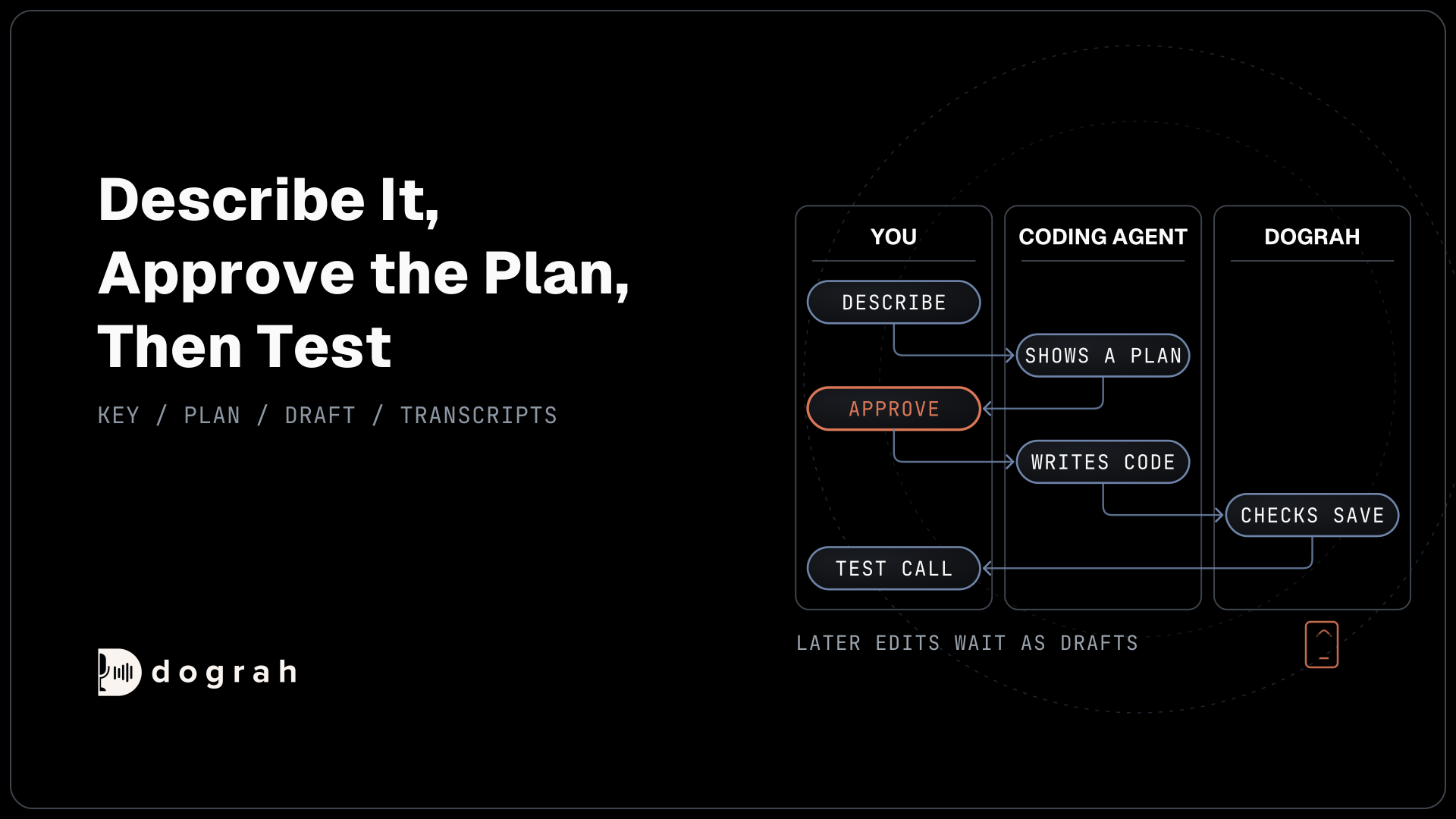

To spin up a voice agent from Claude Code or Codex, connect the coding agent to Dograh's MCP server with an API key and describe the agent in plain words. It shows a plan and builds once you approve. Dograh checks every save and reports any error to fix. Later edits stay drafts until you publish.
Key Takeaways
- Connect with one command and a Dograh API key kept in an environment variable.
- The first build goes live as version 1, and later edits wait as drafts.
- After real calls, the coding agent reads transcripts and proposes prompt fixes.
This post is part of our guide to MCP for voice agents. The guide's build section shows the idea. Here we build a voice agent, step by step, from Claude Code or Codex in Dograh, our open-source AI voice agent platform, then improve it from call transcripts.
What you need before you start
This tutorial covers a coding agent working on Dograh through Dograh's own MCP server. A voice agent that calls someone else's MCP server during a call is a different setup, covered in how to add MCP support to a voice agent.
You need a workspace, either hosted or self-hosted. Self-hosted Dograh has no per-minute platform fee (servers, model keys and phone minutes still cost). Dograh Cloud has a 1¢-a-minute platform fee. You also need Claude Code or Codex installed. Any other MCP client that supports Streamable HTTP, such as Claude Desktop or Cursor, works the same way. For the phone test, connect a phone number first.
Step 1: Create a Dograh API key
Create an API key under Developers in Dograh's sidebar. The key starts with dgr_ and is shown only once, so copy it straight away.
The key has no scopes. Whoever holds it can see and change every agent in the workspace and read every call transcript. Keep it out of any file you commit. Astrix Security's study of more than 5,200 open-source MCP servers found 53% rely on static keys or personal access tokens, which are long-lived and rarely rotated, so treat this one like a password.
Store the key in an environment variable named DOGRAH_API_KEY, which both setups in step 2 read:
export DOGRAH_API_KEY="dgr_your_key_here"
What this does: It puts the key in your shell session under one name. The coding agent's settings can then point at
DOGRAH_API_KEYwithout holding the key in a file you might share.
Check: the key you copied starts with dgr_, and it is saved somewhere safe, since Dograh will not show it again.
Step 2: Connect Claude Code or Codex
Register Dograh as a remote MCP server in your coding agent, using the Dograh endpoint and the key from step 1.
For Claude Code, the command below adds a server named dograh over --transport http and sends the key in the X-API-Key header. Claude Code's MCP guide recommends HTTP for remote servers.
claude mcp add --transport http dograh https://app.dograh.com/api/v1/mcp/ \
  --header "X-API-Key: $DOGRAH_API_KEY"
What this does: It registers Dograh as a server called
dograh. Your shell fills in the key fromDOGRAH_API_KEYwhen you run the command, and Claude Code keeps it in its own settings on your machine.
For Codex, add a [mcp_servers.dograh] block to ~/.codex/config.toml. The env_http_headers line tells Codex to read the header value from the DOGRAH_API_KEY variable, following Codex's MCP settings:
[mcp_servers.dograh]
url = "https://app.dograh.com/api/v1/mcp/"
env_http_headers = { "X-API-Key" = "DOGRAH_API_KEY" }
What this does: Codex sends the key from
DOGRAH_API_KEYeach time it connects, so the config file itself never holds the key.
On a self-hosted install, swap the URL for your own backend address ending in /api/v1/mcp/. Dograh shows it under Platform Settings, in the MCP Server panel. If you deployed with the remote setup script and its self-signed certificate, start Claude Code with NODE_TLS_REJECT_UNAUTHORIZED=0 claude. A custom domain with a Let's Encrypt certificate needs no flag. The Dograh MCP server setup page has the Claude Desktop and Cursor versions, which use the same URL and header.
Check: claude mcp list or codex mcp list shows dograh. Ask the coding agent "List my agents in Dograh." and it answers with the agents in your workspace.

Open Source Alternative to Vapi / Retell
Self-hosted voice agent platform — no per-minute fees
dograh-hq/dograh
Star on GitHub
Step 3: Describe the agent and approve the plan
Describe the agent in plain words and let the coding agent plan before it builds. Dograh's MCP server tells every connected coding agent to start at the plan stage of Dograh's voice-prompting guide, ask you what it needs, and present a plan before writing code.
A first prompt can be as short as this. It names the business, Bella's Kitchen, and says which callers need a person:
Build a Dograh voice agent for Bella's Kitchen. It tells callers our
opening hours and takes down booking requests with the date and party
size. Anyone asking about a private event should be offered a callback
from a manager.
What this does: It gives the coding agent the job in business terms. Expect questions back, such as how booking requests should reach the restaurant, followed by a plan of the call's steps and the tools they need.
Read the plan the way you would read a spec. Change anything that is wrong before you say yes, because the next step creates a live agent.
Check: the coding agent has shown a plan and is waiting for you, and no new agent appears in Dograh yet.
Step 4: Let it build, then test before callers can call
Approve the plan and the coding agent writes the agent as TypeScript, using Dograh's SDK, then sends it in to be created. Before it saves anything, Dograh checks the code's syntax, every field against that step's spec, the shape of the call flow and any tool names that clash.
A failed save comes back with an error code and a message giving the line and column. The coding agent fixes that spot and sends the whole file again, which you may see once or twice on a first build, for example when a pathway points at a step that was never declared. That loop matters, because coding agents still make confident mistakes. In the Stack Overflow Developer Survey 2025, 46% of developers said they distrust the accuracy of AI tools.
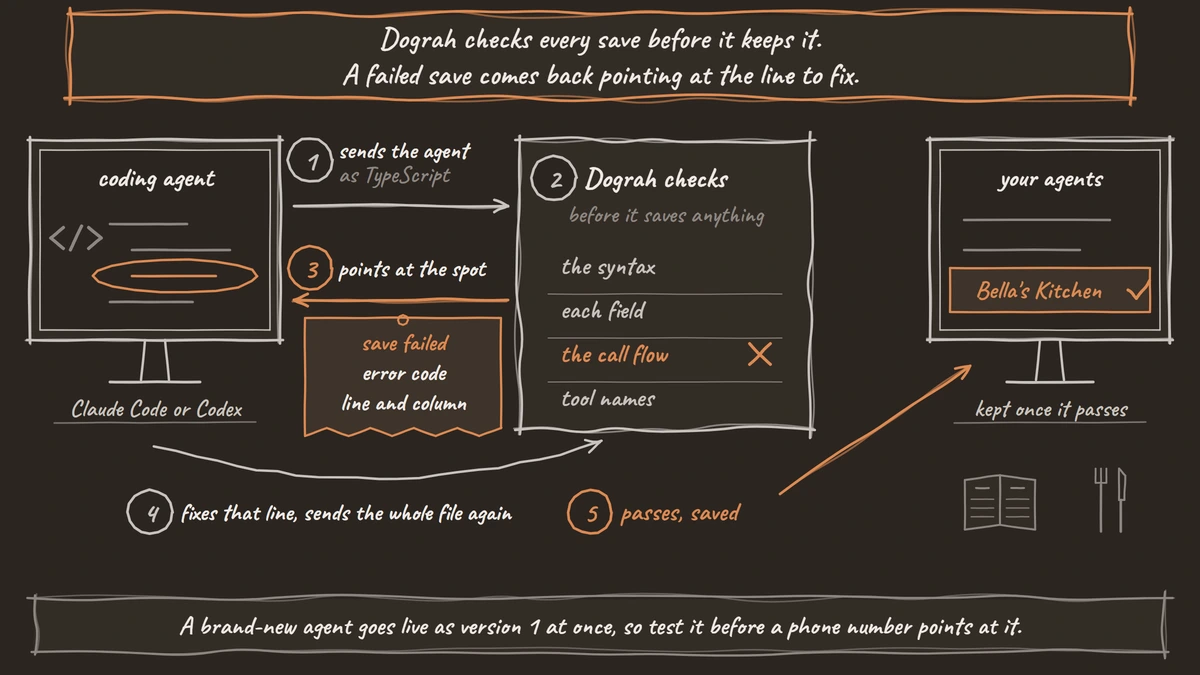
This first save is different from later ones. A brand-new agent created through MCP is published as version 1 straight away, so test it before any phone number points at it. Open the agent and use Test Chat to read through the conversation, then Test Audio to hear it, on both the booking path and the private-event path. Then place a real call with the Phone Call button. Browser test calls cannot run Transfer Call, so anything involving a transfer has to be tested on a phone. Our post on testing voice agents before you go live covers the full set of tests in order.
Check: the agent shows the planned steps on its canvas, and a phone test call completes the booking path with the caller's date and party size in its transcript.
Join the Dograh Community
Dograh is an OSS alternative to Vapi. Join our Slack community for queries, releases, best practices & community interactions.
Step 5: Change it by prompting, then publish
Ask the coding agent for changes in plain words, such as "make the greeting shorter" or "ask for a phone number before ending the call". It reads the current agent, edits the code and saves.
Every edit after the first build lands in a draft. The published version keeps answering calls until you open the agent in Dograh and click Publish version. The one change that applies at once is renaming the agent.
Publishing in the app keeps a person between the coding agent and your callers. Test the draft in the editor and on a phone call, as in step 4, before you publish it.
Check: after you publish, a new test call follows the changed behaviour.
Step 6: Read call transcripts and fix the prompt
Once real calls have come in, ask the coding agent to read them and find where the agent went wrong. Dograh's MCP server gives it call details, such as each call's duration and outcome, and a speaker-labelled transcript of each call. It never returns the audio, so the coding agent works from transcripts alone.
The prompt below asks for the last 20 calls, includes calls under 30 seconds (the call list leaves them out by default), and keeps the coding agent from saving anything:
List the last 20 calls for the Bella's Kitchen agent, including calls
under 30 seconds. Read the transcripts where the caller hung up early or
asked for a person, tell me which turns went wrong, and suggest prompt
changes. Do not save anything yet.
What this does: It turns recent calls into a short list of problems tied to real caller lines. Because nothing is saved, you choose which suggestions become a draft.
Before this step, publish or discard any open draft. The coding agent reads the newest draft, while the transcripts come from the published version, so an unpublished edit can make it blame wording callers never heard. Also remember that the transcripts it reads go to the model provider behind your coding agent.
Check: the answer quotes specific caller lines from specific calls, and any change it then saves shows up as a draft in Dograh.
Before you ship it
Before callers reach the agent, confirm that the API key lives only in an environment variable and that version 1 passed a phone test before any number pointed at it. After that, make the transcript review a habit, for example once a week on the calls that ended early. If you would rather click through the editor than prompt a coding agent, how to build an AI receptionist builds an agent screen by screen in the same product.
Glossary
- Draft
- An unpublished copy of a Dograh agent. Edits made through the MCP server land here, while the published version keeps taking calls until someone clicks Publish version in the app.
- Plan stage
- The first stage of Dograh's voice-prompting guide. A connected coding agent asks you about the job and presents a plan of the call's steps and tools, then waits for approval before writing code.
- env_http_headers
- A Codex setting that names an environment variable to read a header value from. With it, the Dograh key travels in the X-API-Key header without being written into config.toml.