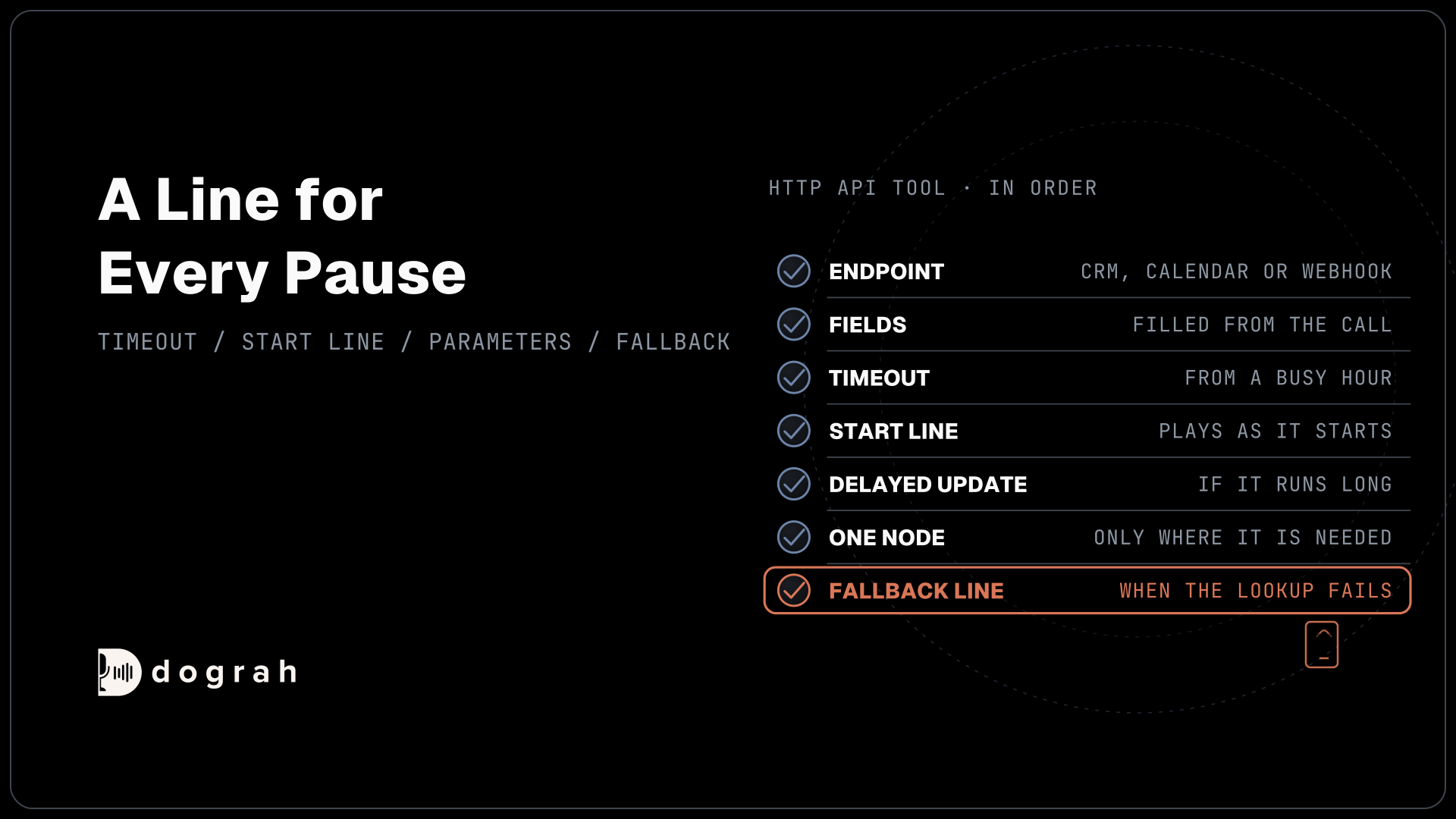

To add a tool call to a voice agent, create an HTTP tool pointed at your CRM, calendar or webhook and describe when to use it. Set a timeout and a short line the caller hears, then attach the tool to one node. Dograh does this without code, and you can self-host it or run it on Dograh Cloud.
Key Takeaways
- Set the timeout from how long your endpoint really takes on a busy day.
- A start line and one delayed update keep a slow lookup from sounding dead.
- Failed requests are not retried, so the prompt says what the agent tells callers.
A voice agent that can't check a calendar or update a CRM mid-call can only take messages. We add one tool call step by step in Dograh, our open-source voice agent platform, and show what the caller hears at each stage. It builds on our guide to building an AI voice agent.
What you need before you start
You need an agent, an endpoint and an honest number for how long that endpoint takes to answer. The endpoint is whatever your system already exposes, such as a CRM's search API, a calendar's booking API or an n8n webhook. Our guide to Integrating Voice Agents With Your Stack covers which route fits which system.
Measure that response time at a busy hour if you can. Every tool call is a pause on a live phone line, so that number decides the timeout and what the caller hears in Step 3.
Plan for few tools with narrow jobs. The tau-Voice benchmark gave voice agents 278 customer-service tasks that need tools. GPT-5 with reasoning solved 85% of them in text, while three speech-to-speech voice agents solved 26-38% with realistic audio, and most failures came from the agent's own behaviour. That study tested only full-duplex speech-to-speech models, not a speech-to-text, language model and voice pipeline, but the lesson carries over. A tool the model must guess about is a tool it will misuse.
Step 1: Create the HTTP API tool
Open Tools in the sidebar, click Create Tool and choose External HTTP API as the Tool Type. The tool opens on its Settings tab. Give it a Tool Name that says what it does, such as "Check appointment slots", and a Description that tells the model exactly when to use it. Write it as a full sentence: "Use this when the caller asks for an appointment and has given a preferred day."
Then pick the HTTP Method (GET, POST, PUT, PATCH or DELETE) and enter the Endpoint URL with https://. If the endpoint needs a key or a token, pick a saved credential on the Authentication tab, and leave it on "No authentication" otherwise. The HTTP API tool reference lists every field. Click Save.
Check: the tool appears in your Tools list with the name you gave it, and its Settings tab shows the method and URL you entered.

Open Source Alternative to Vapi / Retell
Self-hosted voice agent platform — no per-minute fees
dograh-hq/dograh
Star on GitHub
Step 2: Define what the model sends
Every value in the request comes from one of two places, and the Parameters tab keeps them apart. LLM Parameters are the fields the model fills from the conversation, such as preferred_day or customer_name. Each one has a Name, a Type, a Description and a Required switch, and the Description matters more than the type. "The day the caller asked for, as a date in YYYY-MM-DD" gets better values than "date".
Preset Parameters are values Dograh adds at run time, and the model never sees them. Use them for anything the model should not choose, such as the calling number or an account ID from the call's data. For bookings, add the call's run ID so your system can ignore a duplicate if the same request arrives twice. The preset below, shown as Dograh stores it, sends that ID with every request under the name workflow_run_id, with its value in value_template:
{
  "name": "workflow_run_id",
  "type": "number",
  "value_template": "{{initial_context.workflow_run_id}}",
  "required": true
}
What this does: Each call carries its own
workflow_run_id, so your booking system can treat a second request with the same ID and slot as the same booking. The HTTP API tool sends only the headers you set, so the duplicate check lives on your side.
Our post on booking Calendly meetings mid-call builds a full booking tool this way.
Check: with the tool saved, Test Tool sends a sample request with values you type, and the response from your endpoint shows in the dialog.
Step 3: Set the timeout and what the caller hears
A tool call is a pause the caller hears, so the timeout and the Messages lines are part of the conversation design. Timeout (ms) on the Settings tab defaults to 5,000 and accepts 1,000 to 30,000. Set it a little above what your endpoint really takes on a busy day. A timeout far above that only makes a dead endpoint take longer to fail.
The Messages card sets what the agent says. Under "When the tool starts", add a short line such as "Let me check the calendar." It plays as the tool starts, and the request runs while it plays, so the line costs no extra time. Under "While the tool is running", click Add delayed update and set a time in milliseconds, such as 3,000, with a line like "I'm still checking, one more moment." You can add up to 10 timings, with up to 20 versions of each line. One version is picked at random for each call, so repeat callers hear some variety.
The configuration below gives a lookup two opening lines and one update at three seconds, in the format Dograh stores:
[
  { "event": "start", "type": "text", "text": "Let me check that for you." },
  { "event": "start", "type": "text", "text": "One moment while I look." },
  { "event": "delayed", "after_ms": 3000, "type": "text", "text": "I'm still checking, thanks for bearing with me." }
]
What this does: The caller hears one of the two opening lines as the request starts. If the lookup is still running at 3,000 ms, the update plays. When the result arrives, the agent answers from it.
An update set at or past the timeout never plays, and the card warns you when you do that. Text lines do not play on speech-to-speech models, so record the lines as clips there. Tools from an MCP server, which speak the Model Context Protocol, use the same Messages format with a 30-second default timeout.
Check: on a browser test call, you hear the start line as soon as the agent uses the tool, and the delayed update plays only when the lookup runs past its time.
Join the Dograh Community
Dograh is an OSS alternative to Vapi. Join our Slack community for queries, releases, best practices & community interactions.
Step 4: Attach the tool and handle failures
A tool does nothing until it sits on a node. Open the Agent Node where the lookup belongs, add the tool in its Tools field and save. Attach it only where it is needed, because the model can call only the tools on the node it is in. Our post on designing conversation flows in the visual builder explains how nodes and tools fit together.
Then tell the agent in that node's prompt when to use the tool and what to do with the answer, for example: "When the caller names a day, call Check appointment slots and offer the first two free times." The agent gets back the response's status_code, the parsed body as data and a status of success or error.
A 429, a server error or a timeout comes back to the agent as one error result, so the prompt has to say what happens next. A good fallback keeps the caller moving, for example "If the lookup fails, say you can't see the calendar right now, take the caller's preferred time and tell them the team will confirm it." Pair it with a second tool that writes that callback request to your system.
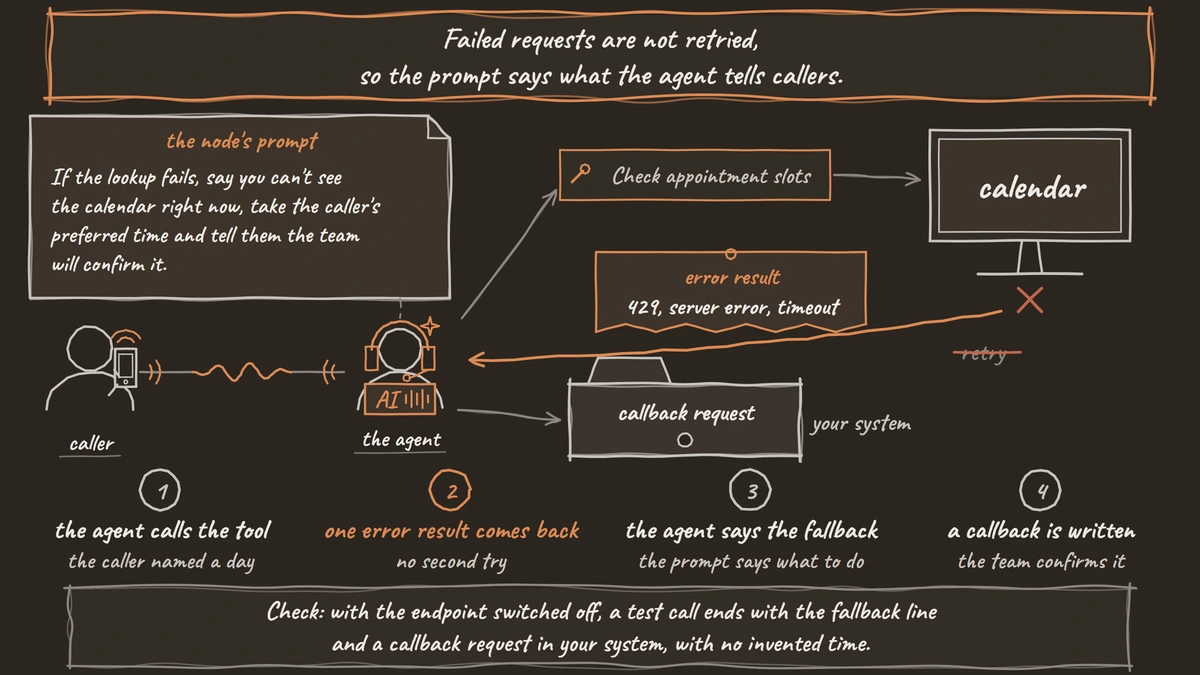
Check: with the endpoint switched off, a test call ends with the fallback line and a callback request in your system, with no invented time.
Before you ship it
A Webhook node sends the call's results to your system once it ends, and our post on webhook-driven voice agents covers that half.
Test every tool on a browser call first, then on a real phone number. Most phone calls reach the agent as 8 kHz audio, while a browser test runs at 16 kHz, so names, dates and numbers can reach your endpoint differently. Check what arrived in your system after each test call, not only what the agent said. With the timeout set from real numbers, a line for every pause and a fallback for every failure, the tool is ready for callers.
Glossary
- LLM Parameters
- The fields of a tool request the language model fills from the conversation, each with a name, type, description and required switch. The description guides the model more than the type does.
- Preset Parameters
- Values Dograh adds to a tool request at run time without showing them to the model, such as a fixed account ID or the call's workflow_run_id. Use them for anything the model should never choose.
- Delayed update
- A Messages line that plays only if a tool is still running after a set number of milliseconds. It keeps a slow lookup from sounding like a dropped call, and it never plays at or past the timeout.
- Full-duplex voice agent
- A voice agent built on a speech-to-speech model that listens and speaks at the same time. The tau-Voice benchmark tested three of these and found they solve far fewer tool tasks than the same work done in text.