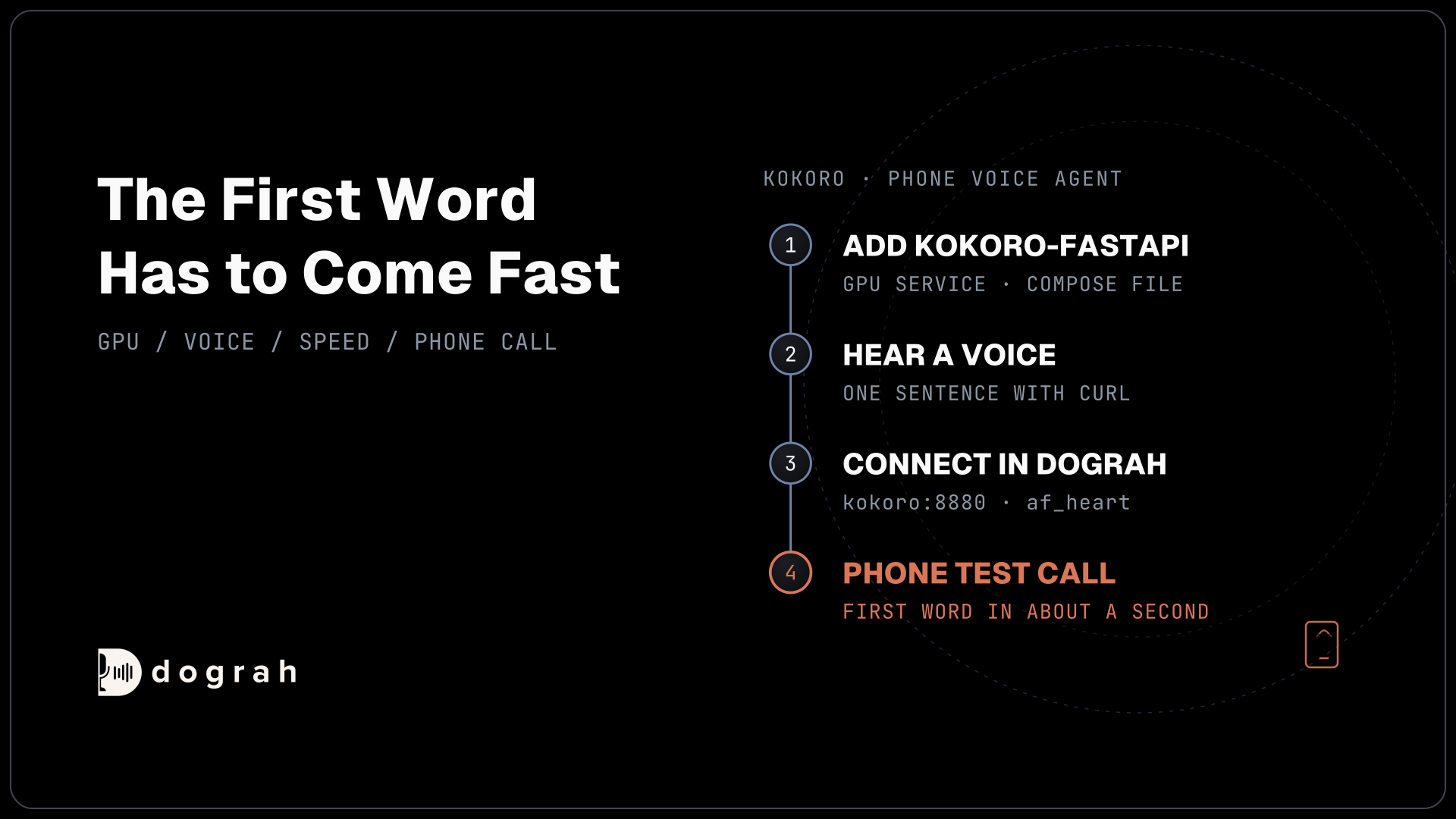

To run Kokoro TTS locally for a phone voice agent, add Kokoro-FastAPI as a GPU service in Dograh's docker-compose.yaml. In Dograh, add a Local Models (Speaches) connection at http://kokoro:8880/v1, choose it on the TTS tab with model kokoro, a voice such as af_heart and a speed, then make a browser call and a phone call.
Key Takeaways
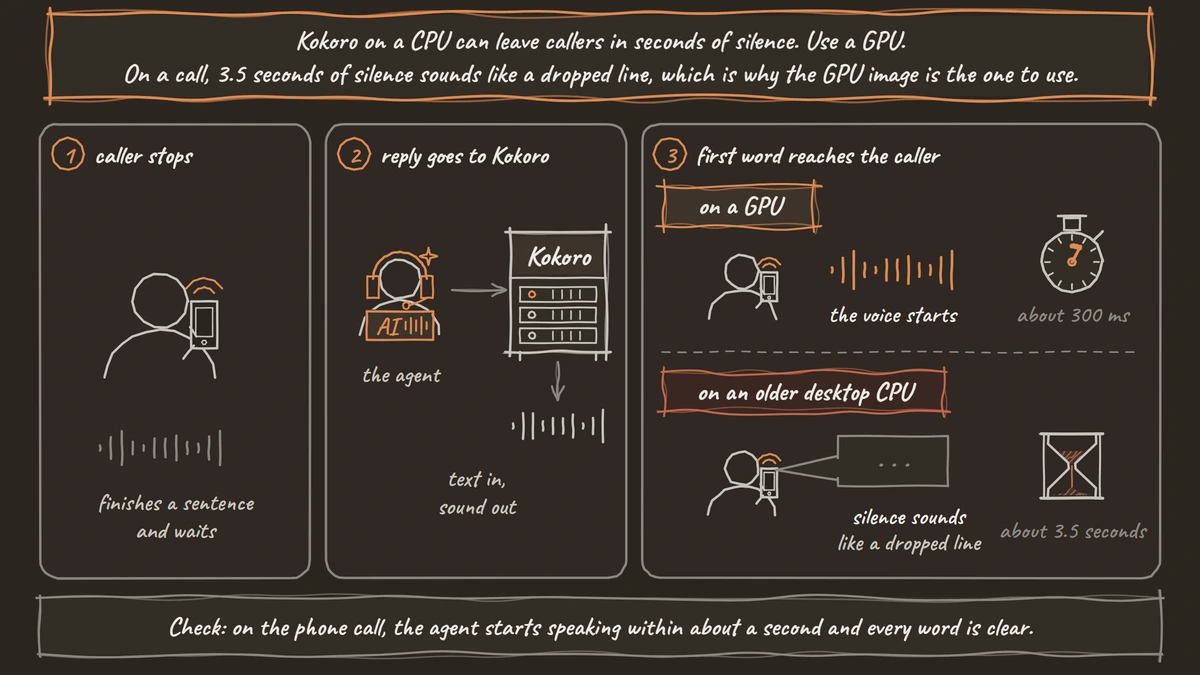
- Kokoro on a CPU can leave callers in seconds of silence. Use a GPU.
- Dograh reaches Kokoro at kokoro:8880 inside Docker, never localhost.
- Model, voice and speed are the only fields that shape the voice.
Run a local voice on the wrong hardware and callers sit through long pauses before every reply. We add Kokoro-FastAPI to the compose file, hear it from the command line, connect it in Dograh and make a test call. Our guide to self-hosted voice models covers the rest of the stack.
What you need before you start
Start from a self-hosted Dograh install running with Docker, plus a language model and a speech-to-text service for the other two tabs of a model configuration. For a fully local stack, our tutorial on how to run faster-whisper locally for a voice agent sets up speech-to-text the same way.
Plan on an NVIDIA GPU that Docker can use, which on Linux means the NVIDIA Container Toolkit. Kokoro is small, 82 million parameters, but on a phone call the first word has to come fast, and a CPU is too slow for that on most machines.
Keep a phone handy for the last step.
Step 1: Add Kokoro-FastAPI to the compose file
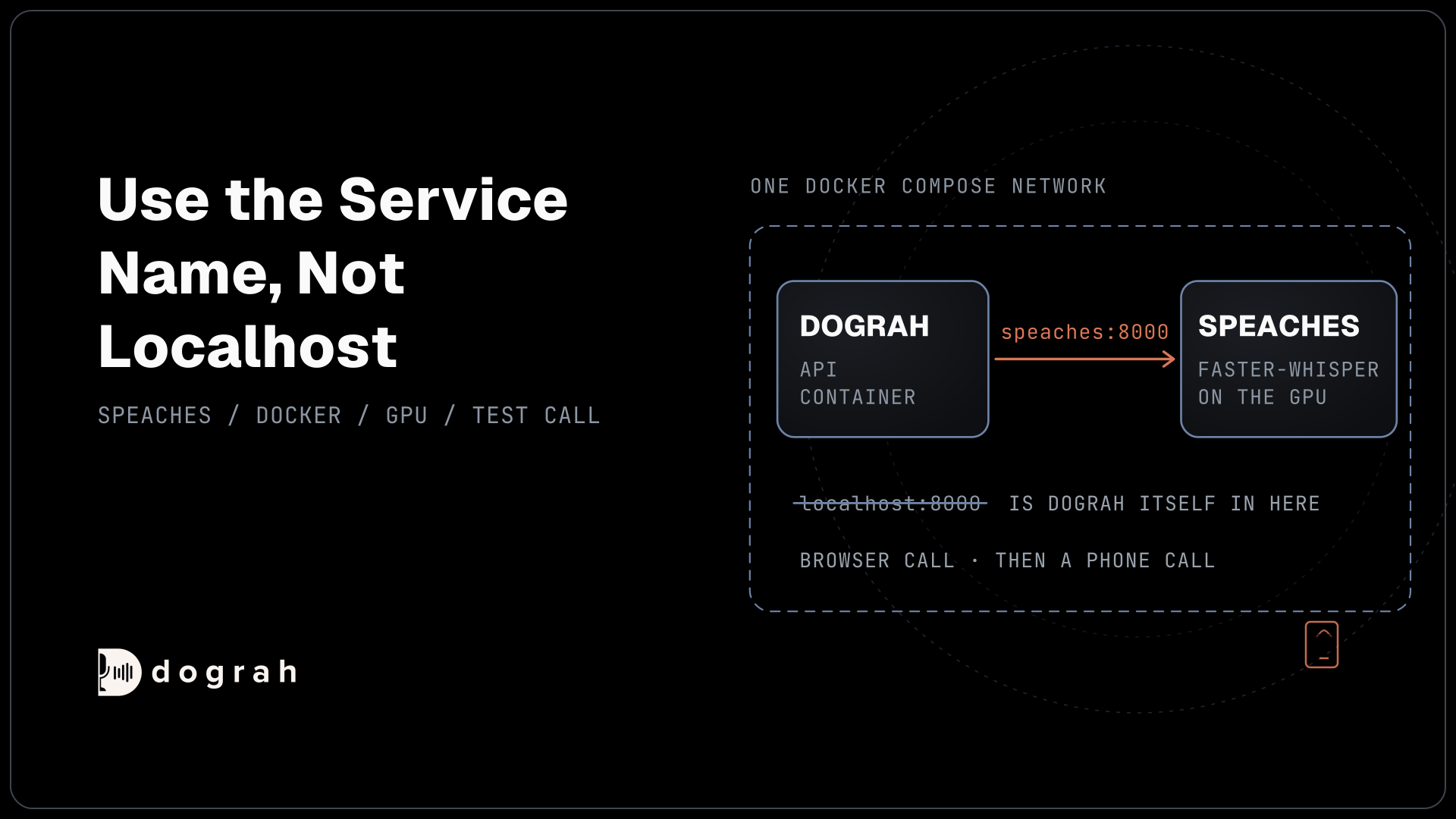
Kokoro-FastAPI is an open-source server that wraps Kokoro in the same /v1/audio/speech route OpenAI's speech API uses. Add it to the docker-compose.yaml Dograh's Docker install downloaded, so it joins the same network. Inside the platform's API container, localhost means that container, so the agent reaches Kokoro by its service name instead.
Under services:, add this block. It uses the GPU image from Kokoro-FastAPI, reserves the GPU, joins app-network, and publishes port 8880 so you can test from your machine:
  kokoro:
    image: ghcr.io/remsky/kokoro-fastapi-gpu:latest
    ports:
      - "8880:8880"
    deploy:
      resources:
        reservations:
          devices:
            - driver: nvidia
              count: all
              capabilities: [gpu]
    networks:
      - app-network
What this does: It runs Kokoro on your GPU next to Dograh, reachable as
kokoro:8880from inside the stack and aslocalhost:8880from your own machine.
Start it with docker compose up -d kokoro. The project advises pinning a release tag in place of latest once you settle on a version, so an update never changes your voice without warning.
Kokoro-FastAPI reports a time to first audio of about 300 ms on a GPU and about 3.5 seconds on an older desktop CPU. On a call, 3.5 seconds of silence sounds like a dropped line, which is why the GPU image is the one to use. A kokoro-fastapi-cpu image exists for trying it out.
Check: docker compose logs kokoro shows the server listening on port 8880.
Step 2: Hear a voice from the command line
Before Dograh is involved, ask Kokoro for one sentence and play it. The request names the model, the voice, the input text and an MP3 response_format, so any audio player can open the result:
curl http://localhost:8880/v1/audio/speech -H "Content-Type: application/json" -d '{"model": "kokoro", "voice": "af_heart", "input": "Thanks for calling. How can I help you today?", "response_format": "mp3"}' -o hello.mp3
What this does: It sends the same kind of request Dograh sends during a call. Dograh asks for raw audio instead of MP3, which suits a live call but not a file player.
To see every voice the server holds, call curl http://localhost:8880/v1/audio/voices. Kokoro's model card lists 54 voices across 8 languages. The first letter of a name gives the accent and the second the gender, so af_heart is an American English female voice and am_michael an American English male one.
Try a few voices on lines your agent will really say, such as a greeting, a phone number and a date. Kokoro-FastAPI also supports voice mixing, written as af_bella+af_sky, if no single voice fits.
Check: hello.mp3 plays the sentence clearly in the voice you named.

Open Source Alternative to Vapi / Retell
Self-hosted voice agent platform — no per-minute fees
dograh-hq/dograh
Star on GitHub
Step 3: Connect Kokoro in Dograh
A model connection in Dograh holds one server address. If your speech-to-text already runs on Speaches, give Kokoro its own connection so each service points at the right server.
In the sidebar, open Providers and click Add Provider. Choose Local Models (Speaches), set the Connection name to something clear such as "Kokoro TTS", set the base URL to http://kokoro:8880/v1, and leave the API key empty. Save.
Then open Models, click Add Configuration and choose BYOK, as Model Configurations explains. On the TTS tab, pick the Kokoro connection and fill the three fields that shape the voice:
- Model stays
kokoro, the name Kokoro-FastAPI serves. - Voice is
af_heartby default. Use Enter Custom Value for any other voice name from Step 2. - Speed is 1.0 by default and accepts 0.25 to 4.0. Small changes, such as 0.95 or 1.05, are usually enough.
Fill the LLM and STT tabs, save, and click Make org default or pick the configuration on one agent's Model tab.
Check: the configuration lists kokoro and your voice next to TTS.
Step 4: Make a test call
Hear the voice in a real conversation. Open the agent, click Test Agent, and on the Test Audio tab click Run Test, then Start Call. Listen for the gap between the end of your sentence and the agent's first word, and for how numbers and names come out.
Then click Phone Call in the editor and call your own phone. A browser call carries up to 16 kHz audio, while most phone lines carry 8 kHz, so Kokoro's 24 kHz voice loses detail on a real line. A voice that sounds warm in the browser can sound flat on the phone. If it does, try another voice or a small speed change, and our post on how to reduce robotic TTS in voice agents covers prompt changes that help.
Check: on the phone call, the agent starts speaking within about a second and every word is clear.
Join the Dograh Community
Dograh is an OSS alternative to Vapi. Join our Slack community for queries, releases, best practices & community interactions.
Before you ship it
Keep port 8880 closed to the internet, since anyone who reaches it can make your server speak. Dograh reaches Kokoro over the private Docker network, so the published port only matters while you test. Remove the ports lines once testing is done.
On Dograh Cloud, the voice server needs a public HTTPS address, because Cloud rejects localhost and private addresses. Self-hosted installs accept the private kokoro:8880 address.
Kokoro only takes over the voice. Dograh keeps running the call flow, tools and telephony, while the speech and language models stay a separate layer you pick, so this configuration can switch back to a hosted voice at any time.
Load test at the number of calls you expect, since every call's sentences queue on the same GPU. Kokoro ships fixed voices only, so for a cloned voice read our comparison of Kokoro vs Chatterbox vs Coqui XTTS, which covers the options and their licenses.
If keeping audio in-house is why you run Kokoro, know that self-hosted Dograh sends anonymous usage telemetry by default. Setting ENABLE_TELEMETRY=false and removing POSTHOG_API_KEY turns it off.
Glossary
- Time to first audio
- The wait between sending text to a voice model and getting the first sound back. On a call it is the silence after the caller stops talking, so it matters more than how fast the whole sentence is made.
- Voice mixing
- Blending two Kokoro voices into a new one by naming both, such as af_bella+af_sky. Kokoro-FastAPI supports it, and it is the closest Kokoro gets to a custom voice, since it cannot clone.
- Model connection
- A saved provider entry in Dograh's Providers page that holds one server address and optional keys. Configurations pick a connection for each service, so a voice on Kokoro and speech-to-text on Speaches need two connections.