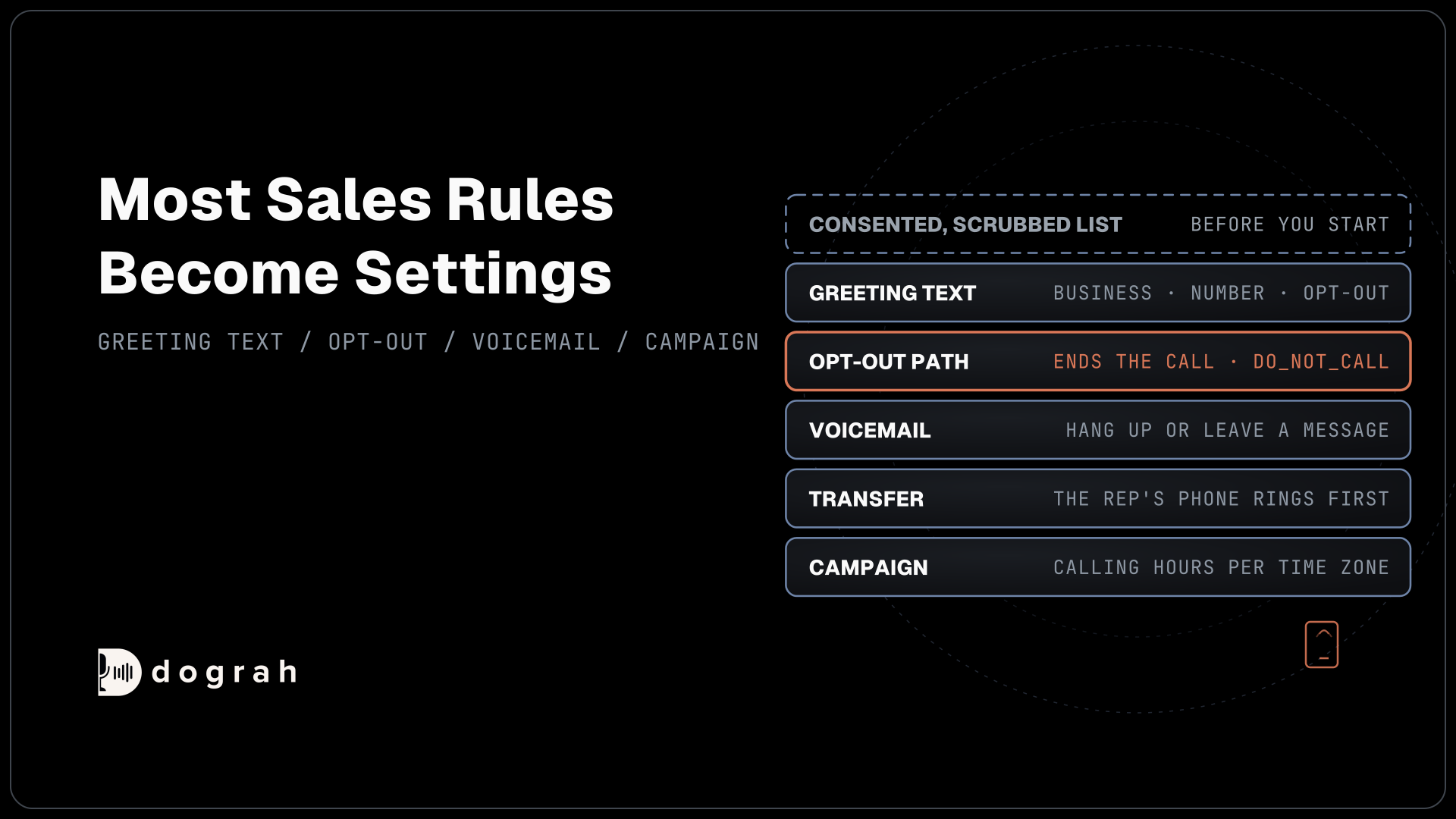

To build an AI cold calling agent, start from a consented, scrubbed list. Then set a fixed greeting with your business name, an opt-out path that ends the call, a voicemail choice and a transfer to a rep. In Dograh, the open-source AI voice agent platform you can self-host or run on Dograh Cloud, these are settings.
Key Takeaways
- Put the business name, number and opt-out offer in fixed Greeting Text.
- The agent records
do_not_call. Your own system keeps the do-not-call list. - Set calling hours on every campaign and split national lists by time zone.
No setting fixes a number that should never have been dialed, so the build starts with the list. We then set up the agent in Dograh step by step, from fixed greeting text and an opt-out path to voicemail, a rep transfer and the campaign. It builds on our guide to AI outbound sales calls.
What you need before you start
The build starts with a list you are allowed to call, because no setting fixes a number that should never have been dialed. The FCC's 2024 ruling on AI-generated voices files an AI voice under artificial voices for the Telephone Consumer Protection Act (TCPA). That means a sales call your agent places to a mobile or a home line generally needs prior express written consent, meaning a signed agreement that names the number.
Scrub the list against the National Do Not Call Registry and your own do-not-call list before it becomes a CSV. The FCC's calling rules also keep sales calls between 8 a.m. and 9 p.m. in the called person's time zone. Business buyers are not exempt, since the rule follows the line called. Confirm your consent wording and calling setup with counsel before the first campaign.
You also need a Dograh account or your own install, and a phone number connected through Twilio, Telnyx, Plivo, Cloudonix or Asterisk ARI, the providers that can transfer a call to a person. Have a rep's number ready, plus an endpoint in your own system that can receive opt-outs.
Step 1: Create an outbound agent
Create the agent as outbound from the start, so its settings match calls you place. Open Voice Agents in the sidebar, then the Create Voice Agent page. Set Call Type to "Outbound (AI calls users)", write a Use Case such as "Lead callback for solar quotes", and describe the call in Activity Description. Dograh drafts the agent from that description when you click Create Agent.
Check: the new agent opens in the editor with its Canvas, Model, Variables and Settings tabs.
Step 2: Write the greeting in fixed text
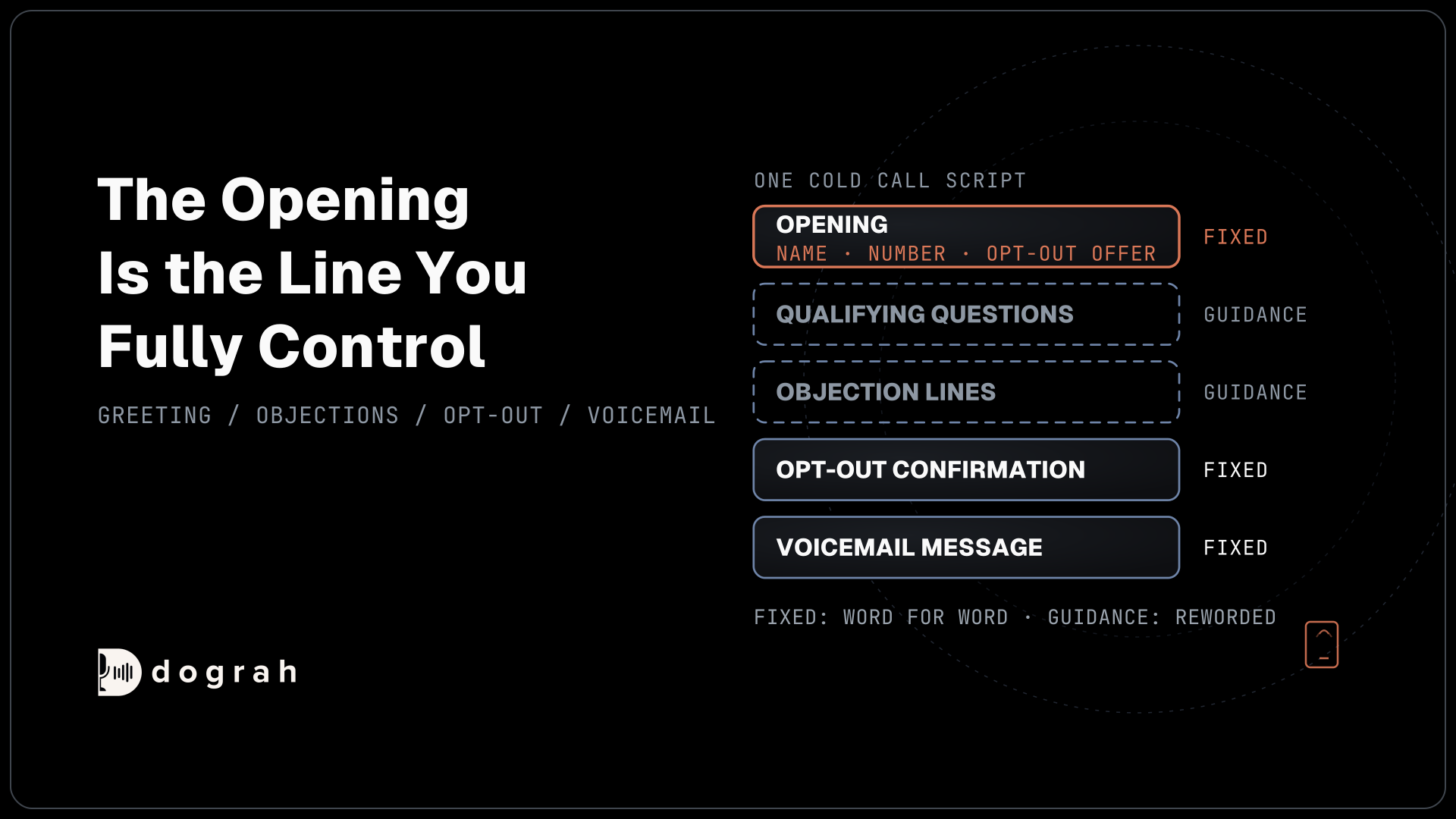
The greeting is the one place where the agent's words are guaranteed, so it carries everything the call must say. Open the Start Call node, keep Greeting Type on text and fill in the Greeting Text. The agent speaks it word for word as the call connects. Left empty, the language model writes the opening instead.
Name the business, say why you are calling, give a phone number and offer the opt-out in the same breath:
"Hi {{first_name | there}}, this is the virtual assistant for Northwind Solar, calling about the quote you asked for on our website. You can reach us at +1415555XXXX. If you'd rather not get these calls, just say so and we'll stop."
Always write the fallback after the bar, or a missing name is spoken as empty text. An automated-assistant notice, if you want one or a law you're under requires it, goes in the same Greeting Text alongside the business's name.
Allow Greeting Interruption is on by default, so a caller who speaks two words cuts into the greeting. When the greeting carries a notice that must play in full, switch it off on the Start Call node. For more opening, objection and voicemail lines, see our AI cold call script templates.
Check: in the Variables tab, set first_name to a test name, then start a browser test call. The agent speaks your greeting exactly, with that name.

Open Source Alternative to Vapi / Retell
Self-hosted voice agent platform — no per-minute fees
dograh-hq/dograh
Star on GitHub
Step 3: Add an opt-out path that ends the call
An opt-out has to end the call and reach your own list, so it needs a path in the flow and a record after the call. On the Canvas, draw an edge from your main Agent Node to a new End Call node. Give it the Condition Label "Opt-out" and a Condition such as "The person asks not to be called again, or to be taken off the list."
Then fill in the edge's Transition Speech with the confirmation, for example "Understood. We won't call you again. Goodbye." Transition Speech plays exactly as typed, with the caller muted so it is never cut off. The End Call node then closes with one short reply from its prompt, so write "Say goodbye in one short sentence and ask nothing else" there. Choosing the path is the model reading your condition, never a hard rule, so test it with many ways of saying stop.
Next, record the outcome. In Settings, General, turn on "Extract call disposition at the end of the call", keep the do_not_call code in the starter list, select Enable extraction and Save General Settings. Each call disposition is one code per call, picked from your list after the call ends.
Add a Webhook node so the outcome reaches your system. Its payload below sends the number that was called, in phone_number, and the call's outcome, in disposition:
{
  "phone_number": "{{initial_context.phone_number}}",
  "disposition": "{{gathered_context.call_disposition}}",
  "campaign_id": "{{campaign_id}}",
  "call_id": "{{workflow_run_id}}"
}
What this does: After every call, your endpoint gets the number and its outcome. When
dispositionisdo_not_call, your system adds the number to your do-not-call list, so the next CSV leaves it out.
The agent takes the opt-out as spoken, and your system leaves the number out of the next list. The FCC's rules give you ten business days to honor the request and keep the number on your list for five years.
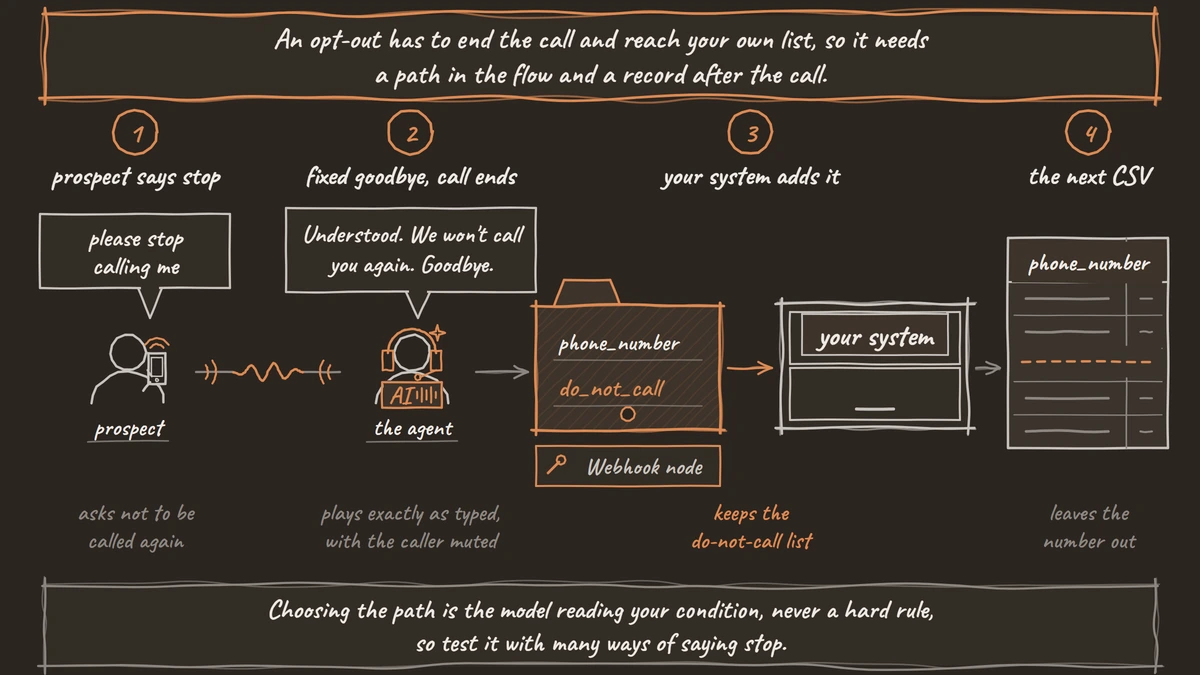
Check: publish the agent, place a Phone Call to your mobile and say "please stop calling me". The agent plays your confirmation and hangs up, and your endpoint receives do_not_call with your number.
Step 4: Choose what happens on voicemail
Most first dials reach a machine, so decide before launch whether the agent hangs up or leaves a message. In Settings, open Voicemail & Screening and turn on "Enable voicemail and screening handling". It is off by default. Under "When voicemail is detected", Disconnect the call is preselected, and Leave a message plays a typed message or a recording, then ends the call.
The setting applies to outbound calls on agents with separate speech and language models. It is one choice per agent, so the agent leaves one message or hangs up on every voicemail. To skip messages for some contacts, run them on a second agent set to disconnect. In the campaign, you choose whether voicemail outcomes are retried, not which retry leaves the message, so a message on every retry means several voicemails for one person.
A message left in an AI voice still names the business and gives a phone number, and it needs the same consent as the call. Save Voicemail Settings, then publish the agent so the change reaches live calls. For the detection side, how voicemail detection works explains how the agent tells a live prospect from an answering machine.
Check: use Phone Call in the editor header to call your own mobile, let it ring through to voicemail, and listen. The agent hangs up or leaves your message.
Join the Dograh Community
Dograh is an OSS alternative to Vapi. Join our Slack community for queries, releases, best practices & community interactions.
Step 5: Hand interested buyers to a rep
A buyer who wants to talk should reach a person, so give the agent a way to transfer. Open Tools, select Create New Tool and pick Transfer Call. Name it, describe when to use it, and under Destination Source keep Static / Template with your rep's number, such as +1628555XXXX. Then add the tool to the Agent Node's Tools.
With the tool in place, the rep's line rings before anything else, and the buyer is put through only after the rep answers. Twilio numbers also get an optional spoken introduction, off by default, that the rep and the buyer both hear, so keep private details out of it. A Pre-Transfer Message can tell the buyer what is happening.
By default the rep hears no summary of the call. Tell the agent in the prompt to call an HTTP API tool that writes the buyer's answers to your CRM before the transfer, so the rep picks up knowing what they want. If nobody answers within the Transfer Timeout, 30 seconds by default, the agent is told and the buyer stays on the line. Tell it to offer a callback and write that request to your CRM.
Check: transfers run on phone calls, so place a Phone Call to your mobile and ask for a person. The rep's phone rings first, and you are connected once it is answered.
Step 6: Upload the list as a campaign
The campaign turns the agent into a calling program, and its settings carry the calling rules. Publish the agent first with Publish version. Then open Campaigns, select Create New Campaign and fill in Campaign Name, Telephony Configuration and the agent under Agents & traffic split, with Version set to Latest published.
Data Source Type is CSV File. The file needs a phone_number column, and every other column, such as first_name below, becomes a variable the greeting can use:
phone_number,first_name,product
+1415555XXXX,Maria,solar quote
+1628555XXXX,James,battery add-on
What this does: Dograh dials each row once the campaign starts and fills
first_nameinto the greeting for that person. Rows with an emptyfirst_namehear the fallback, "there".
Open Advanced Settings next. Belkins' cold calling benchmarks, from more than 175,000 dials its reps logged in 2025, put the per-dial connect rate at 9.9% but the per-prospect rate at 24.5% over about three attempts. So turn on Enable Retries. Max Retries runs from 0 to 10, with 2 by default, Retry Delay from 30 to 3,600 seconds, and Retry On has switches for Busy Signal, No Answer and Voicemail.
Call Schedule takes one Timezone and the Time Slots by weekday. Without time slots, the campaign dials around the clock, so always set them, inside 8 a.m. to 9 p.m. local, and run one campaign per time zone. Calls Started per Second sets the pace, 1 by default. The Circuit Breaker pauses the campaign when too many connected calls fail in the AI pipeline, by default 50% of at least 5 calls within 120 seconds.
Select Create Campaign, then Start Campaign. To compare two greetings on the same list, see how to A/B test voice agent scripts.
Check: the campaign shows as running, and calls go out only inside your time slots.
Before you ship it
Test the finished agent the way prospects will hear it, on a real phone line. Most phone calls reach the agent as 8 kHz audio, while a browser test runs at 16 kHz, so names and product terms can sound different to the speech model. Add them to the Dictionary in the agent's Settings so the agent hears them correctly.
Run the opt-out with a dozen phrasings, from "take me off your list" to "don't ring this number again", and confirm each one reaches your endpoint. Ring through to voicemail once, and transfer to a real rep once.
Once real calls come in, change one piece at a time and publish a new version each time.
Glossary
- Prior express written consent
- A signed agreement, electronic signatures included, that allows sales calls with an artificial voice to a named number. An AI-voice sales call to a mobile or home line generally needs it.
- Transition Speech
- Fixed text or a recorded clip set on an edge in a Dograh flow. It plays exactly as written when the call moves along that edge, with the caller muted, so it suits lines like an opt-out confirmation.
- Call disposition
- One outcome code per call, such as do_not_call or qualified, picked from your own list after the call ends. A Webhook node can send it to your system.
- Circuit Breaker
- A campaign setting that pauses calling when too many connected calls fail in the AI pipeline within a time window, so a broken key or model does not burn through the list.