
To connect a voice agent to HubSpot, create a HubSpot service key, save it as a Bearer credential and let the agent update the contact through HTTP API tools during the call. Dograh, the open-source AI voice agent platform, needs no connector for this, and you can self-host it or run it on Dograh Cloud.
Key Takeaways
- HubSpot now points AI agent integrations to service keys, not private apps.
- A templated tool URL updates the caller's own contact mid-call.
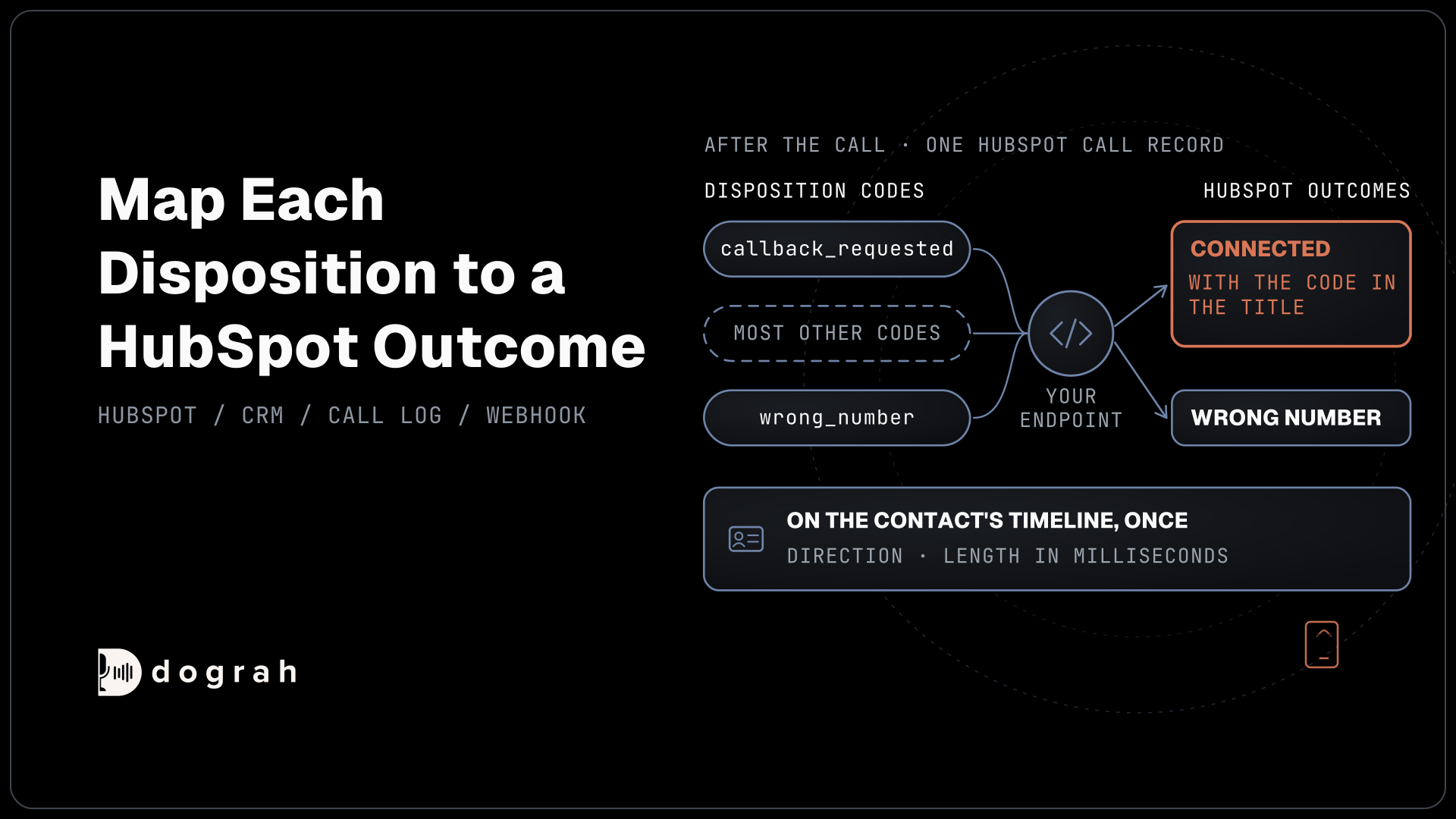
- HubSpot call outcomes take GUIDs, so map each Dograh disposition.
This post is part of our guide to how to build an AI voice agent, where tools let the agent read and change your records while the caller is still talking. Here we build it for HubSpot in Dograh, step by step, from the service key to logged outcomes.
What you need before you start
You need an agent that passes a browser test call, HubSpot super admin or Developer tools access, and the small endpoint from our guide to connecting a voice agent to your CRM, which already runs the HubSpot search before the greeting and the basic call log. The new HubSpot work comes down to three requests:
| Job | When | HubSpot request |
|---|---|---|
| Read the caller's contact | During the call | GET /crm/v3/objects/contacts/{id} |
| Update a contact property | During the call | PATCH /crm/v3/objects/contacts/{id} |
| Log the call with its outcome | After the call | POST /crm/v3/objects/calls |
All three need the contact's record ID, so Step 2 puts that ID into every call. A native connector hides these requests and is quicker on day one. Writing them yourself means you choose each field, and on a self-hosted install the key and every request stay on servers you run.
Check: you know which contact properties the agent may change and which it may only read.
Step 1: Create a HubSpot service key
Make a service key, the credential HubSpot now points new private integrations to. Existing accounts can no longer create legacy private apps from 26 October 2026, though current ones keep working. HubSpot names service keys as the recommended path for AI agent integrations and other lightweight ones.
In HubSpot, go to Development, then Keys, then Service keys (some accounts show it under Settings and Integrations), and click Create service key. Click Add new scope, tick the contact read and write scopes and the call scopes, then click Update and Create. HubSpot's service key guide lists every scope.
The key travels as a Bearer token, so it drops straight into Dograh. Open Credentials, click Add Credential, pick Bearer Token as the Credential Type and paste the key into Token. HubSpot suggests rotating it about every six months. Rotate and expire later keeps the old key working for 7 days, time enough to paste the new one into the credential.
Check: the new credential shows under Credentials with the type Bearer Token.
Step 2: Give every call its HubSpot record ID
Each call needs the contact's record ID before the agent speaks. On inbound calls, Pre-Call Data Fetch asks your lookup endpoint, which searches HubSpot by phone and returns hubspot_contact_id under initial_context.
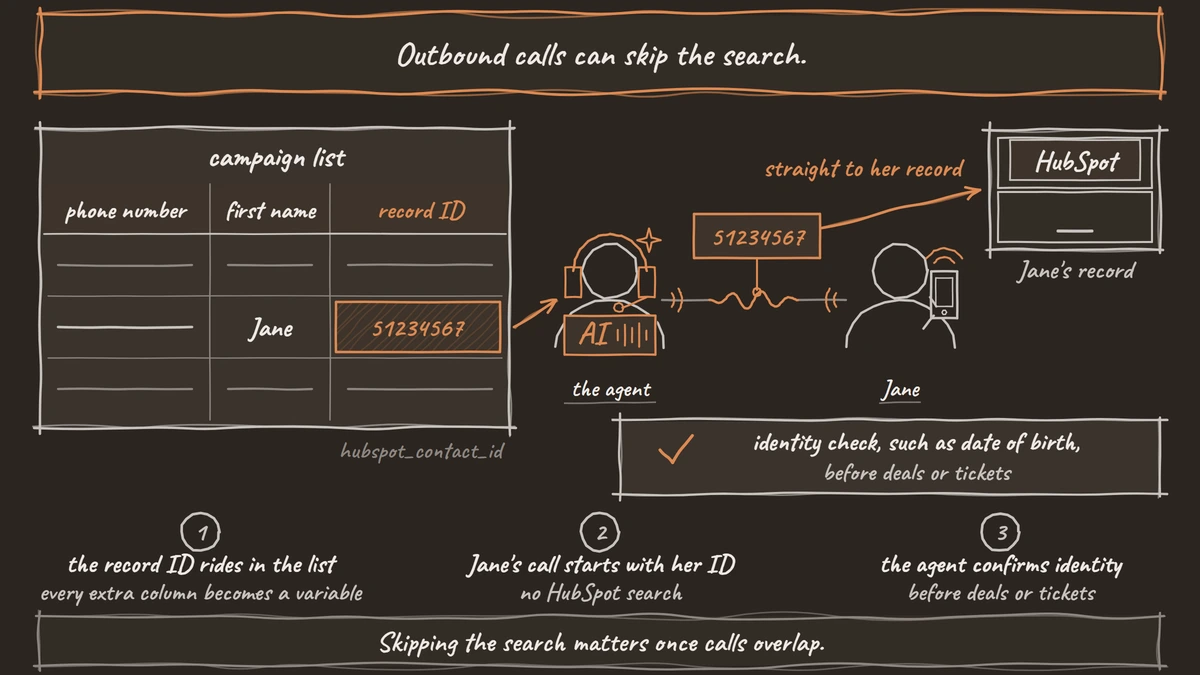
Outbound calls can skip the search. Export the contacts with their Record ID and add it to the campaign CSV beside the required phone_number column. Dograh turns every extra column into a variable for that call, so the file below carries the ID in hubspot_contact_id:
phone_number,first_name,hubspot_contact_id
+1415555XXXX,Jane,51234567
What this does: Each row becomes one call. Jane's call starts with
{{initial_context.hubspot_contact_id}}set to51234567, so the tools in Steps 3 and 4 know which record to change without searching HubSpot.
Skipping the search matters once calls overlap. HubSpot's search API allows five requests per second per account. A worked example with 10 inbound calls connecting in the same second:
- Lookups sent: 10 searches
- HubSpot's search limit: 5 per second per account
- Refused with a rate-limit error: 5, so five greetings start without a name
Outbound calls with the ID in the CSV make no search at all, and our outbound campaigns guide covers uploading the list. A phone match or a CSV row finds a record without proving who picked up, so the agent confirms identity with an approved check, such as date of birth, before it talks about deals or tickets.
Check: for a browser test, put a test contact's ID in hubspot_contact_id in the Variables tab, and the agent's first HubSpot request uses it.

Open Source Alternative to Vapi / Retell
Self-hosted voice agent platform — no per-minute fees
dograh-hq/dograh
Star on GitHub
Step 3: Read and update the contact during the call
Mid-call reads and writes can go straight from Dograh to HubSpot, because the service key is a fixed token. Open Tools, click Create New Tool and pick External HTTP API. Here the agent saves a callback time to a custom contact property you created, callback_time. On the Settings tab, set HTTP Method to PATCH and put the address below in Endpoint URL, where {{hubspot_contact_id}} is the record ID from Step 2:
https://api.hubapi.com/crm/v3/objects/contacts/{{hubspot_contact_id}}
What this does: Dograh fills
{{hubspot_contact_id}}from the call's variables each time, so every call changes its own contact. A "Path parameters detected" note under the URL confirms it.
On the Authentication tab, choose the Bearer credential from Step 1. On the Parameters tab, add an LLM Parameter named callback_time for the agent to fill from the conversation, then switch on Tool Body Template and wrap your field in the properties object HubSpot expects:
{
  "properties": {
    "callback_time": "{{callback_time}}"
  }
}
What this does: It sends HubSpot that one property in the shape its contacts API reads. A value that is exactly one placeholder keeps its JSON type.
Test Tool sends one real request, so point it at a test contact first. A reading tool works the same way with GET and no body. The tool waits 5 seconds by default and does not retry, so the prompt says what the agent tells the caller if HubSpot returns an error. A line under When the tool starts in the Messages card, such as "Let me note that down", covers the pause, and our post on voice agent tool calls covers attaching the tool to a node.
Check: ask for a callback in a test call and watch callback_time change on that contact in HubSpot.
Step 4: Log the call with a HubSpot outcome
A Webhook node sends the result when the call ends, and the same endpoint creates the HubSpot call record. The outcome needs one more piece of work, because hs_call_disposition only takes the internal GUID of a HubSpot outcome. Dograh picks one disposition per call from codes you write, such as callback_requested, as our post on extracting call data into your CRM shows. HubSpot's default outcomes say whether the call connected, so most codes map to Connected and the code goes into the call title. Add "direction": "{{initial_context.direction}}" and "duration_s": "{{cost_info.call_duration_seconds}}" to the node's Payload Template, then build the extra properties in your endpoint with HUBSPOT_OUTCOMES:
CONNECTED = "f240bbac-87c9-4f6e-bf70-924b57d47db7"
HUBSPOT_OUTCOMES = {
    "wrong_number": "17b47fee-58de-441e-a44c-c6300d46f273",  # Wrong number
}

def hubspot_call_properties(event: dict) -> dict:
    code = event["outcome"]
    return {
        "hs_call_disposition": HUBSPOT_OUTCOMES.get(code, CONNECTED),
        "hs_call_title": f"Voice agent call: {code}",
        "hs_call_direction": event["direction"].upper(),  # INBOUND or OUTBOUND
        "hs_call_duration": int(float(event["duration_s"]) * 1000),  # HubSpot counts milliseconds
        "hs_call_status": "COMPLETED",
    }
What this does: It files
callback_requestedunder HubSpot's Connected outcome with the code in the title, marks awrong_numbercall as Wrong number and turns Dograh's seconds into the milliseconds HubSpot stores. Merge these into the call body your endpoint already sends.
HubSpot's calls API lists the default outcome GUIDs and how to read custom ones, so a "Callback requested" outcome your reps create can join the map. Direction counts from the HubSpot user's side, which matches Dograh's value. The Webhook node retries temporary failures on its own, so keep the run ID check and no call is logged twice.
Check: a finished outbound test call shows on the contact's timeline once, with the Connected outcome, the Outbound direction and the right length.
Join the Dograh Community
Dograh is an OSS alternative to Vapi. Join our Slack community for queries, releases, best practices & community interactions.
Testing it and choosing where it runs
Run one inbound and one outbound call by phone and open each call's View Trace, where every HubSpot request shows what was sent and what came back. A missing scope or a renamed property shows up there first.
Self-hosting keeps the service key, the endpoint and every HubSpot request on servers you run. Run that way, Dograh takes no per-minute platform fee, though those servers, the model keys and the phone minutes still cost money. On Dograh Cloud, the platform fee is a flat 1¢-a-minute charge. Self-hosting also makes the server, the database and the upgrades your team's job, with community support in our Slack on the open-source plan and custom SLAs on Enterprise.
Start with the outbound list, since the record ID in the CSV avoids search limits. Add the inbound lookup once a week of call logs reads cleanly.
Glossary
- Service key
- A HubSpot account-level credential for REST API requests, limited to the scopes you pick. HubSpot sends it as a Bearer token, so it fits a fixed Bearer Token credential in Dograh.
- Record ID
- HubSpot's ID for one contact. Putting it in a tool's URL means each call reads and changes that exact record and never searches for it.
- Outcome GUID
- The internal ID HubSpot stores in hs_call_disposition. Default outcomes such as Connected and Wrong number each have one, and custom outcomes get their own.
- Tool Body Template
- A Dograh HTTP API tool setting that shapes the request body as JSON with placeholders, so nested bodies such as HubSpot's properties object come out right.