
An AI agent builder creates an agent from a plain description, asking questions until the job is clear. A voice agent builder must also settle phone audio, response speed, transfers and tools. Dograh, the open-source AI voice agent platform, has one built in, and you can self-host it with a service key or run it on Dograh Cloud.
Key Takeaways
- Approve the requirements card before the builder writes a single node.
- Builder tab edits save as a draft until you publish them.
- Test every built agent on a real phone call before launch.
Describing an agent is the easy part of building one. This post covers what an AI agent builder does and what a voice one must handle that a chat builder never meets. Then we follow Dograh's Agent Builder from a description to a tested, published agent, screen by screen.
What an AI agent builder does
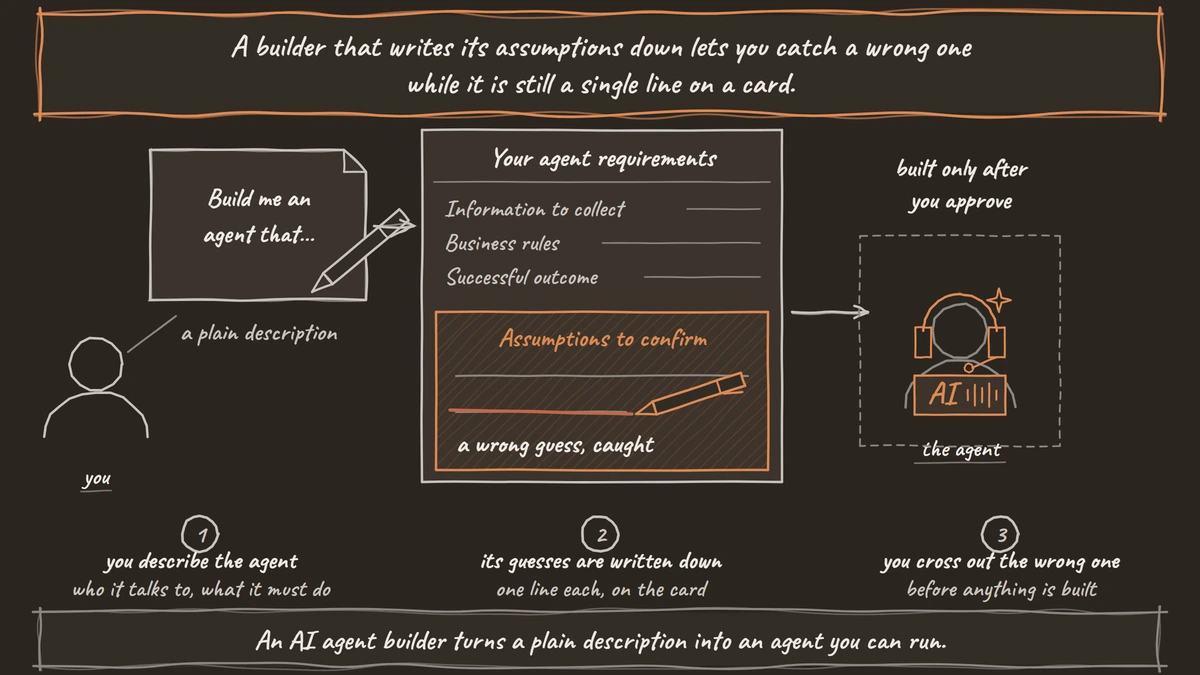
An AI agent builder turns a plain description into an agent you can run. You say who the agent talks to and what it must get done, and the builder writes the instructions, lays out the steps and wires up the tools it thinks the job needs. The good ones ask before they guess, and they show you what they plan to build before they build it.
That second habit matters more than speed. A builder that fills gaps quietly gives you an agent that sounds right in a demo and invents a rule on its first real call. A builder that writes its assumptions down lets you catch a wrong one while it is still a single line on a card.
Text builders can stop there. A chat agent that replies a little slowly or misreads a word still works, because the person can scroll back and type again. A phone call gives the agent no second try at either, and that is where a voice builder has more to settle.
What a voice builder must also handle
A voice agent builder has to produce an agent that works on a phone line, and four things change once the conversation is audio. The first is the audio itself. Most phone calls still reach the agent as 8 kHz narrowband audio, while a browser demo runs at 16 kHz, so speech recognition that looks clean in a demo can miss words on a call. How big the gap is depends on the speech model and the phone path, so it has to be tested.
The second is speed. Callers expect a reply about as quickly as a person gives one, and we treat 800 ms end to end as the bar for a natural conversation. Speech recognition is usually the slowest part, more often than the language model. A builder can keep replies short, but only a real call shows the timing.
The third is handing the call to a person. In Dograh, the Transfer Call tool calls the destination first and connects the caller only when someone answers. A busy, unanswered or failed line comes back to the agent, and the call carries on. Transfers run on Twilio, Telnyx, Plivo, Cloudonix and Asterisk ARI, and only on a real phone call.
The fourth is tools that run while the caller is listening. A lookup that takes three seconds is three seconds of silence unless the agent says something first, so timeouts and filler lines matter as much as the request. Our post on voice agent tool calls covers both.
Dograh's Agent Builder works from a voice prompting guide while it builds, and it records whether the agent takes calls, makes them or does both. Its own checks run on the agent's text and structure. Voice timing and whether a live system really answers come from a normal test call, which is why the walkthrough below ends on a phone.
What you need before you start
On Dograh Cloud you need an account with credits. The Agent Builder runs on Dograh's model service, and its use is billed in credits, listed as Agent Builder on the billing page. Self-serve credits start at $5. That service picks the builder's own model, so the model you choose for your agent does not change how the builder works.
A self-hosted install needs a Dograh Service Key. Get one with your email at app.dograh.com/get-service-key, then open Providers in the sidebar, click Add Provider, choose Dograh and paste the key, as the inference providers page describes. Set at least one slot on the Models page, such as the language model, to that provider, since the builder reads the key from any slot using it. If the key is missing, the builder says so and links to Open Model Configurations.
Because the builder calls Dograh's model service, an install that must stay fully offline builds its agents on the Canvas by hand. The rest of the platform is the same open-source code either way, and the builder's conversations are saved in your own database next to the agents they produce.
Self-hosting makes the server, the database and the upgrades your team's to run. The open-source plan comes with community support in our Slack, and Enterprise adds custom SLAs. Calls on a self-hosted install carry no per-minute platform fee from Dograh, but the servers, model keys and phone minutes still cost money. On Dograh Cloud, calls carry a 1¢-a-minute platform fee.
Check: Voice Agents in the sidebar shows a Create Agent button with Use Agent Builder in its menu.
Step 1: Describe the agent you want
Open Voice Agents in the sidebar, click Create Agent and choose Use Agent Builder. The other option, Blank Canvas, starts an empty workflow for building by hand. The Create an agent page opens with one question, "What should your agent do?", and a message box that starts with "Build me an agent that…".
Write the call the way you would brief a new hire. Say who the agent speaks with, why the call happens, what it must collect, which system it checks and when a person should take over. The box takes up to 12,000 characters, Enter sends it and Shift + Enter starts a new line. A description for a dental clinic, with the identity check in the third sentence and the handover rule in the last, might read:
Build me an agent that answers calls for Brightsmile Dental. It helps existing patients move
an appointment. Confirm the patient's date of birth before discussing any booking. Check open
slots in our booking system, offer two and confirm the new time. Transfer to the front desk
if the caller is in pain or asks for a dentist.
What this does: It gives the builder the caller, the goal, the identity check, the system to read and the rule for handing over, so its questions can go to what is still open, such as the booking system's address or the front desk number.
Your message appears under You, and the builder replies as Dograh. To start again from nothing, click New conversation.
Check: your description shows under You and a reply arrives under Dograh.
Step 2: Answer questions, approve the requirements
The builder asks for what it still needs on question cards, at most three at a time. Most cards offer choices, some letting you pick several ("Select all that apply."), and choice cards also take "Or type your own answer…". Other cards ask for a written answer. Fill them in and click Continue, and until you do, the message box waits with "Answer the questions above to continue…".
Next comes Your agent requirements. A badge says Inbound, Outbound or Inbound & outbound, one sentence states the goal, and lists follow for Information to collect, Business rules and Successful outcome. Anything the builder had to assume sits in a highlighted Assumptions to confirm box.
Read Assumptions to confirm first, because that is where a wrong guess hides. Click Request changes, write what is off under "What would you like to change?" and click Submit changes, and the card comes back revised. When it matches the call you want, click Approve & build.
While it builds, a status line shows messages such as "Writing your agent…" or "Checking integration settings…". The builder checks the agent it wrote and repairs its own errors, and after three failed checks in a row it stops and hands control back to you. Its closing summary lists any connection or data it still needs.
You can click Stop to cancel a build, and Reconnect brings you back after a dropped connection. Closing the browser leaves the work running. The conversation is waiting when you return, with Resume building whenever a run can continue.
Check: the requirements card shows your identity check under Business rules before you approve it.

Open Source Alternative to Vapi / Retell
Self-hosted voice agent platform — no per-minute fees
dograh-hq/dograh
Star on GitHub
Step 3: Approve tools, then test the agent
When the agent needs a tool, the builder asks before it creates one. A card titled New tool or Edit a tool shows a badge such as API call, Call transfer or End call, the tool's name, a plain summary and a Tool definition toggle with the full JSON. Approve & create adds the tool to your account. Deny opens "What should change? (optional)" so you can send feedback, and editing a tool other agents share warns that the change applies to every workflow using it, with a count.
Open Tool definition before you approve an API call. It shows the exact URL and fields, and the builder writes them from your description, so check that the endpoint is one your system really exposes.
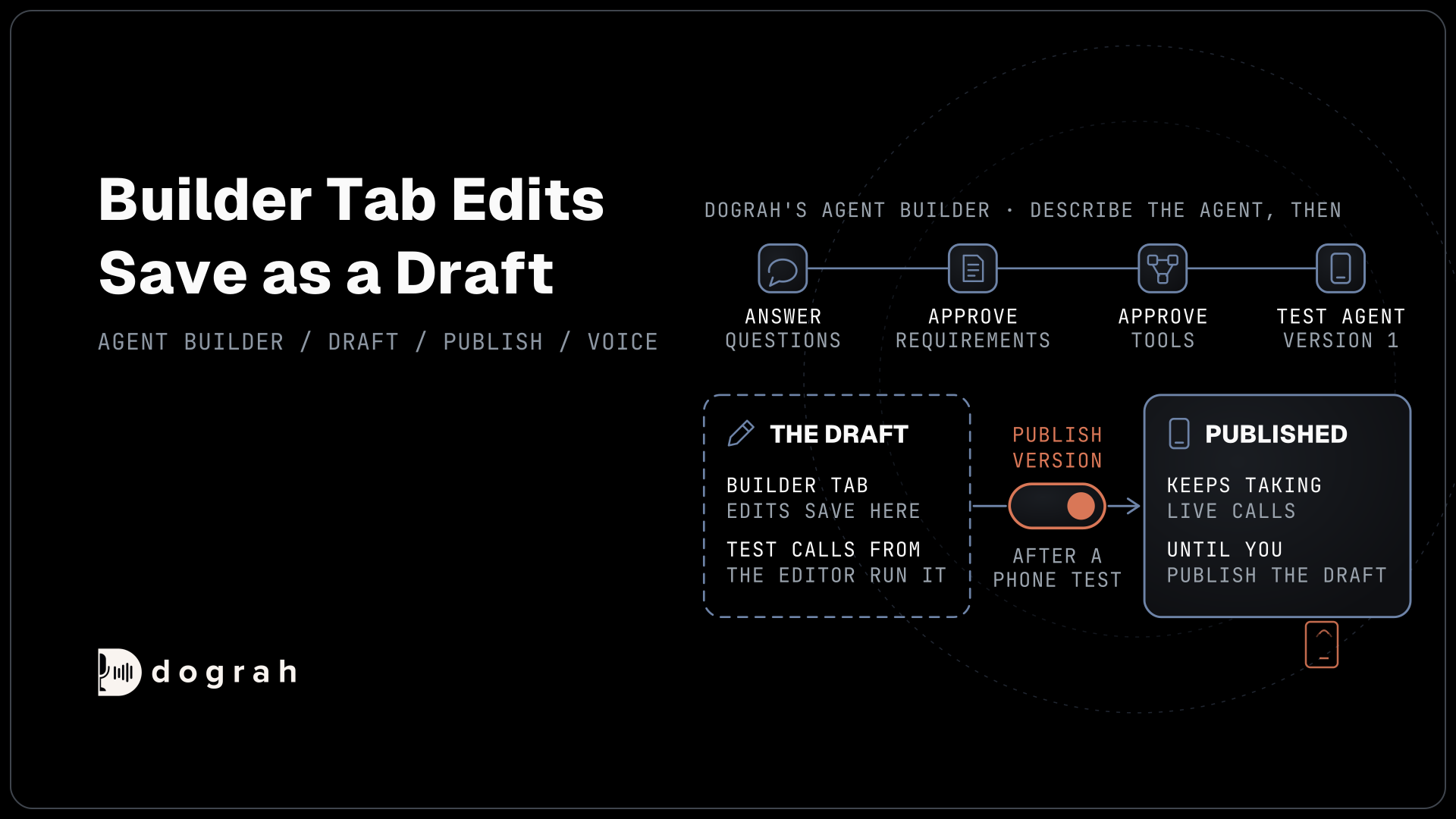
Then click Test agent. Dograh saves the agent as version 1, publishes it and opens it in the editor on the Builder tab. From there, the Test Agent button opens Test Audio and Test Chat, and Run Test starts a call in your browser. Our walkthrough of your first voice agent covers that browser test in detail.
A browser test is the quick check. Use the Phone Call button for the real one, because transfers and phone audio only show up there.
Check: on a phone call, the agent asks for the date of birth before any booking detail, and asking for a dentist rings the front desk.
Step 4: Change it from the Builder tab
Every later change can start as a sentence too. The editor has five tabs, Builder, Canvas, Model, Variables and Settings, and the Builder tab opens on "What would you like to change?" with a box that says "Ask for a change to your agent…". Describe the change, such as "Offer three slots instead of two", and the builder works from your current saved workflow.
Builder tab edits save as a draft. The published version keeps taking calls until you click Publish version, where you can add notes for Version History. Test calls from the editor run the draft, so you hear the change before callers do. The other tabs are disabled while the builder works, and if the Canvas has unsaved edits, the builder asks you to save them first.
The Canvas is still there for changes you would rather make by hand, such as rewording one node's prompt. Our guide to designing conversation flows with a visual builder covers the nodes you will see there. For the full plan of an agent from first idea to live calls, see how to build an AI voice agent.
Check: after a Builder tab edit, Publish version appears in the editor, and live calls run the old version until you click it.
Join the Dograh Community
Dograh is an OSS alternative to Vapi. Join our Slack community for queries, releases, best practices & community interactions.
Before you ship it
Call the agent by phone once for each line under Business rules, including the transfer and a caller who fails the identity check. Open View Trace on those calls to see each tool request and its timing. Then publish, and keep later Builder tab edits as drafts until a phone test passes. The approved requirements card stays the plainest record of what the agent was built to do, so reread it before each change.
Glossary
- Agent Builder
- Dograh's conversational way to create and edit voice agents. You describe the call, answer its questions and approve its requirements and tools, and it builds the workflow for you to test.
- Requirements card
- The Your agent requirements summary the builder shows before building, with the call direction, goal, information to collect, business rules, successful outcome and any assumptions to confirm.
- Dograh Service Key
- The key a self-hosted install adds under Providers so the Agent Builder can reach Dograh's model service. The builder reads it from any model slot that uses that provider.
- Draft
- The working copy of an agent that Builder tab and Canvas edits change. Editor test calls run it, while live calls keep running the published version until you publish the draft.