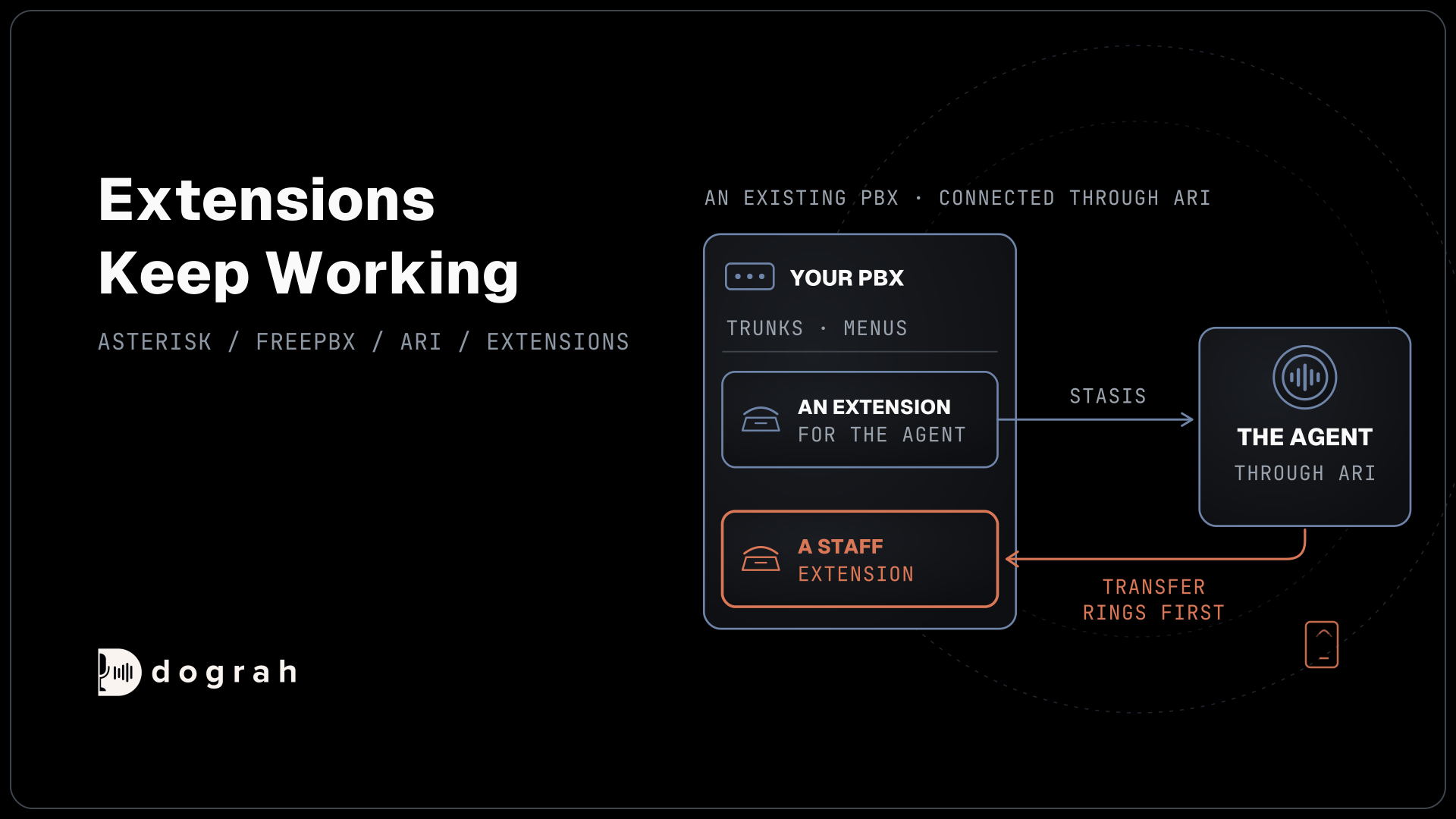

Asterisk and FreePBX connect to an AI voice agent through the Asterisk REST Interface, and other PBXs connect over a SIP trunk. Dograh, the open-source AI voice agent platform we build, can run on Dograh Cloud or self-hosted on the same network as your PBX, which keeps the ARI port and call audio on your LAN.
Key Takeaways
- Asterisk-based PBXs use ARI. FreeSWITCH, 3CX and others use a SIP trunk.
- Self-host the agent beside the PBX so ARI never faces the internet.
- Extensions keep working, and the agent transfers callers back to them.
This post is part of our guide to Open-Source IVR and AI Phone Systems, where Asterisk and FreePBX connect through ARI and FreeSWITCH over a SIP trunk. Here we connect the PBX you already run, step by step, in Dograh, with the agent on the same network as the PBX.
What you need before you start
The PBX you run today decides the path, and only the Asterisk family uses the steps below. Find your PBX in the table, follow its row, and come back for the checklist at the end.
| Your PBX | How it reaches the agent | Where the steps are |
|---|---|---|
| Asterisk | ARI, with audio over Asterisk's WebSocket channel | This post |
| FreePBX | ARI, with outbound through FreePBX's own routes | FreePBX and an AI voice agent |
| FreeSWITCH or FusionPBX | A SIP trunk to Dograh | Connect FreeSWITCH to an AI voice agent |
| 3CX and other SIP PBXs | A SIP trunk to Dograh | Your PBX's trunk settings |
| Cisco, Avaya or Teams Phone | A SIP trunk or call forwarding | Our Cisco, Avaya and Teams guide, linked below |
For Cisco, Avaya or Teams Phone, follow our guide to connecting Cisco, Avaya or Teams. For the SIP trunk rows on Dograh Cloud, the trunk lands on the Managed SIP domain set up for your organization. A self-hosted install connects those PBXs through your own carrier account, or puts Asterisk in front.
For the Asterisk path you need a running Asterisk with its WebSocket channel driver. Asterisk's release lines show 22 and the new 24 as fully supported long-term lines, so start a new build on either. The WebSocket channel driver ships in 22.6.0 and later on the 22 line, and from 20.16.0 on the older 20 line. Check that both modules are loaded, chan_websocket for the audio and res_websocket_client for the connection to Dograh:
asterisk -rx "module show like chan_websocket"
asterisk -rx "module show like res_websocket_client"
What this does: It asks the running Asterisk whether each module is loaded. Both lines should report Running. If either is missing, rebuild Asterisk with it before going further.
You also need any endpoint or trunk that carries these calls to allow ulaw, because Dograh's audio channel uses G.711 u-law.
Step 1: Put Dograh next to the PBX
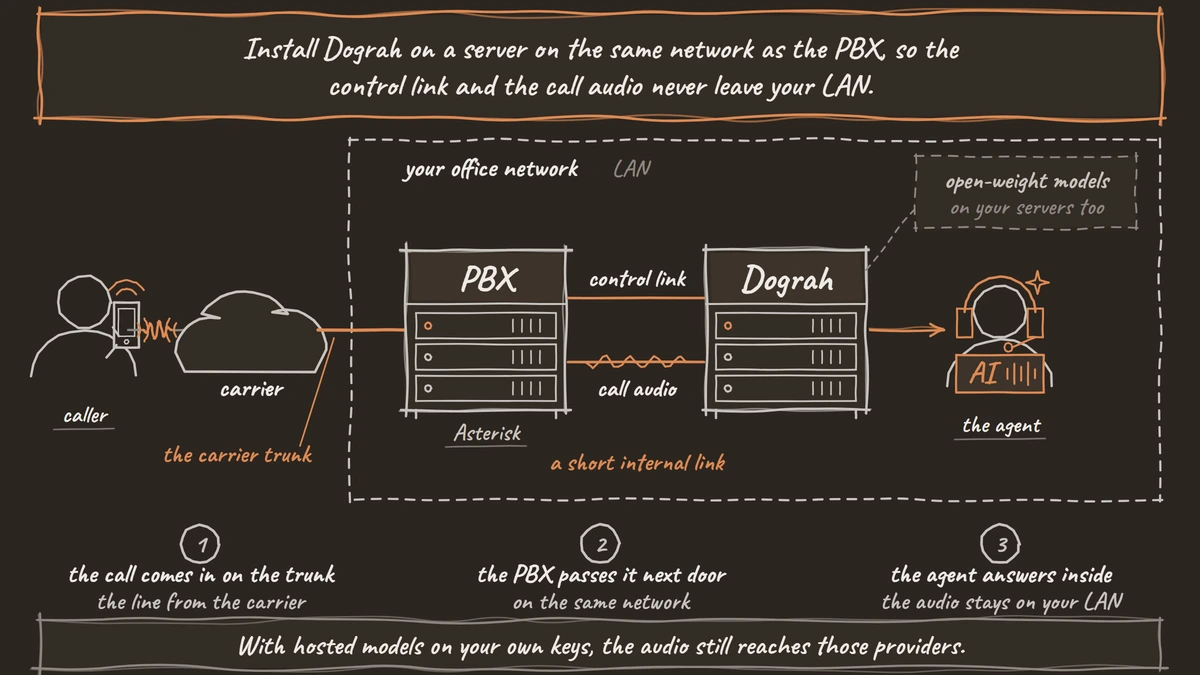
Install Dograh on a server on the same network as the PBX, so the control link and the call audio never leave your LAN. Dograh is the orchestration layer that runs the call flow, tools and telephony, while the speech and language models are a layer you choose. With open-weight models on your own servers too, the agent's whole side of the call stays inside your network. With hosted models on your own keys, the audio still reaches those providers.
On the Asterisk side, turn on the HTTP server that ARI uses and point a WebSocket client at Dograh. Bind bindaddr to the PBX's internal address rather than every interface, and give the client section a name you will reuse, here dograh:
; http.conf
[general]
enabled = yes
bindaddr = 10.0.0.10
bindport = 8088

; websocket_client.conf
[dograh]
type = websocket_client
uri = ws://dograh.internal:PORT/api/v1/telephony/ws/ari
protocols = media
What this does: Asterisk serves ARI on port 8088 of its internal address only, and opens an unencrypted WebSocket to your self-hosted Dograh for call audio, which is fine inside a private network. Run
core reloadafterwards, sincehttp.confchanges need it.
Firewall port 8088 so only the Dograh server can reach it. On Dograh Cloud the setup differs in two ways. The uri becomes wss://api.dograh.com/api/v1/telephony/ws/ari with tls_enabled = yes, and the cloud service must reach your ARI port from the internet, which is the main reason on-prem teams self-host.
Check: from the Dograh server, curl http://10.0.0.10:8088/ari/asterisk/info returns a 401 asking for credentials, which proves the port answers.
Step 2: Create the ARI user and the configuration
ARI needs a user that Dograh signs in with, and it should have a password used nowhere else. Add one in ari.conf, where the section name, here dograh, is the username:
; ari.conf
[general]
enabled = yes

[dograh]
type = user
read_only = no
password = use-a-long-random-password
What this does: It creates the ARI user
dograhwith full control of calls. Reload it from the Asterisk CLI withmodule reload res_ari.so.
In Dograh, open Telephony in the sidebar, choose Add configuration and pick Asterisk ARI. Fill in ARI Endpoint (http://10.0.0.10:8088), ARI Username and ARI Password from ari.conf, and websocket_client.conf Name (dograh), then choose Create. Dograh generates a Stasis App Name such as dograh_a1b2c3d4e5f6, unique to this configuration, so two configurations on one Asterisk never take each other's calls. The Asterisk ARI setup lists every field.
Check: the configuration page shows the generated Stasis App Name and a box titled "Route calls into this Stasis application".

Open Source Alternative to Vapi / Retell
Self-hosted voice agent platform — no per-minute fees
dograh-hq/dograh
Star on GitHub
Step 3: Send an extension to the agent
Calls reach the agent only once the dialplan names the generated application. Copy the line from the configuration page into extensions.conf, inside the context your inbound calls use. This example sends extension 8000:
; extensions.conf
[from-external]
exten => 8000,1,NoOp(Call for the AI agent)
 same => n,Stasis(dograh_a1b2c3d4e5f6)
 same => n,Hangup()
What this does: A call to 8000 enters the Stasis application Dograh generated. Dograh then takes over the call and has Asterisk open an external media channel, which streams the audio over the
dograhWebSocket client. Rundialplan reloadto apply it. A pattern such as_X.in place of8000sends every extension you register.
Back in Dograh, open the configuration's Phone numbers card and choose Add phone number. Enter 8000 as the Address, pick the agent under Inbound workflow and choose Add. Each extension can run its own agent, so 8000 can take bookings and 8001 after-hours calls on the same PBX.
Check: dial 8000 from a desk phone and the agent greets you. If the call drops at once, the extension is missing from Phone numbers or has no Inbound workflow.
Step 4: Route calls out and back to staff
The agent dials out through the Dial String Template, which decides how a number reaches your trunk. The default, PJSIP/{number}, dials an endpoint named after the number, which suits extensions. PJSIP/{number}@my-trunk sends every call over one trunk, and on FreePBX Local/{number}@from-internal uses your outbound routes.
Transfers come back the same way. In the agent's Transfer Call tool, set the destination to an extension or queue on the PBX, such as PJSIP/1001. Dograh rings extension 1001 first and joins the caller only when someone picks up. If nobody answers or the line is busy, the agent hears that and carries on with the caller.
Check: ask the agent for a person during a call from a real phone, and extension 1001 rings before you are connected.
Join the Dograh Community
Dograh is an OSS alternative to Vapi. Join our Slack community for queries, releases, best practices & community interactions.
Testing it and choosing where it runs
Most go-live problems on a PBX come from a handful of settings, and they look the same whichever path you took. Run through this list before callers reach the agent:
- Endpoints and trunks on these calls allow
ulaw. - ARI port 8088 is reachable only from the Dograh server, and the ARI password is long and random.
- Every extension sent to Stasis is also added under Phone numbers with an agent.
- Outbound calls carry a caller ID your carrier accepts.
- A transfer to each destination works on a real phone call, since browser test calls cannot transfer.
- Your trunk has channels for agent calls on top of staff calls. Our post on SIP trunk phone systems for small business shows how to count them.
Test from a mobile on the public number, too. Most phone calls still reach the agent as 8 kHz audio, while a browser demo runs at 16 kHz, so listen to how well the agent hears callers on the real line.
The PBX side costs what it did before, and your carrier keeps billing the trunk. Self-hosted Dograh has no per-minute platform fee, but the servers, model keys and phone minutes still cost money. On Dograh Cloud you pay a 1¢-a-minute platform fee. Running the agent on your own network also makes the server, the database and the upgrades your team's job, with community help on the open-source version and custom SLAs on Enterprise for teams that need a named response time.
That is the whole path. The PBX keeps its trunks and menus, one extension now reaches an agent on your own network, and you can move the next extension over whenever the first has proved itself.
Glossary
- Stasis application
- The name Asterisk gives an outside program that controls a call. A dialplan line such as Stasis(dograh_a1b2c3d4e5f6) hands the call to it, which is how an extension reaches Dograh through ARI.
- External media
- An Asterisk channel that streams a call's audio to an outside service. Dograh asks Asterisk to create one for each call and receives the audio over the WebSocket client named in websocket_client.conf.
- Dial string
- The text Asterisk dials to place a call, naming the channel technology and route, such as PJSIP/1001 or PJSIP/+1415555XXXX@my-trunk. Dograh builds it from the Dial String Template.
- G.711 u-law
- The standard phone codec used in North America and Japan, carrying 8 kHz audio. Dograh's audio channel to Asterisk uses it, so every endpoint and trunk on these calls must allow ulaw.