
FreeSWITCH connects to an AI voice agent as a SIP trunk. In Dograh, the open-source AI voice agent platform, you add a gateway with registration off pointed at Managed SIP, add each DID with its agent, and let the agent's calls come back from a fixed origin IP. You can self-host it or run it on Dograh Cloud.
Key Takeaways
- FreeSWITCH reaches the agent through a gateway with registration turned off.
- List Dograh's origin IP and your carrier's IPs on the external profile.
- Test one inbound call, one outbound call and one transfer first.
Our guide to open-source IVR and AI phone systems maps both PBX paths, and this post takes the FreeSWITCH one. Here we wire it to an AI voice agent in Dograh, one step at a time, from the SIP details to the access list and a transfer back to staff.
What you need before you start
You need a FreeSWITCH server on the 1.11 line with a carrier gateway that already works, at least one DID routed to it, and access to fs_cli. On the agent side you need a Dograh Cloud account or a self-hosted install, plus one agent ready to answer calls. Carriers usually send G.711 (PCMU or PCMA), so check in fs_cli which codec the first test call negotiates.
FreeSWITCH connects over a SIP trunk to Dograh Managed SIP, the SIP domain that is normally set up at signup and appears in the app as Dograh Cloudonix SIP. You set nothing FreeSWITCH-specific there, because your switch looks like any carrier trunk to it. If you run your own Cloudonix account instead of the provisioned domain, follow our Cloudonix AI voice agent setup guide.
Step 1: Read the SIP details from Dograh
Open Telephony in the sidebar and choose Dograh Cloudonix SIP. Expand the SIP connectivity card and pick a region first (Global, India or UAE), because every value below it changes with the region. The card shows an inbound hostname with its ports, where UDP and TCP share one port and TLS uses another, and the outbound origin IP address that Dograh's calls come from.
Pick the region closest to your FreeSWITCH server and your callers. The Managed SIP setup page lists the same order of steps the setup checklist in the app follows.
Check: you have written down the region, the inbound hostname, the UDP port and the origin IP.
Step 2: Add a gateway that points at Dograh
A gateway is how FreeSWITCH names a trunk to another SIP system. Create conf/sip_profiles/external/dograh.xml with the proxy set to the inbound hostname and port from Step 1 and register set to false, since Managed SIP trusts the trunk by address and needs no registration. FreeSWITCH's gateway reference covers the other parameters.
<include>
  <gateway name="dograh">
    <param name="proxy" value="DOGRAH_INBOUND_HOST:PORT"/>
    <param name="register" value="false"/>
  </gateway>
</include>
What this does: it defines a trunk called
dograhon the external profile that sends calls to the Managed SIP hostname without registering, so the dialplan can reach the agent withsofia/gateway/dograh/<number>.
Load it with sofia profile external rescan in fs_cli, which reads the new gateway without dropping the calls in progress.
Check: sofia status gateway dograh shows the gateway, and sofia status lists it under the external profile.

Open Source Alternative to Vapi / Retell
Self-hosted voice agent platform — no per-minute fees
dograh-hq/dograh
Star on GitHub
Step 3: Send your DIDs to the agent
Dograh answers a call only for a number it knows, so add the number before you route it. On the Dograh Cloudonix SIP configuration, use Add number and enter the DID in E.164 form, such as +1415555XXXX, and mark it as the default caller ID. Then open Phone numbers, edit the number, choose the agent under Inbound workflow and save.
In FreeSWITCH, add an extension to the public context that matches the DID with destination_number, sets hangup_after_bridge and bridges to the gateway. Replace 1415555XXXX with your own number.
<extension name="to-dograh-agent">
  <condition field="destination_number" expression="^\+?(1415555XXXX)$">
    <action application="set" data="hangup_after_bridge=true"/>
    <action application="bridge" data="sofia/gateway/dograh/+$1"/>
  </condition>
</extension>
What this does: a carrier call to that DID is bridged to Dograh with the number in E.164 form, so Managed SIP can match it to the agent, and FreeSWITCH closes its own leg once the agent's call ends.
Run reloadxml after saving the dialplan.
Check: call the DID from a mobile phone. The agent answers, and the call shows up in Dograh's call log for that agent.
Step 4: Let the agent call out through FreeSWITCH
The agent's own calls, and its transfers, come back to FreeSWITCH. In Dograh, open Outbound trunks, use Add trunk, give it a name with letters, digits and hyphens, enter FreeSWITCH's public hostname as the SIP domain, pick the same region, keep it Enabled and use Save trunk.
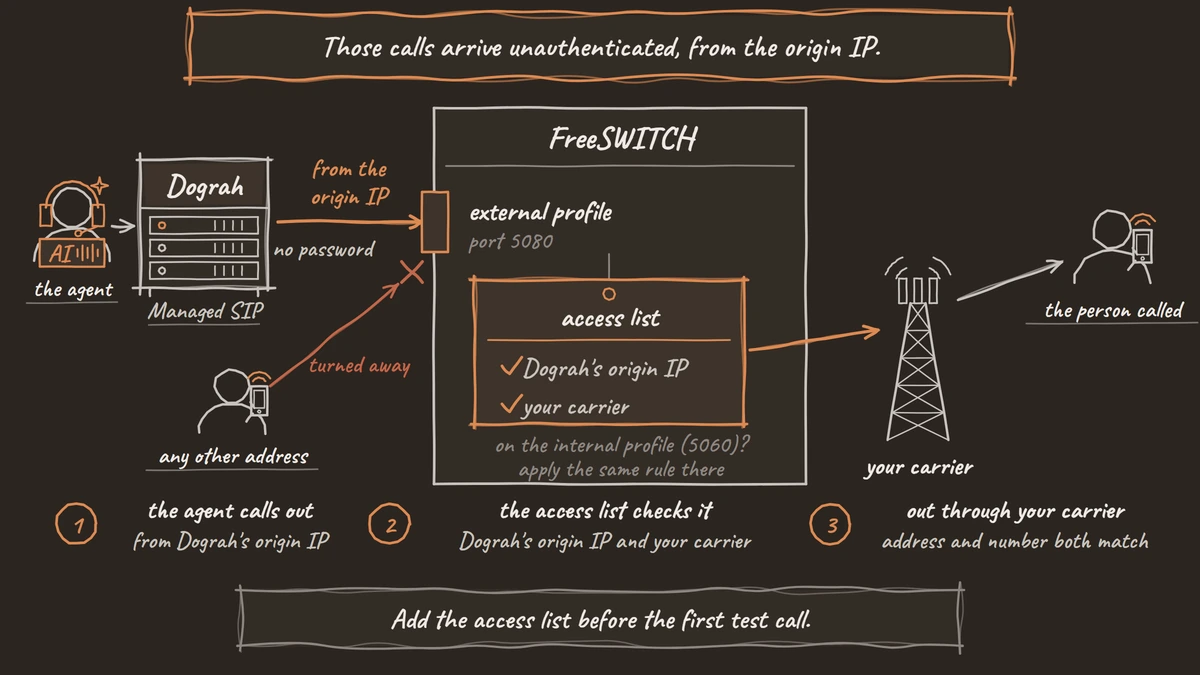
Those calls arrive unauthenticated, from the origin IP. FreeSWITCH's SIP profile reference notes that the external profile does not enforce authentication on inbound requests, so set apply-inbound-acl on that profile to an access list. The same profile also receives your carrier's inbound calls, so the list must hold Dograh's origin IP plus your carrier's IP addresses, or else Dograh's trunk goes on its own profile. Then add a public extension that checks network_addr, the source IP of the call, and bridges to your carrier gateway.
<extension name="from-dograh-agent">
  <condition field="network_addr" expression="^DOGRAH_ORIGIN_IP$"/>
  <condition field="destination_number" expression="^\+?(\d+)$">
    <action application="bridge" data="sofia/gateway/my-carrier/+$1"/>
  </condition>
</extension>
What this does: a call is sent to the carrier gateway
my-carrieronly when it comes from Dograh's address and dials a number, since both conditions must match, as the XML dialplan reference explains.
The trunk form takes a hostname and no port. FreeSWITCH's external profile listens on 5080 and the internal one on 5060, so check in the log which profile receives the first test call, and apply the same access rule there if it lands on the internal profile.
Check: the outbound trunk shows Enabled, and the FreeSWITCH log shows the test call arriving from the origin IP.
Step 5: Test one call first, then a transfer
Place one call before any customer does. Open the agent, choose Phone Call, select Dograh Cloudonix SIP, pick the caller ID and enter a mobile number, then press Start Call. Watch fs_cli while it rings to see the call arrive from the origin IP and leave through your carrier gateway.
Transfer Call runs on this path. Dograh calls the destination first and plays hold music to the caller, then joins them once the destination answers. If the destination does not answer, is busy, fails or times out, the agent learns the transfer did not go through and carries on with the caller. The transfer leg leaves over the trunk that owns the caller ID, so it reaches FreeSWITCH like any call from the agent. To ring a desk phone instead of a carrier number, put an extension for that number above the catch-all.
<extension name="dograh-transfer-to-desk">
  <condition field="network_addr" expression="^DOGRAH_ORIGIN_IP$"/>
  <condition field="destination_number" expression="^\+?1415555XXXX$">
    <action application="bridge" data="user/1001"/>
  </condition>
</extension>
What this does: when the agent transfers to that number, FreeSWITCH rings extension
1001instead of sending the call out to the carrier.
A transfer needs a real phone call, so test it on one rather than from the browser. The CLI reference lists the sofia commands that help when a step fails.
Check: an inbound call, an outbound call and a transfer to 1001 all connect, with audio both ways.
Join the Dograh Community
Dograh is an OSS alternative to Vapi. Join our Slack community for queries, releases, best practices & community interactions.
Before you ship it
FusionPBX runs on FreeSWITCH, so the same setup works there. Its Gateways screen creates the gateway with Register set to false, and its Dialplan Manager holds the two extensions, so the steps match with forms instead of files. Our comparison of FreeSWITCH vs Asterisk for AI voice agents covers how this path differs from Asterisk's.
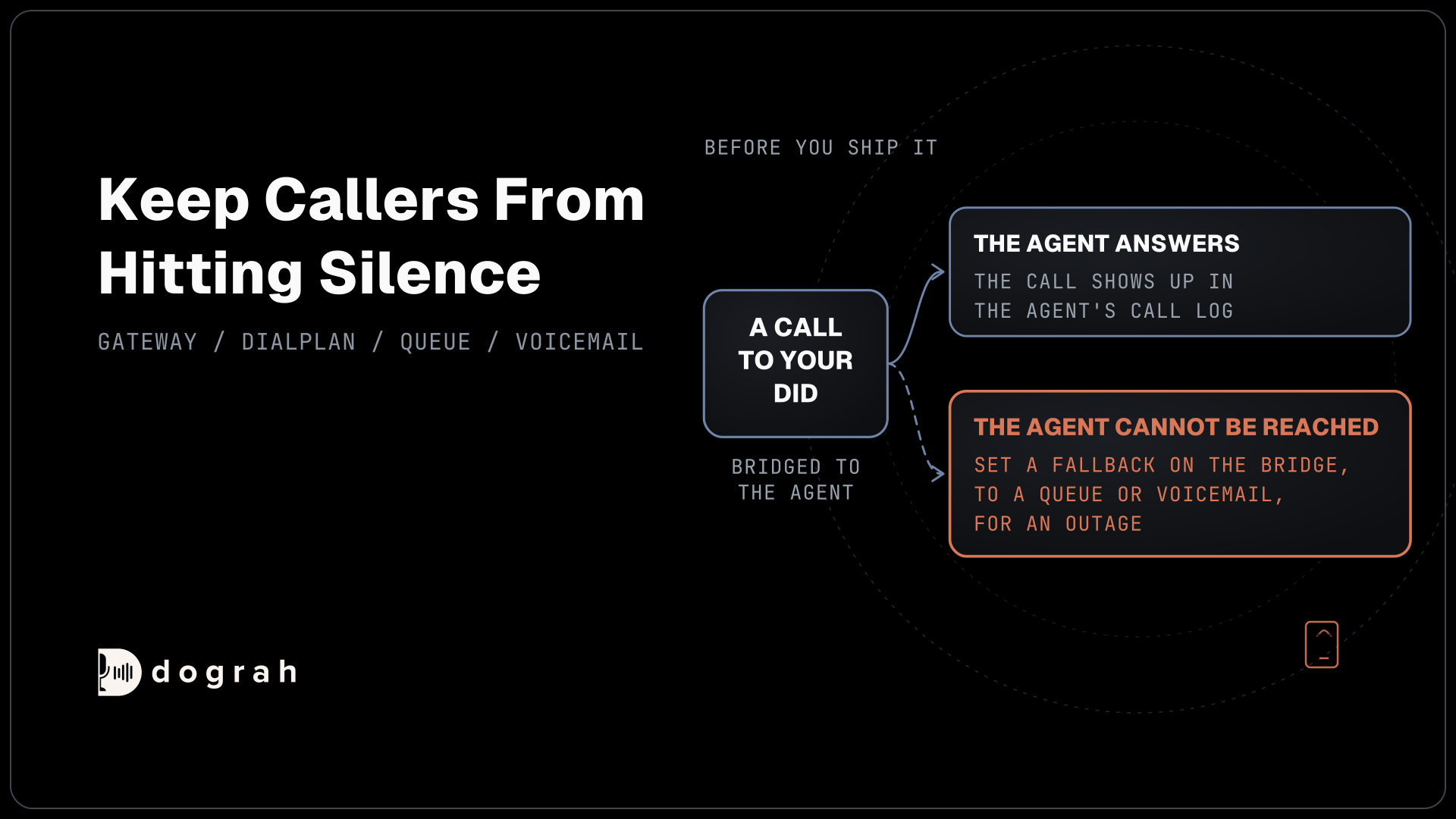
Decide what happens if the agent cannot be reached. A continue_on_fail on the bridge and a fallback to a queue or voicemail keep callers from hitting silence during an outage.
Listen to a few test calls on a handset. Phone audio usually arrives at 8 kHz, half the 16 kHz of a browser demo, so names and numbers deserve a check over the real line. In Dograh, the trace for each call lists the transcript speech-to-text produced and the delay on every turn.
Self-hosted Dograh has no per-minute platform fee, but servers, model keys and phone minutes still cost money. Dograh Cloud charges a 1¢-a-minute platform fee. Your carrier keeps billing FreeSWITCH's trunk as before.
Move one DID first, keep the rest on the existing menu, and add numbers once the first one works.
Glossary
- Gateway
- FreeSWITCH's name for a SIP trunk to another system, defined in an XML file under the external profile. With register set to false it sends calls by address alone, which is how it reaches Dograh Managed SIP.
- External profile
- The FreeSWITCH SIP profile on port 5080 that faces carriers. It does not enforce authentication on inbound requests, so its access list should hold Dograh's origin IP plus your carrier's IP addresses, since carrier calls arrive there too.
- Origin IP
- The fixed address that Dograh Managed SIP's outbound calls and transfers come from, shown per region in the SIP connectivity card. Your PBX trusts the calls by this address, since they carry no password.
- DNID
- The dialed number record that ties a number to the voice application answering it. On Dograh Managed SIP it is created for you when you add the number, so there is no separate step.