
To run an AI voice agent on your own Cloudonix account, copy the domain and an API key, bring your carrier in on an inbound trunk, and add Cloudonix in Dograh, the open-source AI voice agent platform. It creates the application and number records, and you can self-host it or run it on Dograh Cloud.
Key Takeaways
- Most Dograh users can skip their own Cloudonix account and use Managed SIP.
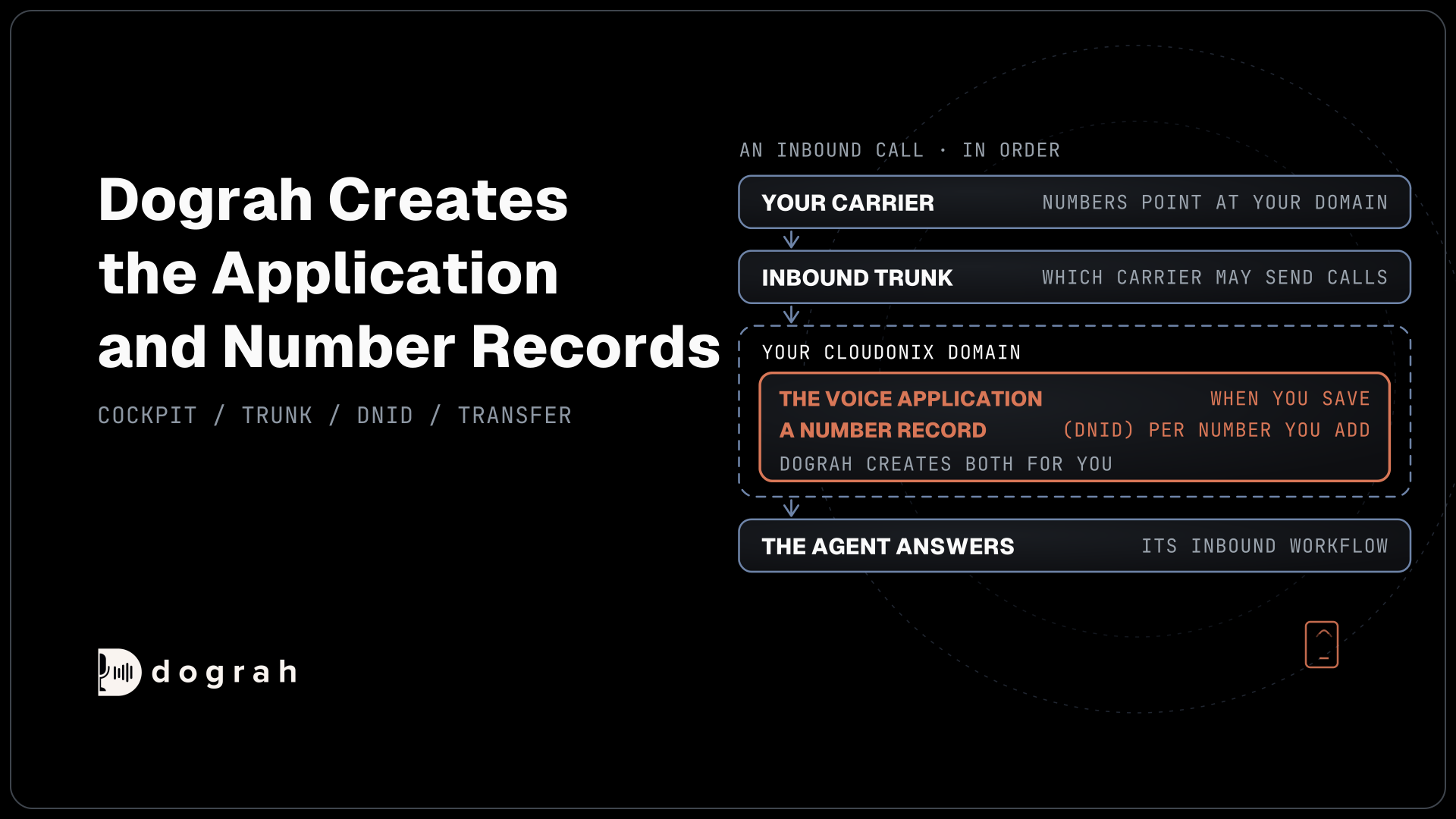
- Dograh creates the voice application and each number's DNID for you.
- Set a default caller ID, or outbound calls are rejected.
This post is part of our guide to SIP trunk providers compared, from carriers to the trunk that reaches your agent. Here we connect your own Cloudonix account to an AI voice agent, step by step, in Dograh, from the cockpit to a tested transfer.
What you need before you start
First, check whether you need your own Cloudonix account at all. Managed SIP, listed as Dograh Cloudonix SIP, is normally set up at signup and takes calls from your carrier with no Cloudonix plan. Your own account makes sense when you already route calls through Cloudonix or want its cockpit for trunks and routing.
One disclosure before the steps: our Managed SIP runs on Cloudonix, and Cloudonix lists Dograh as a premium integration.
For this path you need a Cloudonix account with a domain, plus a carrier, because Cloudonix sells no phone numbers or call minutes. The Forever Free plan covers 500 sessions a month and 2 calls at once, and paid plans run $69 to $299 a month. Our Cloudonix review has the full plan table. You also need a Dograh Cloud account or a self-hosted install with one agent ready.
Step 1: Copy the domain and an API key
Sign in to the Cloudonix cockpit and open your domain. Its left menu holds Dashboard, Settings, Administrators, API Keys, Inbound Trunks, Outbound Trunks, Applications, Subscribers and Sessions. Copy the domain name, such as acme.cloudonix.net, then open API Keys and copy a key for Dograh to use.
Check: you have the full domain name and an API key, and the key belongs to the same domain.
Step 2: Bring your carrier in with an inbound trunk
An inbound trunk tells Cloudonix which carrier may send calls into your domain. Under Inbound Trunks, add one with a Trunk Name, the Transport your carrier uses (UDP is the default), the carrier's Host as an IP address, hostname or range, the Port (5060 by default, 0 matches any) and an optional Prefix to strip from dialed numbers. Cloudonix's trunk guide describes each field. On the carrier side, point your numbers at your domain alias followed by .sip.cloudonix.net.
Check: the trunk appears under Inbound Trunks, and your carrier portal shows the numbers routed to your Cloudonix address.

Open Source Alternative to Vapi / Retell
Self-hosted voice agent platform — no per-minute fees
dograh-hq/dograh
Star on GitHub
Step 3: Add Cloudonix in Dograh
Open Telephony in the Dograh sidebar, choose Add configuration and pick Cloudonix. Paste the API key into Bearer Token and the domain into Domain Name. A short name gets .cloudonix.net added for you. Leave Application Name blank unless you already have a voice application for Dograh, and save.
On save, Dograh looks up the domain and creates a voice application named dograh- plus a random string, set to the CXML runtime. CXML is Cloudonix's call markup and is mostly compatible with TwiML, so readers coming from Twilio will recognize it. The Cloudonix setup page shows the same form.
Check: the new application shows under Applications in the cockpit.
Step 4: Add numbers and assign the agent
On the configuration page, open the Phone numbers card, choose Add phone number and enter each number in E.164 form, such as +1415555XXXX. Adding a number creates its DNID, the record that ties a dialed number to a voice application, on the Dograh application. If the number already had a DNID on another application in your domain, Dograh leaves it there, so move it under DNID Numbers in that application, as Cloudonix's voice application guide shows.
Then pick the agent under Inbound workflow and save. Dograh points the voice application at https://api.dograh.com/api/v1/telephony/inbound/run, or at your own backend domain when you self-host.
Check: call the number from a mobile. The agent answers, and the call shows in that agent's call log.
Step 5: Set up outbound calls and caller ID
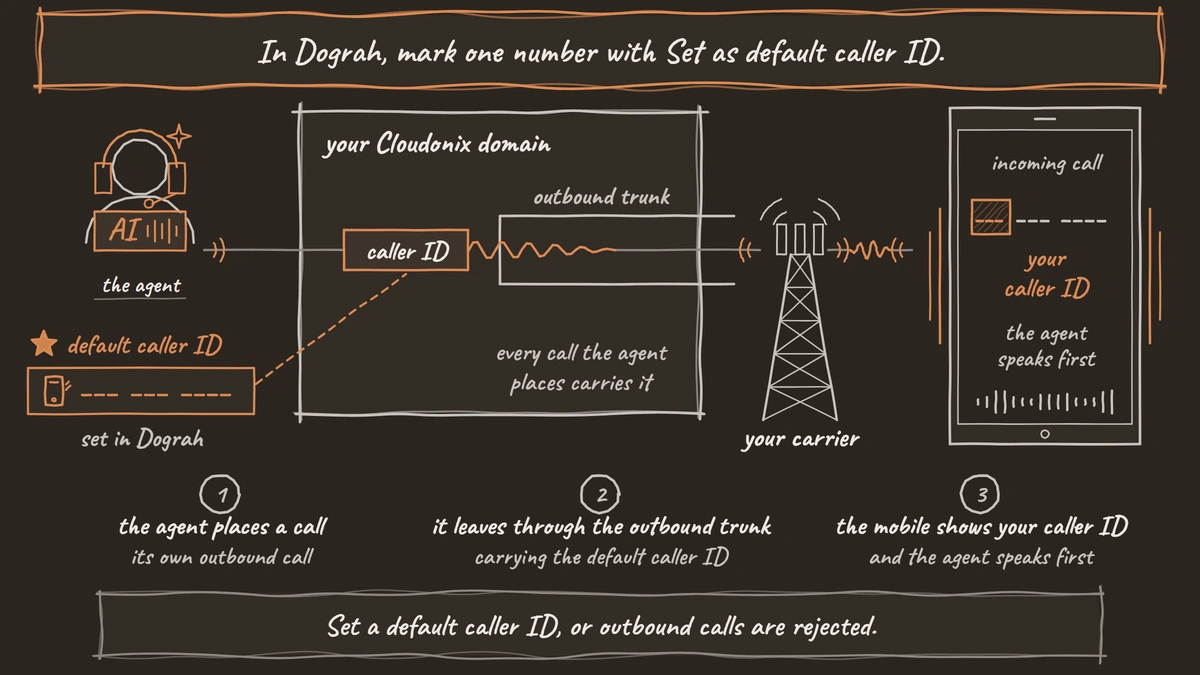
The agent's own calls leave Cloudonix through an outbound trunk to your carrier, so add one under Outbound Trunks in the cockpit. In Dograh, mark one number with Set as default caller ID. Cloudonix rejects outbound calls that carry no caller ID, so do this even if the line takes only inbound calls for now.
The Outbound trunks card in Dograh is optional on your own account. Add a trunk there to pin the agent's calls to one route, or leave it empty and Cloudonix picks among the active trunks on your domain. To test, open the agent, choose Phone Call, select your Cloudonix configuration, pick the caller ID, enter a mobile number and press Start Call.
Check: the mobile rings with your caller ID, and the agent speaks first.
Step 6: Test a transfer on a real call
Transfer Call works on Cloudonix. Dograh dials the destination while the caller hears hold music, and connects them once the destination answers. The person who answers first hears "You have answered a transfer call. Connecting you now." and then joins the caller. If nobody answers, the line is busy, the call fails or the timeout passes, the agent is told and the call carries on with it.
Transfers run only on real phone calls, so test this one by calling the number from a phone and asking for a person. The timeout defaults to 30 seconds and can be set from 5 to 120.
Check: the destination phone rings, hears the short line and connects to you, and a declined call comes back to the agent.
Join the Dograh Community
Dograh is an OSS alternative to Vapi. Join our Slack community for queries, releases, best practices & community interactions.
Before you ship it
Test on a temporary number before you move the numbers callers already know. Call from a mobile and a landline, because Cloudonix sends the agent 8 kHz audio while a browser demo runs at 16 kHz. Our guide to phone audio quality for voice agents covers what changes on a real line.
Three failures cover most first-day problems. A 403 usually means the inbound trunk's Host does not match the address your carrier sends from. A call refused as not found usually means the number is in the wrong format or has no DNID on the Dograh application. A call that connects with no audio usually points to a transport or port mismatch between the carrier and the trunk.
Each call's trace shows what speech-to-text heard and how long each turn took, so read a few before real callers arrive. Self-hosted Dograh has no per-minute platform fee, but servers, model keys and phone minutes still cost money. Dograh Cloud charges a 1¢-a-minute platform fee. Cloudonix bills its plan and your carrier bills the minutes.
Move one number first and watch a week of calls before you bring the rest across.
Glossary
- Voice application
- A Cloudonix record that tells the domain where to fetch call instructions. Dograh creates one named dograh- plus a random string when you save the configuration, and points it at the agent when you pick an Inbound workflow.
- DNID
- The dialed number record in Cloudonix that decides which voice application answers a number. Dograh creates it when you add the number, and leaves an existing DNID on another application where it is.
- Inbound trunk
- The Cloudonix record that lets a carrier send calls into your domain, defined by the carrier's host, port, transport and an optional prefix to strip.
- CXML
- Cloudonix's XML markup for call logic, mostly compatible with TwiML. Dograh's voice application runs on the CXML runtime, so you never write it by hand for this setup.