
To connect FreePBX to an AI voice agent, turn on the Asterisk REST Interface, add an ARI user, send a DID through a Custom Destination into a Stasis context and dial out through Local/{number}@from-internal. Dograh, the open-source AI voice agent platform, connects over ARI, and you can self-host it or run it on Dograh Cloud.
Key Takeaways
- FreePBX 17 needs Asterisk 22.6 or later for the WebSocket channel.
- A Custom Destination drops a DID into Dograh's Stasis app.
Local/{number}@from-internalkeeps agent calls on your FreePBX outbound routes.
This post is part of our guide to SIP trunk providers, where your own Asterisk PBX is one of three ways a trunk reaches Dograh. Here we connect FreePBX step by step, from the ARI user to the inbound route, then outbound calls and transfers to staff extensions.
What you need before you start
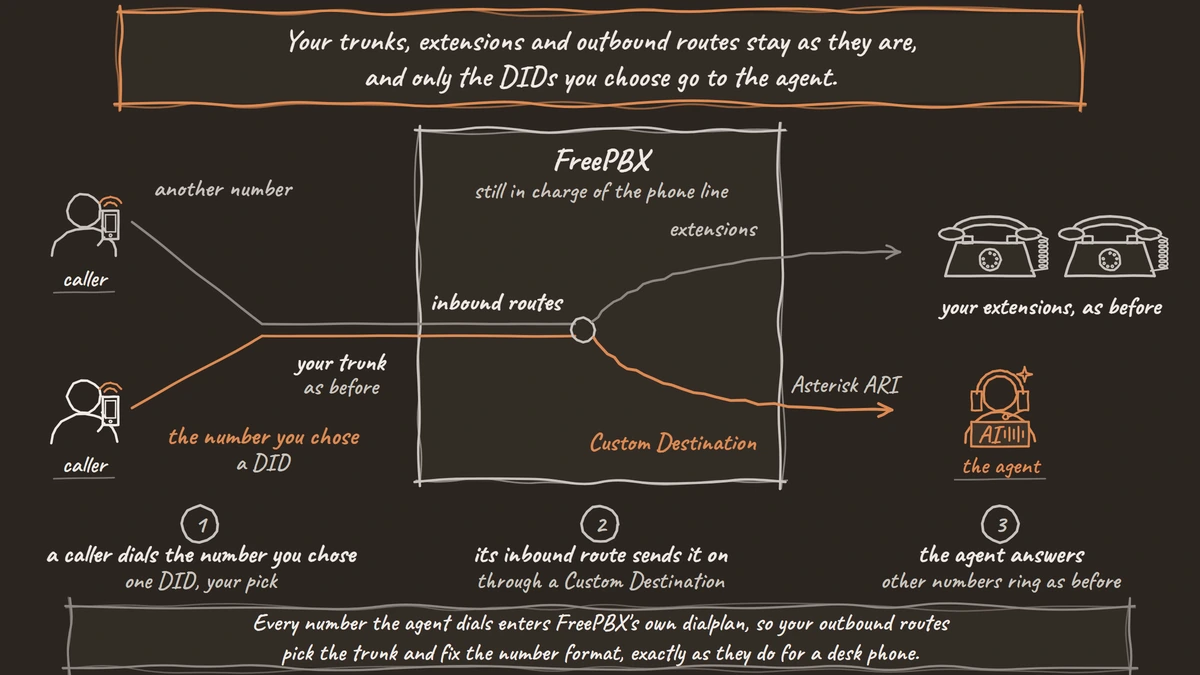
The ARI route keeps FreePBX in charge of the phone line. Your trunks, extensions and outbound routes stay as they are, and only the DIDs you choose go to the agent. If you are still deciding on FreePBX itself, our roundup of the best open-source IVR software covers what it is and how it is licensed.
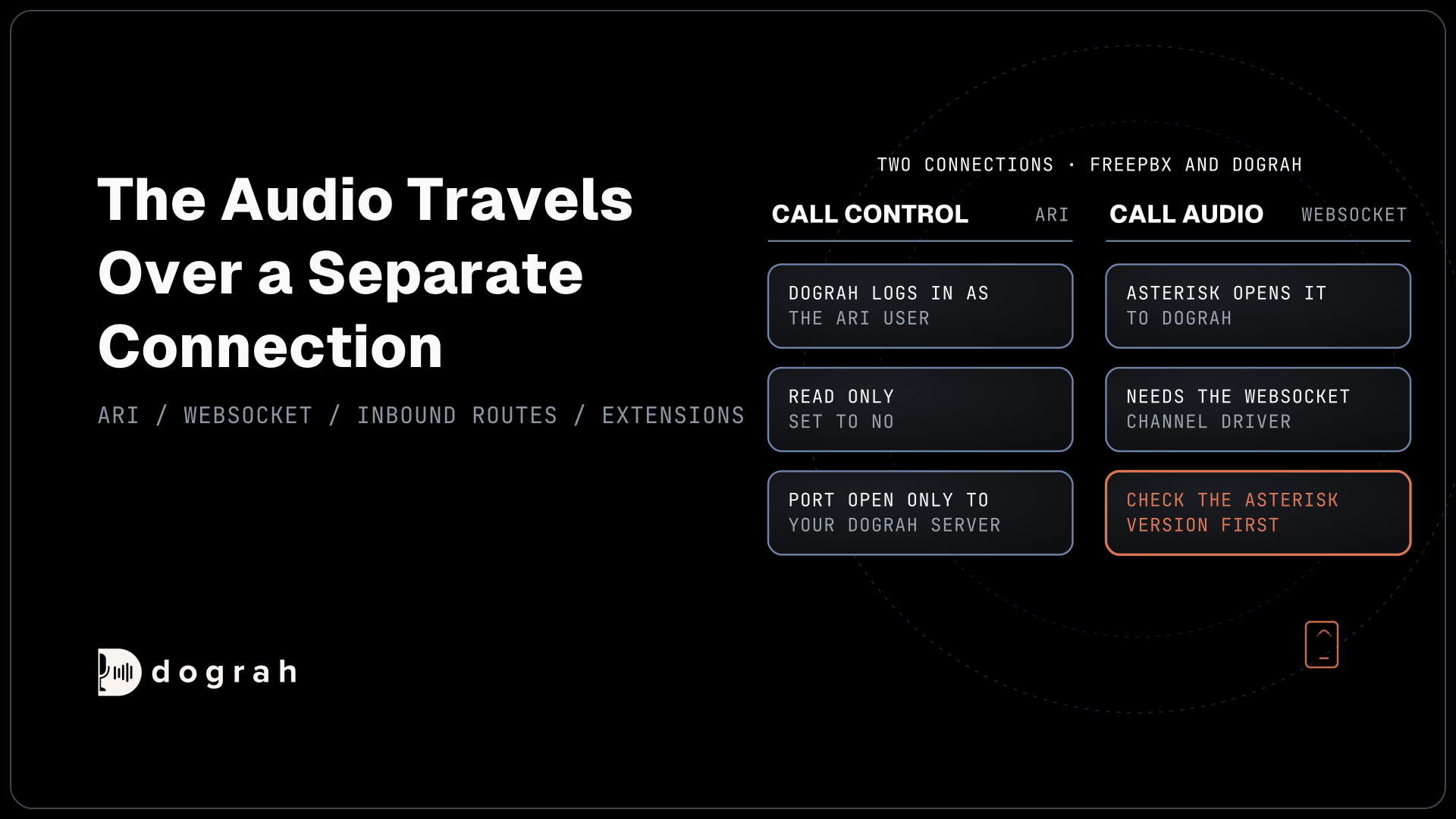
You need root access to a FreePBX 17 server and a Dograh account, in the cloud or self-hosted. Check the Asterisk version first. The FreePBX 17 installer puts Asterisk 22 on Debian 12, but Asterisk's WebSocket channel driver only ships from Asterisk 22.6.0 (and 23.0.0, 21.11.0 and 20.16.0). The call audio streams through that driver, so Asterisk 22.0 to 22.5 will not work.
The two commands below ask Asterisk whether chan_websocket and res_websocket_client are loaded:
asterisk -rx "module show like chan_websocket"
asterisk -rx "module show like res_websocket_client"
What this does: It lists each module and its status. Both should say Running. If either is missing, update Asterisk before you go further, because nothing later in this guide works without them.
If your office still runs a PRI into the PBX, our post on SIP trunk vs PRI explains how that fits. For plain Asterisk without FreePBX, see open-source voice agents on your Asterisk PBX.
Check: both modules report Running.
Step 1: Turn on ARI in FreePBX
FreePBX writes Asterisk's ARI file itself, so you set ARI up in the web admin, not by editing ari.conf. Go to Settings, then Advanced Settings, and find "Enable the Asterisk REST Interface" in the Asterisk REST Interface section. Set it to Yes. If the setting is locked, set "Display Read Only Settings" and "Override Readonly Settings" to Yes first and submit.
Next, create the user Dograh will log in as. FreePBX's Asterisk REST Interface Users guide puts it under Settings, then Asterisk REST Interface Users, then Add User. Fill in REST Interface User Name and REST Interface User Password, and set Read Only to No, because Dograh controls the calls through this user.
ARI runs on Asterisk's built-in web server, port 8088 by default, and Dograh must be able to reach it. Open that port only to the address your Dograh server connects from, and use a long password.
Check: from the Dograh server, http://your-pbx:8088/ari/asterisk/info with the new user and password returns JSON, not an error.
Step 2: Connect Asterisk to Dograh
The audio travels over a separate WebSocket connection that Asterisk opens to the agent platform, set in /etc/asterisk/websocket_client.conf. No FreePBX screen manages this file, so create it by hand. The version below is for Dograh Cloud. The section name dograh is what you type in later, and tls_enabled must be on for the wss:// address:
[dograh]
type = websocket_client
uri = wss://api.dograh.com/api/v1/telephony/ws/ari
protocols = media
tls_enabled = yes
ca_list_file = /etc/ssl/certs/ca-certificates.crt
What this does: It tells Asterisk where to stream each call's audio. Self-hosted Dograh uses your own host instead,
ws://your-dograh-host:port/api/v1/telephony/ws/ari. Runmodule reload res_websocket_client.soin the Asterisk console afterwards.
Now open Telephony in Dograh's sidebar, click Add configuration and choose Asterisk ARI. Enter the ARI Endpoint (http://your-pbx:8088), the ARI Username and ARI Password from Step 1, and dograh as the websocket_client.conf Name. Set the Dial String Template to Local/{number}@from-internal, which Step 4 explains. Click Save Configuration.
Dograh then generates a Stasis App Name for this configuration, such as dograh_a1b2c3d4e5f6, and shows it with the dialplan line to copy. The Asterisk ARI setup explains why the name is generated, not chosen.
Check: the configuration page shows your Stasis App Name. Copy it.

Open Source Alternative to Vapi / Retell
Self-hosted voice agent platform — no per-minute fees
dograh-hq/dograh
Star on GitHub
Step 3: Send a DID to the agent
Calls reach the agent through a small dialplan context of your own, and Dograh picks the agent by the extension the call is on when it enters Stasis. Add the context to /etc/asterisk/extensions_custom.conf, the file FreePBX keeps for custom dialplan. Use your own Stasis App Name in Stasis(), and keep the extension, here 8000, the same everywhere:
[dograh-agent]
exten => 8000,1,Stasis(dograh_a1b2c3d4e5f6)
 same => n,Hangup()
What this does: Any call sent to
dograh-agent, extension8000, is handed to Dograh's Stasis application, andHangup()closes the line when the agent ends the call. Rundialplan reloadafterwards.
FreePBX's screens cannot point at a custom context directly, so wrap it in a Custom Destination. Under Admin, then Custom Destinations, add one with the Target dograh-agent,8000,1 and a Description such as "AI agent". FreePBX's Custom Destinations guide shows the format, context, extension and priority. Submit, then press the red Apply Config button.
Back in Dograh, open the ARI configuration, click Add phone number, enter 8000 and set its Inbound workflow to your agent. This is the link Dograh uses to choose the agent.
Last, go to Connectivity, then Inbound Routes, and open the route for the DID the agent should answer, or add one. Pick Custom Destinations in its destination list, choose "AI agent", submit and apply.
Check: call the DID from a mobile. The agent greets you, and the call appears in Dograh's call log.
Step 4: Route outbound calls and transfers
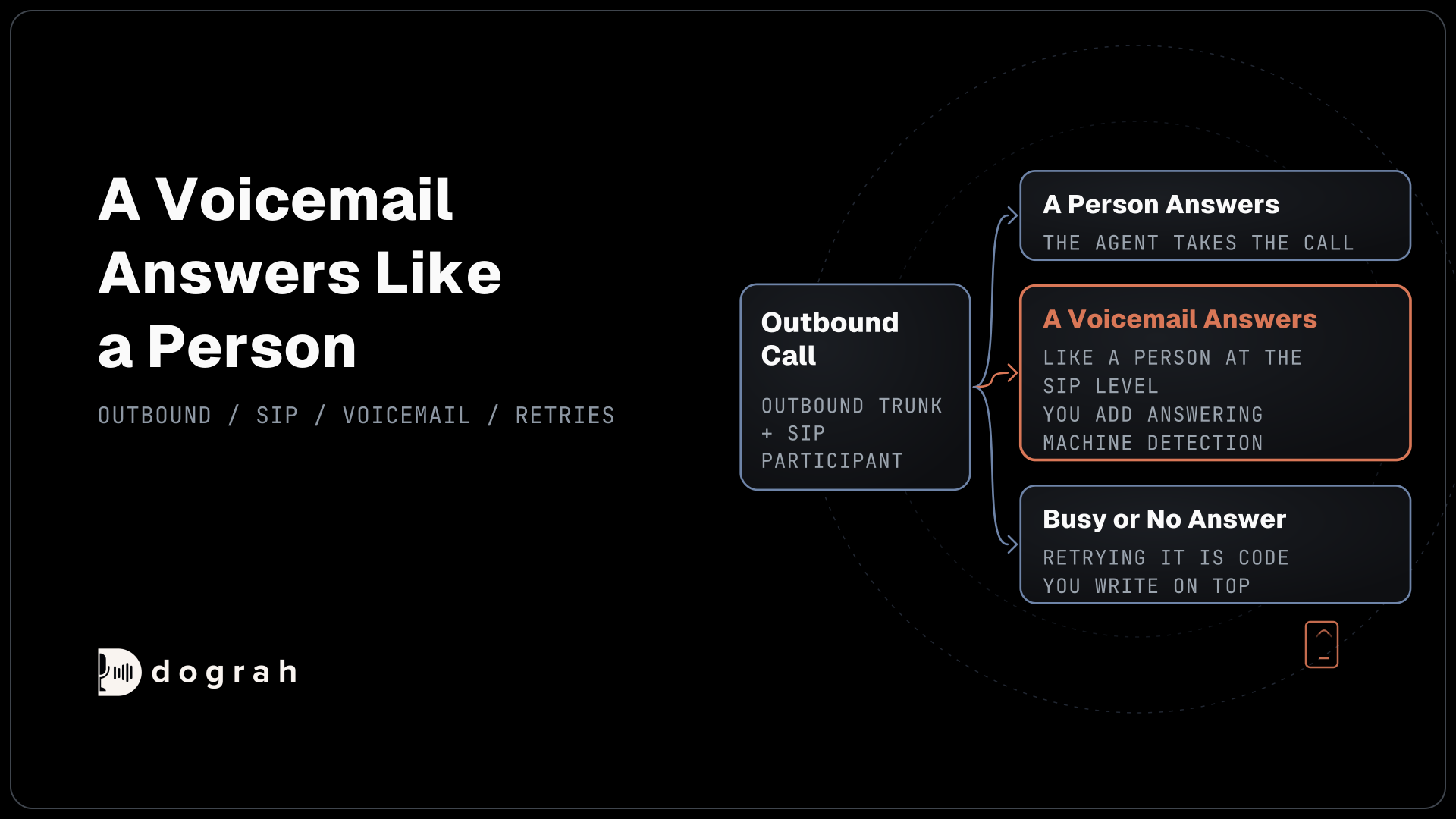
Outbound calls and transfers both go through the Dial String Template you set in Step 2. With Local/{number}@from-internal, every number the agent dials enters FreePBX's own dialplan, so your outbound routes pick the trunk and fix the number format, exactly as they do for a desk phone.
Dograh's audio leg uses G.711 u-law, so every trunk and extension that carries these calls must allow ulaw in its codec list. The call reaches the agent as 8 kHz phone audio, and our post on phone audio quality explains what that means for speech recognition.
Transfers use the same template. Give the agent the Transfer Call tool with an extension such as 101, and the transfer rings extension 101 through FreePBX. Dograh dials the extension while the caller hears hold music and connects the two once it answers. If the extension does not answer, is busy, fails or times out, the agent receives transfer_failed and the call goes on.
Check: ask the agent for a person. Extension 101 rings and, once answered, you are talking to it.
Before you ship it
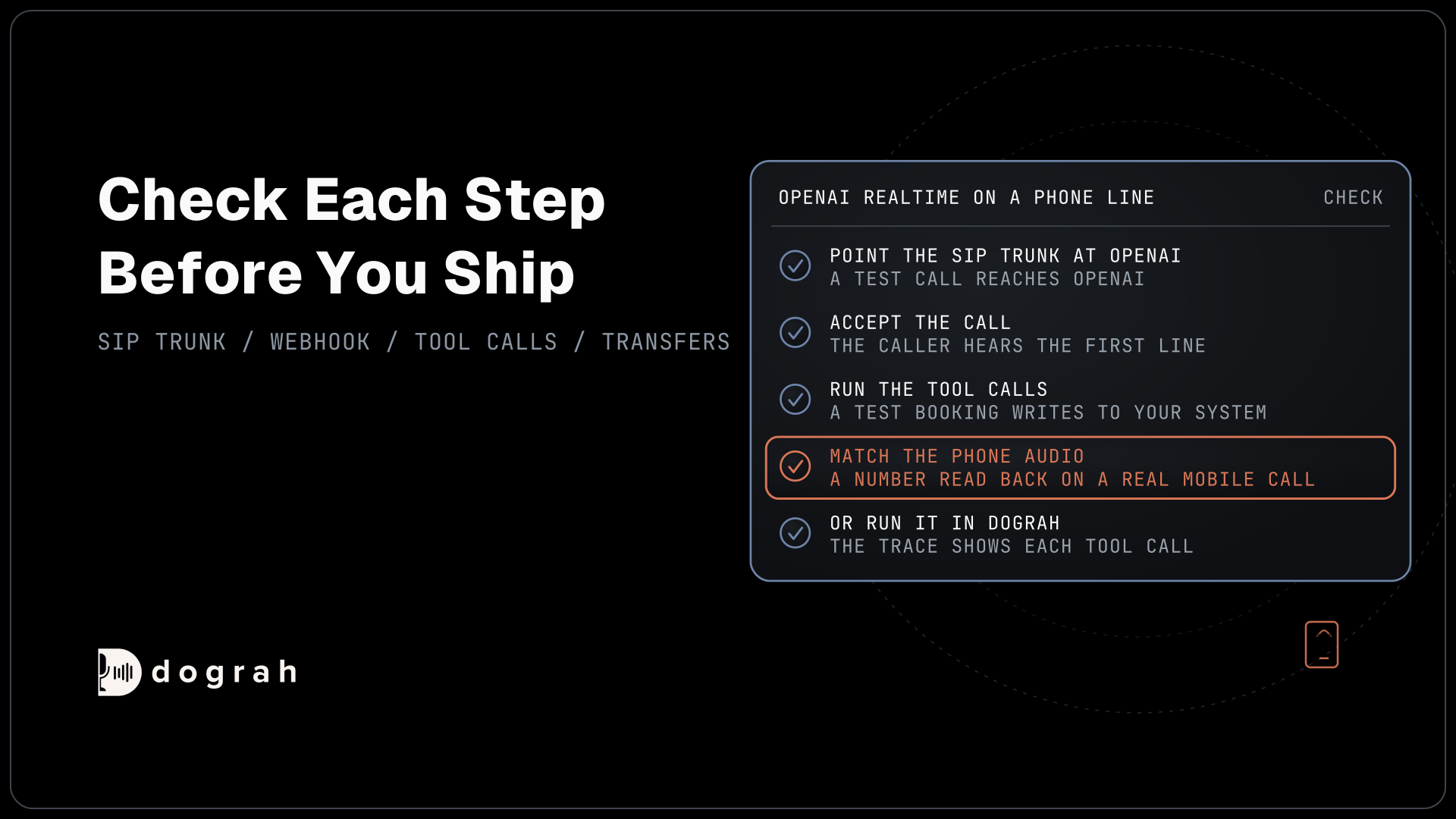
These steps come from Sangoma's FreePBX guides and Dograh's ARI setup, so test one call of each kind on your own box before real callers reach it. Call the DID from a mobile and a landline. Have the agent place one outbound call to your own mobile. Transfer once to an extension that answers, and once to one that does not, to hear the agent carry on.
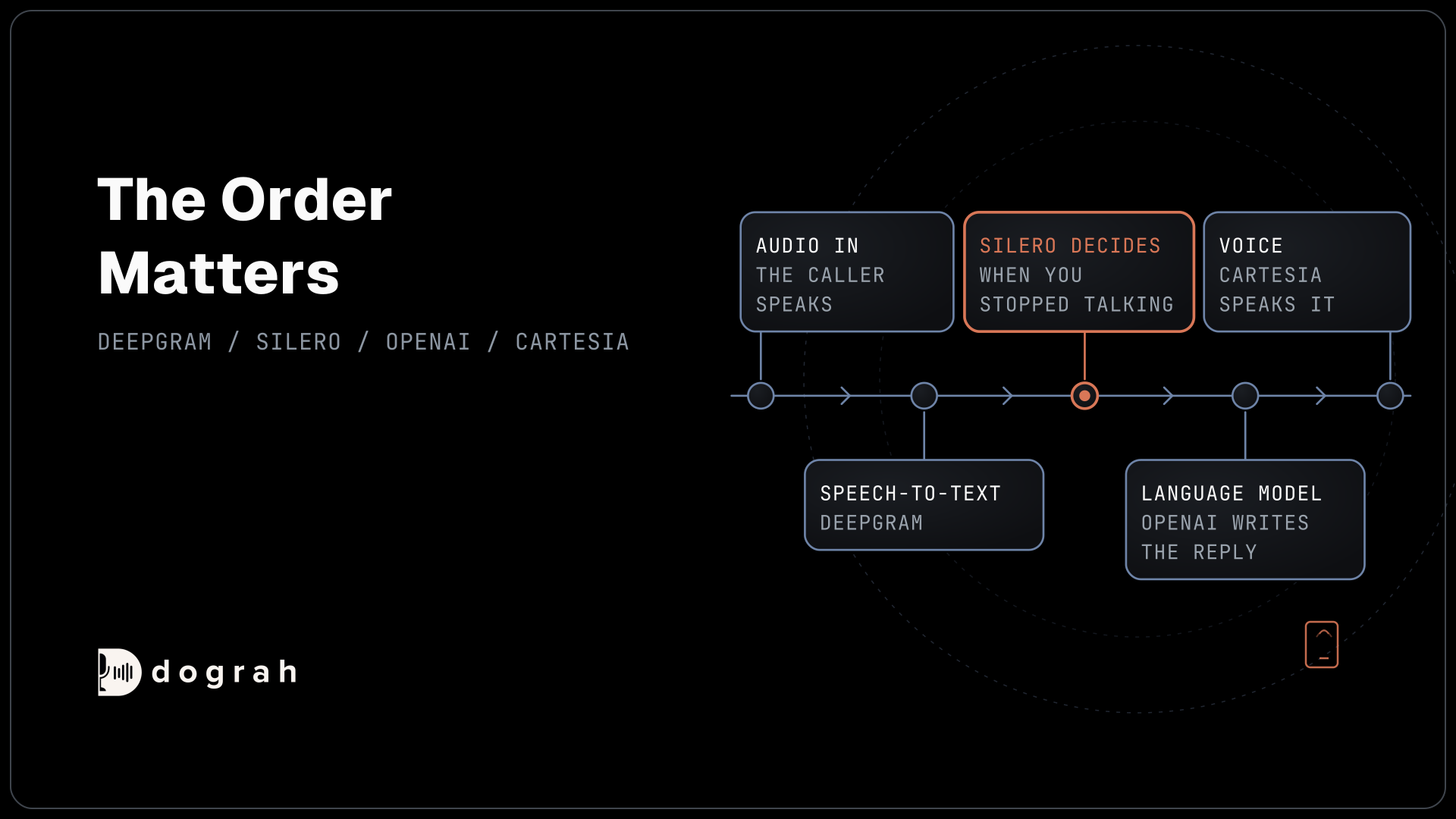
Then open the call's trace to see what speech-to-text heard and how long each turn took, and switch on QA for a sample of live calls. Self-hosted Dograh has no per-minute platform fee, but servers, model keys and phone minutes still cost money. Dograh Cloud charges a 1¢-a-minute platform fee.
In short, check the Asterisk version, create the ARI user, add the WebSocket file and the Dograh configuration, send a DID through a Custom Destination and keep Local/{number}@from-internal for everything outbound.
Join the Dograh Community
Dograh is an OSS alternative to Vapi. Join our Slack community for queries, releases, best practices & community interactions.
Glossary
- Asterisk REST Interface (ARI)
- Asterisk's HTTP and WebSocket interface that lets an outside application control calls. FreePBX switches it on in Advanced Settings and manages its users in the Asterisk REST Interface Users module.
- Stasis application
- The named hand-off point where Asterisk gives a call to an ARI application. Dograh generates a unique Stasis App Name per configuration, and the dialplan must call Stasis with exactly that name.
- Custom Destination
- A FreePBX entry that points a screen such as an Inbound Route at your own dialplan, written as context, extension and priority, for example dograh-agent,8000,1.
- Local channel
- An Asterisk channel that dials back into the PBX's own dialplan. Local/{number}@from-internal makes the agent's calls follow FreePBX's outbound routes, the same as a desk phone.