
Create a project from LiveKit's Python starter with lk agent init, talk to it with lk agent dev and deploy it with lk agent create. Phone calls need an inbound trunk for your number and a dispatch rule that names your agent. Dograh, the open-source AI voice agent platform, ships phone wiring and campaigns ready, self-hosted or on Dograh Cloud.
Key Takeaways
- The agent name in your code must match the dispatch rule, or calls go unanswered.
- Self-hosted LiveKit needs a separate SIP service with its ports open to the internet.
- Outbound list dialling and retries are your own code on top of LiveKit's API.
This post is part of our guide to open-source voice AI frameworks, where LiveKit Agents runs your agent inside a room on a media server. Here we build and deploy a LiveKit agent, connect a phone number over SIP, then list the telephony and ops pieces you add yourself.
What you need before you start
You need Python 3.10 or later with the uv package manager, or Node.js 20 or later with pnpm if you prefer the Node starter. The current livekit-agents release is 1.8.11. You also need a LiveKit Cloud account, which the CLI helps you create, and a phone number from a SIP trunk provider such as Twilio or Telnyx.
LiveKit Cloud can also sell you a US local or toll-free number through LiveKit Phone Numbers. With one of those you skip the inbound trunk in Step 4, but you still need the dispatch rule.
Step 1: Install the CLI and create the agent
The LiveKit CLI handles the agent from creation to deployment. Install it with the line for your system, then link it to your LiveKit Cloud project with lk cloud auth and create the project with lk agent init:
brew install livekit-cli                       # macOS
curl -sSL https://get.livekit.io/cli | bash    # Linux
winget install LiveKit.LiveKitCLI              # Windows

lk cloud auth
lk agent init my-agent --template agent-starter-python
What this does: It creates a
my-agentfolder from the Python starter, with a working agent, tests and an AGENTS.md for coding agents. The CLI asks which Cloud project to use and offers to install the dependencies.
Check: my-agent contains src/agent.py and a .env.local file with your project's credentials.
Step 2: Read the agent code and talk to it
The agent is one Python file. The Assistant class holds the instructions, and the AgentSession holds the speech-to-text, language and voice models plus a turn detector. For phone calls, remember the agent_name in @server.rtc_session, because it is the name a phone call asks for in Step 4. The code below is trimmed from LiveKit's voice AI quickstart, which also adds noise cancellation:
class Assistant(Agent):
    def __init__(self) -> None:
        super().__init__(instructions="You are a helpful voice AI assistant.")

server = AgentServer()

@server.rtc_session(agent_name="my-agent")
async def my_agent(ctx: agents.JobContext):
    session = AgentSession(
        stt=inference.STT(model="assemblyai/universal-3-6-pro", language="en"),
        llm=inference.LLM(model="google/gemma-4-31b-it"),
        tts=inference.TTS(model="fishaudio/s2.1-pro",
                          voice="fa4c9eb3dccc4806b382b40d61c6b10a"),
        turn_handling=TurnHandlingOptions(turn_detection=inference.TurnDetector()),
    )
    await session.start(room=ctx.room, agent=Assistant())
    await session.generate_reply(instructions="Greet the user and offer your assistance.")

if __name__ == "__main__":
    agents.cli.run_app(server)
What this does: Each new room gets its own
AgentSession, and the agent greets whoever joins. The model strings run through LiveKit Inference, so you need no separate provider keys while you test on LiveKit Cloud.
Now run it. From the my-agent folder, lk agent dev starts the agent and connects it to LiveKit Cloud, then prints a link to the Agent Console. Open the link, click Start a session and speak. The console shows the agent's replies with tool calls and model timing for each turn. For a quick test without a browser, lk agent console lets you talk to it in the terminal.
Check: the agent greets you in the Agent Console and answers a follow-up question.
Step 3: Deploy the agent to LiveKit Cloud
A deployed agent keeps answering when your laptop is closed. The first deploy registers the agent with your project, builds it from the starter's Dockerfile and starts it, and later deploys push your changes:
lk agent create     # first deploy
lk agent deploy     # every later change
What this does:
lk agent createturnsmy-agentinto a hosted agent in your LiveKit Cloud project. You can then open it from the project's Agents dashboard and talk to it in the Agent Console.
Hosted agents use LiveKit Cloud minutes. Our post on LiveKit pricing covers the plans and what self-hosting changes.
Check: the agent shows as running in your project's Agents dashboard.
Step 4: Connect a phone number over SIP
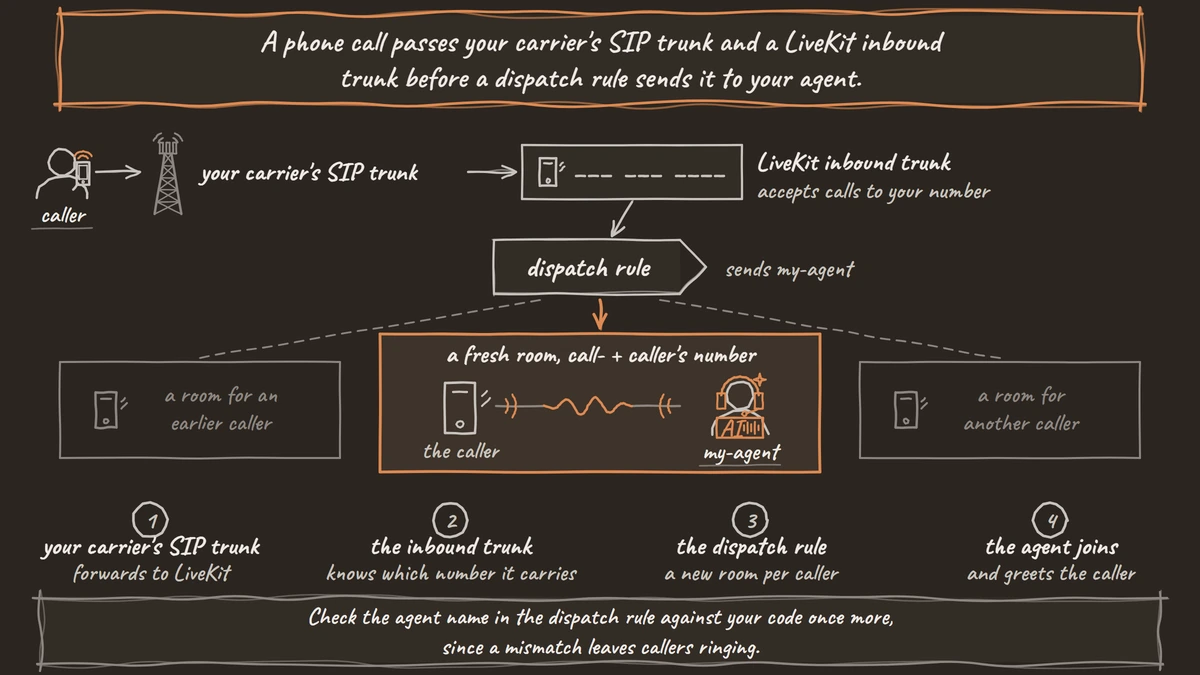
A phone call passes your carrier's SIP trunk and a LiveKit inbound trunk before a dispatch rule sends it to your agent. First, create a SIP trunk at your carrier and add your LiveKit SIP endpoint to it. The endpoint is your project's SIP URI without the sip: prefix, shown on the Project settings page.
Next, tell LiveKit which number the trunk carries. Write the number you bought, in E.164 form, into inbound-trunk.json:
{
  "trunk": {
    "name": "My trunk",
    "numbers": ["+1510555XXXX"]
  }
}
What this does: It creates an inbound trunk that accepts calls to that number from your carrier. Create it with
lk sip inbound create inbound-trunk.json. On Telnyx, the leading+assumes the number's Destination Number Format is +E.164.
Then add a dispatch rule. An individual rule gives every caller a new room with the prefix you choose, and room_config sends your agent into it. The agent_name must match the one in @server.rtc_session:
{
  "dispatch_rule": {
    "rule": {
      "dispatch_rule_individual": { "room_prefix": "call-" }
    },
    "name": "My dispatch rule",
    "room_config": {
      "agents": [{ "agent_name": "my-agent" }]
    }
  }
}
What this does: Each caller lands in a fresh room named after the
call-prefix and their number, and LiveKit dispatchesmy-agentto answer. Create it withlk sip dispatch create dispatch-rule.json.
LiveKit warns that these room names include the caller's phone number, and its PII redaction does not remove room names from logs and traces. If that matters to you, route each call to a room with an ID you choose, as LiveKit's dispatch rule docs describe.
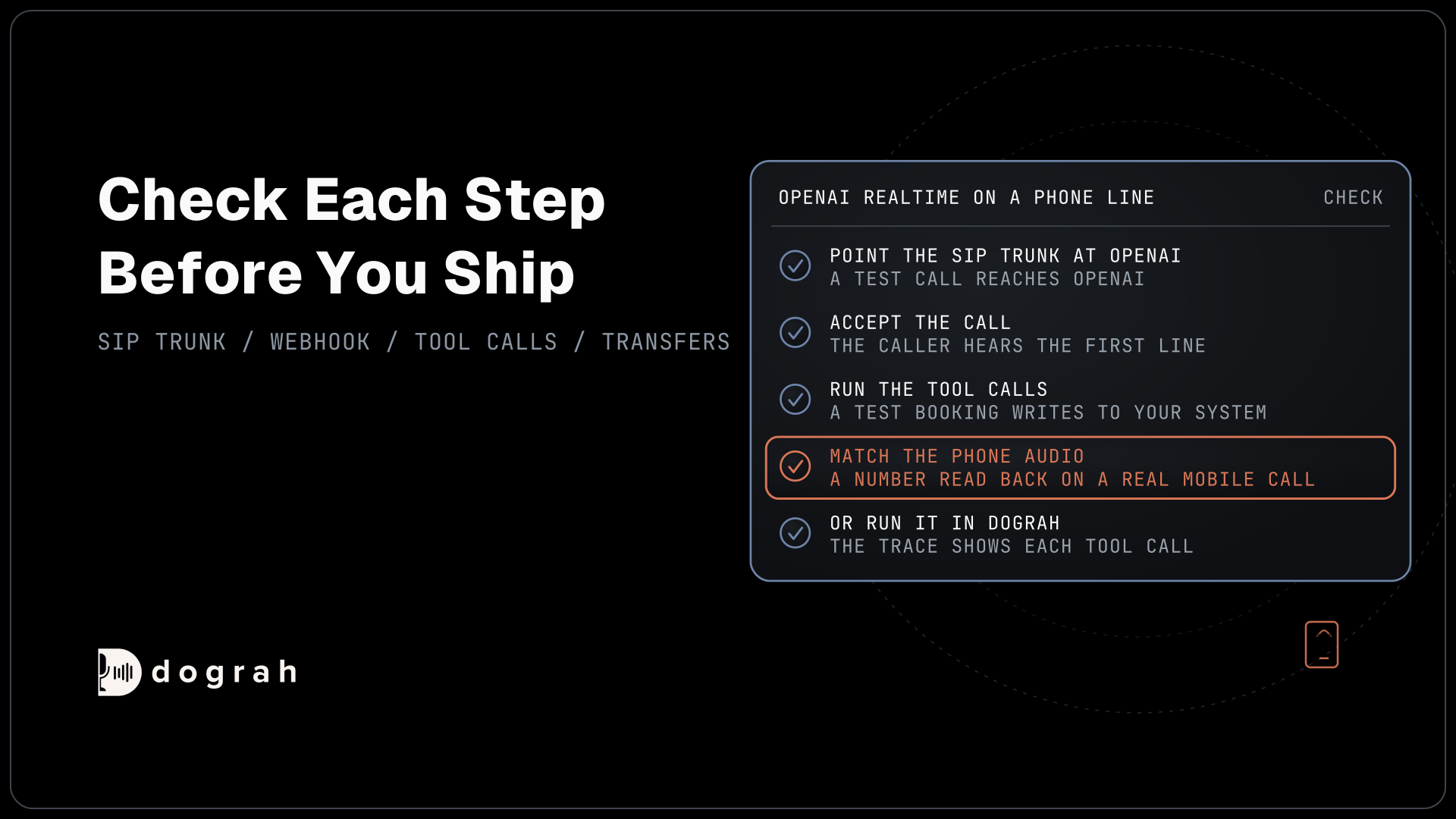
Check: you call the number from your mobile phone and the agent greets you.
What you still add yourself
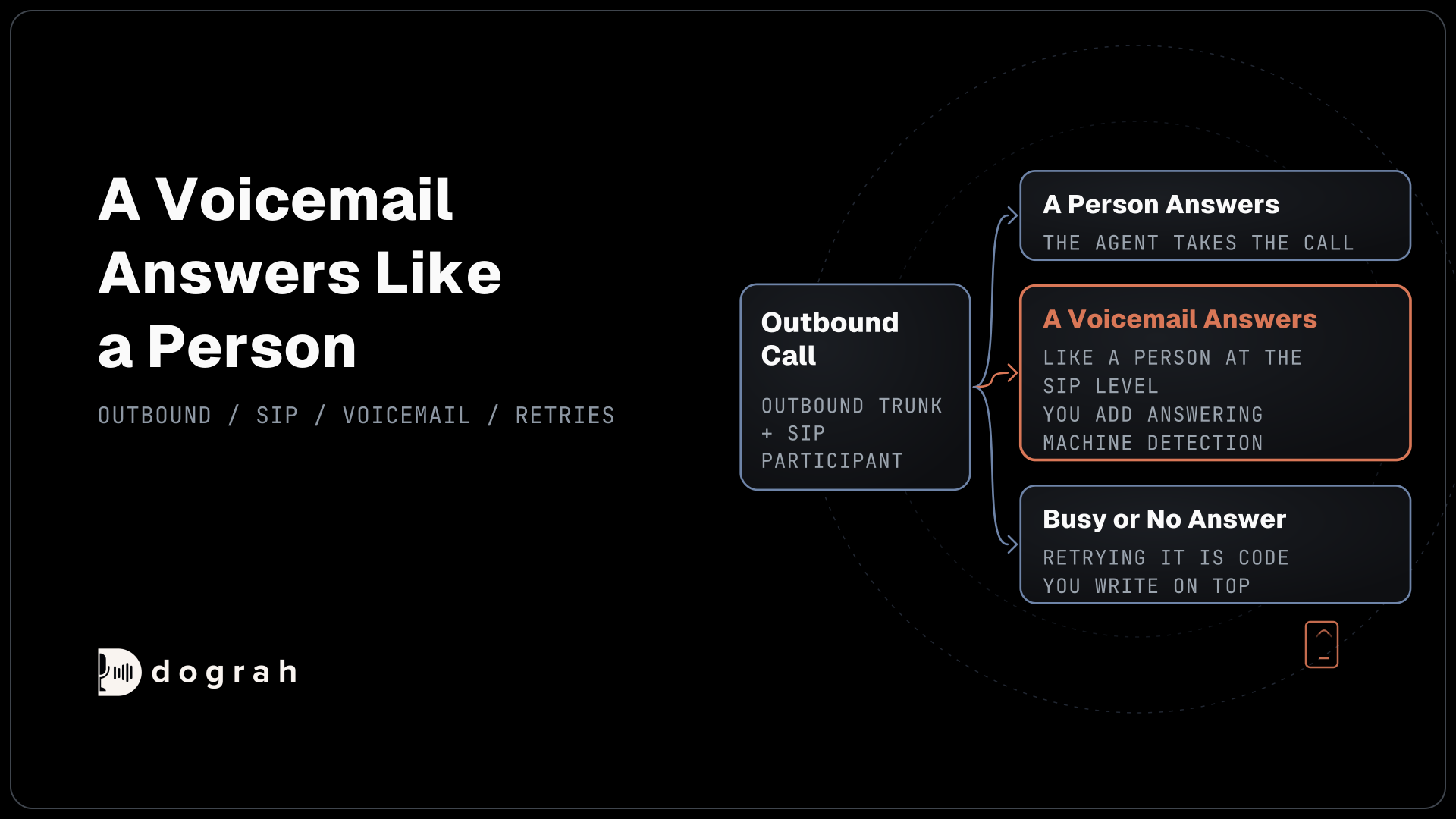
The agent now takes calls, and the operations around it are still your code. Outbound calls work through an outbound trunk and a SIP participant, which the CreateSIPParticipant API creates, with wait_until_answered to catch busy or unanswered calls. A voicemail answers like a person at the SIP level, so you add answering machine detection. Dialling a list within calling hours, and retrying the calls nobody answered, is code you write on top.
Self-hosting moves more work to you. LiveKit says that if you self-host, "the SIP service needs to be deployed separately", and its signalling port 5060 and media ports 10000 to 20000 must be reachable from the internet. LiveKit's starter does give you observability and simulations that play full conversations, so testing is in good shape. A screen for a support lead to edit the agent is the piece missing.
Dograh ships those pieces as product. Phone lines connect through your carrier account, and Campaigns dial a CSV list in calling hours you set, with the retries (0 to 10) and the wait between them also set by you. Our Dograh vs LiveKit comparison sets the two side by side.
Transfer Call works on Twilio, Telnyx, Plivo, Cloudonix and Asterisk ARI. On a transfer request, Dograh calls the destination as the caller listens to hold music, and joins the two when the destination picks up. No answer, a busy line, a failed dial or a timeout returns transfer_failed to the agent, which keeps talking with the caller.
The visual workflow builder is the editing screen, and a QA node scores each step of every finished call. Self-hosted Dograh has no per-minute platform fee, but servers, model keys and phone minutes still cost money. Dograh Cloud charges a 1¢-a-minute platform fee.

Open Source Alternative to Vapi / Retell
Self-hosted voice agent platform — no per-minute fees
dograh-hq/dograh
Star on GitHub
Before you ship it
Place real phone calls before you publish the number. Most phone calls reach the agent as 8 kHz audio, so speech-to-text and turn timing behave differently from the Agent Console in a browser. Call from a mobile phone and a landline, and interrupt the agent mid-sentence to hear how it recovers.
Check the agent name in the dispatch rule against your code once more, since a mismatch leaves callers ringing. Keep .env.local out of your repository, and decide whether caller numbers in room names are acceptable for your logs.
To recap, you created an agent from the Python starter, talked to it in the Agent Console, deployed it with lk agent create and connected a number with an inbound trunk and a dispatch rule. Outbound dialling and an editing screen are the next jobs on your list.
Join the Dograh Community
Dograh is an OSS alternative to Vapi. Join our Slack community for queries, releases, best practices & community interactions.
Glossary
- Inbound trunk
- A LiveKit object that accepts calls to your numbers from your SIP carrier. You create it once and reuse it for every call, usually one trunk per number.
- Dispatch rule
- The LiveKit setting that decides which room an inbound caller joins and which agent is sent into it. An individual rule gives each caller a new room.
- LiveKit Inference
- LiveKit Cloud's model gateway. You name models with strings such as google/gemma-4-31b-it instead of wiring each provider's plugin and API key.
- SIP participant
- A phone caller represented inside a LiveKit room. Creating one through the CreateSIPParticipant API is how an agent places an outbound call.