
To build a voice agent with Asterisk, run Asterisk 22.8 or later, open ARI and the HTTP server, point a websocket_client.conf connection at your agent, route an extension into the Stasis app, and test from a softphone. Dograh, the open-source AI voice agent platform, runs self-hosted beside Asterisk, so ARI and call audio stay on your network.
Key Takeaways
- Asterisk needs version 22.8 or later for the per-call media option.
- Write the dialplan last, after the Stasis app name exists.
- Dograh's Transfer Call rings an extension before connecting the caller.
Asterisk already answers your calls, and adding an AI agent means wiring two connections the right way. We build it on a fresh Asterisk with a self-hosted, open-source agent beside it, step by step, then we talk about testing from a softphone and handing callers to a person.
How Asterisk hands a call to an AI agent
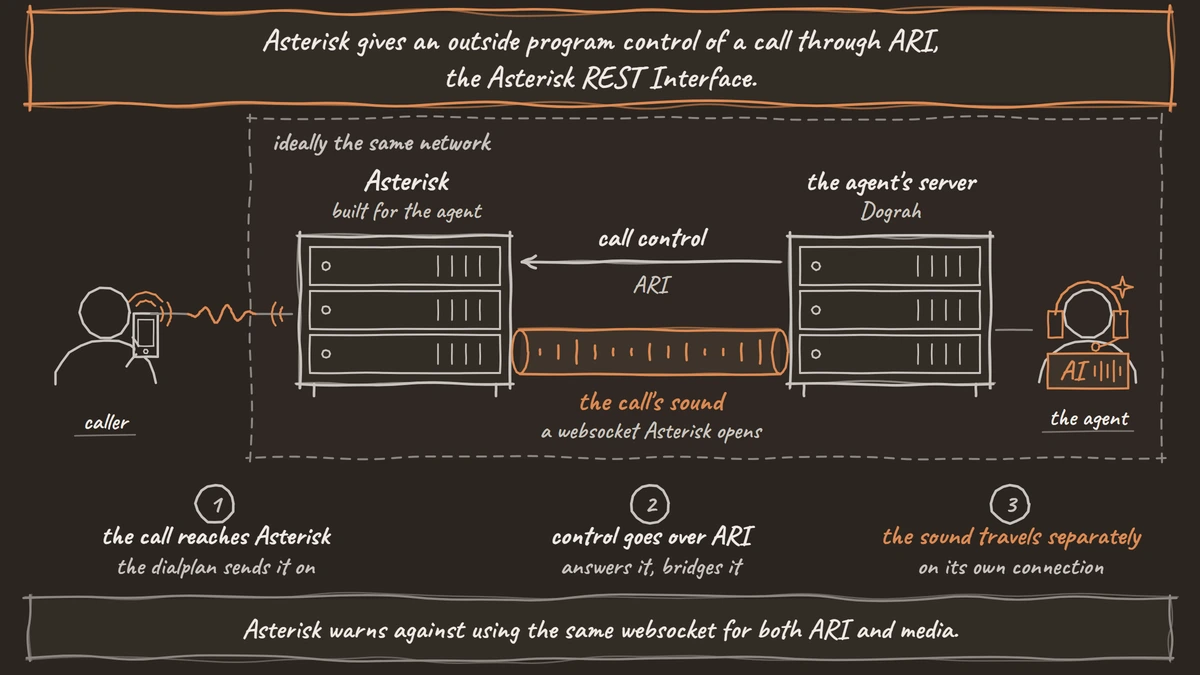
Asterisk gives an outside program control of a call through ARI, the Asterisk REST Interface. Your dialplan sends the call into a named Stasis application, and the program registered for that name answers it, bridges it and hangs it up. The call's sound travels separately, over a websocket that Asterisk opens to the agent, carrying G.711 ulaw audio at 8 kHz.
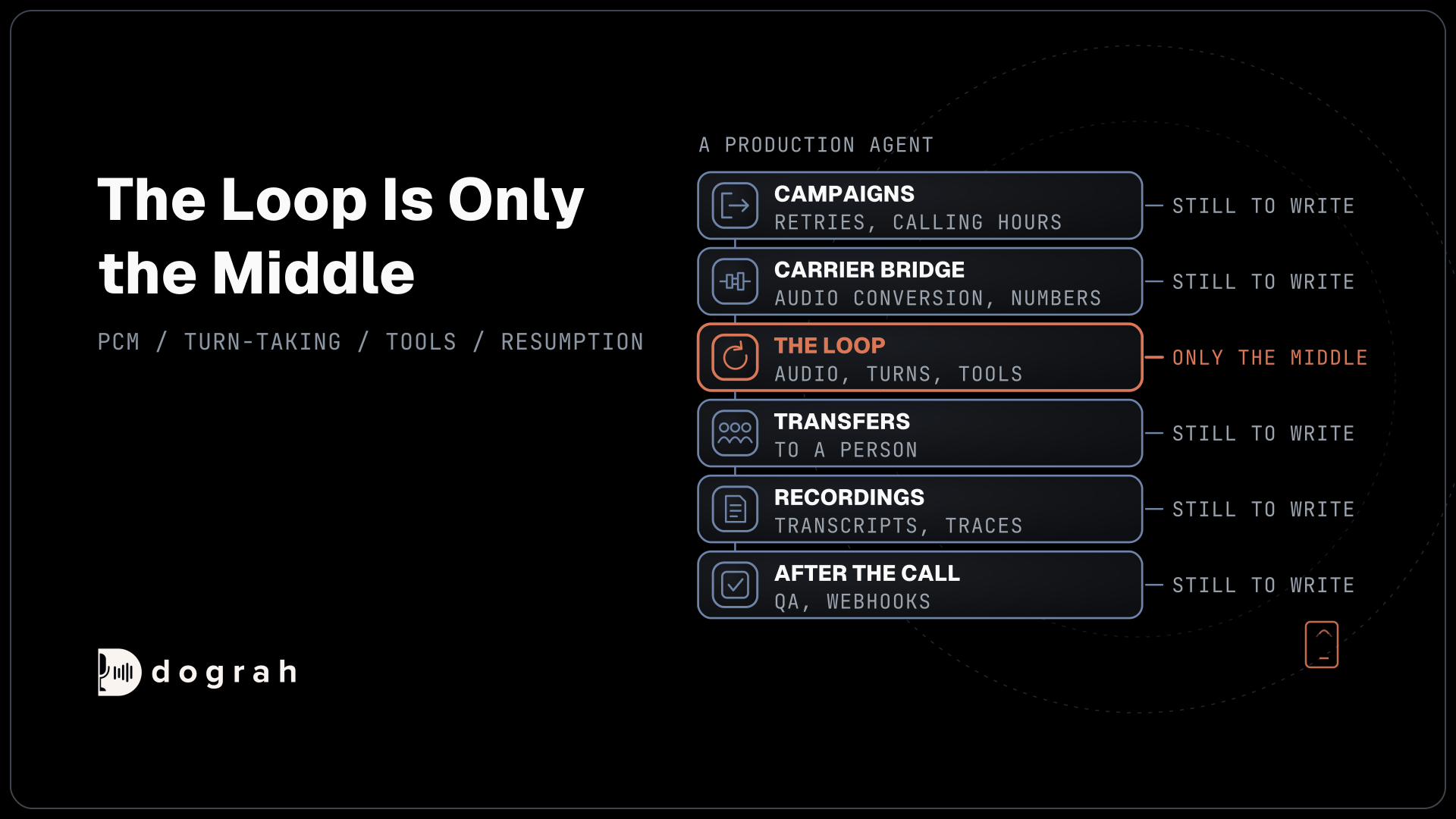
You can write that program yourself. A hand-built tutorial on Towards AI writes its own ARI app in Python, bridges the call to an RTP session, converts the audio and streams it to OpenAI Realtime, and leaves handing the caller back to a person as an exercise. That route works, and every piece of it is code your team then maintains.
This guide uses Dograh as the agent layer instead, on an Asterisk built for the agent. If you already run an office phone system and want to add an agent to it, our guide to connecting a PBX to an AI voice agent starts from there.
What you need before you start
You need Asterisk 22.8 or later. That release added the externalMedia transport_data option, which Dograh uses to pass each call's details to the WebSocket channel driver that carries the audio. On other release series, use 23.2 or later or 20.18 or later, and check the options table on Asterisk's WebSocket page for your version. Both chan_websocket and res_websocket_client should show as Running in module show.
You also need Dograh running on a server that can reach Asterisk, ideally on the same network. Our Docker self-hosting guide covers the install. Finally, install a softphone app on a laptop or phone so you can call the agent without a trunk.
Step 1: Open ARI and the HTTP server
ARI runs on Asterisk's built-in HTTP server, so you switch on both. The first block goes in ari.conf and creates an ARI user called dograh with a password you choose.
[general]
enabled = yes

[dograh]
type = user
read_only = no
password = your_secure_password
The second block goes in http.conf and opens the HTTP server on bindport 8088. Keep bindaddr on an internal address if Dograh sits on the same network.
[general]
enabled = yes
bindaddr = 0.0.0.0
bindport = 8088
What this does: It gives Dograh a login to control calls and a port to reach ARI on. The section name
dograhbecomes the ARI Username in Dograh, and the password becomes the ARI Password.
Reload ARI with module reload res_ari.so from the Asterisk CLI. A change to http.conf needs core reload or a restart.
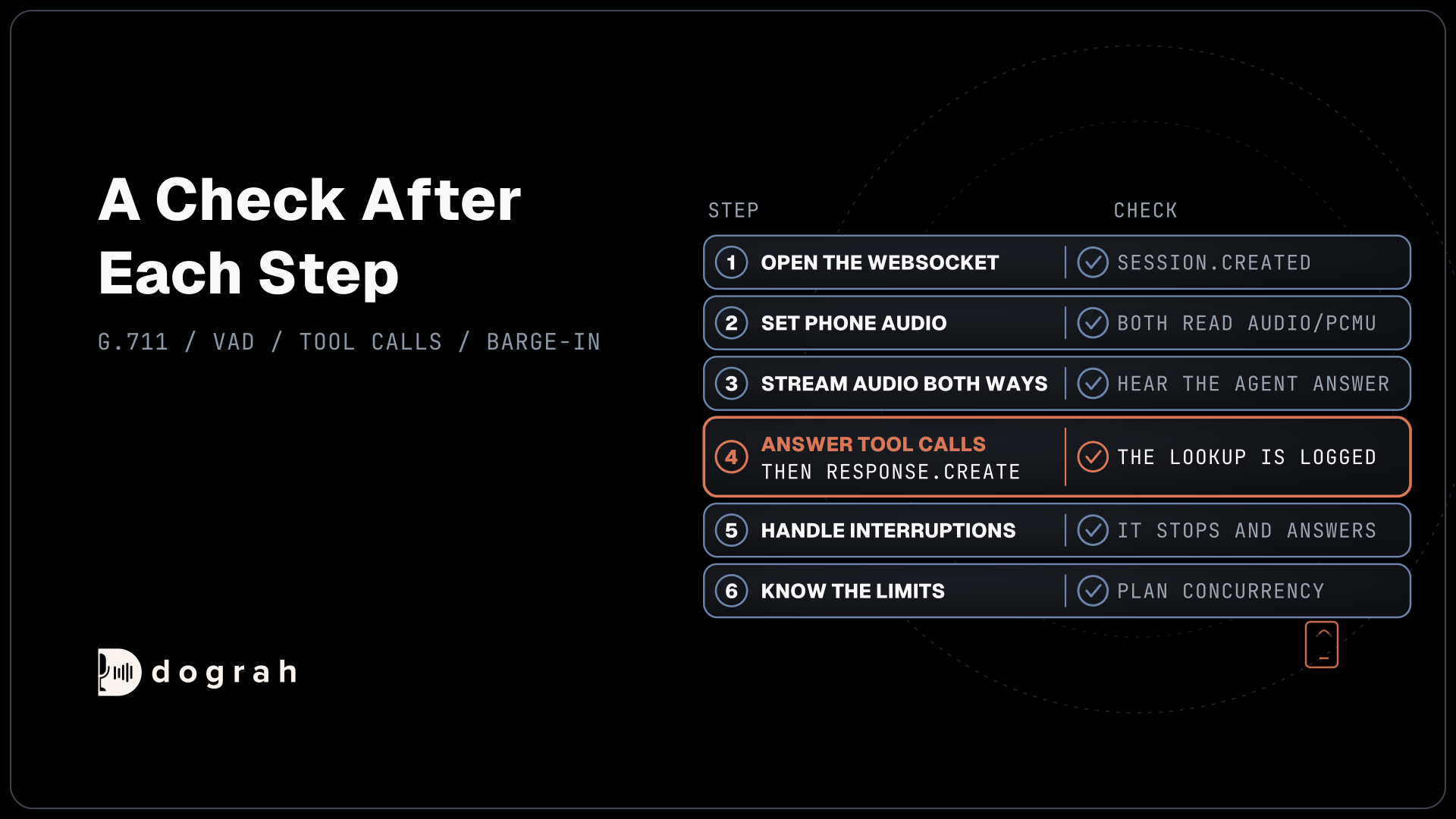
Check: curl -u dograh:your_secure_password http://localhost:8088/ari/asterisk/info returns JSON about your Asterisk.
Step 2: Point Asterisk's media at Dograh
Call audio needs its own connection. Asterisk warns against using the same websocket for both ARI and media. The block below names a connection dograh in websocket_client.conf, sets its uri to your Dograh host's ARI media path, and uses the media protocol.
[dograh]
type = websocket_client
uri = ws://your-dograh-host:port/api/v1/telephony/ws/ari
protocols = media
What this does: It tells Asterisk where to open the audio websocket for each call. Dograh adds the call's details to the address on every call, so the
uristays a base URL with no query string.
On an internal network, plain ws:// is fine. If your Dograh install serves HTTPS, use wss:// with the matching hostname and add tls_enabled = yes. Reload with module reload res_websocket_client.so.
Check: The Asterisk CLI shows no connection errors after the reload. Opening the URL in a browser returns 403, which is expected because the per-call details are missing.
Step 3: Add a softphone extension to test with
A softphone lets you call the agent before any trunk exists. The example below is standard Asterisk configuration we wrote for this guide. It creates extension 1001 in pjsip.conf with a password for the softphone, puts it in the from-internal context and allows only ulaw, the codec Dograh's media uses.
[transport-udp]
type = transport
protocol = udp
bind = 0.0.0.0

[1001]
type = endpoint
context = from-internal
disallow = all
allow = ulaw
auth = 1001
aors = 1001

[1001]
type = auth
auth_type = userpass
username = 1001
password = change_me

[1001]
type = aor
max_contacts = 1
What this does: It gives you one SIP login that your softphone registers with. Any endpoint or trunk that will carry agent calls needs
allow = ulaw, or the audio fails.
Add a second extension, 1002, the same way to play the person who takes transfers in Step 7. Then run pjsip reload and sign both softphones in with their usernames and passwords.
Check: pjsip show endpoints lists 1001 and 1002 as available.
Step 4: Create the Asterisk configuration in Dograh
In Dograh, open Telephony in the sidebar, select Add configuration and choose Asterisk ARI as the Provider. Fill in the fields with the values from Steps 1 and 2.
- ARI Endpoint is the HTTP address of Asterisk, such as
http://asterisk.internal:8088. - ARI Username is
dograhand ARI Password is the password fromari.conf. - websocket_client.conf Name is
dograh, the section name from Step 2. - Dial String Template stays at
PJSIP/{number}for now, which dials endpoints named after extensions.
Select Create. Dograh generates a Stasis App Name, such as dograh_a1b2c3d4e5f6, and shows it on the configuration page under Route calls into this Stasis application. Copy it. The Dograh Asterisk ARI page lists every field.
Check: The configuration page shows the generated Stasis App Name.

Open Source Alternative to Vapi / Retell
Self-hosted voice agent platform — no per-minute fees
dograh-hq/dograh
Star on GitHub
Step 5: Route an extension to the agent
The dialplan comes last, because the Stasis App Name exists only after you save the configuration. The block below goes in extensions.conf and sends calls to extension 8000 in the from-internal context into that app. Replace the name with your own.
[from-internal]
exten => 8000,1,NoOp(Call for the AI agent)
 same => n,Stasis(dograh_a1b2c3d4e5f6)
 same => n,Hangup()
What this does: It hands any call to 8000 to Dograh over ARI. Until the dialplan names the generated app, calls reach Asterisk but never arrive at the agent, the most common reason a setup takes no calls.
Run dialplan reload. Back in Dograh, open the configuration, select Add phone number, enter 8000 as the Address, pick the agent as its Inbound workflow once you build it in Step 6, and select Add. Each extension can point at a different agent.
Check: dialplan show 8000@from-internal prints your three lines.
Step 6: Build the agent and place a test call
Create the agent with Create Agent. Describe it in plain words, such as a front desk agent that answers questions and takes messages, review the requirements, then select Approve & build and Test agent to publish version 1. A self-hosted install needs a Dograh Service Key in Model Configurations for the builder, or you can build on the canvas yourself.
Assign the agent to extension 8000 as its Inbound workflow. Then dial 8000 from softphone 1001. The agent should answer and respond to what you say.
To test outbound, open the agent, select Phone Call, pick your Asterisk configuration and choose Use SIP endpoint instead with PJSIP/1001, then Start Call. Your softphone rings, and when you answer, the agent starts the conversation.
Check: Both calls appear in the agent's runs with a transcript and recording.
Step 7: Hand callers to a person with Transfer Call
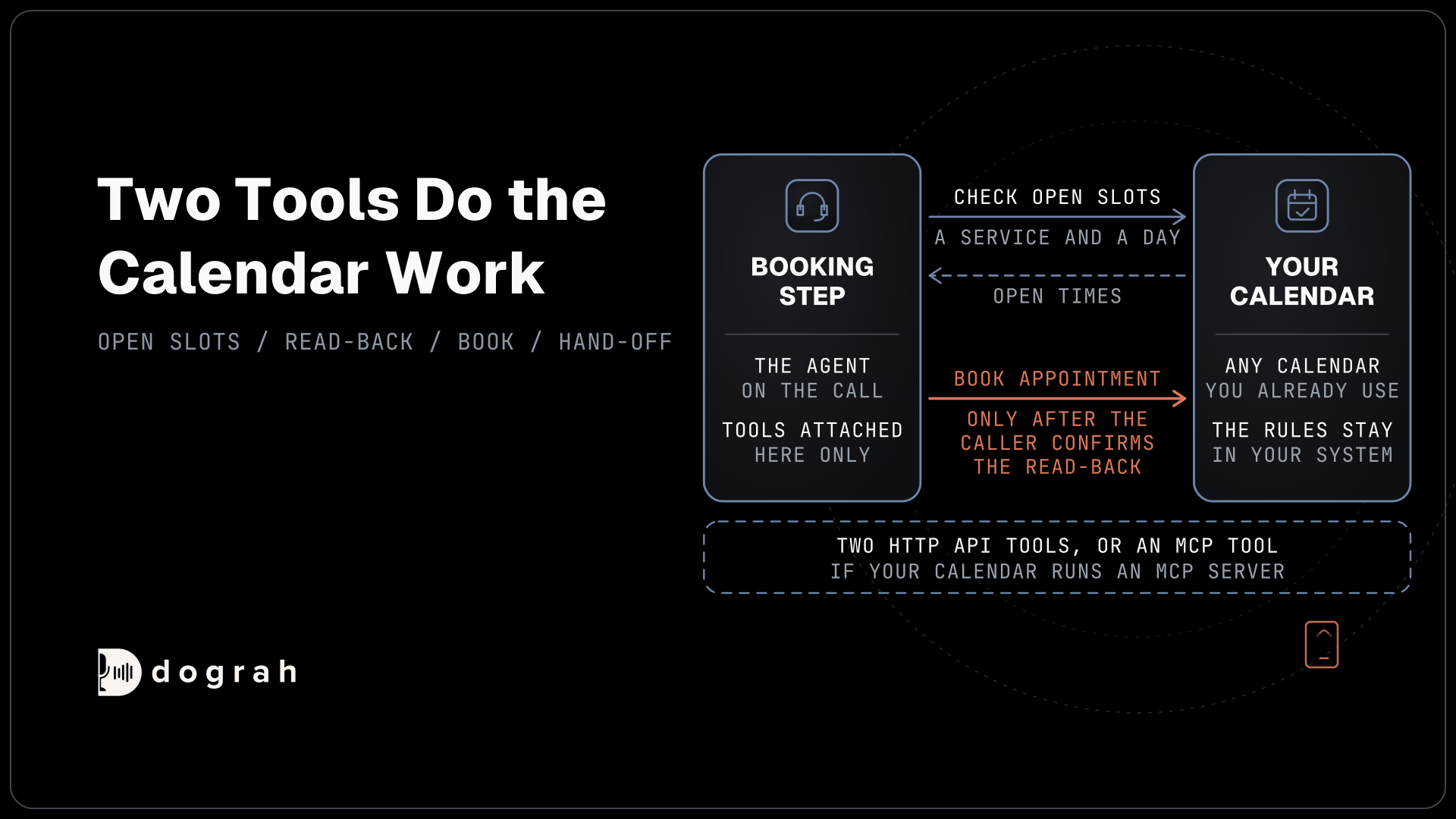
Add a Transfer Call tool to the agent and set its destination to PJSIP/1002, the second softphone, or an E.164 number your trunk can reach. Tell the agent in its prompt when to use it, such as when the caller asks for a person. The Transfer Call page lists the settings.
When the tool runs, Dograh calls the destination first and connects the caller only when someone answers. The caller hears music while 1002 rings, and the timeout is 30 seconds by default. The spoken introduction for the person picking up is a Twilio option, so on Asterisk pass the context through your own process.
Transfer Call needs a real call. Browser test calls from the editor cannot transfer, so test it from the softphone.
Check: Call 8000 from 1001, ask for a person, and 1002 rings, then joins you once you answer.
Join the Dograh Community
Dograh is an OSS alternative to Vapi. Join our Slack community for queries, releases, best practices & community interactions.
Before you ship it
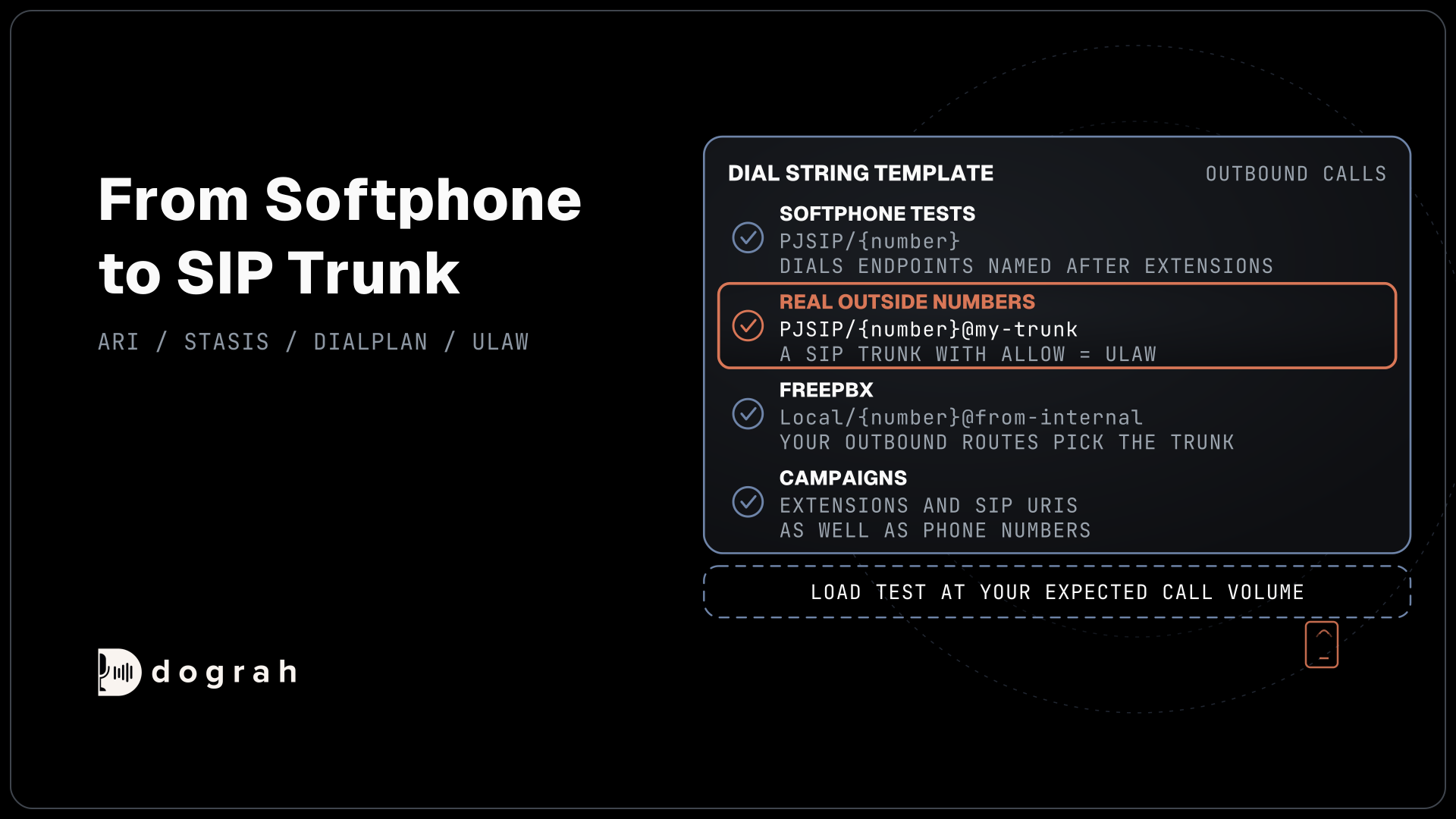
For real outside numbers, add a SIP trunk in pjsip.conf with allow = ulaw and change the Dial String Template to PJSIP/{number}@my-trunk. On FreePBX, use Local/{number}@from-internal so your outbound routes pick the trunk, as our FreePBX agent guide explains. Campaigns on Asterisk accept extensions and SIP URIs as well as phone numbers.
If your Asterisk runs a dialer, our VICIdial integration guide covers the agent side of campaigns. For menus that route callers before the agent, see our open-source IVR guide.
Running Dograh yourself, as in this guide, means no per-minute platform fee, while the servers, model keys and phone minutes are still yours to pay for. Your team keeps the database and upgrades in hand, and support comes from the open-source community, with custom SLAs on Enterprise. Dograh Cloud can run the platform instead for a 1¢-a-minute platform fee. Run a load test at your expected call volume before launch, since no published figure covers your hardware.
To recap, you opened ARI and the HTTP server, pointed the media websocket at Dograh, added softphone extensions, created the configuration, routed 8000 into the Stasis app, built and tested the agent, and added Transfer Call to a person. Keep the softphones for regression tests after every change.
Glossary
- ARI
- The Asterisk REST Interface. It lets an outside program answer, bridge and hang up calls that the dialplan hands to it.
- Stasis application
- A named hand-off point in the dialplan. Calls sent to it are controlled by whichever program registered that name over ARI.
- External media
- A separate connection that carries a call's audio between Asterisk and an outside program, here a websocket in ulaw.
- Dial String Template
- The pattern Dograh uses to turn a number into something Asterisk can dial, such as PJSIP/{number}@my-trunk.