
To add a voice agent to VICIdial, keep VICIdial dialing and hand answered calls to the AI through Asterisk. The agent talks, writes the lead fields and status back, then hangs up or moves the caller to an in-group. Dograh, the open-source AI voice agent platform, does this natively over Asterisk ARI, self-hosted or on Dograh Cloud.
Key Takeaways
- VICIdial keeps dialing and reporting, and the AI takes only the answered call.
- Hangups and in-group transfers use the Agent API, lead updates the Non-Agent API.
- Dograh writes each call's outcome back as a VICIdial status and lead fields.
Here we add an AI voice agent to a running VICIdial dialer step by step in Dograh, our open-source AI voice agent platform. VICIdial keeps its campaigns and reports. Then we talk about how answered calls reach the agent and how each outcome lands back on the VICIdial lead.
What you need before you start
You need a working VICIdial install with admin access, the Asterisk server that VICIdial routes calls through, and a Dograh instance that can reach that Asterisk over the network. VICIdial is an open-source contact center suite under the AGPLv2 license, built on Asterisk and still maintained, with recent code shipped through its SVN trunk. The agent platform can be self-hosted next to it or run on Dograh Cloud.
Check the Asterisk version first, since it decides whether the native route works. Dograh's ARI connection needs Asterisk 22 or later, or Asterisk 20 LTS built with the chan_websocket and res_websocket_client modules. Older VICIdial boxes often run an older Asterisk, so plan the upgrade or route calls through a newer Asterisk next to it.
This post sticks to setup. Why a predictive dialer and an AI agent work well together, and how the handoff to a person should feel, is covered in our post on the open-source predictive dialer with an AI agent.
Check: you can log in to VICIdial as an admin and run asterisk -rx "core show version" on the Asterisk server.
Step 1: Pick the route into VICIdial
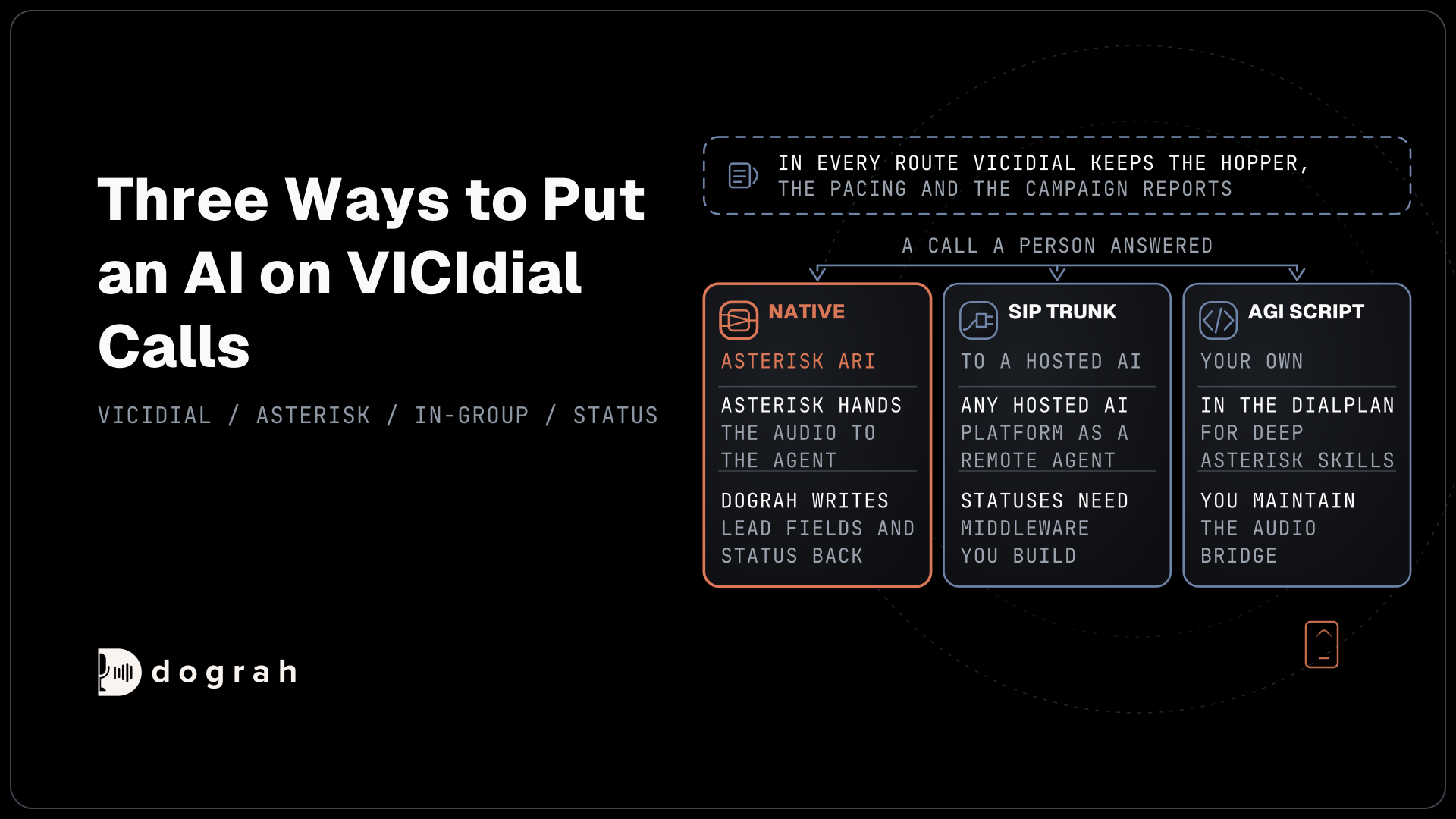
There are three ways to put an AI on VICIdial calls, and they differ in what comes back to the lead. In every route VICIdial keeps the hopper, the pacing and the campaign reports, and the AI only takes calls that a person answered.
The first route is Dograh's native integration. VICIdial hands an answered call to a remote agent whose extension sends it into Asterisk, and Asterisk passes the audio to the agent over ARI. When the conversation ends, Dograh writes the lead fields and status back through VICIdial's APIs, then hangs up or moves the caller to an in-group. The rest of this post sets up this route.
The second route sends the remote agent's calls over a SIP trunk to any hosted AI platform. It is the route most vendor guides describe, and it keeps VICIdial's own reporting unchanged, since VICIdial sees a remote agent that takes calls. The catch is the write-back. Statuses and lead updates need middleware you build against VICIdial's APIs. The third route is your own AGI script in the dialplan, which suits a team with deep Asterisk skills and time to maintain the audio bridge itself. If you are still choosing the switch under your dialer, our comparison of FreeSWITCH and Asterisk for AI voice agents covers that choice.
Check: you know which campaign and which remote agent user will send calls to the AI first.
Step 2: Create the VICIdial API users
Dograh talks to VICIdial through two separate APIs, and each needs its own user. The Agent API, at /agc/api.php, controls a call that a remote agent is handling. Dograh uses its ra_call_control function to hang up the customer's call or transfer it to an in-group, so this user needs permission for both.
The Non-Agent API, at /vicidial/non_agent_api.php, changes leads without an agent session. Dograh calls update_lead to write fields and the status, and add_dnc_phone to put a number on the do-not-call list. VICIdial's Non-Agent API reference requires the user for update_lead to have user level 8 or higher with modify leads turned on. Skip this second user only if the agent will never update a lead.
Give both users a strong password and limit them to the AI campaign where VICIdial lets you. VICIdial can return HTTP 200 even when an action fails, so Dograh reads the reply text and treats only a reply that starts with "SUCCESS" as done.
Check: a test update_lead call from your own terminal changes one field on a test lead.

Open Source Alternative to Vapi / Retell
Self-hosted voice agent platform — no per-minute fees
dograh-hq/dograh
Star on GitHub
Step 3: Connect Asterisk to Dograh over ARI
The Asterisk REST Interface lets an outside application take control of a channel through a Stasis application in the dialplan. On the Asterisk side, add an ARI user in ari.conf, turn on the HTTP server in http.conf, and add a WebSocket client in websocket_client.conf that points at your Dograh instance.
In Dograh, open Telephony in the sidebar, click Add configuration and choose Asterisk ARI. Enter the ARI Endpoint URL, the ARI Username, the App Password and the WebSocket Client Name, then click Save Configuration. Dograh then shows a generated Stasis App Name for this configuration. The Asterisk ARI setup guide lists every field with an example.
The dialplan entry below sends the remote agent's extension into that application. Replace the extension and the name dograh_a1b2c3d4e5f6 with your own.
[from-vicidial-ai]
exten => 8600,1,NoOp(VICIdial AI call to ${EXTEN})
 same => n,Stasis(dograh_a1b2c3d4e5f6)
 same => n,Hangup()
What this does: Calls to extension 8600 enter the Stasis application Dograh generated, so Dograh answers them with the agent assigned to that extension. Until the dialplan names the generated application, calls reach Asterisk but never reach the agent.
Register 8600 as a phone number on the configuration and assign your agent to it. Dograh's external media channel uses G.711 μ-law, so allow ulaw on the endpoints involved. That audio runs at 8 kHz, which is what the agent hears on every ARI call.
Check: a call to extension 8600 from a softphone reaches the Dograh agent and you hear its greeting.
Step 4: Pass the call identity and lead fields
Dograh needs VICIdial's identity for each call to control the customer's leg and update the right lead. First open Platform Settings from the user menu at the bottom of the sidebar and turn on External PBX integrations. Then edit the Asterisk ARI configuration, set External PBX Type to VICIdial, and enter the Agent API URL, user and password, plus the Non-Agent API URL, user and password from Step 2.
VICIdial or the dialplan must keep a few SIP headers on the call that enters Stasis. X-VICIDIAL-callerid and X-VICIDIAL-user let Dograh hang up or transfer the call, and X-VICIDIAL-lead_id lets it update the lead. X-VICIDIAL-ingroup_id is optional and lets a transfer send the caller back to the in-group they came from. The VICIdial integration guide lists them all.
Lead data travels the same way, as headers such as X-VICIDIAL-first_name. In the agent's Settings tab, under General, add each field you need to Lead Fields To Capture without the prefix, for example first_name. Each field costs one extra request to Asterisk while the call is set up, so list only the fields your prompt uses. The prompt then reads {{external_pbx_call.lead.first_name | there}}. A name only finds the right person. Before the agent mentions a balance, an order or anything else personal, it confirms who it is speaking to with an approved check, such as date of birth.
Check: the call logs show the available lead field names for a test call, and the agent greets the caller by first name.
Step 5: Map transfers, lead fields and statuses
This step decides what lands back in VICIdial when a call ends. For transfers, create a Transfer Call tool and choose Context Mapping as the Destination Source. Add a rule on a value the agent gathers, such as qualified, with one route per value, each pointing at a VICIdial in-group ID. Enter source as the fallback to send the caller back to the in-group they came from.
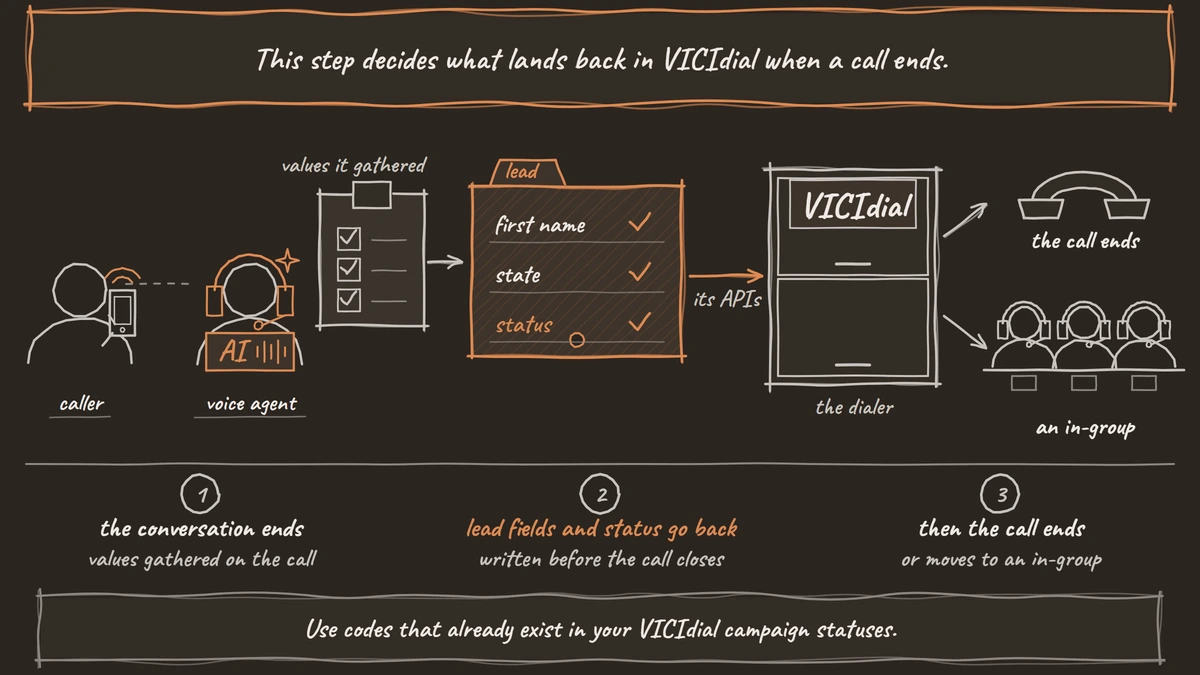
For lead fields, go back to the General section of the agent's Settings tab and add Field Mappings under External PBX Field Updates. Each mapping copies a gathered value, such as extracted_variables.customer_state, into a VICIdial lead field, such as state. Dograh writes these before the transfer or the hangup.
For statuses, set the call outcomes on the agent first, as described in call dispositions. Then turn on Disposition mapping in Platform Settings and pick the VICIdial status code for each outcome. Use codes that already exist in your VICIdial campaign statuses. A code longer than six characters is not written, and VICIdial keeps its own status for the call, usually RAXFER. Map do-not-call outcomes to DNC, and Dograh also adds the number to VICIdial's system-wide internal DNC list, so the block follows the number into every list.
Check: the mapping screen shows a VICIdial code next to every outcome your prompt can produce.
Join the Dograh Community
Dograh is an OSS alternative to Vapi. Join our Slack community for queries, releases, best practices & community interactions.
Step 6: Test one call end to end
Load one test lead into a test campaign with your own number, start the campaign and answer the call. The agent should greet you by name, run the conversation and end it one of two ways. If it transfers, the call should land in the right in-group with the lead fields already updated. If it ends the call, VICIdial should hang up the customer's leg and the lead should show the mapped status.
Most first tests fail in one of a few places. If the agent's side ends but your phone stays connected, the callerid and user headers are not reaching Asterisk, or the Agent API user cannot control the call. If lead fields stay unchanged, check the lead_id header, the Non-Agent API user and the field names. If the lead keeps VICIdial's own status, the outcome has no mapping or the mapped code is too long, and the call logs name the outcome to fix.
Check: the test lead shows the new status and fields in VICIdial, and the call appears in the campaign report.
Scaling up and choosing where it runs
Move from one test campaign to one live campaign before anything else. Phone calls on this route reach the agent as 8 kHz audio, so listen to real recordings for misheard names and numbers before you widen it. Self-hosted Dograh runs 10 calls at once by default, a limit you raise with an environment variable, and Dograh Cloud includes 10, with more on request.
Running the platform on your own servers keeps the call audio and transcripts next to VICIdial, inside the same network. Running Dograh yourself means no per-minute platform fee. You still pay for servers, model keys and phone minutes, and your team looks after the database and upgrades. Support comes from the open-source community, and Enterprise adds custom SLAs. If you would rather not host it, Dograh Cloud runs it for a 1 cent a minute platform fee. Our guide to open-source AI call center software shows where the dialer, the switch and the agent sit in the full stack.
Start with one campaign and one in-group, and widen the rollout only when the statuses in VICIdial match what you hear on the recordings.
Glossary
- Remote agent
- A VICIdial user whose calls go to an outside phone or extension instead of a logged-in person. Dograh's route uses one to hand answered calls into Asterisk.
- In-group
- A VICIdial inbound queue that routes calls to agents. Dograh can transfer a caller to an in-group by ID, or back to the in-group they came from.
- Stasis application
- The Asterisk dialplan step that hands a channel to an outside program over ARI. Dograh generates the application name when you save the configuration.
- Non-Agent API
- VICIdial's API for changing leads and lists without an agent session. Dograh uses it for update_lead and for adding numbers to the internal DNC list.