
An AI receptionist setup checklist covers 20 settings in five groups: the number and greeting, voice and business hours, answers and bookings, transfers and after-hours paths, and messages and call limits. Test every item on a real phone call. Dograh, the open-source AI voice agent platform you can self-host or run on Dograh Cloud, has a setting for each.
Key Takeaways
- Plan the handovers first, from an unanswered transfer to an after-hours call.
- Business hours live in the prompt as time zone variables, not a separate screen.
- Test on a real phone line, because browser calls cannot transfer.
This post is part of our guide to AI receptionists, where every receptionist is judged by how it hands a caller over. Here we set up the 20 things an AI receptionist needs, step by step in Dograh, then test them on a real phone line and print the list.
What you need before you start
Gather the business facts before you open the editor: opening hours for each day, the services and prices callers ask about, your top questions with answers, who takes transfers and on which phone, and who is on call after hours. It is worth getting right. In CallRail's survey of 1,000 US consumers, 82% said they would call a competitor if a business didn't answer, and 78% said they had dropped a business after an unanswered call.
This post is a checklist, so for the clicks behind each item, follow our walkthrough on how to build an AI receptionist.
Check: you have hours, top questions, transfer numbers and an on-call contact written in one document.
Step 1: Connect the number and write the greeting
- Point the number at the agent. On your phone provider's configuration, set the number's "Inbound workflow" to the receptionist. Several numbers can point at one agent. On Twilio, saving it switches the number to Dograh at once, so set up forwarding or a port first if you keep your current number, as our post on porting a business number to a voice agent explains.
- Write the Greeting Text. In the Start Call node, it plays word for word the moment the call connects. Name the business and tell callers they can ask for a person at any time. Give any variable a fallback, such as
{{first_name | there}}. - Decide text or recording. The greeting can be a recorded clip of a real person, with a cloned voice for the rest of the call so it all sounds the same.
- Add the notices you need. Put the recording notice in the Greeting Text where your location requires one. If you want to tell callers they're speaking with an automated assistant, or your location requires it by law, write that there too. Allow Greeting Interruption is on by default. Switch it off on the Start Call node so the full notice plays.
Check: a test call plays the business name, the "ask for a person" line and every notice, even when you talk over it.
Step 2: Set the voice, words and hours
- Write the Global Prompt. Persona, tone, short spoken answers and rules for every step go in the Global Prompt, which is added to each node by default.
- Pick the voice and language. In the agent's Model tab, choose the voice and set the speech-to-text language. "Multilingual (Auto-detect)" handles mixed callers, and a bilingual greeting is written in both languages because it plays before the language is heard.
- Fill the Dictionary. In the agent's Settings, add the business name, staff names and service names to the Dictionary as one comma-separated list, then Save Dictionary.
- Give the agent the hours. There is no separate hours screen. Put your opening hours in the Global Prompt with
{{current_weekday_America/Chicago}}and{{current_time_America/Chicago}}, using your own time zone name, so the agent knows if the office is open right now.
Check: in a test call at 9 pm, the agent says the office is closed and offers the after-hours options.

Open Source Alternative to Vapi / Retell
Self-hosted voice agent platform — no per-minute fees
dograh-hq/dograh
Star on GitHub
Step 3: Load answers and bookings
- Load the answers. Upload your FAQ, price list and policies to the Knowledge Base under Files, then select them on the node under Knowledge Base Documents. PDF, DOCX, DOC, TXT and JSON files up to 5 MB each work.
- Look up the caller (optional). Pre-Call Data Fetch at the bottom of the Start Call node, set to "Inbound calls only", can return the caller's name and record by their number. The greeting waits for it while the caller hears ringing. A number finds a record, so verify before sharing any detail.
- Connect bookings. An HTTP API tool books, moves or cancels appointments in your calendar or booking system. Add a Preset Parameter named
workflow_run_idso your system can ignore a duplicate booking.
Check: a test caller gets a correct answer from the price list and a booking appears in your calendar.
Step 4: Plan transfers, after-hours and emergencies
- Set up Transfer Call. Choose the destination, such as a mobile, a desk phone or an extension on your phone system, and the line the agent says first. Transfer Call dials the destination while the caller hears hold music and connects them once someone answers. Our post on how an AI receptionist call transfer works covers each step.
- Plan the no-answer path. A transfer that rings past its timeout (30 seconds by default), hits a busy line or fails returns transfer_failed to the agent, and the call continues. Have the prompt take a message or a callback time and save it with an HTTP API tool.
- Build the after-hours branch. Using the hours from item 8, the agent takes a message, books the next opening or pages the on-call person through an HTTP API tool during the call.
- Write the emergency line. As fixed Transition Speech on the emergency pathway, the agent tells anyone in danger to get to safety and call 911. If a caller smells gas or carbon monoxide, it tells them to leave the building now and call 911 or the gas company from outside.
Check: on a phone call, asking for a person rings the right phone, and letting it ring out brings you back to the agent.
Join the Dograh Community
Dograh is an OSS alternative to Vapi. Join our Slack community for queries, releases, best practices & community interactions.
Step 5: Capture messages and set call limits
- Extract the message fields. Turn on Enable Variable Extraction on the node and list name, callback number, reason and urgency. The agent records each answer as the caller stated it, and the transcript and recording keep the exact words.
- Send messages to the team. A Webhook node posts
{{gathered_context.callback_number}}and the other fields to your inbox or helpdesk after the call. Temporary failures retry on their own. - Close every outcome. Give each ending its own End Call node with a closing line, such as booked, message taken or transferred elsewhere.
- Set call limits. Under Call Management in the agent's Settings, set Max Call Duration long enough for your longest booking call, and Max User Idle Timeout so a silent line ends.
- Tune turn-taking and sound. Detection Strategy is Transcription-based by default, with Smart Turn Analyzer as the other choice, as our post on smart turn detection vs silence timers explains. "Use Ambient Noise" adds a soft office sound if you want one.
Check: a test message arrives in your inbox with all four fields filled.
Before you ship it
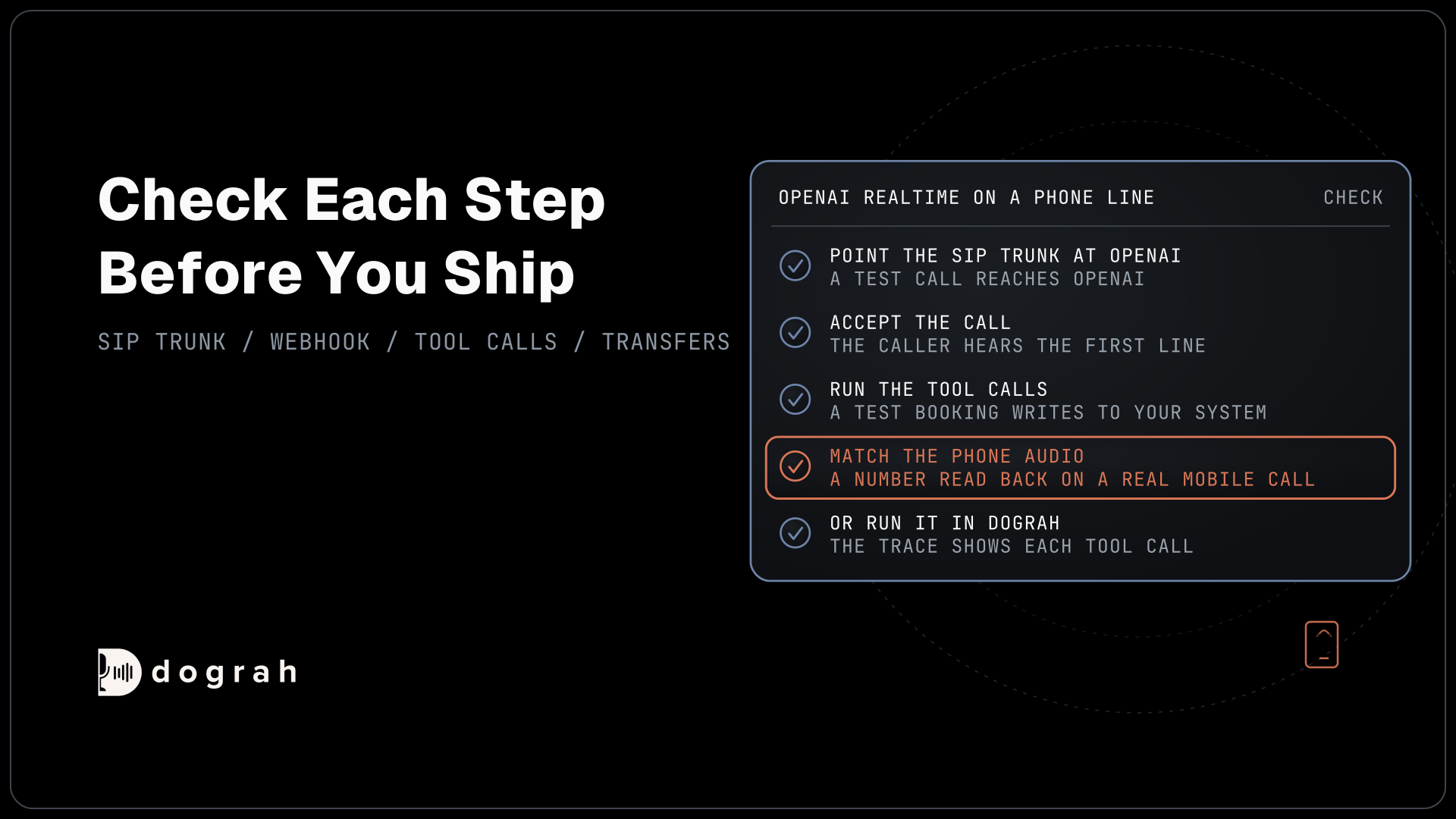
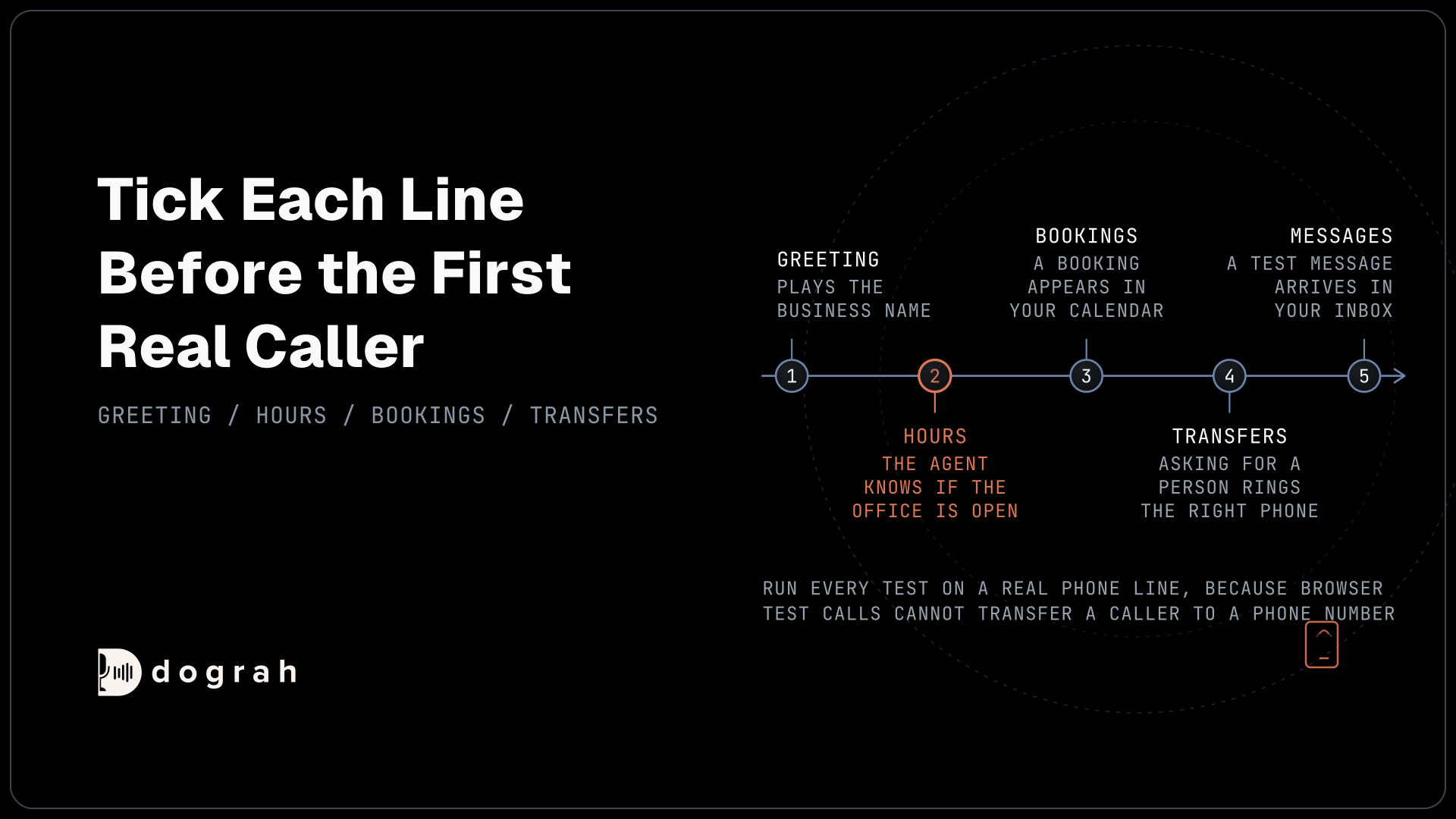
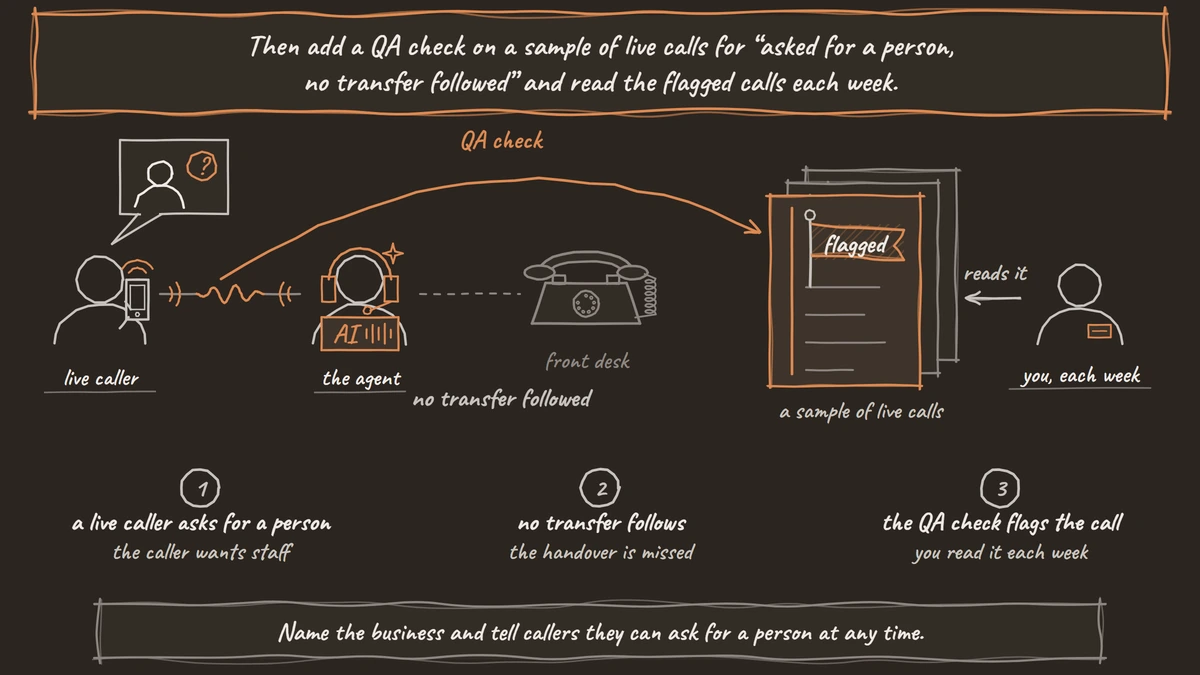
Run every test on a real phone line, because browser test calls cannot transfer a caller to a phone number. Call during open hours and after hours, ask for a person, let the transfer ring out, say an emergency phrase and leave a message. Then add a QA check on a sample of live calls for "asked for a person, no transfer followed" and read the flagged calls each week. Self-hosted Dograh has no per-minute platform fee, but servers, model keys and phone minutes still cost money. Dograh Cloud charges a 1¢-a-minute platform fee.
Print this list and tick each line before the first real caller:
- Number points at the agent
- Greeting names the business and offers a person
- Greeting recorded or typed
- Notices in the greeting, interruption off
- Global Prompt written
- Voice and language set
- Dictionary saved
- Hours variables in the prompt
- Knowledge Base loaded
- Caller lookup set, or skipped
- Booking tool tested
- Transfer destination set
- No-answer path saves a message
- After-hours branch works
- Emergency line plays as written
- Message fields extracted
- Webhook reaches the team
- End Call node for every outcome
- Call limits set
- Turn-taking and sound checked
Glossary
- Inbound workflow
- The setting on each phone number that says which agent answers it. Several numbers can share one agent, and on Twilio saving it switches the number to Dograh at once.
- Greeting Text
- Fixed words the Start Call node speaks the moment a call connects, before the language model says anything. It is the right place for the business name, the offer of a person and any required notice.
- Transfer timeout
- How long Dograh rings a transfer destination before giving up, 30 seconds by default and settable from 5 to 120. Then the caller is back with the agent.
- Detection Strategy
- The agent setting that decides when the caller has finished speaking. Transcription-based is the default, and Smart Turn Analyzer uses a turn model instead.