
To deploy voice AI on AWS, launch an EC2 server with at least 4 vCPUs and 8 GB RAM, attach an Elastic IP, open the web and TURN ports in its security group, install Docker and run the platform's setup script. For teams that want to own the stack, Dograh, the open-source AI voice agent platform, installs this way.
Key Takeaways
- Attach the Elastic IP before setup, because the certificate is issued for that address.
- Open the web and TURN ports in the security group before you run setup.
- Dograh can use Bedrock models and Nova 2 Sonic on your own AWS keys.
A voice platform on AWS needs a server that stays up, a fixed address and open audio ports. Here we deploy it step by step, from the instance and ports to HTTPS and a test call, then we talk about AWS models and what your team looks after.
What you need before you start
These steps follow the published Dograh and provider docs. Run them on a trial server before production. Each command below names its source in the lead-in, since provider commands change between versions.
- An AWS account with permission to launch EC2 instances, allocate Elastic IPs and edit security groups.
- An SSH key pair in the Region you plan to use, and your own public IP address for the SSH rule.
- An account with a phone carrier such as Twilio, Telnyx or Plivo, with one number you can point at the agent.
- Keys for the models you plan to use, or a Dograh Service Key for Dograh's own models.
- About an hour, most of it waiting for the instance, the images and the certificate.
Why one EC2 server fits a voice platform
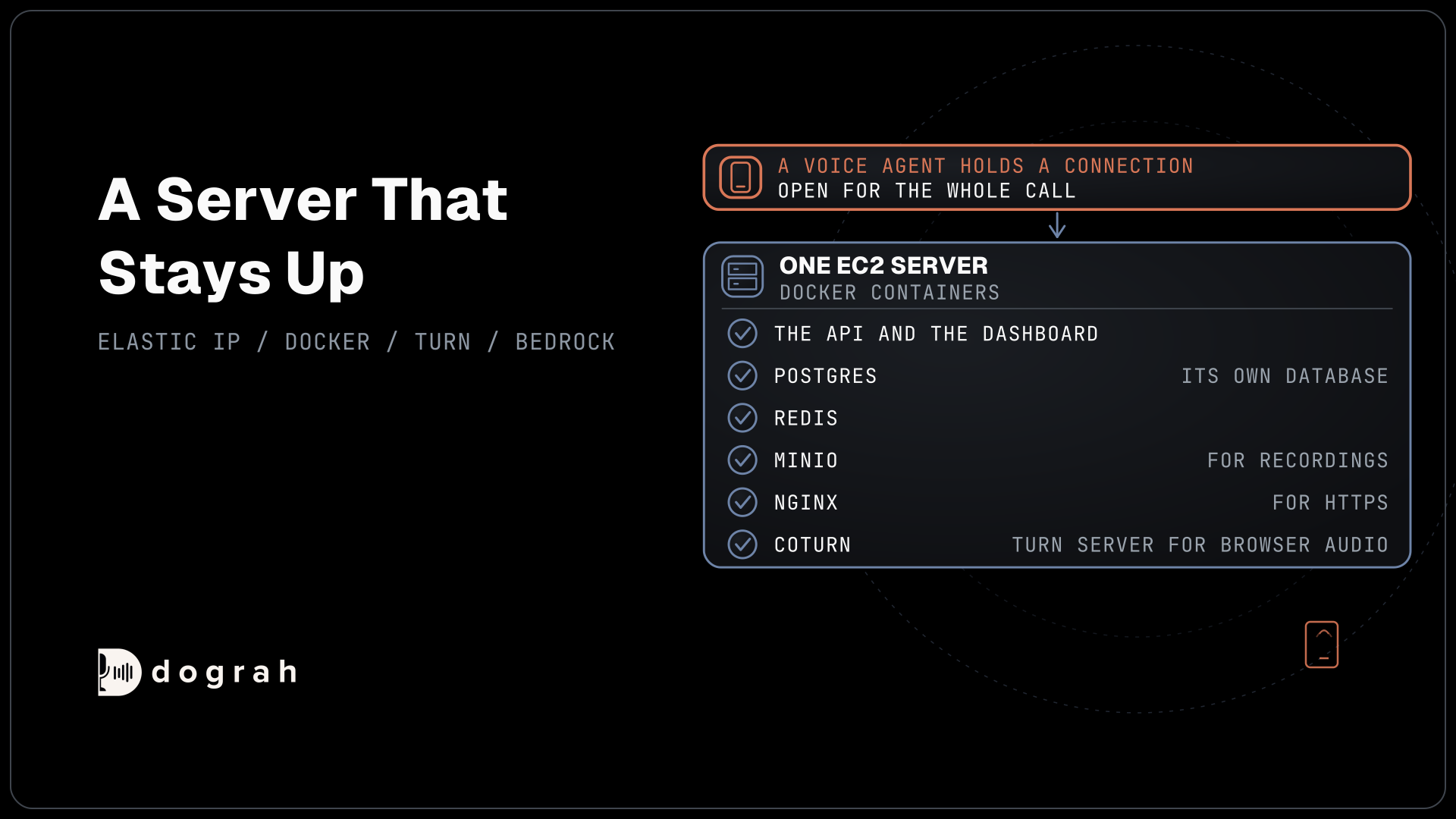
A voice agent holds a connection open for the whole call, so it needs a server that stays up. A community write-up on AWS Builder Center dropped AWS Lambda for this reason, because the functions "sleep and disconnect after request completion", and moved the agent to EC2 behind nginx.
Self-hosting trades setup work for control. A hosted platform is the quickest start, while running it yourself means your team owns the networking, the security rules and the upkeep. One EC2 server is the smallest version of that trade, and it is the right place to start before you think about clusters.
Dograh runs as Docker containers on that one server. The API and the dashboard sit next to Postgres, Redis, MinIO for recordings, nginx for HTTPS and coturn as the TURN server for browser audio. That is why a tiny instance will not do. An agent process alone can live on a micro instance, but a full platform with its own database and file storage needs Dograh's stated minimum of 8 GB RAM and 4 vCPUs.
Step 1: Launch an instance with 4 vCPUs and 8 GB
Start with an instance that meets the minimum. In AWS's c7i instance family, c7i.xlarge has 4 vCPUs and 8 GiB, and c7i.2xlarge doubles both. Any family works as long as it gives at least 4 vCPUs and 8 GB of memory.
Pick an Ubuntu 24.04 or 22.04 LTS image, since Docker supports both. Raise the root volume above the small default before you launch. The community write-up above ran out of space on an 8 GiB disk and moved to 40 GiB, and Dograh's images, database and recordings all live on that disk.
Use the SSH key pair you prepared, and place the instance in a public subnet so it can get a public address. Leave the security group for Step 3.
Check: the instance shows Running in the EC2 console, and you can SSH into it with your key.
Step 2: Attach an Elastic IP before setup
Give the server a fixed address before you install anything. An automatic public IPv4 address is released when the instance stops and a new one is assigned when it starts again. Dograh's setup issues the HTTPS certificate for the address the server has at that moment, so a changed address means a broken certificate.
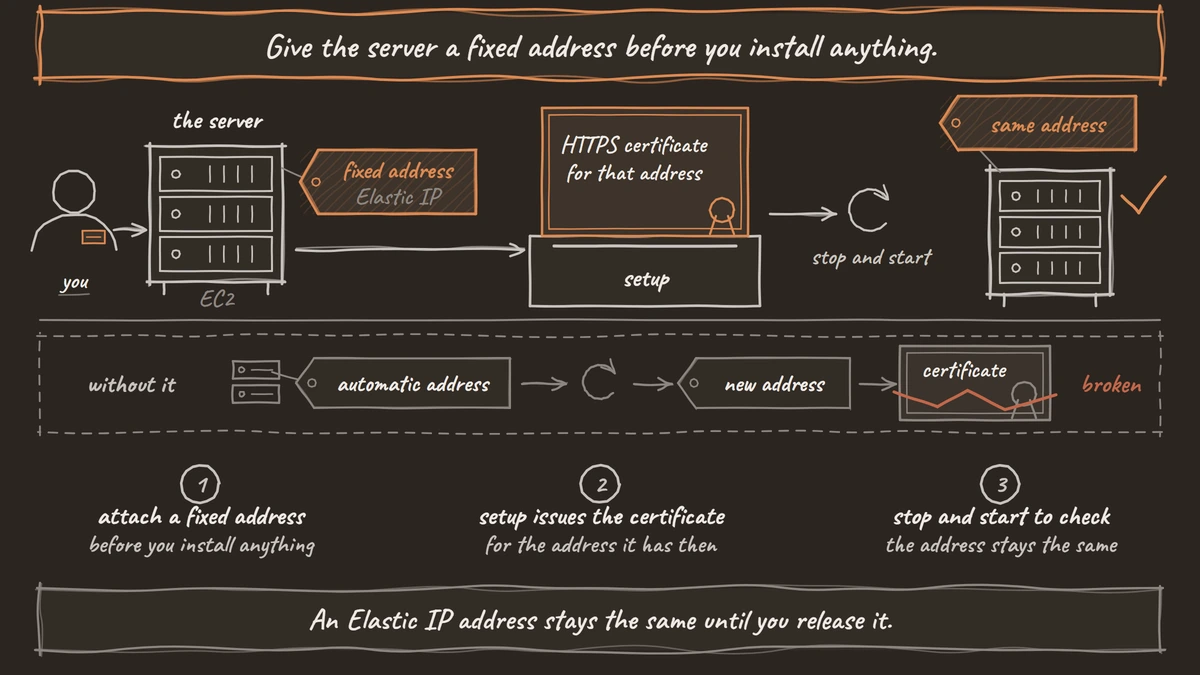
An Elastic IP address stays the same until you release it. In the EC2 console, open Elastic IPs, choose Allocate Elastic IP address, then Associate it with your instance. AWS charges $0.005 an hour for every public IPv4 address, in use or idle, so release addresses you stop using. The default quota is five per Region.
Check: the instance's public IPv4 address in the console matches the Elastic IP, and it stays the same after a stop and start.

Open Source Alternative to Vapi / Retell
Self-hosted voice agent platform — no per-minute fees
dograh-hq/dograh
Star on GitHub
Step 3: Open Dograh's ports in the security group
Open exactly the ports Dograh lists, and keep SSH to yourself. Dograh needs TCP 80, 443, 3478 and 5349 and UDP 3478, 5349 and 49152 to 49200 reachable from the internet. Ports 80 and 443 serve the dashboard and the certificate check. The rest carry WebRTC signalling and audio through coturn, which the install sets up for WebRTC NAT traversal.
The two commands below are adapted from the examples in AWS's authorize-security-group-ingress reference. The first opens one TCP port, 443, to every address with 0.0.0.0/0. The second uses --ip-permissions to open the UDP range 49152 to 49200.
aws ec2 authorize-security-group-ingress --group-id sg-1234567890abcdef0 --protocol tcp --port 443 --cidr 0.0.0.0/0
aws ec2 authorize-security-group-ingress --group-id sg-1234567890abcdef0 --ip-permissions 'IpProtocol=udp,FromPort=49152,ToPort=49200,IpRanges=[{CidrIp=0.0.0.0/0}]'
What this does: It adds two inbound rules to your security group. Swap in your own group ID, then repeat the first line for TCP
80,3478and5349, and the second for UDP3478and5349with the same number asFromPortandToPort.
The security group the launch wizard creates allows SSH on port 22, from anywhere unless you picked a custom source. Edit that rule to your own address, written as a /32 range, because adding a second rule leaves the open one in place.
Check: the security group's inbound rules list all seven port entries plus SSH from your address only.
Step 4: Install Docker
Dograh's setup script looks for Docker but does not install it, and without Docker it falls back to a self-signed certificate. So install Docker Engine first from Docker's Ubuntu install guide. The commands below add Docker's signing key and apt repository, then install the engine with the docker-compose-plugin that Dograh needs.
sudo apt update
sudo apt install ca-certificates curl
sudo install -m 0755 -d /etc/apt/keyrings
sudo curl -fsSL https://download.docker.com/linux/ubuntu/gpg -o /etc/apt/keyrings/docker.asc
sudo chmod a+r /etc/apt/keyrings/docker.asc
sudo tee /etc/apt/sources.list.d/docker.sources << EOF
Types: deb
URIs: https://download.docker.com/linux/ubuntu
Suites: $(. /etc/os-release && echo "${UBUNTU_CODENAME:-$VERSION_CODENAME}")
Components: stable
Architectures: $(dpkg --print-architecture)
Signed-By: /etc/apt/keyrings/docker.asc
EOF
sudo apt update
sudo apt install docker-ce docker-ce-cli containerd.io docker-buildx-plugin docker-compose-plugin
What this does: It installs Docker from Docker's own repository, matched to your Ubuntu release through
UBUNTU_CODENAME, so updates come from the same place as the install.
Check: sudo docker run hello-world prints its welcome message, and docker compose version prints a version number.
Step 5: Run Dograh's setup with the Elastic IP
Now install Dograh with its remote server setup. The command below downloads setup_remote.sh and runs it with sudo, because the script binds ports 80 and 443 and installs a certificate renewal hook.
curl -o setup_remote.sh https://raw.githubusercontent.com/dograh-hq/dograh/main/scripts/setup_remote.sh && chmod +x setup_remote.sh && sudo ./setup_remote.sh
What this does: It downloads
docker-compose.yamland the remote helper files into a newdograhfolder, writes the.envfile with the TURN settings, gets a Let's Encrypt certificate for a public IP and starts the stack.
The script asks for the server's IP, an optional email for Let's Encrypt notices, a TURN shared secret, the deployment mode and the number of FastAPI workers. Enter the Elastic IP, add an email or press Enter, press Enter to generate a random TURN secret and again for prebuilt mode. The script offers 2 workers by default, and on a 4 vCPU server you can enter 4, since Dograh's scaling guide suggests one per vCPU, capped at 8, at roughly 300 to 500 MB of RAM each.
On a public IP the script names the server with sslip.io, a free service that turns an IP into a hostname, so the Elastic IP 203.0.113.10 becomes 203-0-113-10.sslip.io. If port 80 is closed to the internet, Let's Encrypt fails and the stack runs on a self-signed certificate. Open port 80 in the security group, then run the certbot retry command the script prints. Running the setup script a second time stops with "Refusing to continue", because the .env file already exists.
Check: the script prints an https://...sslip.io address, and the dashboard opens there with no browser warning.
Step 6: Keep HTTPS on sslip.io or your own domain
HTTPS is required here, since browsers allow the microphone only on secure pages. The sslip.io certificate renews automatically through the hook the script installed, which matters more each year, as Let's Encrypt is shortening certificates to 45 days by February 2028.
For a name your team will remember, Dograh supports a custom domain. Add an A record that points a name such as voice.yourcompany.com at the Elastic IP, wait until nslookup returns that address, then run setup_custom_domain.sh from the same folder you ran the first script in. It installs Certbot, gets a certificate for your domain and sets up renewal.
Do not move the dograh folder afterwards, because the renewal hook points at it. If you ever release the Elastic IP, the sslip.io name changes too and you need a new certificate.
Check: the dashboard loads on your chosen name with a valid certificate, and the certificate's address matches the Elastic IP.
Join the Dograh Community
Dograh is an OSS alternative to Vapi. Join our Slack community for queries, releases, best practices & community interactions.
Step 7: Connect a phone line and place a test call
Hosted carriers send their webhooks and audio to your server, so the public HTTPS address from Step 5 is what they need. Sign up in the dashboard, open Telephony in the sidebar, add a configuration for your carrier and point a number at your agent. Our guide to build a voice agent on Twilio walks through the carrier side.
Build the first agent on the canvas. Open Voice Agents, click Create Agent and choose Blank Canvas, then write a short prompt in the start node. In the agent's Model tab, pick the configuration whose models you want this agent to use. Models are chosen per agent, so you can try a second set on another agent later.
Test in two passes. Test Agent opens a Web Call in the browser, which checks the TURN ports, since browser audio is the part a closed UDP range breaks. Then use the Phone Call button and Start Call to ring your own mobile, because phone audio arrives at 8 kHz and can sound different from the browser.
Check: the web call has two-way audio, and the phone call rings your mobile and the agent answers.
Step 8: Add Bedrock, Nova 2 Sonic or S3 if needed
Running on AWS does not tie you to AWS models. Dograh is the orchestration layer that runs the call flow, tools and telephony, and the speech and language models are a separate layer you choose. Bedrock is one option among many, set up in Providers and Models.
For a language model, add an AWS Bedrock provider with an access key whose IAM policy allows bedrock:InvokeModel and bedrock:InvokeModelWithResponseStream, its secret key and the Region. Dograh streams each reply from Bedrock, and the streaming call needs the second permission. The model ID includes the Region prefix, such as us.amazon.nova-pro-v1:0. Bedrock turns on model access at first use for accounts with AWS Marketplace permissions, and some Anthropic models need a one-time use case form. Our breakdown of AWS Bedrock pricing for voice agents covers what those tokens cost on a call.
For speech-to-speech, add AWS Nova 2 Sonic, then create a configuration in Realtime mode. It uses IAM keys and a Region such as us-east-1, with voices such as tiffany and matthew, and Realtime mode also needs a separate language model for extraction and QA.
Recordings and transcripts go to the bundled MinIO by default. To keep them in S3 instead, set ENABLE_AWS_S3=true, S3_BUCKET, S3_REGION, AWS_ACCESS_KEY_ID and AWS_SECRET_ACCESS_KEY in .env, then start the stack again with ./remote_up.sh.
Check: a test call on an agent that uses the Bedrock configuration answers, and a new recording appears in your bucket if you switched to S3.
Before you ship it
Lock the install down first. Set ENABLE_SIGNUP=false in .env once your team has accounts, so strangers cannot sign up on a public address, and telemetry can be switched off with ENABLE_TELEMETRY=false. Take regular snapshots of the root volume, since Postgres and MinIO live on it unless you moved recordings to S3.
Plan upgrades from day one. The update guide uses update_remote.sh, which pins the API and dashboard images to the same release and backs up every file it changes. Our post on how to update a self-hosted voice agent adds the backup and test-call routine around it.
Running Dograh on your own EC2 server carries no per-minute platform fee. The instance, the Elastic IP, any model keys and the phone minutes still cost money, and your team looks after the database, the certificate and every upgrade. Help comes from the open-source community, with custom SLAs on Enterprise. If running the server is not where your team wants to spend time, Dograh Cloud runs the same platform for a 1¢-a-minute platform fee, with models and phone minutes on top.
If the agent has to stay on a private network with your own PBX, our guide to deploy a voice agent on-prem covers the private-IP install instead.
Glossary
- Elastic IP
- A fixed public IPv4 address you allocate in AWS and attach to an instance. It stays the same across stops and starts, unlike the automatic public IP.
- Security group
- The firewall attached to an EC2 instance. Its inbound rules decide which ports and addresses can reach the server, and nothing gets in until a rule allows it.
- sslip.io
- A free DNS service that turns an IP address into a hostname, such as 203-0-113-10.sslip.io. Dograh's setup uses it to get a trusted certificate without a domain.
- TURN server
- A relay that carries browser call audio when a direct connection fails. Dograh ships coturn for it, which is why the TURN and UDP ports must be open.