
To build a voice agent with Twilio, buy a Twilio number, point its incoming calls at an agent that streams and answers the audio, and test on a real phone call. For teams that want to own that agent layer, Dograh, the open-source AI voice agent platform, runs it on your own Twilio account, self-hosted or on Dograh Cloud.
Key Takeaways
- Twilio streams each call to the agent as 8 kHz mu-law audio.
- Trial accounts can only call verified numbers in your sign-up country.
- Dograh writes its webhook into your Twilio number when you save it.
Twilio supplies the number and the call audio, and the agent does the listening and talking. We start with how a Twilio call reaches an agent, build one in Dograh step by step on your own account, then we talk about test calls, a transfer and go-live checks.
How a Twilio call reaches an AI agent
A call to a Twilio number triggers a web request, and your answer decides what happens to the audio. Twilio sends that request to the number's voice webhook, called its VoiceUrl, and expects instructions back in TwiML, Twilio's small XML language.
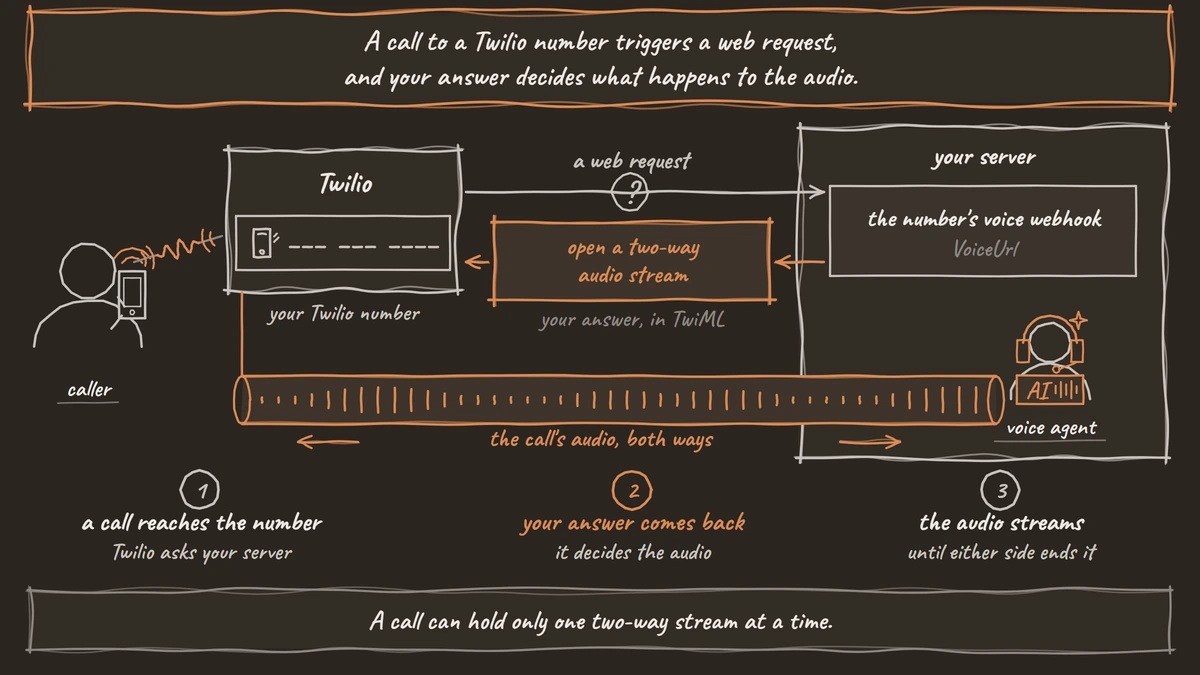
For an AI agent, the instructions open a two-way audio stream. The reply wraps a Stream instruction inside a Connect instruction, with the agent's WebSocket address as the stream's url. Twilio then keeps the caller on the line, sends the call's audio to that address and plays back whatever audio the agent returns, until either side ends the call.
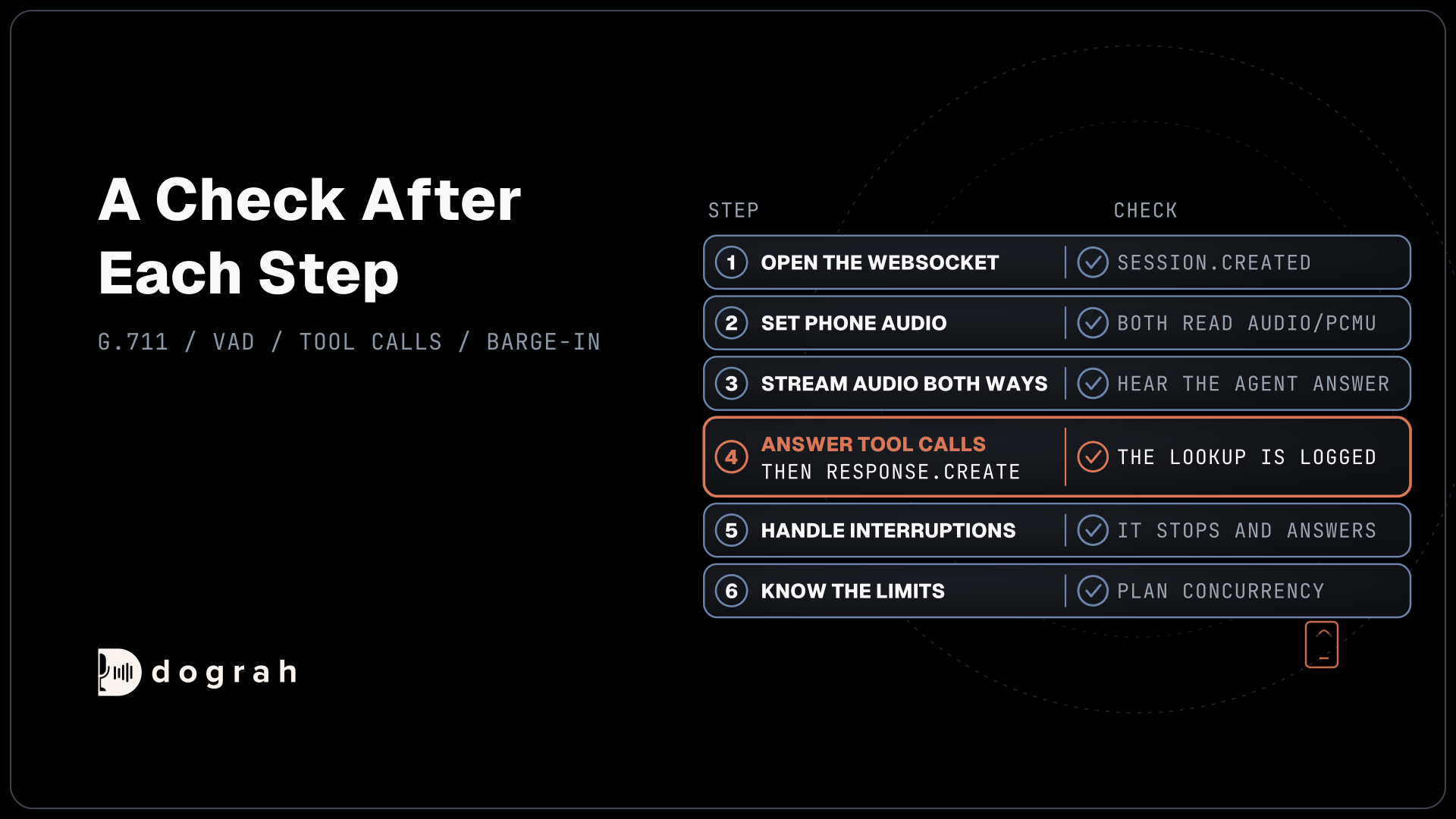
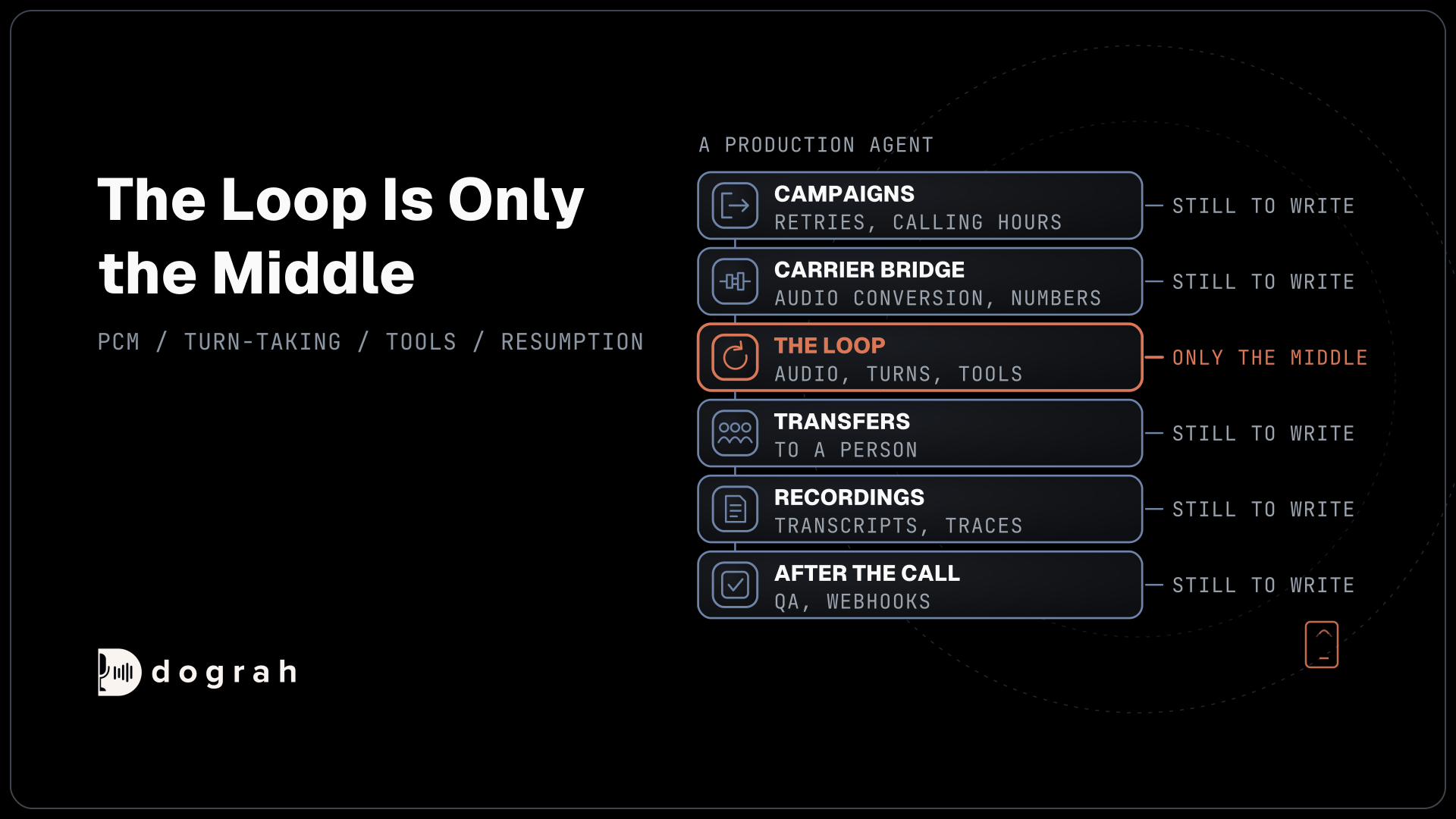
Twilio's Media Streams messages arrive as mu-law audio at 8,000 samples a second, one channel, and the agent must send the same format back. A call can hold only one two-way stream at a time. Everything after that is the agent's job. It turns speech into text, runs the language model, speaks the reply, stops talking when the caller cuts in and clears Twilio's buffered audio, then recovers if the socket drops.
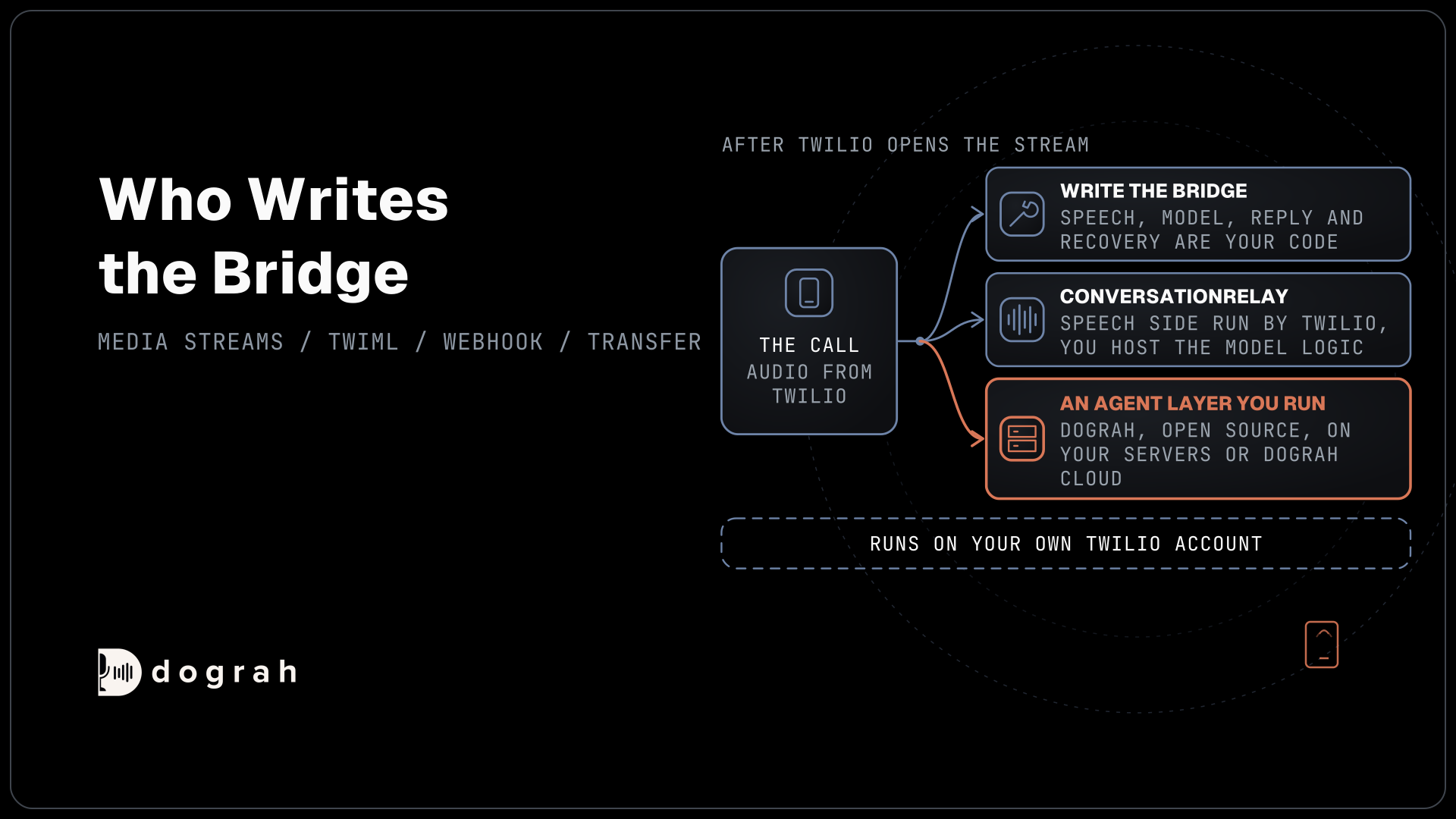
You can write that bridge yourself, or let Twilio's ConversationRelay run the speech side while you host the model logic. The third path is an agent layer you run but do not write. Dograh is open source, so the bridge code sits in a repo you can read, and it runs on your servers or on Dograh Cloud while the Twilio account and its bill stay yours. If you would rather connect through a trunk than an API account, our guide to Twilio Elastic SIP Trunking for AI voice agents covers that route.
What you need before you start
The whole build fits in an afternoon if the accounts are ready. You need a Twilio account, either trial or upgraded, and a place to run Dograh, which is a Dograh Cloud account or a server you control.
Keep two phones nearby. One calls the agent for the inbound test, and the other plays the person who takes a transferred call in Step 7. On a trial account, both numbers must be verified in Twilio first, which Step 1 covers.
Step 1: Buy a Twilio number
Start in the Twilio Console and buy a number with voice capability in the country your callers are in. Our breakdown of Twilio phone number pricing helps you choose between local, toll-free and mobile numbers.
A trial account has limits worth knowing before your first test. Twilio's trial account guide says you can call or message only verified recipients, up to five per account, and calls are restricted to your sign-up country. Upgrading removes the verified-recipient rule.
While you are in the Console, copy the Account SID, which starts with AC, and the Auth Token from the account dashboard. Dograh needs both in Step 4.
Check: The number shows Voice under its capabilities, and you have the Account SID and Auth Token saved somewhere safe.
Step 2: Run Dograh on Cloud or your own server
Pick where the agent layer runs. Dograh Cloud needs only a sign-up at app.dograh.com. To self-host, you run Docker Compose on a server with at least 8 GB of RAM and 4 vCPUs, and our guide to self-host a voice AI agent with Docker walks through the install.
A self-hosted backend has one extra rule for Twilio. Twilio must be able to reach your Dograh backend from the internet, because every incoming call starts with a web request to it. A laptop on a home network will not receive those requests, so use a server with a public address and HTTPS.
Check: After signing in, the sidebar lists Voice Agents, Telephony and Tools.

Open Source Alternative to Vapi / Retell
Self-hosted voice agent platform — no per-minute fees
dograh-hq/dograh
Star on GitHub
Step 3: Build the agent
Open Voice Agents in the sidebar, choose Create Agent and describe the agent in plain words, starting from the "Build me an agent that…" prompt. Say who calls, what the agent should find out and when a person should take over.
The builder may ask a few questions, then shows "Your agent requirements" with the information to collect, the business rules and the outcome it will aim for. Select Approve & build, or Request changes if something is off. Once you are happy with the draft, select Test agent, which saves it and publishes version 1.
On a self-hosted install, the builder needs a Dograh Service Key in Model Configurations. Without one, build the agent by hand on the canvas.
Check: The agent opens in the editor with version 1 published.
Step 4: Connect your Twilio account
Dograh talks to Twilio through a telephony configuration that holds your keys. Open Telephony in the sidebar and choose Add configuration. In the Add telephony configuration dialog, give it a name, pick Twilio as the provider, and paste the Account SID and Auth Token.
Add your Twilio number under Phone Numbers in E.164 form, such as +1415555XXXX, so outbound calls have a caller ID. Turn on Set as default for outbound calls if this is your only configuration, then select Create. The Twilio setup page lists the same fields.
Check: The configuration appears in the Telephony list, and opening it shows an empty phone number list ready for Step 5.
Step 5: Route the number to the agent
Routing is set on the phone number. Open your Twilio configuration and choose Add phone number. Enter the number in E.164 form as the Address, US as the Country, a label you will recognize, and pick your agent as the Inbound workflow. Leave Active on, and tick Default caller ID for this configuration if outbound calls should show this number. Then select Add.
Saving does the Twilio side for you. Dograh writes its inbound address into the number's voice webhook in Twilio, https://api.dograh.com/api/v1/telephony/inbound/run with POST on Dograh Cloud, or the same path on your own backend domain when self-hosted. The number switches to the agent at once.
If the dialog shows "Saved, but failed to sync inbound webhook to the provider.", open the number in the Twilio Console and paste that address into its Voice Configuration yourself. Removing the agent later leaves the number's webhook blank rather than switching it back, so point it somewhere new when you retire the agent.
Check: In the Twilio Console, the number's voice webhook shows the Dograh address with POST.
Step 6: Make test calls
Test both directions on real phones. For inbound, call the Twilio number from your mobile and talk to the agent the way a customer would, including one interruption mid-sentence.
For outbound, open the agent and select Phone Call in the editor header. Pick your Twilio configuration and number, enter the number to call, and select Start Call. On a trial account, that number must be one of your verified recipients.
Listen for the audio as much as the words. Most phone calls still reach the agent as 8 kHz audio, while a browser demo runs at 16 kHz, so an agent that sounded perfect in the browser can mishear on a handset. The independent WildASR benchmark found that simulated phone audio barely moved most modern speech-to-text models but broke one, so the model you pick matters.
Check: Under Agent Runs, each of the two calls has its transcript and recording.
Join the Dograh Community
Dograh is an OSS alternative to Vapi. Join our Slack community for queries, releases, best practices & community interactions.
Step 7: Add Transfer Call and test it
Transfer Call hands the caller to a person on a real phone number. Open Tools in the sidebar, select Create Tool and choose Transfer Call. Enter the staff number in E.164 form as the Transfer Destination, and keep Transfer Timeout at its 30-second default or set anything from 5 to 120 seconds.
Twilio adds one option no other route has. Turn on Play a transfer introduction to both parties and the agent speaks a short summary before the two people are connected, guided by the Introduction instructions you write. It is off by default.
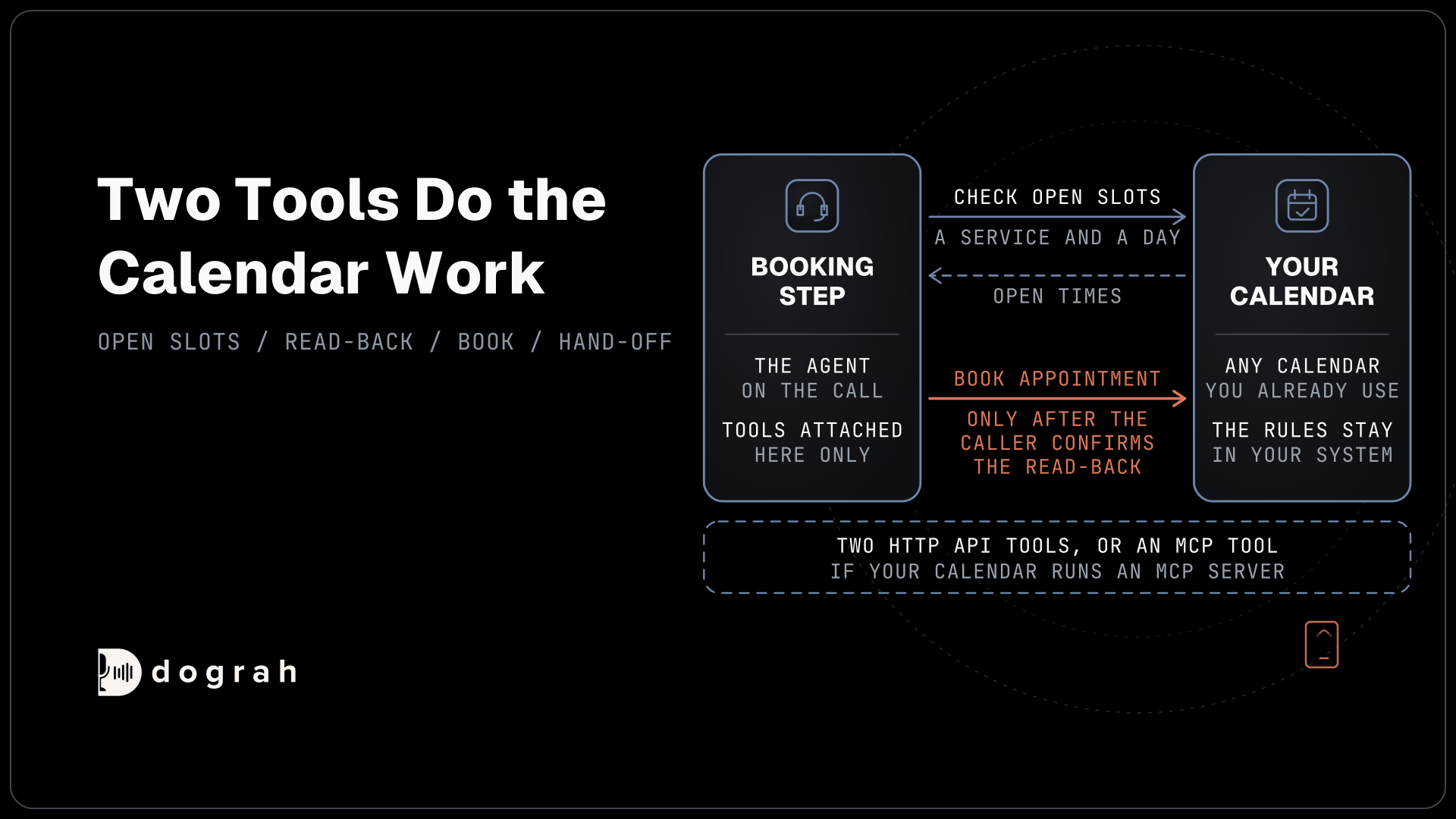
Attach the tool to your agent's node under Tools, and add a line to the prompt that says when to use it, such as when the caller asks for a person. On the call, Dograh calls the destination first and connects the caller only when someone answers. If nobody answers, the line is busy or the call fails, the agent hears why and the call carries on with the agent. The Transfer Call page covers the remaining settings.
Browser test calls cannot run a transfer, so place this test over a real phone call. Call the agent from one phone, ask for a person, and answer on the second phone.
Check: The second phone rings, you answer, and the caller is connected to you.
Before you ship it
A working test call means the setup is right, and a few checks remain before customers call. Upgrade the Twilio account so real customers can reach the agent, and check that outbound calling to each destination country is allowed in your Twilio account before you run campaigns.
Add a QA node so each call is scored after it ends, and our post on how to run post-call analysis on voice calls shows what to score and how to act on it. For callers who want a link or a confirmation in writing, our guide on how to send SMS from a voice agent covers it.
Plan the running cost in two bills. Twilio's US voice pricing lists inbound local calls at $0.0085 a minute and Media Streams at $0.0044, billed to your own account. On your own server, Dograh adds no per-minute platform fee to that, though you still pay for the servers, the model keys and the phone minutes. Your team runs the database and installs upgrades, and support comes from the open-source community, with custom SLAs on Enterprise. Dograh Cloud takes the hosting off your hands for a 1¢-a-minute platform fee and includes 10 concurrent calls. A self-hosted install also runs 10 calls at once by default, a limit you can raise.
To recap, you bought a number, ran the agent layer where you wanted it, built and published the agent, connected Twilio, routed the number, tested both directions and added a transfer. The same agent can later move to another carrier without a rebuild.
Glossary
- VoiceUrl
- The webhook Twilio calls when someone dials your number. Its reply tells Twilio what to do with the call, such as stream it to an agent.
- Media Streams
- Twilio's feature that streams a call's audio to your server over a WebSocket and plays back what you send, as 8 kHz mu-law.
- Verified recipients
- Phone numbers you confirm in a Twilio trial account. Until you upgrade, the trial can only call or message these, up to five.
- Inbound workflow
- The setting on a phone number in Dograh that picks which agent answers calls to it. Several numbers can point at one agent.