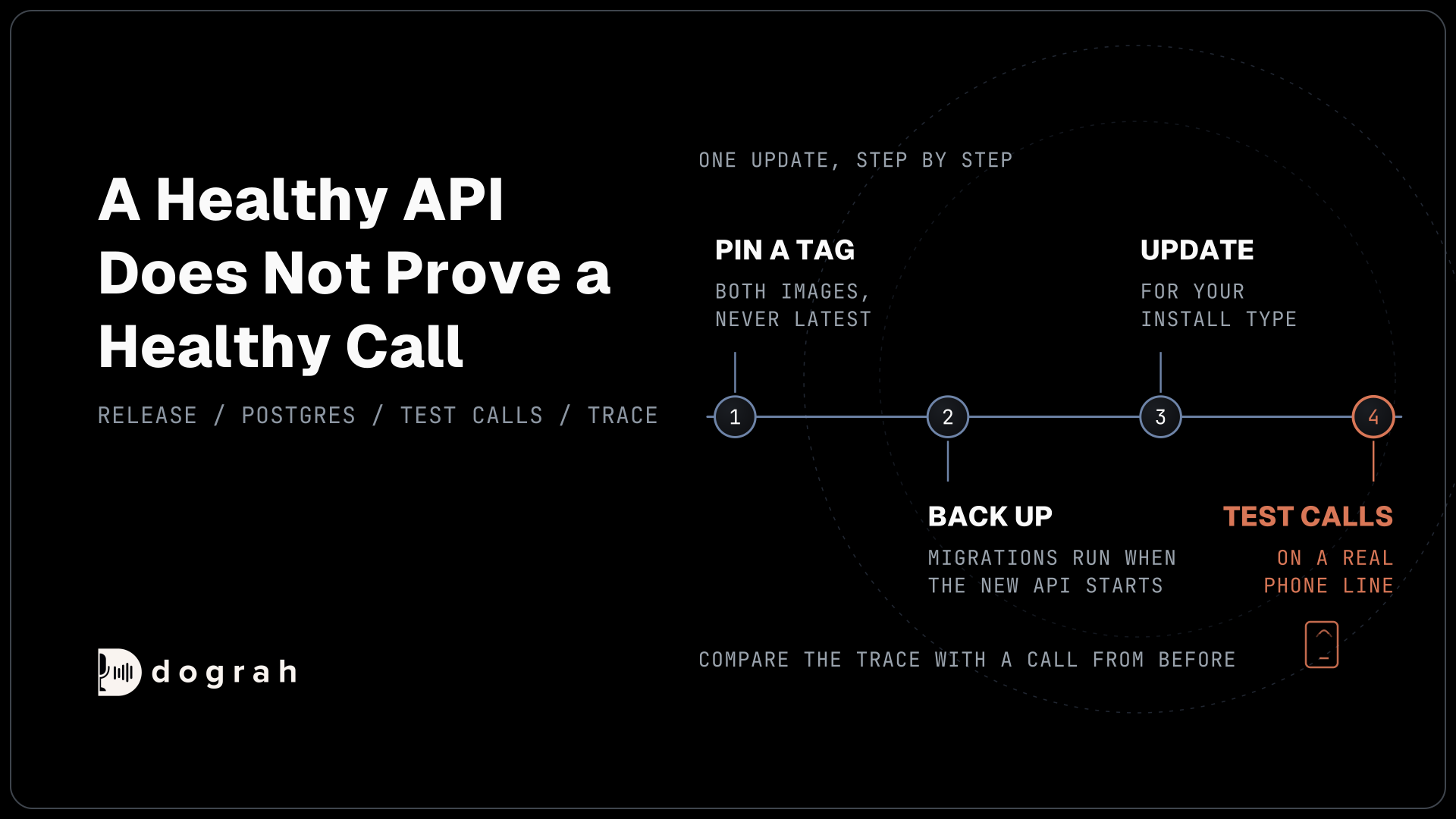

To update a self-hosted voice agent platform safely, pin a release tag instead of latest, move the API and UI images to the same tag, back up the database, and update outside call hours. Then check the running version and place test calls. The steps below use Dograh, an open-source voice agent platform.
Key Takeaways
- Pin both Dograh images to one release tag, never latest.
- Migrations run when the new API starts, so back up Postgres first.
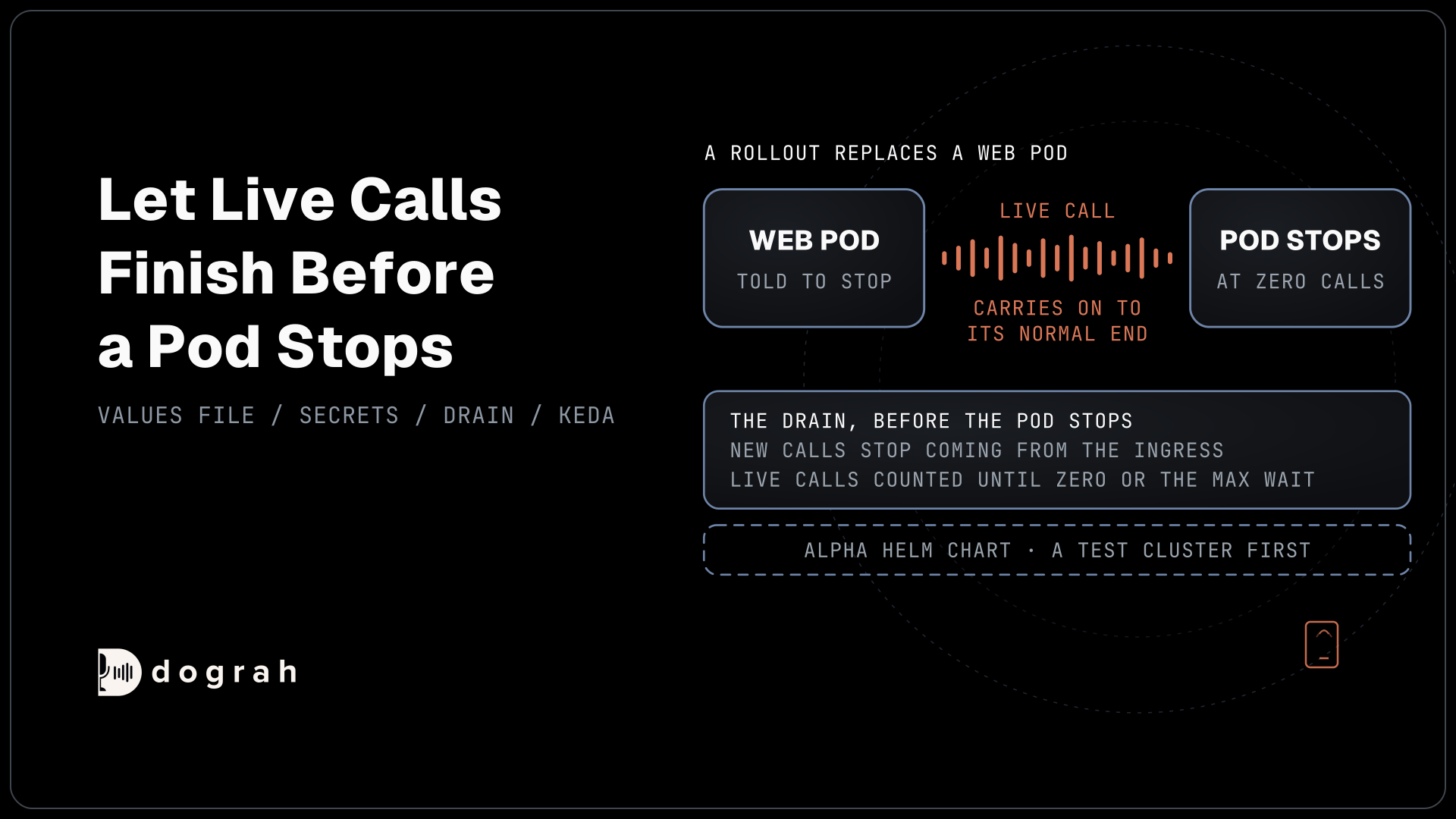
- Stopping the stack ends live calls, so update outside call hours.
This post is part of our guide to open-source voice AI agents, where keeping the platform current is work that open code hands you. Here we update a Dograh install on your own server step by step, from pinning a release to the test calls that prove it worked.
What you need before you start
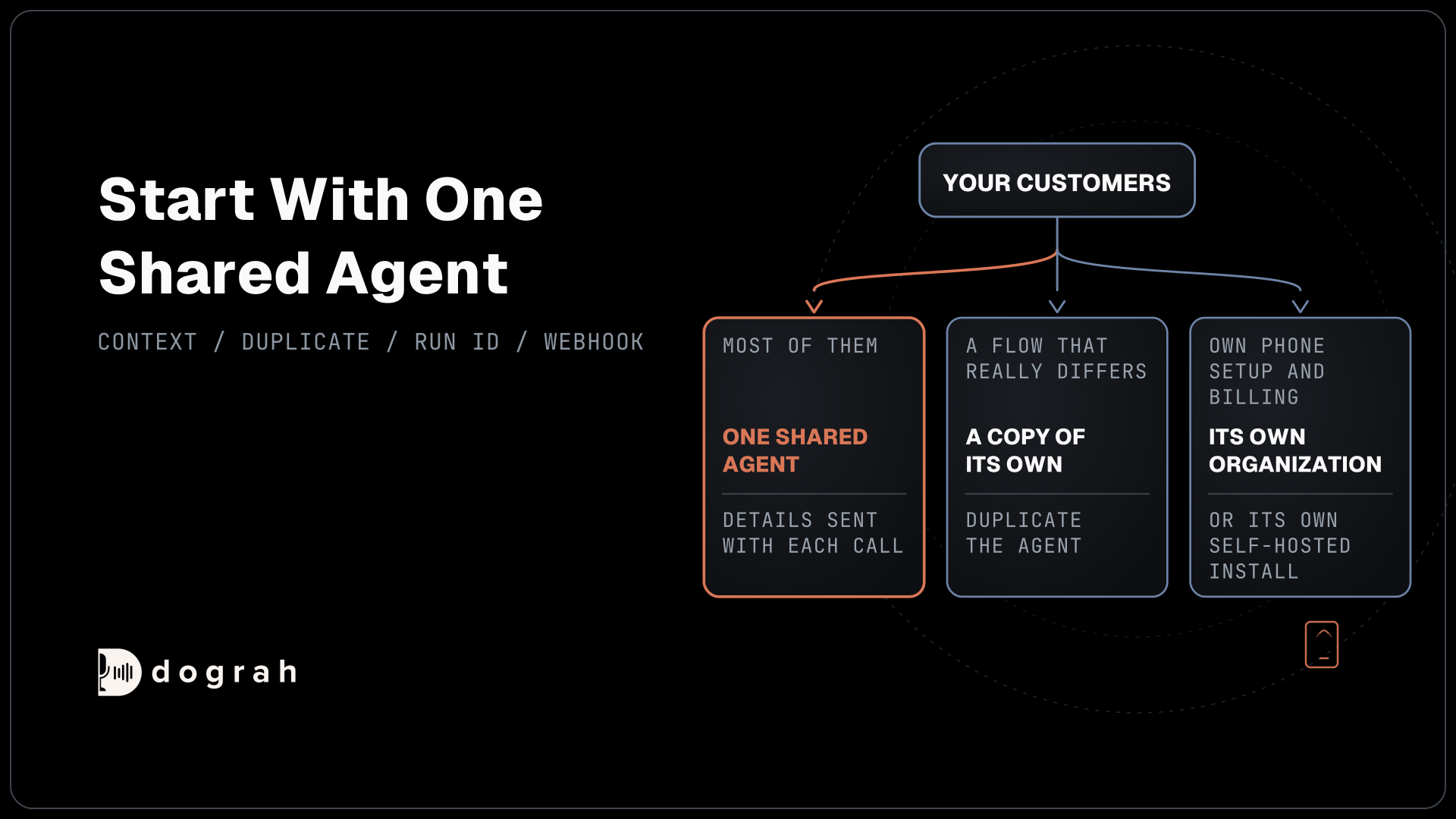
You need shell access to the server and the directory that holds your docker-compose.yaml. If you installed with setup_remote.sh, that is the dograh/ directory. Then check which of three install types you have, because each updates differently. A remote install made by the setup script uses prebuilt images. A local install runs the quick-start script on a laptop or a single machine. A build-mode install compiles the images from source and has a docker-compose.override.yaml next to the compose file.
This post moves the platform itself, meaning Dograh's own images. Your agents' published versions and Version History are a separate thing, and deploying an AI voice agent to production covers pinning those.
A cluster install follows the chart instead, in how to deploy a voice agent on Kubernetes. A server with no internet access cannot pull images, so it loads them from saved files, as our post on air-gapped voice agents shows.
Check: you know whether docker-compose.override.yaml exists in your install directory.
Step 1: Pin a release tag instead of latest
The compose file Dograh ships points both images at the latest tag. That tag follows the newest release, so a restart that pulls fresh images can move a production server to a version nobody has read. Pin a release number instead, such as 1.51.0. Docker image tags use the bare number with no v, while the matching GitHub release is called dograh-v1.51.0.
Both images must carry the same tag. The API and the web app are built from the same commit, and the web app expects the API's replies in a matching shape, so mixing versions breaks the app. In docker-compose.yaml, set the image: line of the api service and of the ui service to the same tag:
  api:
    image: ${REGISTRY:-dograhai}/dograh-api:1.51.0
  ui:
    image: ${REGISTRY:-dograhai}/dograh-ui:1.51.0
What this does: Both containers now run release 1.51.0 until you change the tag yourself. A restart or a fresh pull can no longer move the server to a newer release by accident.
Before you pick the next tag, read what changed. Each entry on Dograh's releases page lists the features and fixes in that release, with a link to the full code difference between two tags.
Check: both image lines in docker-compose.yaml end in the same tag.
Step 2: Back up the database and pick a quiet hour
Every time the API container starts, it runs the database migrations for its version. So the first start on a new tag may change the database schema, and an older version may not read the result. Take a backup before you update. This is general Postgres practice rather than a Dograh command. The compose file runs Postgres as the postgres service, with the user and database both named postgres, so pg_dump can write the whole database to a file on the host:
docker compose exec -T postgres pg_dump -U postgres postgres > dograh-before-1.51.0.sql
What this does: It saves agents, their versions and call history to one file named after the update, a copy of the database as the old version knew it.
Recordings sit in a separate MinIO volume, minio-data, so copy that volume with your usual backup tool if you keep recordings.
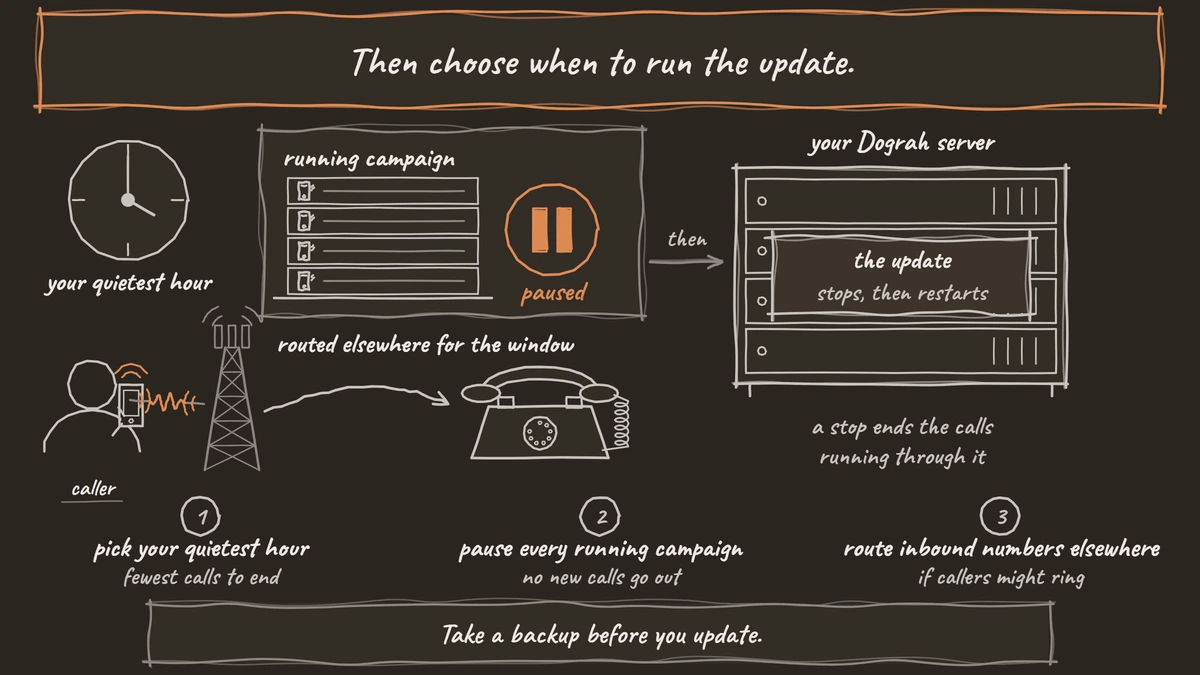
Then choose when to run the update. docker compose down stops the API, and the call connections running through it end with it. Pick your quietest hour, pause every running campaign with Pause Campaign, and route inbound numbers elsewhere for the window if callers might ring. If you run Dograh from source on a virtual machine instead of Docker, the repository's scripts/rolling_update.sh starts new workers and lets the old ones finish their calls before they stop.
Check: the backup file exists and is not empty, and each campaign shows as paused.

Open Source Alternative to Vapi / Retell
Self-hosted voice agent platform — no per-minute fees
dograh-hq/dograh
Star on GitHub
Step 3: Run the update for your install type
All three install types appear in Dograh's update guide, and every example below targets release 1.51.0.
Remote installs with update_remote.sh
On a server set up with setup_remote.sh, the update script does the work. Run it from the install directory with the target version in TARGET_VERSION:
cd dograh
curl -o update_remote.sh https://raw.githubusercontent.com/dograh-hq/dograh/main/scripts/update_remote.sh
TARGET_VERSION=1.51.0 DOGRAH_UPDATE_YES=1 bash update_remote.sh
./remote_up.sh
What this does: It moves both images to 1.51.0 without a prompt, because
DOGRAH_UPDATE_YES=1skips the confirmation. The last line restarts the stack through the startup wrapper, which checks the configuration first.
Without TARGET_VERSION, the script asks for a version and offers the newest release. In one run it fetches the compose file for that version and pins both images, refreshes remote_up.sh and its helper files, syncs the keys in .env and checks the configuration. It saves every file it changes with a .bak.<timestamp> suffix. If you edited those files yourself, the script overwrites them, so re-apply your edits from the backups.
Local Docker installs
A local install updates by fetching a new compose file and start script, then restarting. The downloaded compose file points at latest again, so set both tags before the restart:
curl -o docker-compose.yaml https://raw.githubusercontent.com/dograh-hq/dograh/main/docker-compose.yaml
curl -o start_docker.sh https://raw.githubusercontent.com/dograh-hq/dograh/main/scripts/start_docker.sh && chmod +x start_docker.sh
# set both image lines to 1.51.0 here, as in Step 1
docker compose down
./start_docker.sh
What this does: It replaces the compose file and start script, stops the stack and starts it again on the pinned release. The start script keeps the secrets already in
.env, and the Postgres volume keeps your agents.
Our tutorial on how to self-host a voice AI agent with Docker explains what that start script sets up the first time.
Source builds
A build-mode install updates through git, and update_remote.sh refuses to run on it. Check out the release tag, update the submodules and rebuild:
cd dograh
git fetch
git checkout dograh-v1.51.0
git submodule update --init --recursive
sudo docker compose --profile remote build
sudo docker compose --profile remote up -d
What this does: It builds both images from the 1.51.0 source and restarts on them. The submodule line pulls in the matching Pipecat code, which the build misses without it.
Leave OSS_JWT_SECRET, TURN_SECRET, POSTGRES_PASSWORD, REDIS_PASSWORD, MINIO_ROOT_USER and MINIO_ROOT_PASSWORD unchanged in .env, or logins, browser calls and storage access break after the restart.
Check: the commands finish without errors and every service comes back up.
Step 4: Check the version and place test calls
First confirm the server runs what you pinned. docker compose ps can print each service next to its image, and the health endpoint shows whether the API answers:
docker compose ps --format "table {{.Service}}\t{{.Image}}"
curl -k https://YOUR_SERVER_IP/api/v1/health
What this does: The first line lists the image behind each service, so
apianduishould both end in1.51.0. The second asks the API for its status, and a JSON reply with"status": "ok"means it is up. On a local install, usehttp://localhost:8000/api/v1/health.
A healthy API does not prove a healthy call, so place calls next. Open a busy agent and click Test Agent for a browser call. Then click Phone Call and test on a real line, because phone audio reaches the agent differently from a browser. If the agent hands callers to people, try one Transfer Call on that phone call, since transfers only run on phone calls.
Open View Trace on the test call. It shows the speech-to-text, AI and voice time for each turn, so compare it with a call from before the update. Leave QA on for the first live calls to catch a changed answer early.
Check: both images show 1.51.0, the health reply says ok, and the test calls appear with a recording, a transcript and a trace.
Join the Dograh Community
Dograh is an OSS alternative to Vapi. Join our Slack community for queries, releases, best practices & community interactions.
Before you ship it
Plan the way back before you need it. The update script prints the exact restore commands at the end of its run. Put the .bak.<timestamp> files back and run ./remote_up.sh. The Postgres volume survives a restart, so agents and call history stay in place.
A rollback across a schema change is the risky case. If the newer release ran a migration, the older API may not understand the database it left behind, so open an issue on Dograh's GitHub before you roll back. Keep the backup from Step 2 ready for that case.
Updating is part of the price of running the platform yourself, and in return you decide when it happens. Self-hosted Dograh has no per-minute platform fee, but servers, model keys and phone minutes still cost money. Dograh Cloud charges a 1¢-a-minute platform fee.
Keep a short log of each update: the tag you left, the tag you moved to, the backup file and the test calls you placed. A problem can then be traced to the release that caused it.
Glossary
- Image tag
- The label on a container image that names its version, such as 1.51.0. The latest tag moves to each new release, while a number tag stays fixed, which is why production servers pin a number.
- Database migration
- A change to the structure of the database that ships with a new release. Dograh's API applies its migrations when the container starts, so an older version may not read a database a newer one has migrated.
- Build mode
- A self-hosted Dograh install that builds its images from the source code, marked by a docker-compose.override.yaml file. It updates through git, and the remote update script refuses to run on it.