
To deploy an AI voice agent to production, test it over a real phone call first, because phone audio usually arrives at 8 kHz while a browser test runs at 16 kHz. Then connect the number, check every concurrency limit, wire up monitoring, publish the version and know how to back out before you raise call volume.
Key Takeaways
- Test on the phone line you will use, as well as in the browser.
- The lowest limit among carrier, model provider and platform caps your calls.
- Live calls keep the published version, so back out by pausing and republishing.
This post is part of our guide to voice AI for developers, where going live means a real phone line, known limits and a way to back out. Here we turn that into a go-live checklist, step by step, in Dograh, the open-source AI voice agent platform we build.
What you need before you start
Bring an agent that already behaves well in tests. If it has not passed a browser walk-through and a few repeated runs, go back to testing voice agents before you go live first.
You also need an account with a phone provider such as Twilio, Telnyx or Plivo, and a phone number on it. Create a Dograh API key under Developers in the sidebar if other systems will start calls. For traces, have a Langfuse project's keys ready to paste into Platform Settings.
Step 1: Test on a real phone line
Call the agent on a real phone before anything else, because the browser hides the hardest audio. Most phone calls still reach the agent as 8 kHz audio, while a browser test runs at 16 kHz, the most Dograh's pipeline uses. Narrowband audio makes names, numbers and short answers harder to hear.
How much that hurts depends on the speech-to-text model and the phone path. NVIDIA's model card for Parakeet TDT 0.6B v2 reports a 6.05% average word error rate on 16 kHz audio and 6.32% on 8 kHz telephone audio. On some setups we have seen errors up to three times higher over the phone, so measure your own.
Click Phone Call in the editor header and call a phone on the carrier your callers use. Test every transfer this way, because browser calls cannot run Transfer Call. For an outbound flow, set direction to outbound in the Variables tab first, so the outbound path runs. Our guide to testing, monitoring and scaling AI voice agents explains why the phone test comes first.
Check: the transcript of the phone call shows names, dates and numbers spelled the way the caller said them, and each transfer reaches a person.
Step 2: Connect your phone numbers
Connect the provider once, then point each number at an agent. Open Telephony in the sidebar, click Add configuration, choose your provider and paste its credentials. On Twilio, that means the Account SID and Auth Token. WhatsApp Business numbers can take inbound calls too. The telephony setup guide walks through a Twilio number from purchase to first call.
Add each number under the configuration and choose its Inbound workflow. Several numbers can point at the same agent, and the dialled number reaches Pre-Call Data Fetch, so one agent can tell your lines apart. On a Twilio number, saving the Inbound workflow switches the number to Dograh at once. Removing it later leaves the number with no route, and it does not switch back to your old one.
For outbound calls, set the configuration as the default for outbound. Without a default, the API Trigger returns a 400 error saying no telephony provider is configured. Our primer on telephony for voice AI explains numbers, carriers and SIP trunks.
Check: a call to each number reaches the right agent, and one test request to the API Trigger rings your phone.

Open Source Alternative to Vapi / Retell
Self-hosted voice agent platform — no per-minute fees
dograh-hq/dograh
Star on GitHub
Step 3: Find your real concurrency limit
Your real limit is the lowest of three ceilings: the phone provider, each model provider and the platform itself. Self-hosted Dograh runs 10 concurrent calls by default, set with DEFAULT_ORG_CONCURRENCY_LIMIT. On Dograh Cloud, the Pay as you go plan includes 10, with more on request.
Speech and voice providers cap open connections per account, and a call over that cap can leave the agent unable to hear or speak. Adding several API keys for the same provider spreads calls across accounts. Our post on STT and TTS concurrency limits works out when that helps.
Campaigns add two settings under Advanced Settings. Max Concurrent Calls caps how many run at once, and Calls Started per Second caps how fast new ones begin. If you have fewer caller IDs than concurrent calls, Dograh warns that caller IDs rotate and may repeat on simultaneous calls. On a self-hosted install, the scaling guide sizes the API workers to your server.
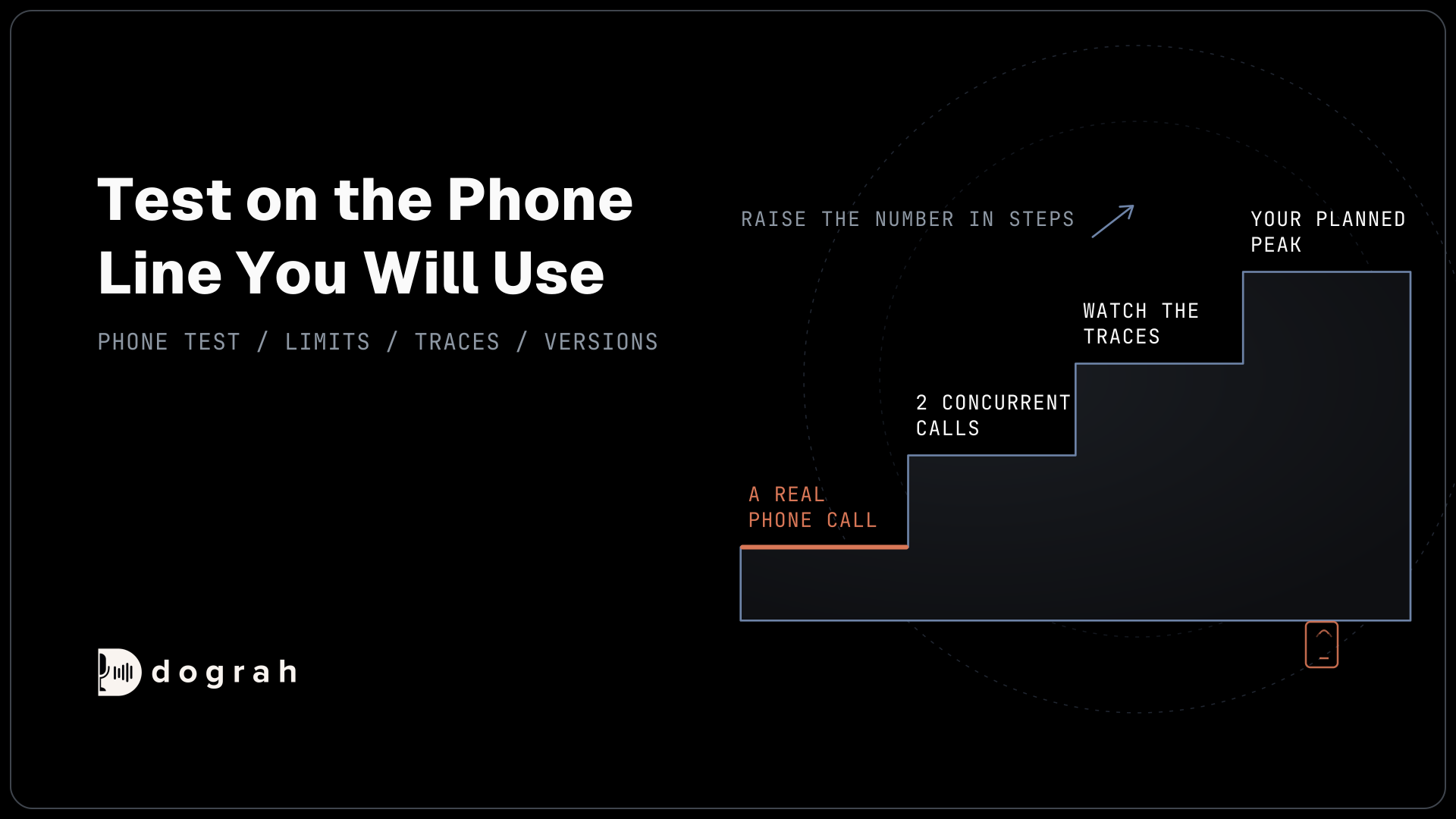
Then run a small load test. Start a campaign at 2 concurrent calls, watch the traces for slower turns and provider errors, and raise the number in steps.
Check: at your planned peak, turn times stay close to what you saw at 2 calls, and no provider reports rate-limit errors.
Step 4: Wire monitoring before the first live call
Set up monitoring before real callers arrive, so the first bad call is caught the same day. Add a QA node and set its Sample Rate (%) to 5-10% once the agent is stable. QA scores each step of the call separately, with tags, a 1-10 score and a summary.
Connect Langfuse so each run page has a View Trace link, and point a Webhook node at your system so every result lands there. For dashboards across many calls, Call events in Platform Settings exports stage latencies, silence warnings and pipeline errors to your own BigQuery table.
Campaigns also guard themselves. The Circuit Breaker is on by default and pauses a campaign when half the calls in a 2-minute window fail, once at least 5 have ended. It also pauses at once if a model provider rejects your key or billing. You can change the percentage, window and minimum under Advanced Settings.
Check: a test call shows a trace, a QA result and a webhook delivery in your system.
Join the Dograh Community
Dograh is an OSS alternative to Vapi. Join our Slack community for queries, releases, best practices & community interactions.
Step 5: Pin the version and plan the way back
Decide which version takes calls, and how you will stop it, before you raise volume. Click Publish, add a Version name and a Change description, and publish. Production keeps running that version while you edit the next draft.
The API Trigger's production URL runs the published version, and its test URL runs the latest draft. Keep your systems on the production URL and your tests on the test URL.
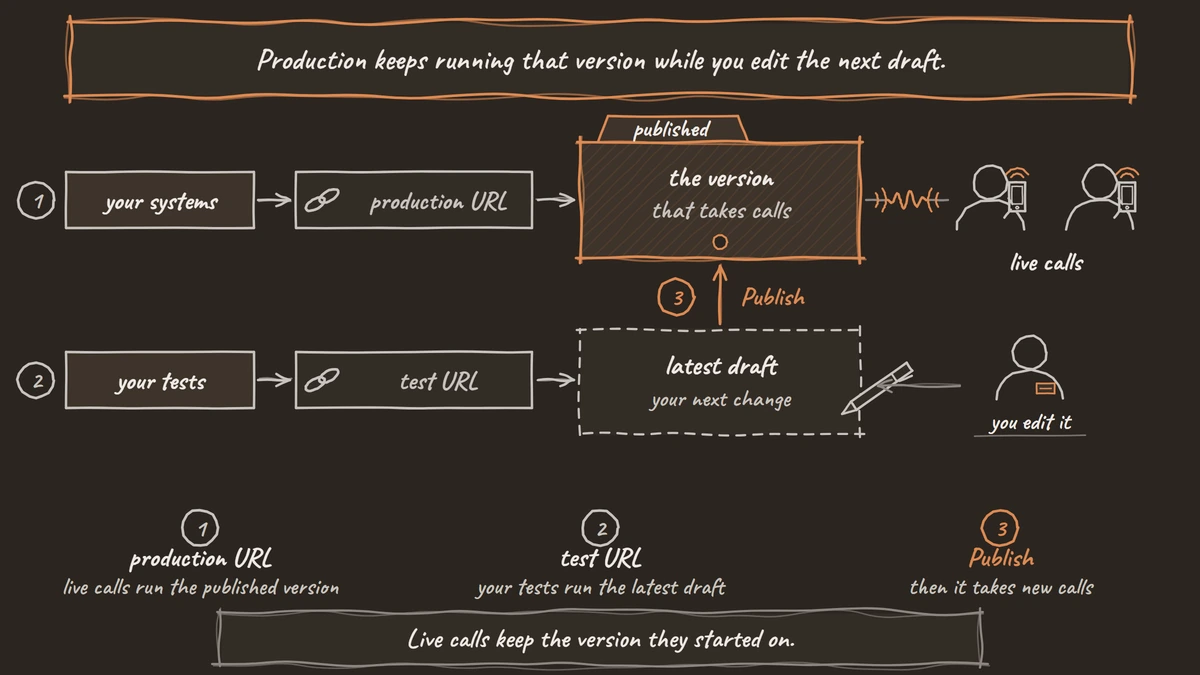
Every publish is saved in Version History, where you can open and compare older versions, and a campaign can be pointed at a specific saved version. In a campaign's traffic split, choose a numbered version to keep it fixed, or Latest published to follow new releases. Live calls keep the version they started on.
To back out, click Pause Campaign, then publish the previous settings again as a new version. If the Circuit Breaker paused the campaign, fix the cause and press Resume.
Check: Version History shows your release notes, and the campaign shows the version you meant to run.
Before you ship it
Run the checklist again on launch day.
| Step | What to check | Pass |
|---|---|---|
| Phone test | A real call on your callers' carrier | Names and numbers transcribed right, transfers connect |
| Phone numbers | Inbound workflow and default outbound set | Each number reaches its agent |
| Concurrency | Carrier, model provider and Dograh limits | No rate-limit errors at planned peak |
| Monitoring | QA sample, traces, webhook, Call events | One test call visible in each |
| Version | Published version and campaign pin | Release notes saved, campaign on the right version |
Set your own pass lines from these first calls, and raise volume in steps. One good day proves little. The EVA-Bench study found that accent and noise changes alone shifted voice agent scores by up to 0.314. Expect real callers to ask things you never planned for, and expect to change the flow in the first weeks, one published version at a time.
Glossary
- Narrowband audio
- Phone audio sampled at 8 kHz, which drops the higher sounds that separate letters such as s and f. Most phone calls still reach a voice agent this way.
- Concurrency limit
- The number of calls that can run at the same time. For a voice agent it is the lowest of the phone provider's, each model provider's and the platform's own limit.
- Circuit Breaker
- A campaign setting, on by default in Dograh, that pauses dialling when the share of failed calls in a short window passes a threshold, so a broken agent does not work through a whole list.
- Published version
- The saved agent version that live calls run. Edits go to a draft until you publish, and a campaign can stay on one numbered version.