
To build an AI sales agent, describe the call, write the qualifying questions and approved objection replies, then add a CRM note, a transfer to a rep and a results webhook. For teams that want to own that agent, Dograh, the open-source AI voice agent platform you self-host or run on Dograh Cloud, builds it from your description.
Key Takeaways
- Write the lead's answers to your CRM before the transfer to a rep starts.
- Give objections approved replies, and never let the model invent a price.
- Dograh's Agent Builder drafts the agent, and its API Trigger calls each new lead.
Here we build an AI sales agent, step by step, in Dograh. It calls web leads within moments, asks the qualifying questions, answers objections from approved replies and puts hot leads through to a rep. Then we talk about how the results reach your CRM and how follow-up calls run.
What you need before you start
This build covers the whole loop for one sales line, inbound web leads first and follow-up calls after. If you want the background on what a sales agent should do on the phone, read our post on what an AI sales agent does all day. For a cold list from scratch, with voicemail and opt-out paths, see our guide to building an AI cold calling agent.
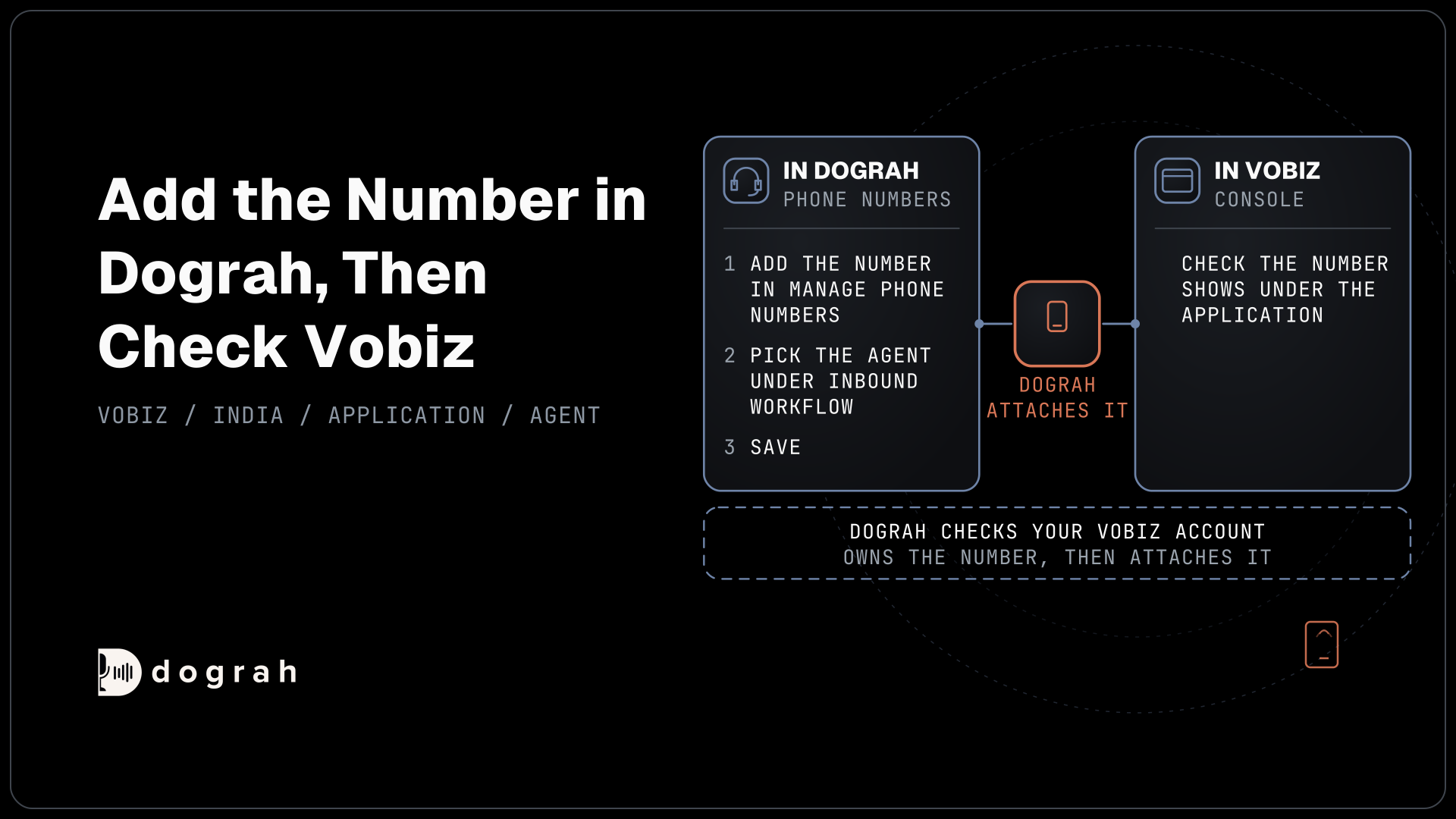
You need a Dograh workspace and a phone number on Twilio, Telnyx, Plivo, Cloudonix or Asterisk ARI, the routes where Transfer Call can put a lead through to a rep. Have a rep's number or queue ready, an endpoint in your CRM or in n8n that accepts a POST request, and access to the backend of your web form. Create an API key under Developers in the sidebar, since the form will use it to start calls.
You can run the platform on its cloud or self-host it from its code on GitHub. Self-hosting means the server, the database and the upgrades are yours, with community support on open source and custom SLAs on Enterprise. A self-hosted install also needs a Dograh Service Key in Model Configurations to use the Agent Builder.
Self-hosted Dograh has no per-minute platform fee, but servers, model keys and phone minutes still cost money. Dograh Cloud charges a 1¢-a-minute platform fee. Either way, carrier minutes and model usage are billed by the providers you pick, so price a test week before you move a full lead list onto the agent.
Consent comes before any call you place. The FCC's 2024 ruling on AI-generated voices treats an AI voice as an artificial voice under the Telephone Consumer Protection Act (TCPA). A sales call from your agent to a US mobile or home line therefore generally needs the lead's prior express written consent, so put a consent box naming your business on the form. Our post on outbound calling rules for voice agents covers state hours and stop requests, and you should confirm your consent wording and calling rules with counsel before the first call.
Step 1: Describe the sales agent in Agent Builder
Start by describing the call in plain words and letting the builder draft it. Open Voice Agents in the sidebar, select Create Agent and choose Use Agent Builder. Describe the agent, for example "Build me an agent that calls people who requested a demo on our website, asks four qualifying questions, handles common objections and transfers ready buyers to a sales rep."
The builder may ask a few questions, then shows a card titled Your agent requirements. It lists Information to collect, Business rules, Successful outcome and any Assumptions to confirm. Read the business rules closely, since they become the agent's instructions. Select Request changes to fix anything, or Approve & build when it matches your sales process.
The finished agent opens in the editor with the tabs Builder, Canvas, Model, Variables and Settings. You can keep asking the Builder tab for changes in plain words, or edit nodes by hand on the Canvas. Select Test agent to save it and publish version 1.
Check: the Canvas shows a Start Call node, at least one Agent node and an End Call node, and a browser test call reaches the first question.
Step 2: Write the opening and the qualifying questions
The opening should be fixed text, because it carries your business name and the reason for the call. Open the Start Call node and fill in the Greeting Text, which plays word for word the moment the call connects. A good opening is Hi {{first_name | there}}, this is the assistant for Northwind Analytics, calling about the demo you asked for on our website. Is now a good time for two quick questions? The text after the bar is the fallback, so a missing name is never spoken as a gap.
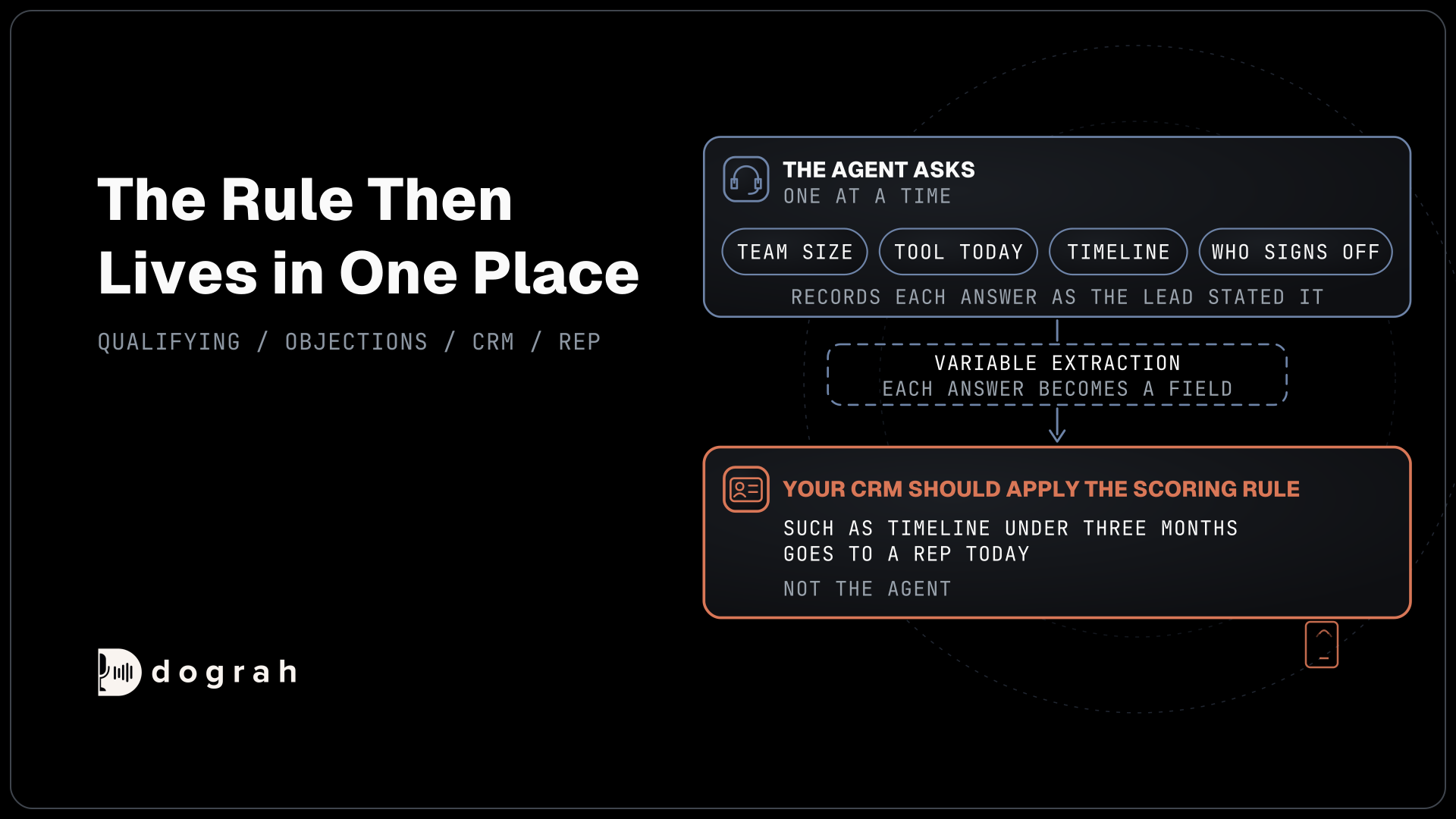
Then write the qualifying questions into the main Agent node's Prompt. Keep the list to four, such as team size, the tool they use today, their timeline and who signs off, and tell the agent to ask one at a time. The lead's answers become fields through variable extraction. Switch on Enable Variable Extraction and list each answer under Variables to Extract with a name, a type and a hint, such as timeline (string): when the lead wants to start.
Extraction is an AI step, so the agent records each answer as the lead stated it, with the transcript and recording as the exact record. Your CRM, not the agent, should apply the scoring rule, such as "timeline under three months goes to a rep today". The rule then lives in one place.
Check: in the Variables tab, set first_name to a test name and run a browser test call. The greeting uses the name, and after the call the run shows your four extracted fields.

Open Source Alternative to Vapi / Retell
Self-hosted voice agent platform — no per-minute fees
dograh-hq/dograh
Star on GitHub
Step 3: Add a node for objections
Objections deserve their own node, so the answers stay short and approved. On the Canvas, add an Agent node named Objections and write the replies your sales team already uses into its Prompt. Cover the ones your reps hear every week, such as "too expensive" or "we already have a tool", with one or two sentences each.
Connect it with edges. From the qualifying node, draw an edge with a condition such as "The lead raises a concern about price, an existing tool or timing". From the Objections node, draw one edge back to the qualifying node, "The concern is answered and the lead is willing to continue", and one to an End Call node, "The lead is not interested". Choosing an edge is the model reading your edge condition, so test each one with several phrasings.
Rules that apply to the whole call belong in the Global Node, which adds its prompt to every node that has Add Global Prompt switched on. Put the persona there, plus the rule that matters most in sales, which is to never quote a price, discount or delivery date your system did not send. A lead who asks for a number the agent does not have hears that a rep will confirm it.
Check: run one browser test call for each objection you wrote. Each call reaches the Objections node, gets an approved reply and returns to the questions or ends politely.
Step 4: Write the CRM note, then transfer to a rep
A hot lead should reach a rep who already knows what they want. Open Tools in the sidebar, select Create Tool and create an HTTP API tool named Save lead notes that POSTs the extracted answers to your CRM endpoint. Add a Preset Parameter named workflow_run_id with the value {{initial_context.workflow_run_id}}, so your CRM can ignore a retried request. The HTTP API tool waits 5 seconds by default before it gives up, which you can raise in Timeout (ms).
Next, create a Transfer Call tool. Keep Destination Source on Static / Template and enter your rep's number or queue, such as +1415555XXXX. Dograh calls the destination first and connects the caller only when someone answers. On Twilio you can add a short spoken introduction that both people hear, and it is off by default.
Attach both tools to the qualifying node through its HTTP & Tools tab, and set the order in the Prompt so that a lead who is ready to talk to sales triggers Save lead notes first and Transfer Call second. If nobody answers within the Transfer Timeout, 30 seconds by default, the agent is told and the lead stays on the line. Tell it to offer a callback time and save that request with the same tool. If your reps prefer booked meetings, see our post on connecting a voice agent to Google Calendar.
Check: transfers only run on phone calls, so place a phone call to your own mobile, say you are ready to buy, and confirm the CRM record updates before the rep's phone rings.
Step 5: Call new web leads through the API Trigger
Speed matters with web leads, so the form should start the call itself. Add an API Trigger node to the agent. Its settings show a production URL for the published agent and a test URL for the latest draft, and the API Trigger only runs the published version on the production URL. Publish the agent before you point the live form at it.
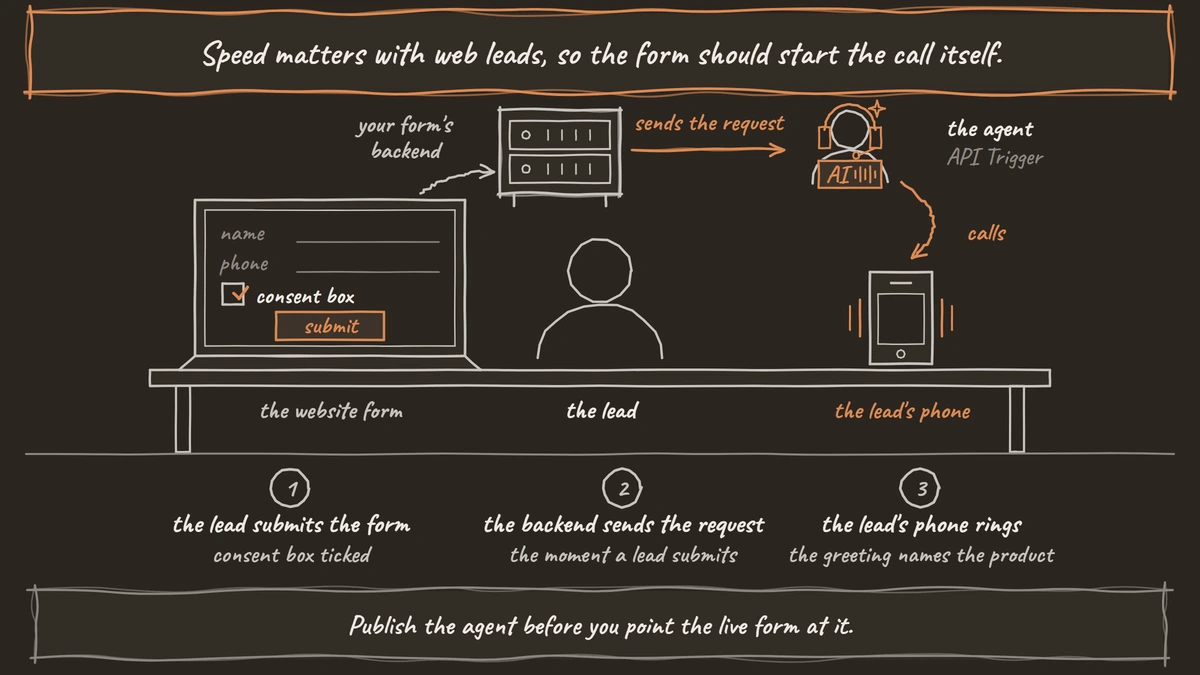
Your form's backend sends the request below the moment a lead submits the form. It tells Dograh who to call in phone_number, and passes what the lead asked about in initial_context, so the greeting can use first_name and product.
curl -X POST https://api.dograh.com/api/v1/public/agent/{uuid} \
  -H "Content-Type: application/json" \
  -H "X-API-Key: YOUR_API_KEY" \
  -d '{
    "phone_number": "+1415555XXXX",
    "initial_context": {
      "first_name": "Maria",
      "product": "analytics demo",
      "lead_source": "pricing page"
    }
  }'
What this does: It starts an outbound call to Maria within moments of her form arriving. Because
first_nameandproducttravel with the call, the agent's first sentence names her and the demo she asked for.
The response carries a workflow_run_id, so store it on the lead in your CRM. Self-hosted installs use your own instance's address in place of api.dograh.com.
Check: send the request to the test URL with your own number. Your phone rings, and the greeting names the product you sent.
Step 6: Send results to the CRM and grade calls with QA
Every call should leave a record, including the ones that never reached a rep. Add a Webhook node to the agent, set HTTP Method to POST and the Endpoint URL to your CRM endpoint, and write the Payload Template. The payload below sends the call ID in call_id, the lead's answers from gathered_context and the outcome in disposition.
{
  "call_id": "{{workflow_run_id}}",
  "phone_number": "{{initial_context.phone_number}}",
  "team_size": "{{gathered_context.team_size}}",
  "timeline": "{{gathered_context.timeline}}",
  "disposition": "{{gathered_context.call_disposition}}",
  "recording_url": "{{recording_url}}",
  "transcript_url": "{{transcript_url}}"
}
What this does: After each call, your CRM gets the answers, the outcome and links to the recording and transcript on the lead's record. A temporary failure such as a timeout is retried automatically.
To fill disposition, turn on call disposition extraction in the agent's Settings, with outcomes such as qualified, callback and do_not_call. Then add a QA node anywhere on the Canvas. It reads each transcript after the call ends and grades every node, so write its System Prompt for sales, such as whether all four questions were asked and whether any price was mentioned. Set Sample Rate (%) below 100 once volume grows.
Check: after a test call, the CRM record shows the answers and the outcome, and the run page shows the QA results.
Join the Dograh Community
Dograh is an OSS alternative to Vapi. Join our Slack community for queries, releases, best practices & community interactions.
Step 7: Follow up the leads you missed by campaign
Leads who did not pick up still deserve a second and third try. Export them from your CRM as a CSV with a phone_number column, plus columns such as first_name and product that the greeting can use. Open Campaigns, create a campaign with the agent's latest published version and upload the file.
In the campaign's advanced settings, turn on Enable Retries, set Max Retries and Retry Delay (seconds), and choose under Retry On whether busy, no answer and voicemail count. Then set the Call Schedule. A campaign uses one Timezone with Time Slots by weekday, so split a national list by time zone and keep every slot inside the hours your counsel approved.
Check: the campaign runs, calls go out only inside your time slots, and each result arrives in your CRM through the same Webhook node.
Before you ship it
Test the agent the way leads will hear it, on a real phone line. Most phone calls still reach the agent as 8 kHz audio, while a browser test call runs at 16 kHz, so product and competitor names can sound different to the speech model. Add them to the Dictionary in the agent's Settings, then try each objection again by phone.
Start small. Send a day's web leads through the agent, read the QA results and listen to the transfers, then change one node at a time and publish a new version for each change. Our guide on how to build an AI voice agent covers testing and split tests in more depth. Measure the agent by its handoffs, meaning transfers that reach a rep with correct notes, before you add more calls.
Glossary
- Variable extraction
- An AI step that turns a lead's spoken answers into named fields, such as timeline or team_size, stored in gathered_context after the node finishes.
- Edge condition
- A plain-language rule on a link between two nodes. The model reads the conversation and follows the edge whose condition fits, so test each one with varied phrasing.
- API Trigger
- A node that gives an agent a URL your systems can call to start an outbound call, with a production URL for the published agent and a test URL for the draft.
- Call disposition
- A single outcome code recorded for each call, such as qualified, callback or do_not_call, chosen from your list after the call ends.