
To build an AI appointment scheduler, lay the call out as connected steps that collect the details, offer open slots, recheck and book, confirm, and handle changes and failures, with tools that reach your calendar. Dograh, the open-source AI voice agent platform, builds it on a visual canvas you can run on your own servers or on Dograh Cloud.
Key Takeaways
- Give each scheduling stage its own Agent Node, joined by plain-language conditions.
- Check the slot again at booking time, since another caller may take it.
- Dograh links any calendar through an HTTP API tool or an MCP tool.
A scheduler that only books is half the job, since callers also move, cancel and ask for times that are gone. Here we build a full AI appointment scheduler, step by step, in Dograh, our open-source AI voice agent platform. Then we talk about testing and hosting.
What the scheduler does on a call
A scheduler call has five stages, and each one is a separate job. The agent collects what the booking needs, offers a few open times, books the one the caller picks, confirms it out loud, and handles a caller who wants to move or cancel instead. A failure path runs beside all of them for the moments a tool fails or the caller asks for a person.
Giving each stage its own step keeps every prompt short and every hand-over visible. Our post on the AI booking agent builds one booking step from start to finish, and this post builds the full scheduler around it.
Phone access is where this pays off. In MGMA's December 2025 Stat poll, medical practice leaders named no-shows (27%), online scheduling (24%), phone access (22%) and wait times (21%) as their top patient access focus for 2026, from 236 responses. In an August 2026 MGMA poll, 32% of medical groups saw higher no-show rates so far than in 2025, which makes an easy reschedule worth building.
Callers still expect to change bookings by phone, too, and 77% of the 1,011 Americans in Zenoti's 2025 survey, a vendor survey, said calling is always or mostly the easiest way to update appointments.
What you need before you start
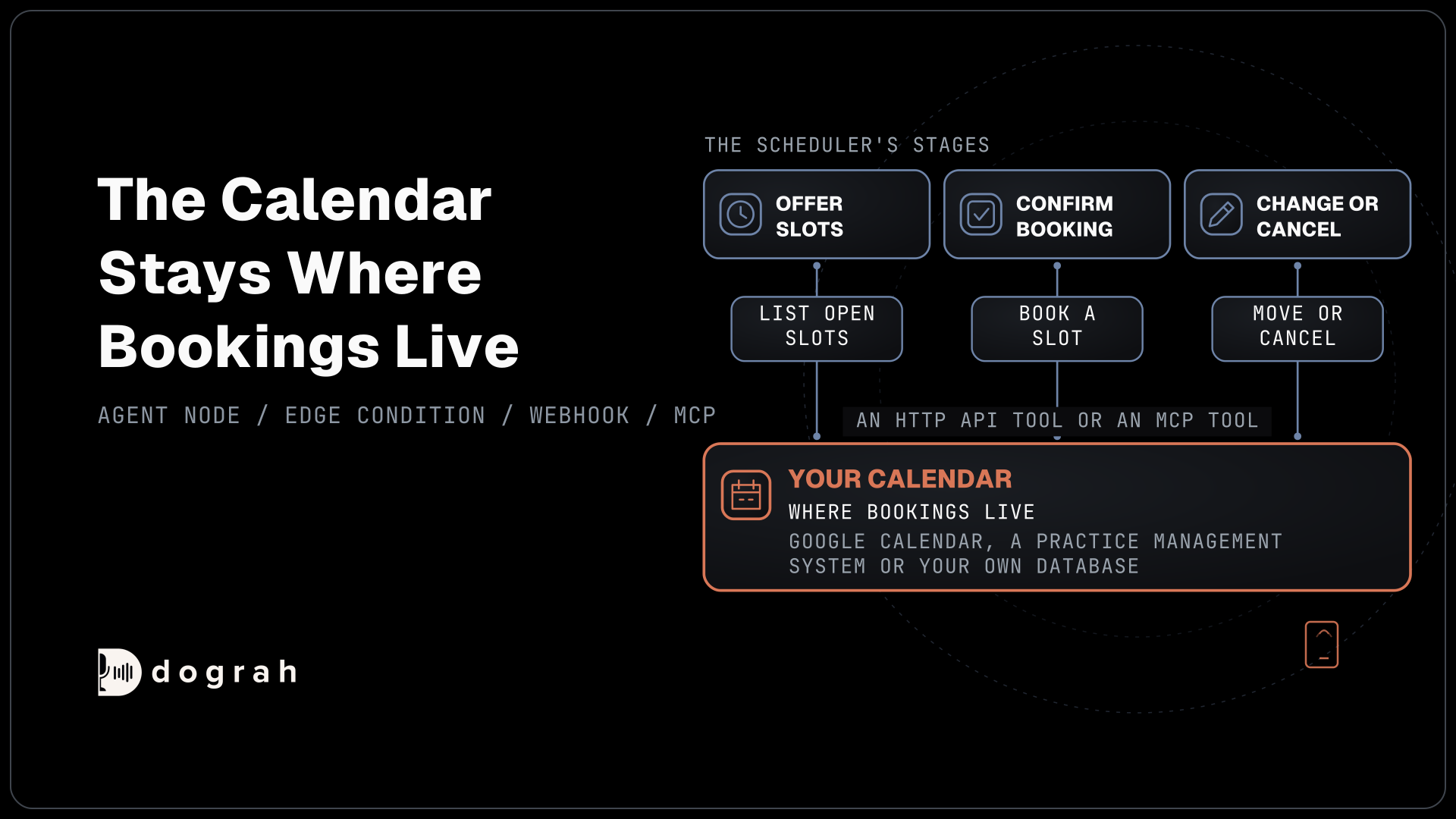
You need a calendar or booking system the agent can reach, a phone number on a carrier, and a place to run Dograh. The calendar side is three small endpoints, one to list open slots, one to book a slot and one to move or cancel a booking, or a single MCP server that offers the same three actions.
Dograh connects to any calendar through an HTTP API tool or an MCP tool, so the same scheduler works with Google Calendar, a practice management system or your own database. If your calendar is Google's, our guide to connect a voice agent to Google Calendar builds the slot and booking endpoints.
Run Dograh on your own server with Docker Compose, or sign up for Dograh Cloud. Connect a number from Twilio, Telnyx, Plivo or another supported carrier under Telephony when you reach the phone tests.
Step 1: Start from a blank canvas
Build the scheduler by hand on the canvas, which works the same on a self-hosted install of the current release and on Dograh Cloud. Open Voice Agents, choose Create Agent, then Blank Canvas. The editor opens with one Start Call node holding a starter greeting and prompt.
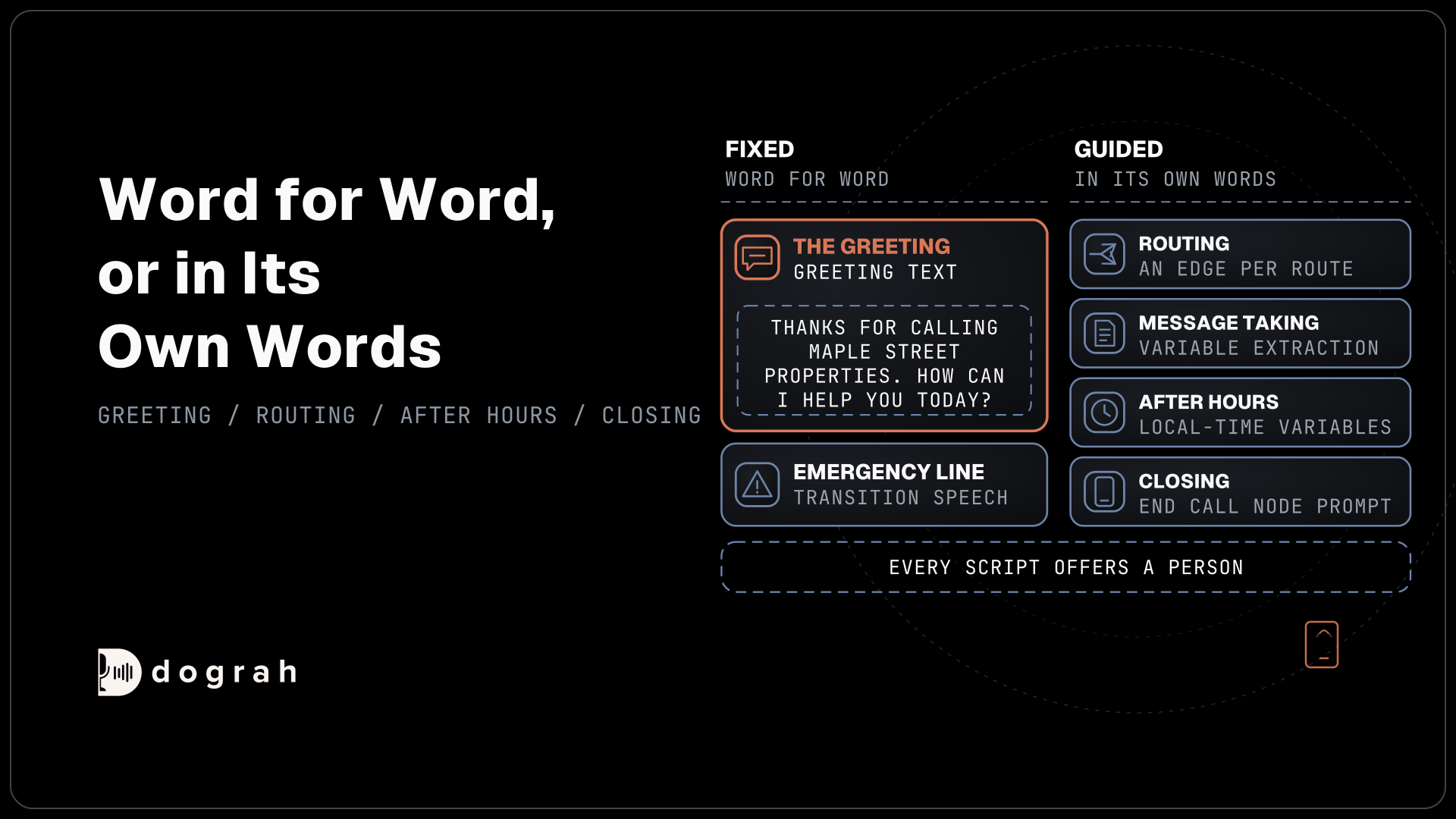
Double-click the Start Call node. In Greeting Text, write the business name and the reason for the line, such as "Thanks for calling Northside Dental, I can book, move or cancel appointments." In Prompt, say who the agent is and that it should find out first whether the caller wants a new booking or a change. Add the date with two variables, {{current_weekday_America/New_York}} and {{current_time_America/New_York}}, so the agent can work out what "next Tuesday" means.
Dograh Cloud also offers the Agent Builder, which drafts an agent from a plain description, though you still shape the stages below on this canvas.
Check: A browser test from Test Agent, then Run Test, greets you with your Greeting Text.
Step 2: Lay out one Agent Node per stage
Each stage becomes an Agent Node with its own short prompt. Select Add node at the top right of the canvas and add four Agent Nodes, named Collect details, Offer slots, Confirm booking and Change or cancel, plus one End Call node.
Draw the path by dragging from one node to the next. Start Call goes to Collect details and to Change or cancel. Collect details goes to Offer slots, Offer slots to Confirm booking, and both Confirm booking and Change or cancel go to End Call. Two edges run backwards, from Offer slots to Collect details and from Confirm booking to Offer slots. Double-click each edge, and in Edit Condition give it a Condition Label and a Condition the model checks against the conversation.
Write conditions the model can judge from what was said. "Caller is ready" is vague. "The caller has given the service, a preferred day and their name" is a condition the model can check. The edge from Offer slots to Confirm booking reads "The caller picked one of the offered times", and the edge from Offer slots back to Collect details reads "None of the offered times suit the caller", so the agent asks for another day.
An edge can also carry Transition Speech, a fixed line spoken as the call moves on, such as "Let me look at the calendar." It plays word for word, so it cannot include the caller's name or the time.
Check: Every Agent Node has at least one outgoing edge, and Save works with no validation errors.

Open Source Alternative to Vapi / Retell
Self-hosted voice agent platform — no per-minute fees
dograh-hq/dograh
Star on GitHub
Step 3: Add the calendar tools
The tools reach your calendar, and each node gets only the tools its stage needs. Open Tools, select Create Tool, choose External HTTP API, and create three tools named check_slots, book_slot and change_booking. Point each at its endpoint, give it a Description that says when to use it, and keep the 5000 ms Timeout (ms) unless your calendar is slow. Tools do not retry on their own, so an error comes straight back to the agent.
Fixed values go in Preset Parameters. Add workflow_run_id with {{initial_context.workflow_run_id}} and the caller's number with {{initial_context.caller_number}}, so the model never types them. The service, day and time go under LLM Parameters, since the agent hears them on the call. The HTTP API tool page covers each field.
The request below is what book_slot sends. slot_id is the time the caller picked from check_slots. Together, workflow_run_id and slot_id let your system ignore a repeat of the same request in one call:
{
  "slot_id": "dec02-1030-dr-patel",
  "service": "cleaning",
  "caller_name": "Maria Lopez",
  "caller_number": "+1415555XXXX",
  "workflow_run_id": 48213
}
What this does: It asks your booking endpoint to book the 10:30 cleaning for Maria. If the call repeats the request, the same
workflow_run_idandslot_idtell your endpoint it already booked this one, while a new slot after aslot_takenreply still books.
Set each tool's Messages, which play a short line as it starts and an update if it runs long, such as "Let me check what's open." Under Tools on each node, attach check_slots to Offer slots and Change or cancel, book_slot to Confirm booking, and change_booking to Change or cancel, so a move can offer new times.
If your calendar sits behind an MCP server, create one MCP Server tool instead and choose which of its tools each node may use. Dograh opens one session per call, allows 30 seconds to connect and waits up to 300 seconds for a tool reply by default.
Check: A browser test that asks for a cleaning next week makes one request to check_slots and reads back real times.
Step 4: Recheck the slot before you confirm
A slot can go between the moment it is offered and the moment it is booked, because another caller or the front desk may take it. So the booking endpoint checks the slot again when book_slot arrives, and a unique constraint on the provider and time in your database stops two bookings from landing on one slot.
When the slot is gone, the endpoint returns a clear reply such as slot_taken. The Confirm booking prompt tells the agent to apologize, and its edge back to Offer slots, "The time the caller picked was taken", returns the call there, where check_slots finds the next two open times. When the write fails for any other reason, the booking stays unconfirmed. Emergent's build guide gives the same rule, to keep the booking unconfirmed and either retry safely or release the reserved slot.
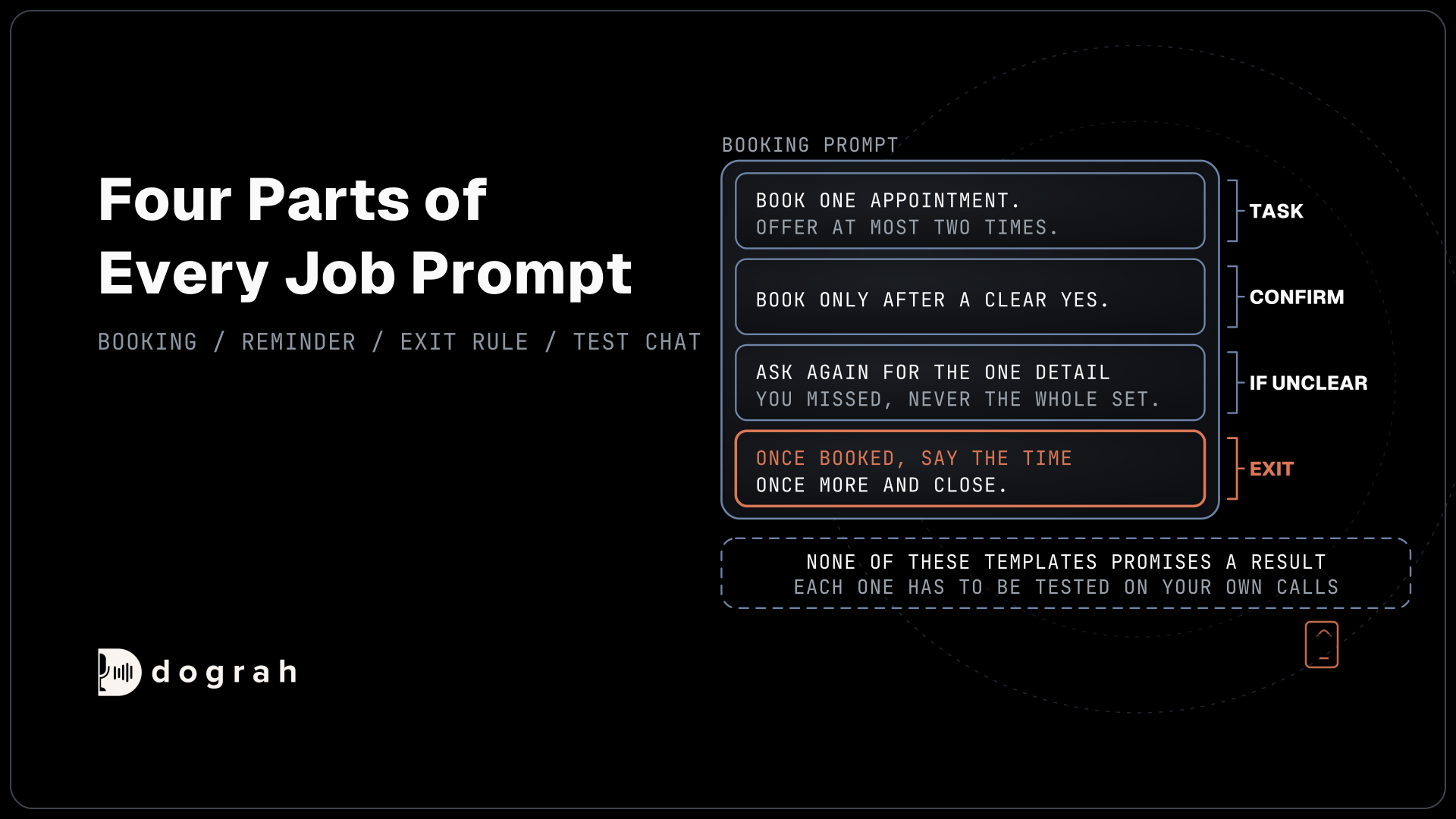
The Confirm booking prompt carries two more lines. The agent reads the service, day and time back before calling book_slot, and it confirms the booking only after book_slot returns success. A caller who hears "you're booked" must really be booked.
Check: Book a slot in your calendar by hand, then try to book it on a test call. The agent offers other times.
Step 5: Save the booking fields
Saved fields turn the call into a record your systems can use. Double-click Confirm booking, switch on Enable Variable Extraction, and add four Variables to Extract, all of Type String, named service, appointment_date, appointment_time and caller_name. Give each an Extraction Hint, such as "the date of the booked appointment, as YYYY-MM-DD".
Variable extraction is an AI step that saves each answer, and the Extraction Prompt can tell it to keep the caller's own words, while the call recording remains the exact record. The saved values go to the run record and to Webhook nodes, as the Agent Node page describes. Later prompts do not read them, which is why every branch in Step 2 is an edge condition.
Check: After a test booking, the run shows the four fields with the values you gave.
Step 6: Route failures and hand-offs
Every stage needs a way out when things go wrong. Add one more Agent Node named Hand-off, with edges into it from each stage, such as "The calendar tool returned an error twice" or "The caller asks for a person," and one edge from Hand-off to End Call. A vague date gets its own line in each prompt instead, asking the caller for a day once more before moving on.
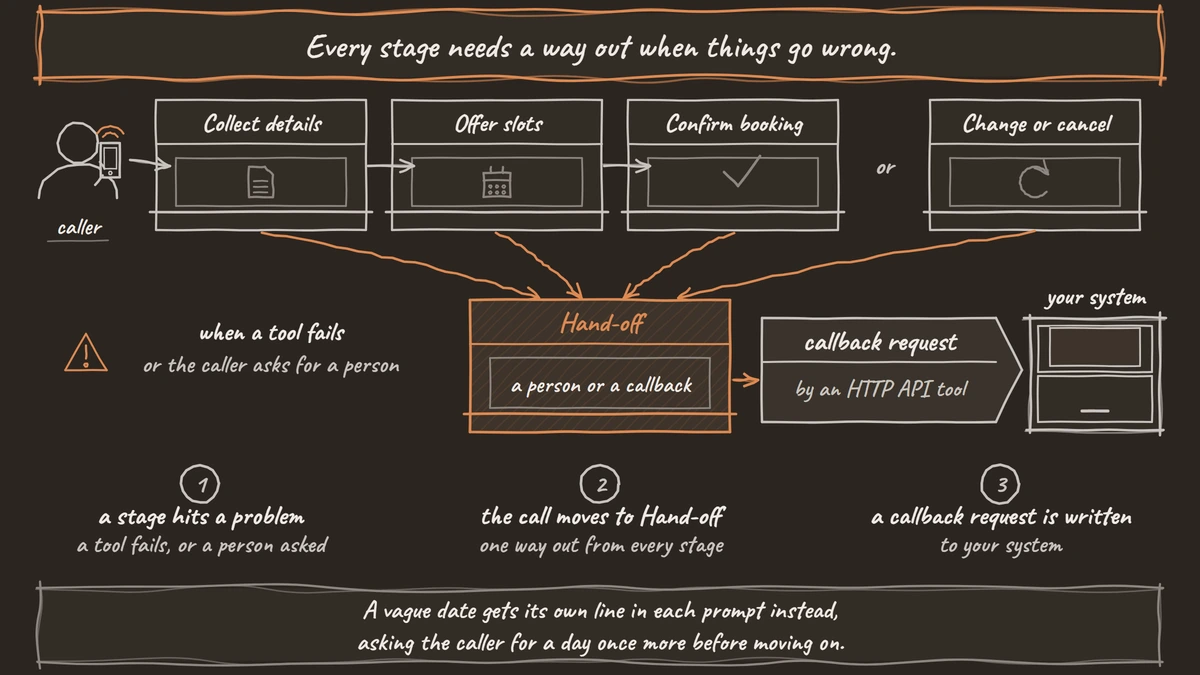
In Hand-off, attach a Transfer Call tool with the front desk number as its Transfer Destination. Transfer Call works on Twilio, Telnyx, Plivo, Cloudonix and Asterisk ARI, and Dograh calls the destination first and connects the caller only when someone answers. If nobody answers within the 30-second default, or the line is busy, the agent hears why and the call continues. A voicemail that picks up counts as answered, so turn voicemail off on the front desk number or set it to pick up later than the Transfer Timeout. The Hand-off prompt then takes a callback request, which a fourth HTTP API tool writes to your system. On Exotel, Vobiz, Vonage and WhatsApp numbers, where Transfer Call is not available, Hand-off goes straight to the callback request.
For a written confirmation, the agent can send a text or WhatsApp message through your own provider with an HTTP API tool, as in our guide to send WhatsApp messages from a voice agent.
Check: Switch off your calendar endpoint and call. The agent says it cannot book right now and offers a person or a callback.
Step 7: Send the result with a Webhook node
When the call ends, a Webhook node sends the result to your system. Select Add node, add a Webhook node, enter your Endpoint URL, and write a Payload Template with {{gathered_context.service}}, {{gathered_context.appointment_date}}, {{gathered_context.appointment_time}}, {{gathered_context.caller_name}} and the run's ID.
The Webhook node retries temporary failures, such as timeouts, 429 and most 5xx replies, up to five attempts in all. Key every record on the run ID, so a retry never creates a second booking note.
Check: A finished test call produces one record at your endpoint with all four fields.
Join the Dograh Community
Dograh is an OSS alternative to Vapi. Join our Slack community for queries, releases, best practices & community interactions.
Before you ship it
Test the scheduler the way callers will break it. Put test values in the Variables tab, then run browser tests for a new booking, a reschedule, a cancellation, a taken slot and a date the caller cannot pin down. Transfers run only on phone calls, so test Hand-off with the Phone Call button and answer on a second phone. Then select Publish. For the reminder calls that follow a booking, see our appointment reminder script templates.
Where the scheduler runs is your choice. Hosting Dograh on your own server adds no per-minute platform fee. You still pay for the server, your model keys and phone minutes, and your team looks after the database and each upgrade. Support comes from the open-source community, and Enterprise plans add custom SLAs. Dograh Cloud takes the hosting off your hands for a 1¢-a-minute platform fee, with models and phone minutes on top.
To recap, you started a blank canvas, gave each stage its own node and condition, added calendar tools, rechecked slots at booking time, saved the booking fields, routed failures to a person and sent the result out with a webhook. The calendar stays the place where bookings live, and the agent only reads and writes it.
Glossary
- Preset Parameter
- A fixed value a Dograh tool sends on every request, such as the run ID or the caller's number, so the model never types it.
- Slot recheck
- Checking a time is still free at the moment of booking, not only when it was offered, so two callers never get the same slot.
- Payload Template
- The body a Dograh Webhook node sends when the call ends, written with variables such as the booked service and date that fill in per call.
- MCP Server tool
- A Dograh tool that connects a Model Context Protocol server, so its actions, such as booking a slot, become tools the agent can call.