
To send WhatsApp messages from a voice agent, give it an HTTP API tool that asks your WhatsApp Business account to send an approved template, or post the call results after the call. Get opt-in first. For teams that keep their own WhatsApp account, Dograh, the open-source AI voice agent platform, runs it on your servers or Dograh Cloud.
Key Takeaways
- After a phone call, WhatsApp usually needs an approved template, not free text.
- Opt-in must name your business, and a phone call can collect it.
- Dograh's HTTP API tool sends the request to your WhatsApp Business account.
A WhatsApp message turns a spoken link or booking time into something the caller can tap later. Here we build that send, step by step, in Dograh, our open-source AI voice agent platform, once Meta's rules are clear. Then we talk about messages after the call and testing.
When a WhatsApp message helps during a call
A WhatsApp message helps when the caller needs something they cannot hold in their head. A booking time, an address, a reference number or a link is hard to remember from a call and easy to find later in a chat. In many countries WhatsApp is also where customers already read messages from businesses, so a confirmation there gets seen.
Sensitive steps follow the same idea. The agent never collects documents or card numbers on the call. Instead, a tool asks the business's own system to send a secure upload link or its payment link, and the caller finishes in the page that opens. A common pairing is a booking confirmation, as in our guide to build an AI appointment scheduler.
Some hosted voice platforms build a send-WhatsApp action into the agent, limited to approved templates and sent through the customer's own WhatsApp Business account once it is connected to the platform. The open path keeps the send logic with you as well. The caller gives a spoken yes, and your own endpoint sends the message, so the opt-in checks, the opt-out list and the send records stay in systems you run.
Opt-in, templates and the 24-hour window
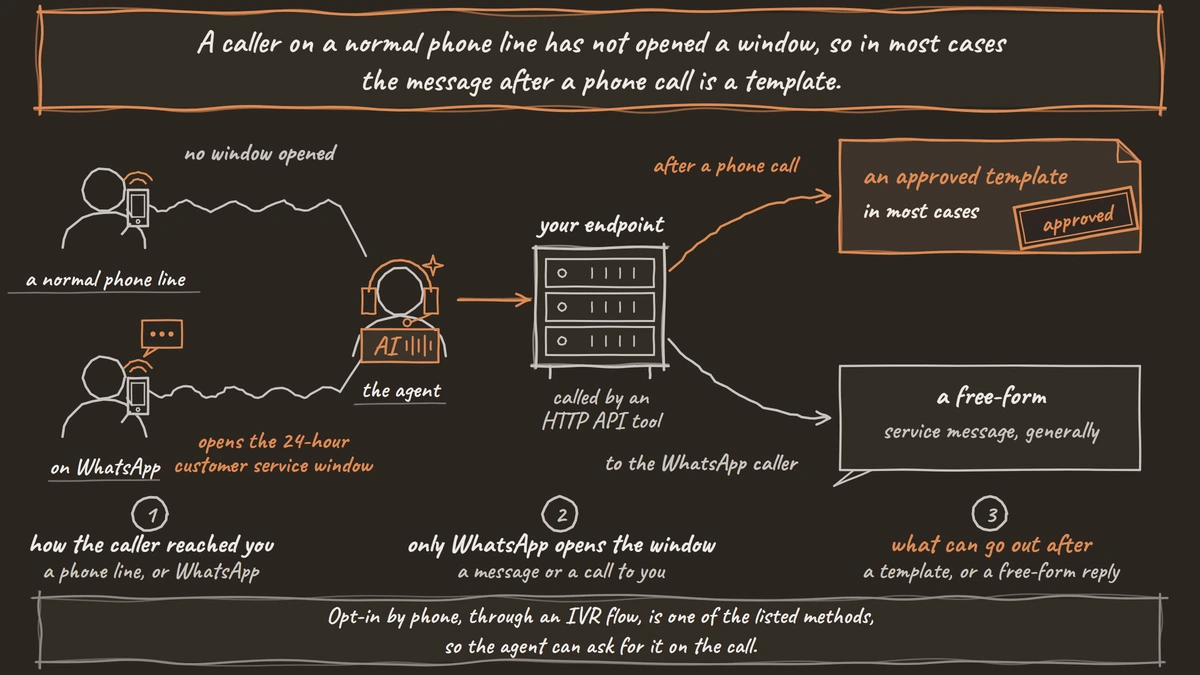
WhatsApp has its own rules for business messages, and they decide what the agent can send. Meta's opt-in rules say the person must clearly agree to receive messages, and the opt-in must name your business. Opt-in by phone, through an IVR flow, is one of the listed methods, so the agent can ask for it on the call.
A template is a message Meta has approved in advance, in one of three categories, authentication, marketing or utility. A utility template answers something the person did or asked for, such as a booking confirmation, and Meta moves a utility template with marketing content into the marketing category.
The 24-hour customer service window decides when free-form messages are allowed. Under Meta's window rules, the window starts when a WhatsApp user messages or calls your business, and once it closes, only approved templates can be sent. A caller on a normal phone line has not opened a window, so in most cases the message after a phone call is a template.
The WhatsApp Business Messaging Policy adds two duties. You must respect every request to stop or opt out, made on WhatsApp or anywhere else, and automated replies need a clear way to reach a person. These are WhatsApp's platform rules, and local privacy and marketing laws apply on top of them, so confirm your own messaging program with counsel.
The call flow for a WhatsApp message
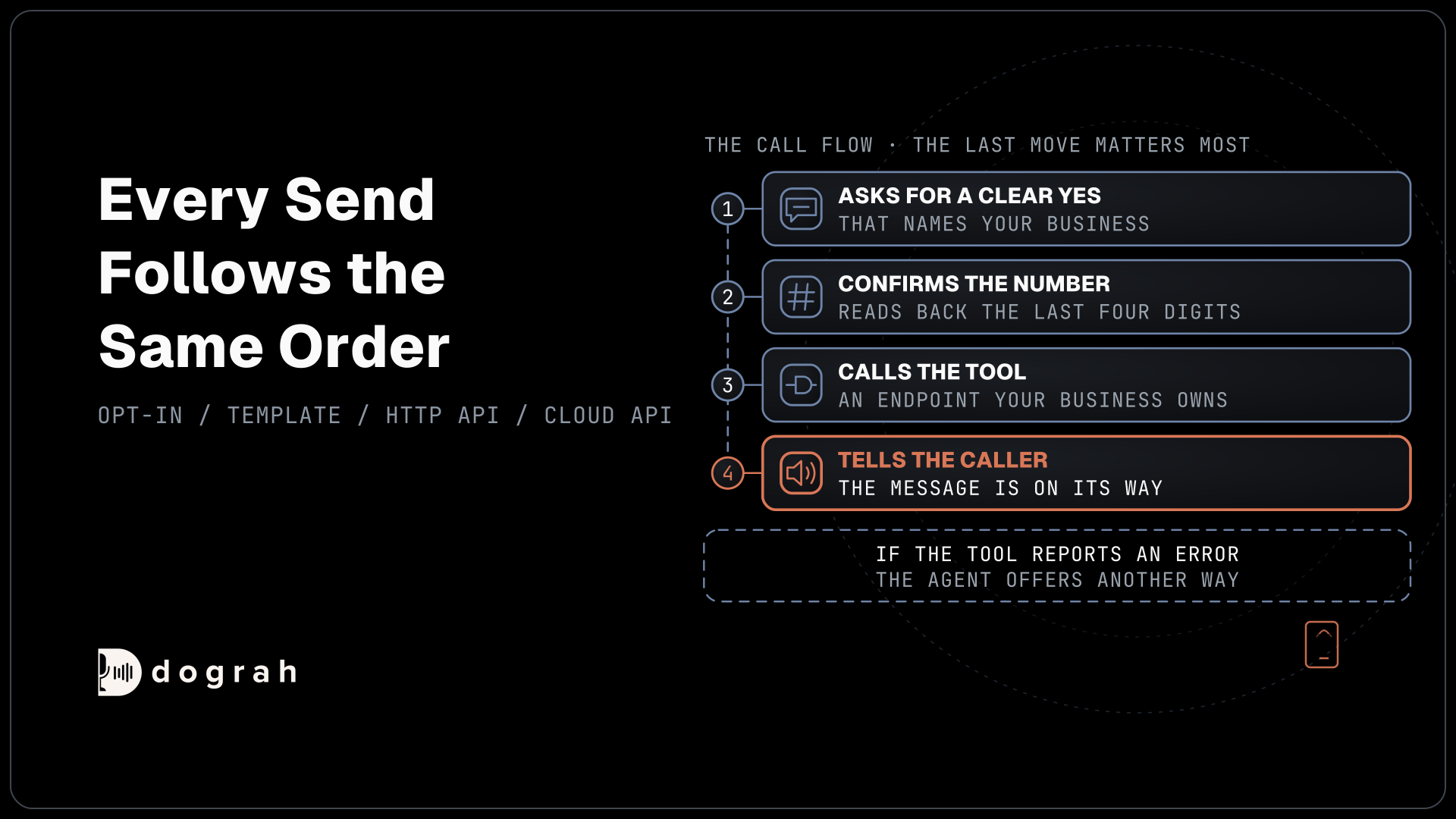
Every WhatsApp send in a call follows the same order, and the last move matters most. First, the agent offers the message and asks for a clear yes that names your business, such as "Can Northside Dental send the booking details to you on WhatsApp?". That yes is recorded in the transcript as part of the opt-in.
Second, the agent confirms the number. On an inbound call the caller's number is known, so the agent reads back the last four digits and asks whether that phone uses WhatsApp. If the message will carry personal details, the agent verifies the caller first with an approved check, such as date of birth, because a phone number finds a record without proving who is calling.
Third, the agent calls the tool, and fourth, it tells the caller the message is on its way. If the tool reports an error, the agent says the message did not go and offers another way, such as reading the details aloud. The same order works for texts, as in our guide to send SMS from a voice agent.
Step 1: Build the endpoint the tool calls
The main path sends the request to an endpoint your business owns, such as a small backend service or an automation workflow. It checks the number against your opt-in records and opt-out list, picks the approved template, asks the WhatsApp Cloud API to send it and returns success or an error.
This keeps control where your records live. The Meta access token stays in your backend instead of the agent's settings, and the wording of every message is fixed in a template the agent cannot rewrite. The recipient and the template name are fixed in the tool's settings, and the agent fills in only the booking time.
The request below is what the agent's tool sends to your endpoint. The to field carries the caller's number, template names the approved message, booking_time fills its blank, and workflow_run_id ties the send to one call.
{
  "to": "+1415555XXXX",
  "template": "booking_confirmation",
  "booking_time": "Tuesday 3 December, 10:30",
  "workflow_run_id": 48213
}
What this does: It asks your endpoint to send the booking confirmation template to the caller on WhatsApp. Your endpoint can refuse a number with no opt-in on file, and can ignore a second request with the same
workflow_run_idso the caller never gets the message twice.
This request is an illustration we wrote. Shape yours around your own templates and checks.
Step 2: Create the HTTP API tool in Dograh
The tool is set up once and attached to the agent's node. Open Tools in the sidebar, select Create Tool and choose External HTTP API. Give it a Tool Name such as send_whatsapp_confirmation and a Description that tells the model when to use it, for example "Send the booking details on WhatsApp after the caller agrees."
Set HTTP Method to POST, paste your endpoint as the Endpoint URL, and keep Timeout (ms) at 5000 unless your endpoint is slow. On the Authentication tab, pick a credential you created under Credentials in the sidebar, such as a Bearer Token for your own service. The HTTP API tool page covers each field.
Fixed values go in Preset Parameters, so the model never types them. Add to with the value {{initial_context.caller_number}} on inbound calls, or {{initial_context.called_number}} on outbound ones. Add template with the value booking_confirmation, and workflow_run_id with Type set to Number and the value {{initial_context.workflow_run_id}}. Put booking_time under LLM Parameters, since the agent fills it from the conversation.
The tool's Messages play a short line as it starts, and an update if it runs long, so set "Sending that to your WhatsApp now" as the start line. The request runs while the line plays, so the caller never sits in silence. Then attach the tool under Tools on the agent's node, and add a prompt line saying to send only after the caller says yes.
Check: The tool shows under Tools on the node, and a test call where you say yes produces one request at your endpoint.

Open Source Alternative to Vapi / Retell
Self-hosted voice agent platform — no per-minute fees
dograh-hq/dograh
Star on GitHub
Step 3: A direct Cloud API request, as an illustration
For a simple confirmation where opt-in is already on file, the tool can call the WhatsApp Cloud API directly. The Endpoint URL is https://graph.facebook.com/<API_VERSION>/<PHONE_NUMBER_ID>/messages, with your API version and WhatsApp business phone number ID in place, and the credential is a Bearer Token holding your Meta access token. Keep Body Format on JSON and switch on Tool Body Template.
In the JSON Body Template below, type says this is a template, name and language pick the approved message, and {{booking_time}} drops the LLM Parameter into the template's body.
{
  "messaging_product": "whatsapp",
  "to": "{{to}}",
  "type": "template",
  "template": {
    "name": "booking_confirmation",
    "language": { "code": "en_US" },
    "components": [
      {
        "type": "body",
        "parameters": [
          { "type": "text", "parameter_name": "booking_time", "text": "{{booking_time}}" }
        ]
      }
    ]
  }
}
What this does: It asks Meta to send the approved booking_confirmation template to the caller, with the booking time filled in. The number comes from the
toPreset Parameter, so the model cannot change the recipient or the wording.
The shape follows Meta's utility template format, with the number in to in full international form. This is an illustration we wrote, and it skips the opt-in check your own endpoint would run, so keep it for numbers you already know opted in. Twilio and Plivo also resell WhatsApp messaging, and the same tool can call their APIs instead.
Check: The message arrives on your test phone, and the template name matches one marked approved in your WhatsApp account.
Messages after the call
Some messages belong after the call, such as a summary or a form link. For those, a Webhook node posts the call's results to your system when the call ends, and your system decides whether to send a template.
The Webhook node sends a Payload Template you write, in JSON, with values the agent collected, such as {{gathered_context.booking_time}}, along with the caller's number and the run ID. Temporary failures, such as timeouts or 429 and 503 responses, are retried automatically, up to five attempts in all.
Retries make duplicates possible, so key every send on the run's ID and ignore a second request for the same call. The HTTP API tool used during a call does not retry on its own, which is why the agent reports an error to the caller instead. Our post on webhook-driven voice agents covers payloads and retries in full.
Join the Dograh Community
Dograh is an OSS alternative to Vapi. Join our Slack community for queries, releases, best practices & community interactions.
When the caller rings your WhatsApp number
A WhatsApp call changes the messaging rules. Dograh can answer voice calls on your WhatsApp business number through a WhatsApp telephony configuration, built on Meta's Business Calling API, and that configuration takes incoming calls only. Outbound calls go through a phone carrier, such as Twilio or Plivo.
Answering calls and sending messages are separate jobs, even on the same WhatsApp account. The WhatsApp calling setup connects the call, and any message still goes out through your HTTP API tool and endpoint as in Steps 1 to 3.
The useful part is the window. Under Meta's Calling API rules, a user's call opens or refreshes the 24-hour customer service window, whether or not the business accepts it. So a caller who rang your WhatsApp number can generally get a free-form service message for the next 24 hours, while a caller on a normal phone line gets a template.
Testing it and choosing where it runs
Before go-live, test the send on a real phone call. Place a call with the editor's Phone Call button, say yes to the message and check that it arrives on WhatsApp. Then break your endpoint on purpose, for example by pointing the tool at a wrong path, and listen for the agent saying the message did not go. Try a number with no opt-in on file too, and make sure your endpoint refuses it.
The message itself is billed by Meta on your WhatsApp account. Meta charges per delivered message, with rates by category and country. Since 1 October 2026 it charges for service messages again once a business number passes 1,000 free service messages in a month, and utility templates sent inside an open window are charged from the first one.
Where the agent runs is your choice. If you self-host Dograh, no per-minute platform fee applies to your calls, but the servers, model keys and phone minutes are still on your bill, and your team looks after the database and upgrades. Questions go to the open-source community, and Enterprise brings custom SLAs. Dograh Cloud handles the hosting for a 1¢-a-minute platform fee, with models and phone minutes on top.
Glossary
- Customer service window
- The 24 hours after a WhatsApp user messages or calls a business. Free-form messages are allowed inside it, and only approved templates outside it.
- Utility template
- An approved WhatsApp template sent in reply to something the person did or asked for, such as a booking confirmation. Marketing content moves it to marketing.
- Preset Parameter
- A value Dograh fills into an HTTP API tool request from a fixed value or the call's context, so the model never types it.
- Tool Body Template
- An HTTP API tool setting in Dograh that shapes the request body as JSON, with placeholders for parameters anywhere, including nested objects.