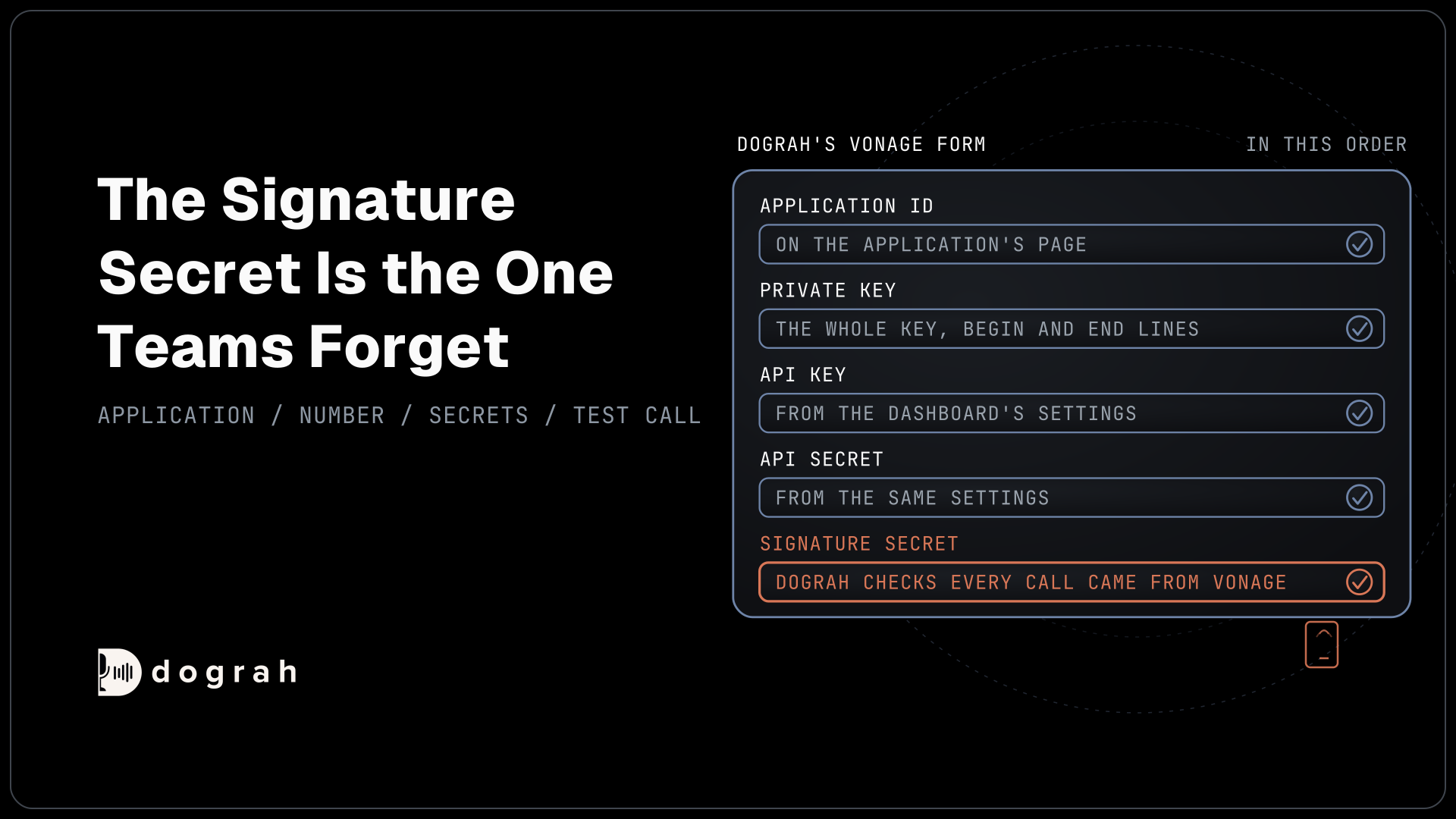

To use Vonage with an AI voice agent, create a Vonage Voice application, link your number to it, and copy the application ID, private key, API key, API secret and signature secret into the agent platform. Dograh, the open-source AI voice agent platform, connects Vonage directly at 16 kHz, and you can self-host it or run it on Dograh Cloud.
Key Takeaways
- Give Dograh a Vonage application of its own.
- Without the signature secret, inbound calls and status updates fail.
- Vonage lines suit agents that finish calls without a transfer.
This post is part of our guide to SIP trunk providers, where Vonage is the phone provider that sends 16 kHz audio. Here we connect a Vonage number to a Dograh agent, step by step, from the Vonage application and its secrets to the first test call.
What you need before you start
You need a Vonage account with some credit on it, since Vonage asks for credit before you can rent a number, and a Dograh agent already built and tested in the browser. The cloud version works as it is. A self-hosted Dograh needs a public address, because Vonage has to reach it over the internet and cannot call a server that only runs on your laptop.
Decide first what the line is for. Vonage connects to Dograh directly and carries 16 kHz audio, which makes it a good fit for agents that finish calls themselves, such as surveys, appointment reminders or order updates. For lines where callers ask for a person, Transfer Call runs on Twilio, Telnyx, Plivo, a carrier trunk through Managed SIP or Asterisk ARI. Our Cloudonix review compares those other routes.
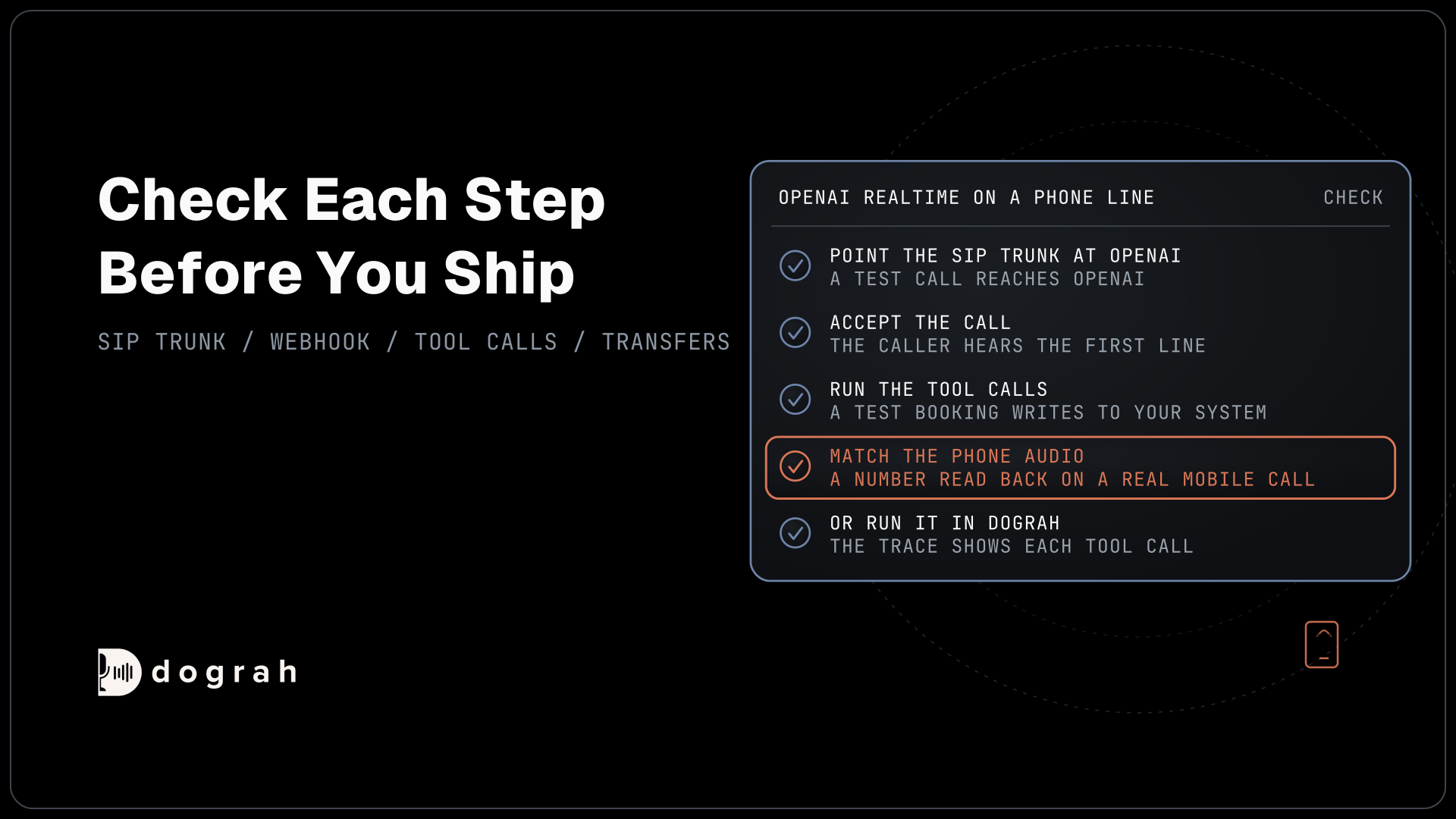
Check: your Vonage account shows a balance, and the agent answers correctly in a browser test call.
Step 1: Create a Vonage application for Dograh
Vonage sends calls to software through an application, so the first job is to make one. Vonage's guide to creating a Voice application walks through it in the Dashboard. Give the application a name, click "Generate public and private key" so the private.key file downloads, turn on Voice and click "Generate new application". Keep the key file safe, because Vonage does not show it again, and note the Application ID on the application's page.
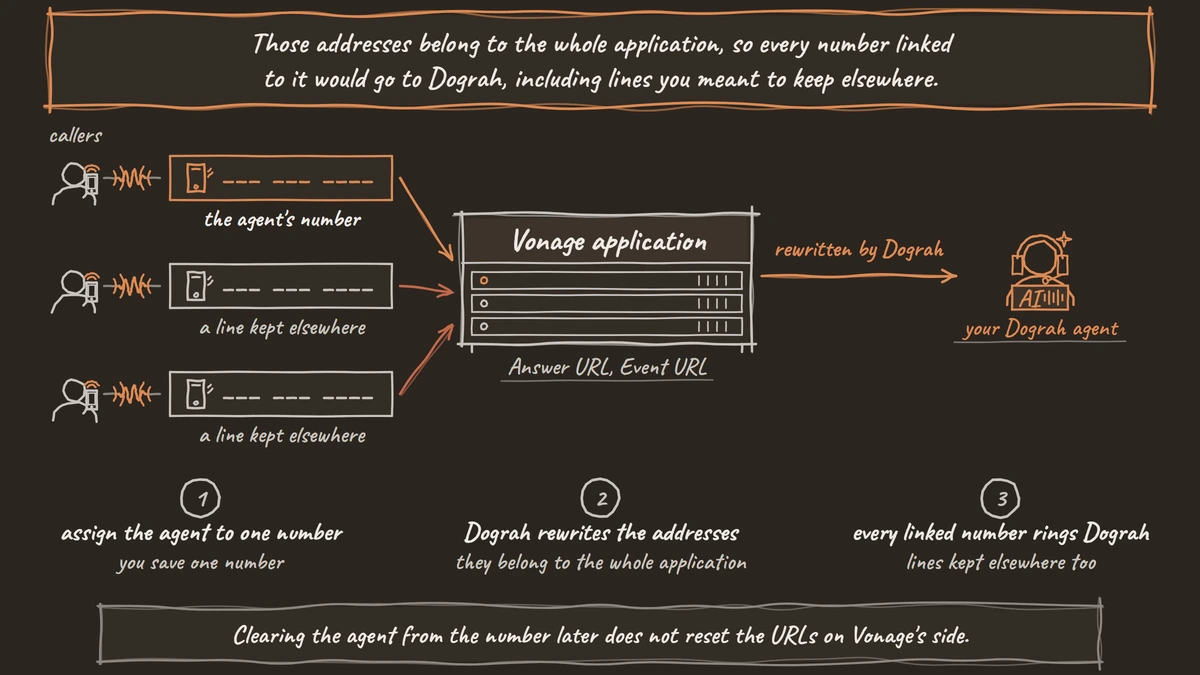
Make this application for the agent alone. When you later assign an agent to a number, Dograh rewrites the application's Answer URL and Event URL, the addresses Vonage calls when a call arrives or changes state. Those addresses belong to the whole application, so every number linked to it would go to Dograh, including lines you meant to keep elsewhere.
Check: the new application shows Voice turned on and an Application ID.
Step 2: Link a number and copy the secrets
A number only reaches Dograh when Vonage knows which application handles it. Buy a number under Buy Numbers with Voice ticked, then open it under Your Numbers and set its Voice application to the one from Step 1. Skip this and callers hear a busy or disconnected tone, with nothing in Dograh's logs.
Next, copy three values from the Dashboard's settings: the API key, the API secret and the signature secret. The signature secret is the one teams forget. Vonage's signed webhooks carry a token in each request signed with that secret, so Dograh can check every incoming call really came from Vonage. Without it, Dograh rejects the signed requests, and inbound calls and call status updates fail.
Check: the number shows your application under Your Numbers, and you have the API key, API secret and signature secret copied.

Open Source Alternative to Vapi / Retell
Self-hosted voice agent platform — no per-minute fees
dograh-hq/dograh
Star on GitHub
Step 3: Add Vonage in Dograh
Now put the credentials into Dograh. Open Telephony in the sidebar, click Add configuration and choose Vonage. The form asks for five values in this order: Application ID, Private Key, API Key, API Secret and Signature Secret. Paste the whole private key, including its BEGIN and END lines, and click Save Configuration.
Open the configuration and click Add phone number. Enter the Vonage number without the plus sign, for example 1415555XXXX, as the Vonage setup shows. Dograh asks Vonage whether your account owns the number, and refuses it with "not owned by this Vonage account" if it does not.
If the signature secret is missing, the Telephony page shows a "Signature secret not configured" warning. Fix that before going on, since inbound calls will not work without it.
Check: the configuration lists your number with no warning beside it.
Step 4: Assign the agent and test a call
The last link is the agent. Edit the number in the configuration, set its Inbound workflow to your agent and save. Dograh then writes its own Answer URL and Event URL into the Vonage application and turns on signed callbacks there, so there is nothing to paste into Vonage by hand.
Call the number from your mobile. The agent should answer within a ring or two. The call reaches it as 16-bit audio at 16 kHz, the rate Vonage's WebSocket audio guide calls "recommended for speech recognition", twice the 8 kHz most phone routes deliver. Our post on phone audio quality explains why that helps speech-to-text. For outbound calls, the agent dials out through Vonage's Voice API and shows the configuration's default caller ID, so set that to the number you want customers to see.
Check: the test call appears in Dograh's call log with a recording and transcript, and an outbound test call shows your chosen number on your mobile.
Before you ship it
Plan for callers who ask for a person. On a Vonage line, if the agent tries Transfer Call, the tool reports that the transfer is not available and the call stays with the agent. So write the prompt to offer what it can instead, such as taking a message through an HTTP API tool. Our post on AI receptionist call transfers covers routes built for handoffs.
Vonage bills the number and minutes. Self-hosted Dograh has no per-minute platform fee, but servers, model keys and phone minutes still cost money. Dograh Cloud charges a 1¢-a-minute platform fee.
Clearing the agent from the number later does not reset the URLs on Vonage's side, which is one more reason to keep the application for Dograh alone. Before launch, place calls from a mobile and a landline, open each call's trace to see what speech-to-text heard, and turn on QA for a sample of live calls.
Join the Dograh Community
Dograh is an OSS alternative to Vapi. Join our Slack community for queries, releases, best practices & community interactions.
Glossary
- Vonage application
- The object in Vonage's Dashboard that holds a public and private key and the webhook addresses for its numbers. Every number linked to it sends calls to the same Answer URL.
- Signature secret
- A shared secret in the Vonage account used to sign each webhook request. Dograh checks the signature, so without the secret on file inbound calls and status updates are rejected.
- Answer URL
- The address Vonage calls when a call arrives on a linked number, to ask what to do with it. Dograh writes its own Answer URL into the application when you assign an agent to a number.
- Linear PCM
- Uncompressed audio sent as raw samples. Vonage streams 16-bit linear PCM over WebSocket at 8, 16 or 24 kHz, and Dograh uses 16 kHz.