
To add an AI voice agent to 3CX, keep your 3CX trunk and DIDs, connect a carrier number from Twilio, Telnyx or Plivo to the agent, and forward chosen calls to that number with a matching outbound rule. Dograh, the open-source AI voice agent platform, answers the number, and you can self-host it or run it on Dograh Cloud.
Key Takeaways
- A 3CX forward leaves over your trunk, so an outbound rule must match.
- Test whether the caller's own number survives the forward.
- Transfer Call hands callers back to a 3CX DID or a staff mobile.
This post is part of our guide to SIP trunk providers, where a phone system and the agent's trunk live side by side. Here we keep 3CX for staff and add an agent behind it, covering the trunk check, the carrier number, the forward and the transfer back.
What you need before you start
You need admin access to 3CX with a working SIP trunk and at least one DID, plus an account with a carrier that connects to Dograh directly, such as Twilio, Telnyx or Plivo. That carrier gives the agent its own number. 3CX then forwards the calls you choose to it.
Forwarding is the route here because 3CX builds trunks from its own list of supported providers and will not help configure one that is not on it. Forwarding to a carrier number works with whatever trunk you already have, and nothing in your 3CX setup has to change.
3CX also sells its own AI receptionist, and 3CX's AI receptionist page runs it on your OpenAI or xAI Grok key. Our comparison of built-in AI receptionists in phone systems covers that option. A separate agent makes sense when you want your own choice of language, speech and voice models, pre-recorded clips or full call traces.
Check: you can log in to the 3CX admin console and place an outside call from a 3CX extension.
Step 1: Check the 3CX trunk and DIDs
The forward rides on your existing 3CX trunk, so make sure it is healthy first. In 3CX, trunks live under Voice & Chat in the admin console. 3CX's guide to SIP trunks adds one with "+ Add trunk", where you pick the country and provider, then sign in either by registration (an ID and password) or by IP address.
Your numbers sit on the trunk's DID Numbers tab. Each DID then goes somewhere through "Assigned DID Number(s)", either on a user or on a system extension such as an IVR, ring group or queue under Call handling. Note which DIDs the agent should answer, for example the main number after hours.
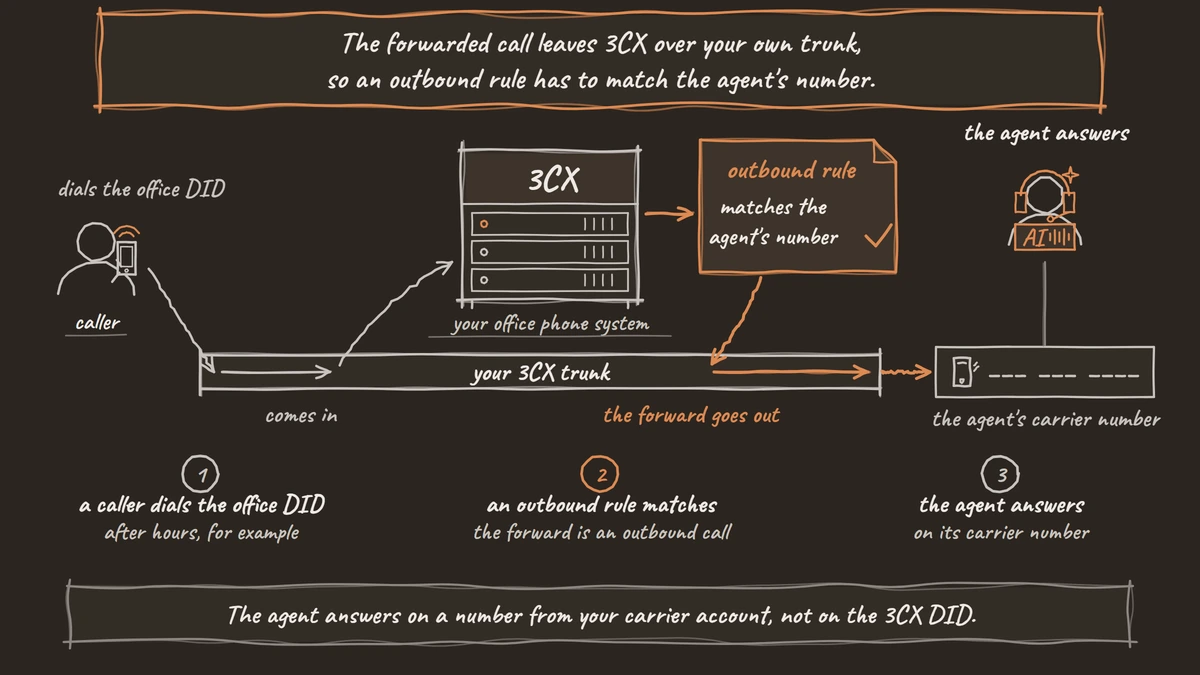
Every trunk also needs an outbound rule that lets extensions use it, matched by number prefix, length or group. This matters for Step 3, because the forward is an outbound call.
Check: the trunk shows a green light in Voice & Chat, and a test call to each chosen DID rings where you expect.
Step 2: Connect a carrier number to the agent
The agent answers on a number from your carrier account, not on the 3CX DID. In Dograh, open Telephony in the sidebar, click Add configuration, pick your carrier and paste its credentials. Then click Add phone number, enter a number you bought on that carrier and set its Inbound workflow to the agent, as the inbound calling setup shows. Dograh checks that your carrier account owns the number and refuses it if not, so buy the number on the carrier first.
If the agent needs to know which 3CX line was called, give each forwarded DID its own carrier number. Several numbers can point at the same agent, and the number dialled reaches the agent as to_number. On a forward, that is the carrier number, not the 3CX DID.
Check: call the carrier number from your mobile. The agent answers and the call shows in Dograh's call log.

Open Source Alternative to Vapi / Retell
Self-hosted voice agent platform — no per-minute fees
dograh-hq/dograh
Star on GitHub
Step 3: Forward calls from 3CX to the agent
Now send the chosen calls from 3CX to the agent's number. Common choices are all calls to one DID, calls outside office hours, or calls nobody answers. Set the destination for those calls to the agent's number as an external number, in full international format.
The forwarded call leaves 3CX over your own trunk, so an outbound rule has to match the agent's number. If no rule matches, 3CX has no route for the call and the caller never reaches the agent. Some carriers want national digits rather than a plus sign, so match the rule to what your trunk expects.
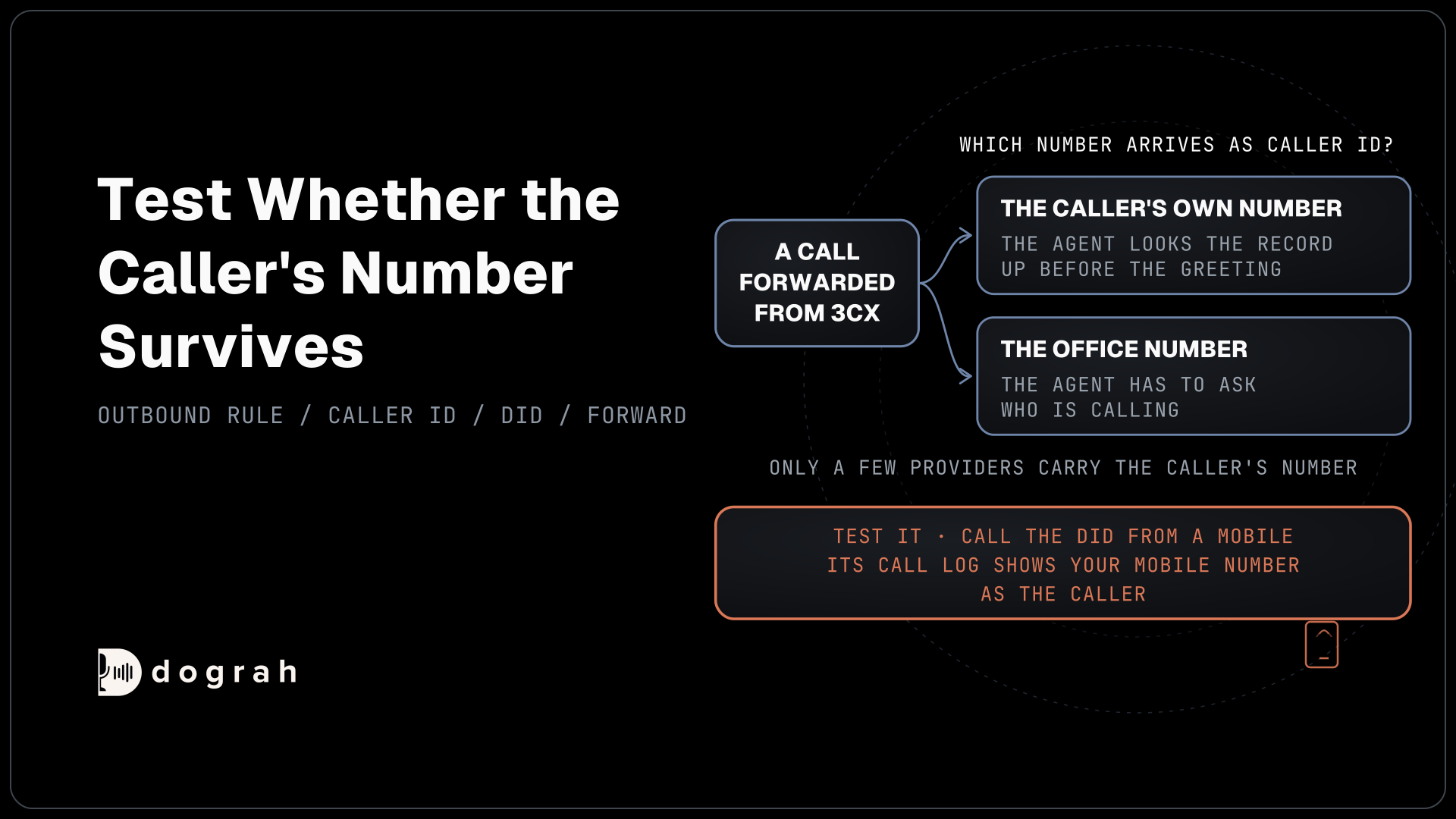
Next, look at caller ID. 3CX sends outbound calls with the trunk's main number or the extension's DID, and only a few providers let a forwarded call carry the original caller's number. That matters because Pre-Call Data Fetch looks records up by the caller's number before the greeting. If the office number arrives instead, the agent has to ask who is calling.
A forwarded call also uses two call legs, the forward out on your 3CX trunk and the inbound call on the agent's carrier. Ask both carriers how they bill each leg before you forward all traffic.
Check: call the DID from a mobile. The agent answers, and its call log shows your mobile number as the caller.
Step 4: Send callers back to 3CX staff
Some callers need a person, and the agent can hand them back to 3CX. Give the agent the Transfer Call tool with a 3CX DID, such as the sales queue's number, or a staff mobile. It works when the agent's number is on Twilio, Telnyx, Plivo, a carrier trunk through Managed SIP or Asterisk ARI.
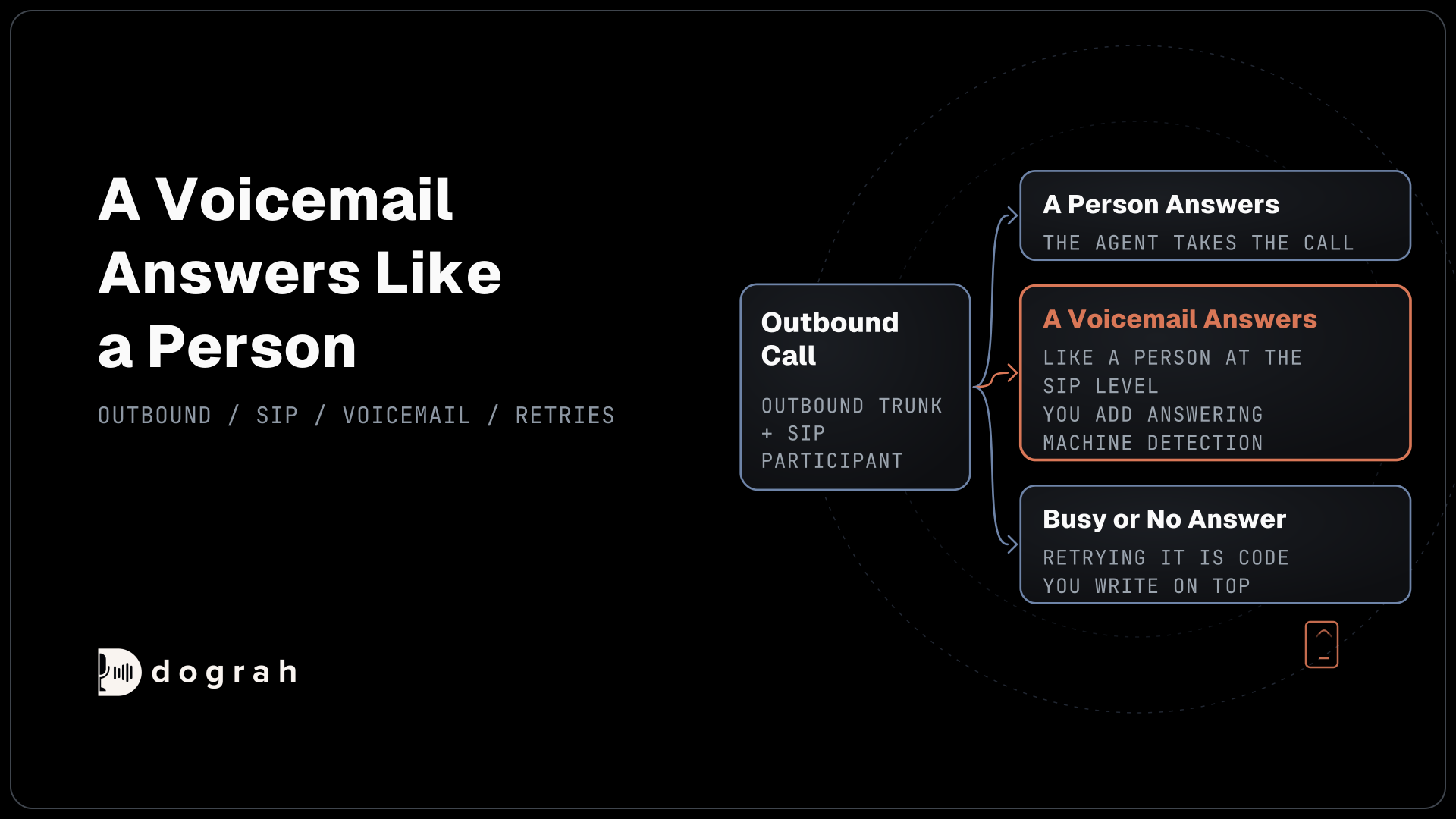
Dograh dials the destination while the caller hears hold music and connects them once someone answers. It waits 30 seconds by default, a setting you can change from 5 to 120. No answer, a busy line, a failed call or a timeout comes back as transfer_failed, and the call continues, so the prompt should say what to offer next.
The person who answers gets no summary by default. To give staff the details, have an HTTP API tool write them to your own system before the transfer.
Check: ask the agent for a person on a real phone call (browser test calls cannot transfer). The 3CX DID rings and connects.
Before you ship it
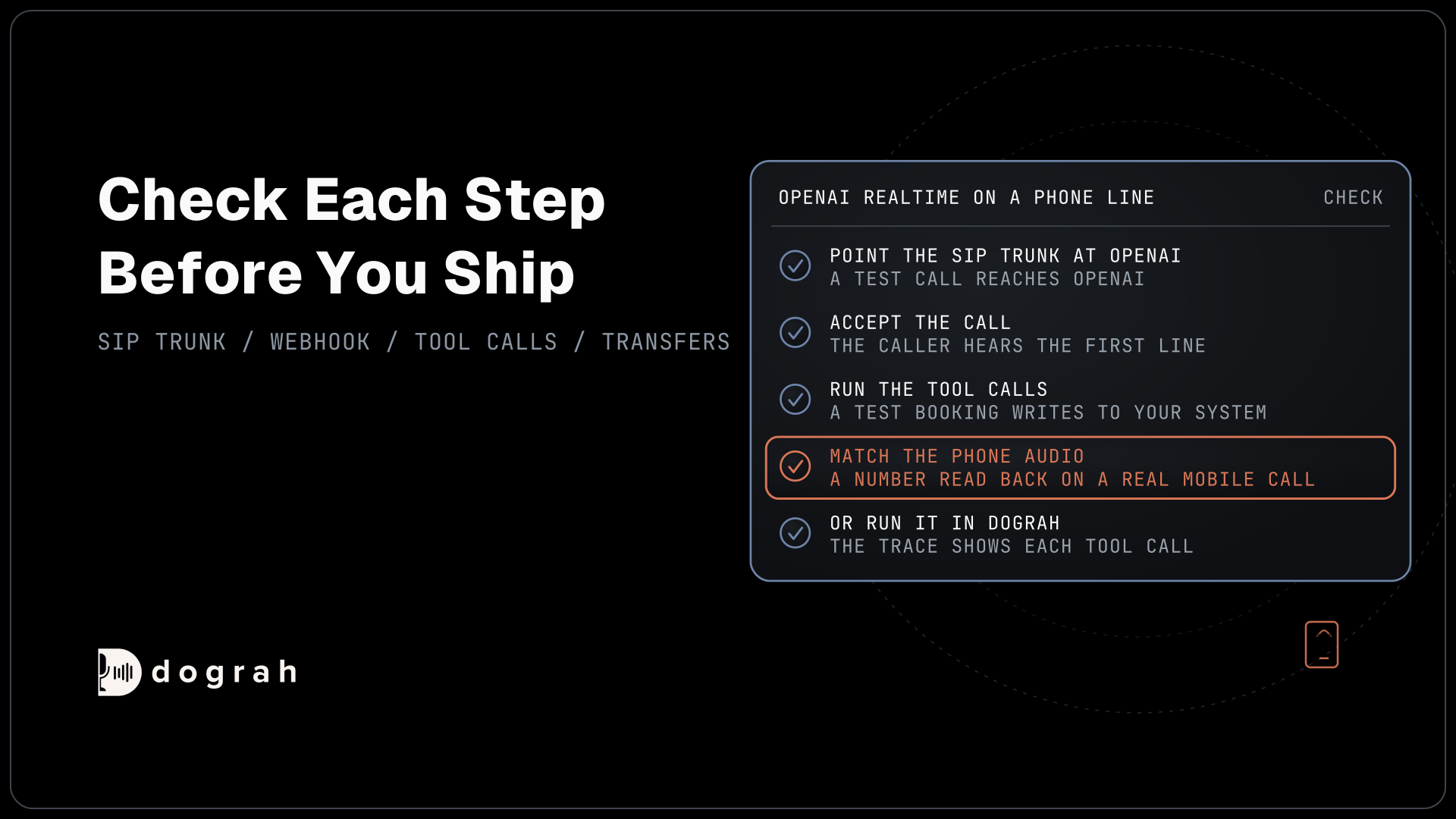
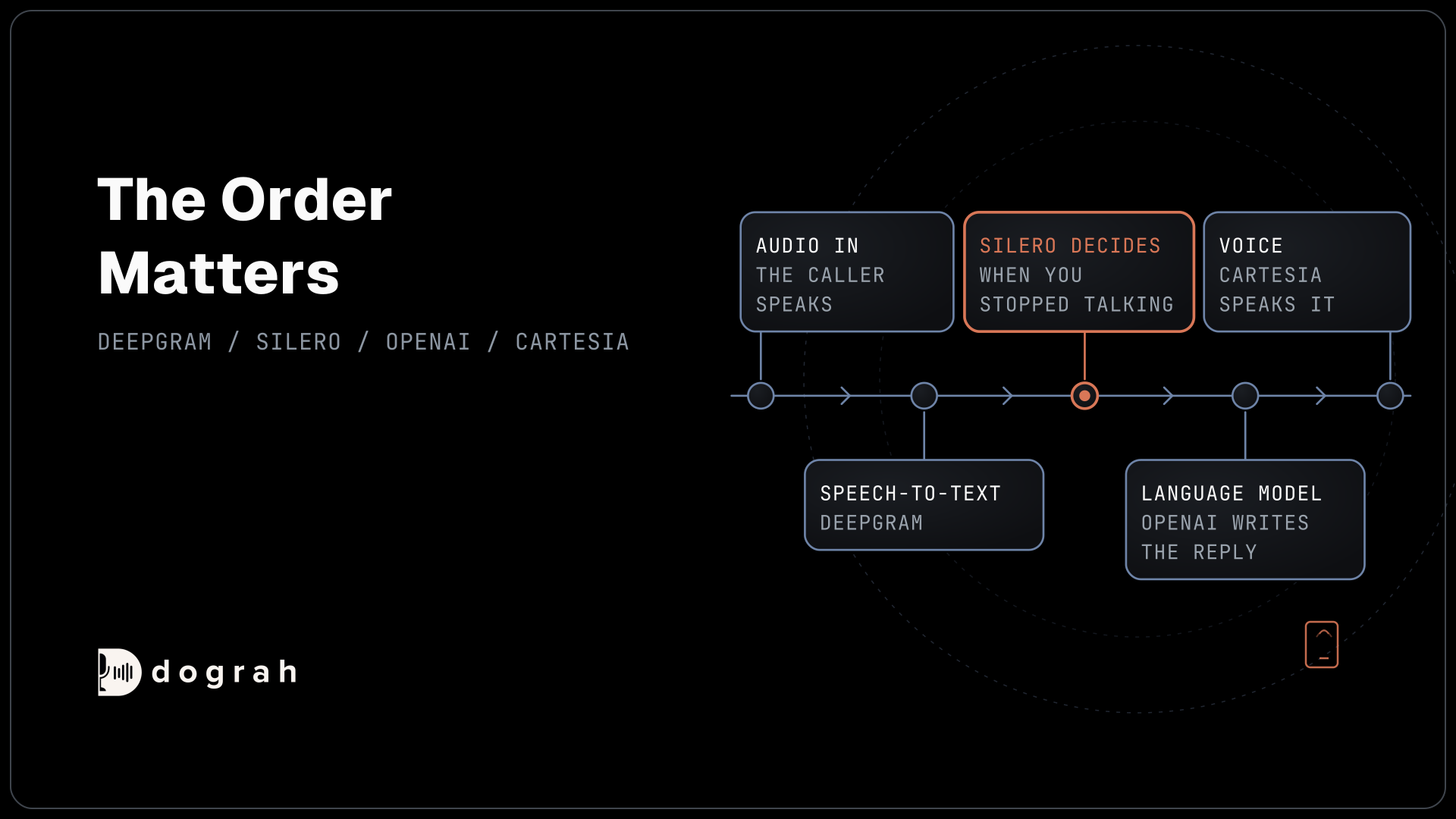
Test with real phones before callers reach the agent. Call each forwarded DID from a mobile and a landline, at the hours the forward should apply, and run one transfer that nobody answers. Open each call's trace in Dograh to see what speech-to-text heard, and turn on QA for a sample of live calls.
Price the setup as separate bills for your 3CX trunk, the agent's carrier and the platform. Self-hosted Dograh has no per-minute platform fee, but servers, model keys and phone minutes still cost money. Dograh Cloud charges a 1¢-a-minute platform fee.
The same forward works from other office systems, as our post on Cisco, Avaya or Teams Phone shows. If you later want the main number on the agent's carrier, see porting a business number.
Join the Dograh Community
Dograh is an OSS alternative to Vapi. Join our Slack community for queries, releases, best practices & community interactions.
Glossary
- Outbound rule
- A 3CX rule that decides which trunk an outgoing call uses, matched by prefix, number length or group. A forward to the agent's number is an outgoing call, so it needs a rule that matches.
- DID
- A phone number on a trunk that rings straight to a destination, such as a user, queue or IVR. In 3CX each DID is placed with Assigned DID Number(s).
- Caller ID passthrough
- Sending the original caller's number on a forwarded call instead of your own. 3CX notes only a few providers allow it, and without it the agent cannot look the caller up by number.
- Call leg
- One side of a connected call. A forwarded call has two legs, the forward out on the 3CX trunk and the inbound call on the agent's carrier, and each carrier may bill its own leg.