
To build a voice agent with Plivo, rent a number, connect your Auth ID and Auth Token to an agent platform, assign the number to the Plivo Application that holds the answer URL, then test by phone. To own the agent layer, Dograh, the open-source AI voice agent platform, runs it on your own servers or on Dograh Cloud.
Key Takeaways
- Assign every Plivo number to the Dograh application in Plivo's console.
- New US Plivo accounts start at two concurrent calls, and a transfer uses both.
- Phone calls reach the agent at 8 kHz, so judge models on real calls.
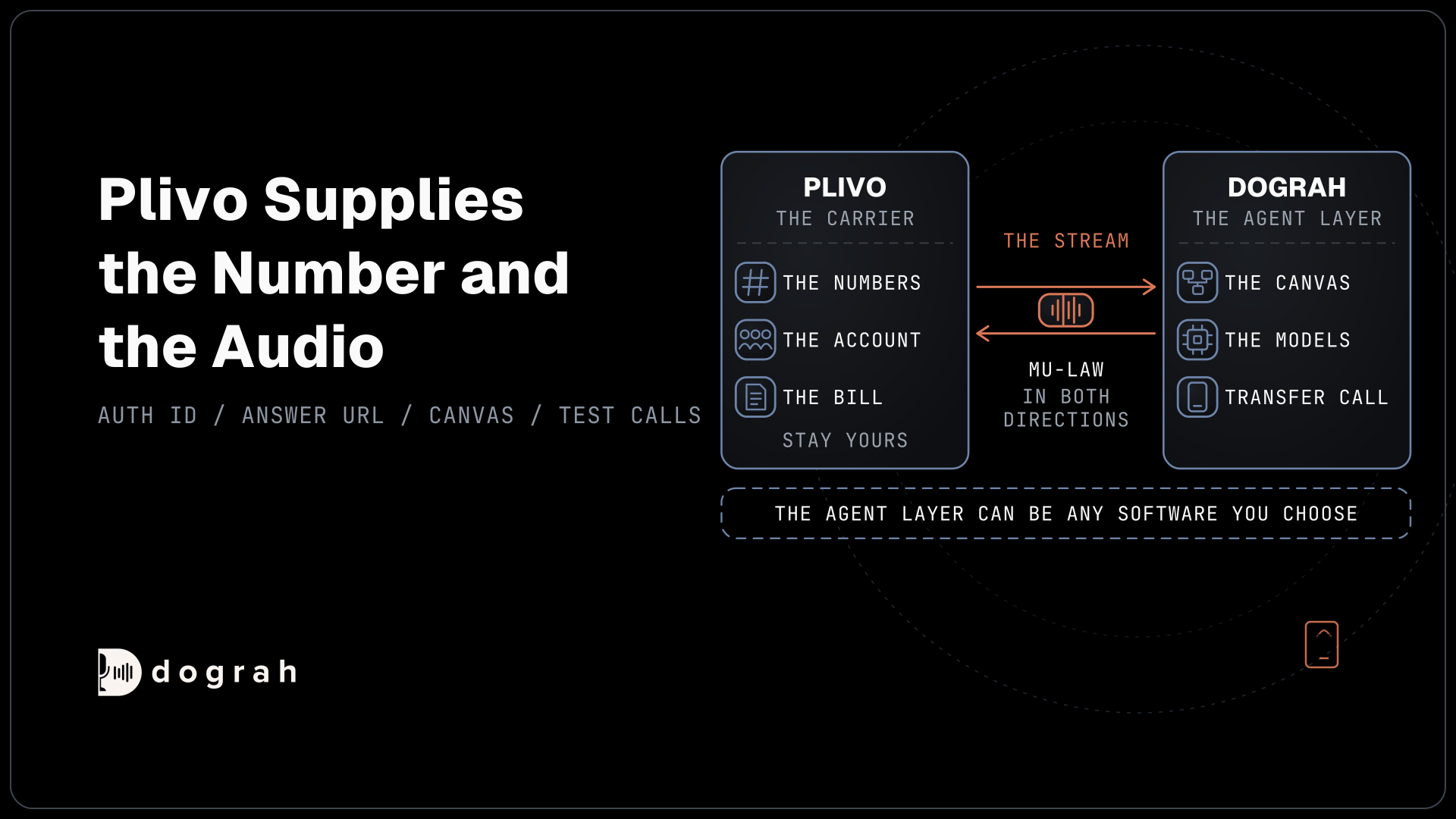
Plivo supplies the number and the audio, and the agent layer that answers can be any software you choose. Here we build a Plivo voice agent, step by step, in Dograh, our open-source AI voice agent platform. We trace the call path, then we talk about testing, transfers and go-live.
How a Plivo call reaches an AI agent
A Plivo call reaches an agent through a Plivo Application. The application keeps an answer URL, and each number is assigned to one application. When someone dials the number, Plivo sends a request to that URL, and the reply tells Plivo what to do with the call, such as streaming its audio to the software that runs the agent.
The stream decides what the agent hears. Plivo streams linear audio at 8 kHz by default, with 16 kHz linear and 8 kHz mu-law as options. Dograh asks for mu-law at 8 kHz, in both directions, so the agent hears the call as a normal phone line carries it.
There are three ways to put the agent on that stream. You can write it in code with a framework such as Pipecat or LiveKit and run it yourself. You can build it in Plivo's own Vibe Agent and Agent Studio, where Plivo runs the agent in its cloud, and our Plivo review covers that product.
The third way keeps Plivo as the carrier and adds an open-source agent layer you control. Dograh is that layer, on your servers or on Dograh Cloud, and the Plivo account, its numbers and its bill stay yours. The rest of this post builds that third path.
What you need before you start
You need a Plivo account, signed in at cx.plivo.com, and a place to run Dograh, either a Dograh Cloud account or a server you control. Keep your mobile phone nearby for the inbound test, and a second phone for the transfer in Step 7.
Check your Plivo plan before you test. Plivo puts a new US account on a Free Tier until the first payment, with 1 call started per second and 2 concurrent calls. Professional starts at 5 concurrent calls below USD 100 of lifetime spend and rises with spend. Every PSTN call leg counts toward the limit, inbound and outbound, which matters once the agent transfers calls. Accounts created before 1 October 2026 keep custom limits set from their usage.
Step 1: Rent a number and copy your Plivo keys
Start in the Plivo console. Copy the Auth ID and Auth Token shown on the dashboard, since Dograh signs in to Plivo with them, and keep the token somewhere safe.
Then rent a voice-enabled number under Phone Numbers, in the country your callers are in. A US number can be rented straight away. Indian numbers go only to accounts in Plivo's India data region, which is set when the account is created and cannot be changed later, and they need business documents as well. Pick the region before you sign up.
Check: The number shows in your Plivo account, and you have the Auth ID and Auth Token saved.
Step 2: Run Dograh on your server or on Dograh Cloud
Choose where the agent layer runs. Dograh Cloud needs only a sign-up at app.dograh.com. To self-host, run Docker Compose on a server with at least 8 GB of RAM and 4 vCPUs, and our guide to self-host a voice AI agent with Docker walks through the install.
Plivo has to reach the answer URL on every call, so a self-hosted Dograh backend must be reachable from the internet over HTTPS. Allow Plivo's requests through any firewall in front of it. Dograh checks the signature Plivo puts on each incoming call request and turns away any request without a valid one, so nobody else can push fake inbound calls to that URL.
Check: You can sign in and see Voice Agents, Telephony and Tools in the sidebar.

Open Source Alternative to Vapi / Retell
Self-hosted voice agent platform — no per-minute fees
dograh-hq/dograh
Star on GitHub
Step 3: Build the agent on the canvas
Build the agent by hand on the canvas, which works the same on a self-hosted install of the current release and on Dograh Cloud. Open Voice Agents in the sidebar, choose Create Agent, then Blank Canvas. The editor opens with one Start Call node that already has a starter greeting and prompt.
Double-click the Start Call node to edit it. Replace the Greeting Text with your business name and why the agent answers, such as "Thanks for calling Northside Dental, this is the booking line." Rewrite the Prompt with what the agent should do and when it should hand over to a person.
Then select Add node at the top right of the canvas and add an End Call node. Drag from the Start Call node to End Call to draw an edge, double-click the edge, and in Edit Condition write when the call should end, such as "The caller has no more questions." In the Model tab, pick the speech-to-text, language and voice models for this agent. Select Save, then Publish and Publish version. On Dograh Cloud, the Agent Builder can also draft the agent from a plain description, and you still finish it on this canvas.
Check: The agent shows a published version, and Test Agent, then Run Test, starts a browser call that greets you.
Step 4: Connect Plivo to Dograh
Open Telephony in the sidebar and choose Add configuration. Give it a name, pick Plivo as the provider, and paste your Auth ID and Auth Token.
Leave Application ID blank. When you save, Dograh creates a Plivo Application named dograh- plus a random suffix, with its answer URL already set to https://api.dograh.com/api/v1/telephony/inbound/run with POST on the hosted service, or the same path on your own backend domain. If you paste the ID of an application you already have, Dograh updates its answer URL when you set a number's Inbound workflow in Step 5.
Then select Create. The dialog holds only the account details, and you add the number on the configuration page in Step 5. The Plivo setup page shows the same fields.
Check: The saved configuration shows the Application ID of the new dograh- application.
Step 5: Add the number and assign it in Plivo
Open the Plivo configuration in Dograh and choose Add phone number. Enter the number in E.164 form and pick your agent as the Inbound workflow. Dograh first asks Plivo whether your account owns that number. If it does not, the dialog refuses it with "Phone number ... is not owned by this Plivo account", so rent or move the number in Plivo first.
Saving the inbound workflow updates the answer URL on the application. It does not assign the number to that application, because on Plivo the number points at an application, and that link is set in Plivo's console. Open the number under Phone Numbers in the Plivo console and assign the dograh- application to it. Until you do, calls to the number never reach the agent.
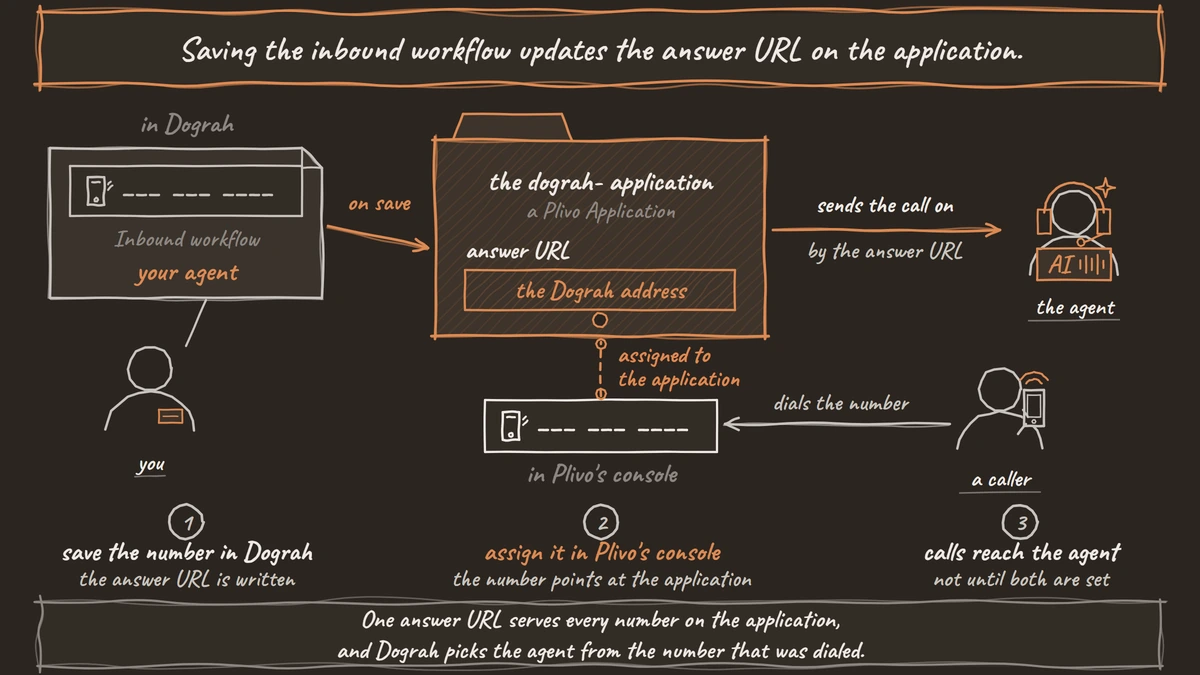
One answer URL serves every number on the application, and Dograh picks the agent from the number that was dialed. Keep a separate Plivo Application for Dograh, so other software on your account never shares that URL.
Check: In the Plivo console, the number shows the dograh- application, and the application's answer URL is the Dograh address.
Step 6: Make test calls
Test both directions from real phones. Call the Plivo number from your mobile and talk to the agent as a customer would, including one interruption halfway through a sentence.
For outbound, open the agent, select Phone Call in the editor header, choose the Plivo configuration under Telephony configuration and your number under Caller ID (from), enter the number to call, then select Start Call. On the Free Tier, keep tests to one call at a time.
Listen for the difference from the browser test. Most phone calls still reach the agent as 8 kHz audio, while a browser call runs at 16 kHz, so a voice or a speech-to-text model that sounded fine in the browser can do worse on the phone. Judge your models on these calls.
Check: Both calls appear under Agent Runs with a transcript and a recording.
Join the Dograh Community
Dograh is an OSS alternative to Vapi. Join our Slack community for queries, releases, best practices & community interactions.
Step 7: Add Transfer Call and test it
Transfer Call works on Plivo and hands the caller to a person on a real number. Open Tools, select Create Tool and choose Transfer Call. Under Destination Source, keep Static / Template, enter the staff number in E.164 form as the Transfer Destination, and keep the 30-second Transfer Timeout, or set anything from 5 to 120 seconds.
Attach the tool to the agent's node under Tools, and add a prompt line that says when to use it, such as when the caller asks for a person. On Plivo, Dograh calls the destination first and connects the caller only when someone answers, joining both through a Plivo conference. If nobody answers in time, the transfer returns to the agent and the call goes on, so give the agent a prompt line for that case. A voicemail that picks up counts as answered, so turn voicemail off on the staff phone or set it to pick up later than the Transfer Timeout. The Transfer Call page lists the other settings.
Plan the test around your plan's limit. A transfer uses two PSTN legs, the caller and the person, so on the Free Tier it takes both of the 2 concurrent calls. Browser test calls cannot transfer, so call the agent from one phone, ask for a person and answer on the second. For sending calls to the right person or agent by reason, hours or urgency, see our guide to AI call routing.
Check: The second phone rings, you answer, and the caller joins you.
Before you ship it
A clean test call means the setup works, and a few checks remain before customers call. Move to a paid Plivo plan whose concurrent call limit covers your busiest hour, counting two legs for every transfer. Keep the dograh- application for Dograh alone, and add a QA Analysis node so finished calls are scored.
The running cost comes in two bills. Plivo charges $0.50 a month for a US local number, $0.0055 a minute inbound and $0.0115 outbound, with audio streaming included, and our breakdown of Plivo pricing prices a full month. Running Dograh on your own server adds no per-minute platform fee. You still pay for the server, your model keys and those Plivo minutes, and your team looks after the database and each upgrade. For help, the open-source community answers questions, and an Enterprise plan brings custom SLAs. Dograh Cloud runs the hosting for you at a 1¢-a-minute platform fee, with models and Plivo minutes on top.
To recap, you rented a number, ran the agent layer, built the agent on the canvas, connected Plivo, assigned the number to the dograh- application, tested both directions and added a transfer. The agent never depended on Plivo itself, so it can move to another carrier later without a rebuild.
Glossary
- Plivo Application
- The Plivo object that keeps the answer URL for calls. Numbers are assigned to an application, and Dograh can create one for you on save.
- Answer URL
- The address Plivo requests when a call arrives on a number. Its reply tells Plivo how to handle the call, such as streaming audio to an agent.
- PSTN call leg
- One phone connection on the public phone network. A transferred call has two, the caller's and the person's, and Plivo counts both toward concurrency.
- mu-law
- The G.711 audio encoding used on phone lines at 8 kHz. Dograh asks Plivo to stream every call in this format.