
AI call routing sends each caller to the right place based on what they say, when they call, who they are and how urgent it is. In Dograh, the open-source AI voice agent platform, you build it with conditions between agent steps and transfers to other agents or people, whether you host it yourself or use Dograh Cloud.
Key Takeaways
- An AI agent routes on intent, hours, caller details and urgency, not keypresses.
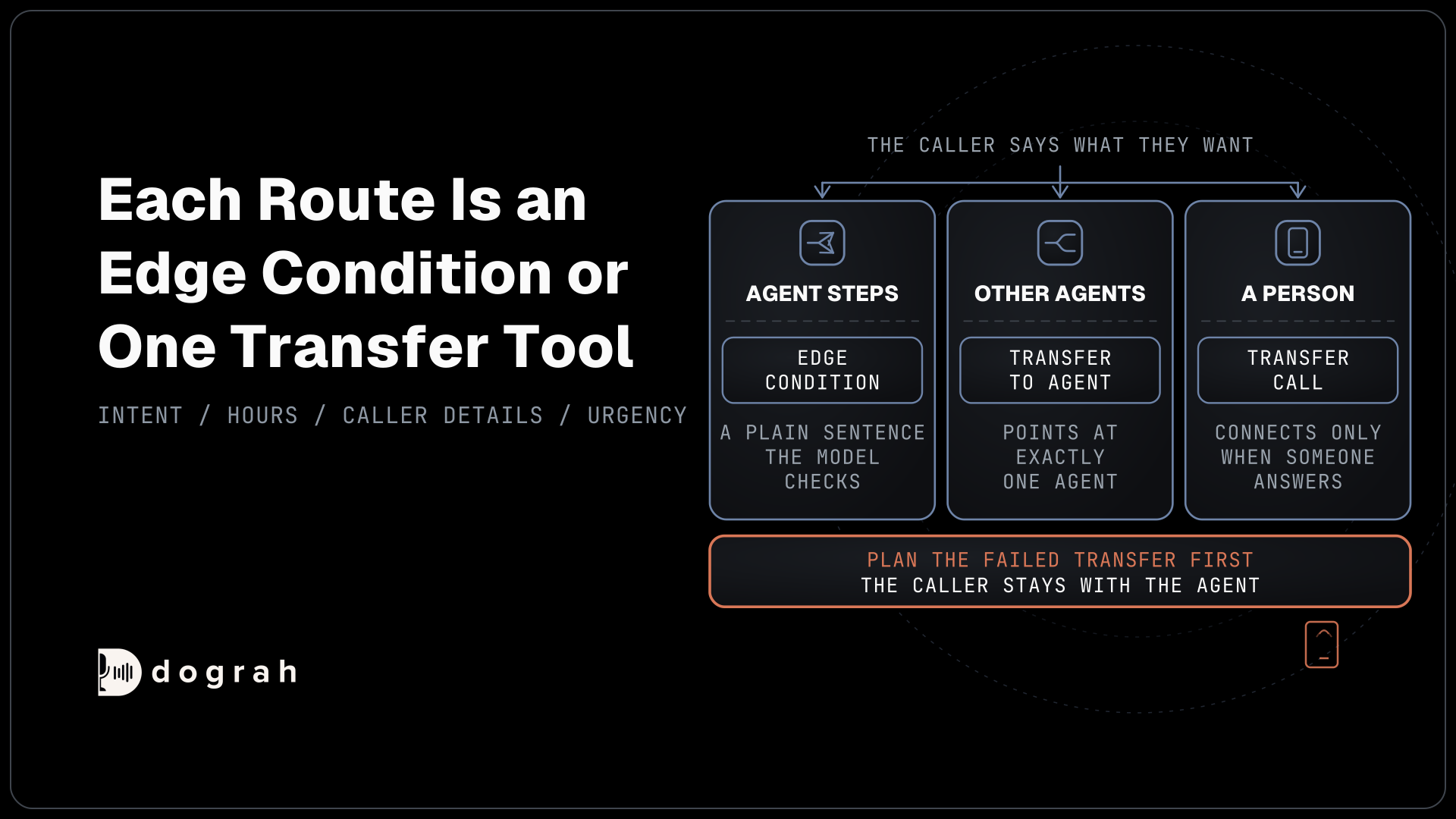
- In Dograh, each route is an edge condition or one transfer tool.
- Plan the failed transfer first, since the caller stays with the agent.
A keypad menu asks callers to sort themselves, and some just press zero. An AI agent can listen and route the call itself. We cover the four signals it can route on and six build steps in Dograh, and then we talk about what to do when a transfer fails.
Four signals a voice agent can route on
Intent is the first signal and the most common one. The caller says what they want in their own words, such as a missed delivery or a wrong charge, and the agent decides which team or step handles it. There is no menu to remember, and a caller who changes topic halfway can be routed again.
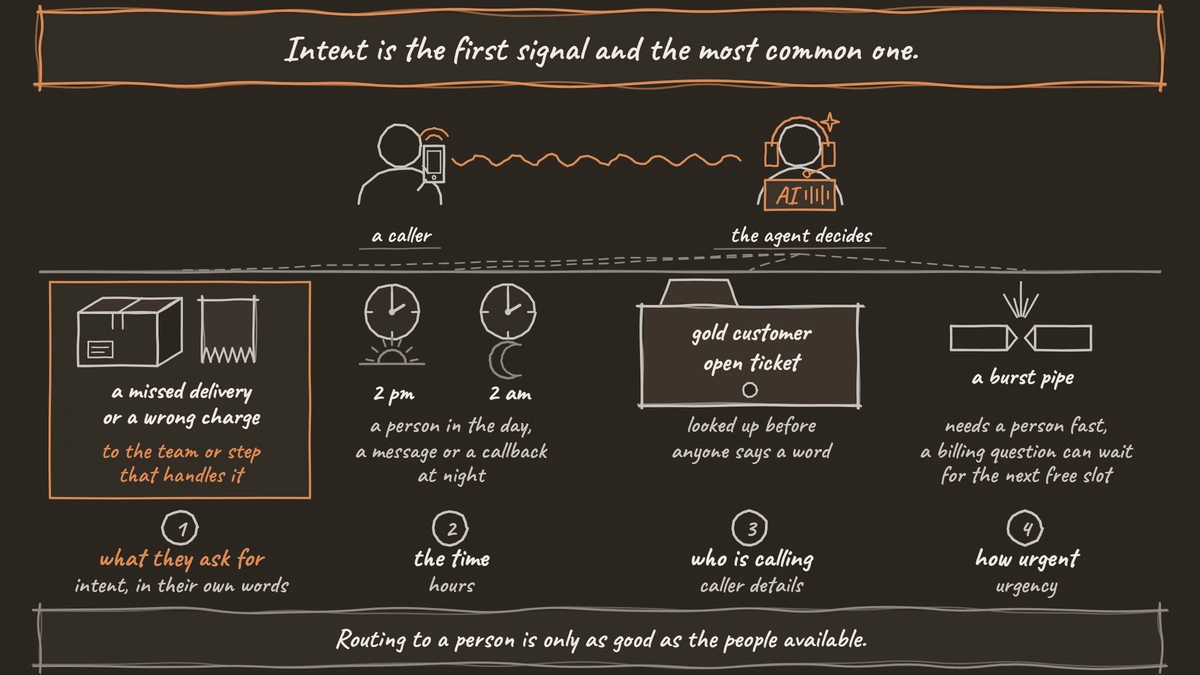
Hours come next. The same request at 2 pm and at 2 am may need different answers, such as a live person in the day and a message or a callback at night. Caller details are the third signal. A lookup before the call starts can tell the agent that this number belongs to a gold customer with an open ticket, which changes where the call should go before anyone says a word.
Urgency is the last one. A burst pipe, a locked-out patient portal before surgery or a fraud alert needs a person fast, while a billing question can wait for the next free slot.
Routing to a person is only as good as the people available. As RingCentral puts it, routing that ignores availability "just shifts the wait; it doesn't remove it." That is why Step 6 below matters as much as the first five.
What you need before you start
You need an agent on Dograh Cloud or a self-hosted install. These steps build on the agent canvas, which works on both. Running Dograh yourself means you still pay for servers, model keys and phone minutes, and your team looks after the database and upgrades.
For transfers to a person, you need a phone number on one of the carriers Transfer Call works with, which are Twilio, Telnyx, Plivo, Cloudonix and Asterisk ARI. Routing between agent steps and handoffs to other agents work on any cascade call, including browser test calls.
Write down your destinations before you build. List each specialist agent you want, such as billing and support, and each phone number or extension a person answers. If you want caller details before hello, you also need a small endpoint that looks up a phone number in your CRM and returns a few fields.
Step 1: Route by intent with edges between steps
Start with one Agent node per job. A Reception node greets the caller and works out what they want, and separate nodes handle billing and support. Drag a connection from Reception to each of them. Every Agent node needs at least one outgoing edge, so give the specialist nodes an edge onward too, such as to an end-call step.
Double-click an edge or its label to open Edit Condition. It has three fields, Condition Label, Condition and Transition Speech. The label is a short name for the canvas, up to 64 characters. The condition is a plain sentence that the language model checks against the conversation. The transition speech is an optional line the agent says as it moves on.
Here are two conditions for the Reception node, one per edge.
Billing edge: The caller wants to pay a bill, dispute a charge or ask about a refund.
Support edge: The caller reports something not working, such as a login problem or a failed order.
What this does: each edge names one clear reason to move. The model reads the conversation and takes the edge whose sentence fits.
Keep conditions specific. Dograh's agent docs warn that conditions like "user responds" or "conversation ends" are too broad and route unpredictably. The model judges each sentence against the conversation, so two conditions that overlap will sometimes send the same caller different ways.
Check: click Test Agent in the editor, say one request for each edge and watch which node the call moves to.

Open Source Alternative to Vapi / Retell
Self-hosted voice agent platform — no per-minute fees
dograh-hq/dograh
Star on GitHub
Step 2: Route by hours with time variables
Hours routing runs through the prompt. You give the agent the current time there, and it routes on that. Put this at the top of the Reception node's prompt.
Today is {{current_weekday_America/New_York}} and the time is {{current_time_America/New_York}}.
Our team answers calls from 9 am to 5 pm, Monday to Friday, New York time.
What this does: Dograh fills in the weekday and time for New York when the call starts, so the agent knows whether the team is in.
Use your own zone name from the list of IANA time zones, such as Europe/London or Asia/Kolkata. When you add a zone to one of the two variables, the other follows the same zone. Dograh's guide to context and variables lists both.
Now add an edge from Reception to an After Hours node with an edge condition such as "The caller wants to speak to a person and it is outside the opening hours in the prompt." Pointing the condition at the prompt keeps one place to change the hours. The After Hours node can take a message, book a callback or answer common questions. Outbound campaigns have their own calling hours, which is a separate feature from this.
Check: change the hours in the prompt to a window that has just closed, run Test Agent and ask for a person. The call should move to After Hours.
Step 3: Fetch caller details before hello
Pre-Call Data Fetch sits at the bottom of the Start Call node. Set it to Inbound calls only, enter your Endpoint URL and pick a credential under Authentication if your endpoint needs one. When a call connects, Dograh sends your endpoint a request like this, and the caller hears a ringer until it returns.
{
  "event": "call_inbound",
  "call_inbound": {
    "from_number": "+12137771234",
    "to_number": "+12137771235"
  }
}
What this does: it sends the caller's number and the number they dialed, so your endpoint can find the customer and the line they called.
Your endpoint answers with the fields the agent should know.
{
  "initial_context": {
    "customer_name": "Maria",
    "customer_tier": "gold",
    "open_ticket": "yes"
  }
}
What this does: the fields join the call's starting context, so the prompt can greet the caller with
{{customer_name}}and Step 5 can route on customer_tier.
The request has a 10-second timeout, and a failed request lets the call carry on with its earlier context, as Dograh's Pre-Call Data Fetch guide explains. Give every prompt variable a fallback such as {{customer_name | there}}. The dialed number is useful too, and our post on how to route callers to the right location uses it for branches.
Check: call the agent from a phone number in your test data, then open Agent Runs and confirm the fields arrived.
Join the Dograh Community
Dograh is an OSS alternative to Vapi. Join our Slack community for queries, releases, best practices & community interactions.
Step 4: Hand the call to a specialist agent
Sometimes a whole separate agent should take over, with its own prompt, voice or language. Open Tools, click Create Tool and choose Transfer To Agent as the Tool Type. Give it a Tool Name, pick the destination under Transfer to agent and write a Handover message, which is the line the caller hears. The default is "Let me connect you with the right person. One moment please."
Each Transfer To Agent tool points at exactly one agent. A Reception agent that can hand off to billing, support and sales gets three tools, and the model picks between them by name and description. Write each description as a clear trigger.
Tool Name: Transfer to Billing
Description: Hand the call to the billing agent once the caller says their question is about an invoice, a charge or a refund.
What this does: the description tells the model exactly when this handoff fits, so it does not fire on a general question.
If the model picks the wrong agent, fix the descriptions before you touch the prompt. Add the tools to the Reception node under Tools. The next agent gets the conversation so far as labelled history, so the caller does not repeat themselves. This works on cascade agents. On a speech-to-speech agent the tool refuses and the agent keeps helping the caller itself. The same pattern runs a language switching setup, with one agent per language.
Check: run Test Agent, ask a billing question and confirm the Billing agent picks up with the context.
Step 5: Route urgent calls to a person
First let the agent record urgency. On the Reception node, turn on Enable Variable Extraction and add a variable such as urgency under Variables to Extract, with an Extraction Hint like "urgent if the caller reports a safety issue, a fraud alert or a service outage, otherwise normal."
Then create a Transfer Call tool. Fill in Tool Name, Description, Pre-Transfer Message and Transfer Timeout, and under Destination Source choose the Context Mapping tab. Add a rule with urgency as the Context Field, map urgent to your on-call number, and add a second rule mapping customer_tier gold to your priority line. Rules run top to bottom and the first match wins, ignoring case. Put your front desk number in Fallback Destination (Optional). Attach the tool to the Reception node under Tools, and add a prompt line such as "If the caller reports a safety issue, a fraud alert or an outage, or asks for a person, use the transfer tool." Dograh runs a final variable extraction before it checks the rules, and Dograh's Transfer Call docs cover the other two tabs.
Transfer Call works on Twilio, Telnyx, Plivo, Cloudonix and Asterisk ARI. Dograh calls the destination first and connects the caller only when someone answers. A voicemail that picks up counts as answered, so turn voicemail off on the on-call phone or set it to pick up later than the Transfer Timeout. On Exotel, Vobiz, Vonage or WhatsApp calls, have the agent take a callback request through an HTTP API tool. Add a line to every prompt telling the agent to tell anyone in danger to get to safety and call 911. Our call transfer guide covers transfer types in more depth.
Check: place a real call with Phone Call and Start Call, report an outage and confirm the on-call phone rings.
Step 6: Plan for a transfer that fails
A transfer to a person can fail in three ways. Nobody answers within the Transfer Timeout, which is 30 seconds by default and can be set from 5 to 120. The line is busy. Or the call fails on the carrier side. In each case the agent is told the transfer did not connect, and the call continues with the agent.
Two failures happen before anything rings. If no Context Mapping rule matches and there is no fallback, or a destination template comes back empty, the transfer stops before dialing and the agent carries on. A Dynamic HTTP Resolver that errors also fails without dropping the call. Tell the agent what to offer next in its prompt. Create an External HTTP API tool, such as save_callback, that posts the caller's number and best time to your system, and attach it to the Reception node.
If a transfer does not connect, say so plainly, offer a callback and collect the best number and time. Then send it with the save_callback tool.
What this does: the caller leaves with a next step instead of a dead end, and your team gets a callback request in its own system.
Our post on human handoff routing covers what happens when nobody answers.
Check: set the on-call destination to a number nobody will answer, place a test call and confirm the agent offers a callback after the timeout.
Before you ship it
Test every branch you built, not only the happy path. Each condition is the model reading a sentence, so try requests that sit between two edges and see where they land. Test Agent in the browser covers edges, time variables and agent handoffs. Transfer Call needs a real phone call through Phone Call, since browser calls have no phone line to transfer.
Then read the calls back. Agent Runs shows each conversation and the path it took, so a caller who was routed the wrong way shows up there first. Fix the condition or the tool description that sent them, and run the same request again.
Glossary
- Edge condition
- A plain sentence on a connection between two agent steps. The language model checks it against the conversation and moves the call when it fits.
- Cascade agent
- An agent that runs speech recognition, a language model and text to speech as separate steps. Agent-to-agent handoffs need one.
- Time variables
- Prompt variables such as current_time and current_weekday with a time zone name added, which Dograh fills in when the call starts so the agent knows the hour.
- Fallback destination
- The number a Context Mapping transfer uses when no rule matches. Without one, an unmatched transfer stops before dialing and the agent continues.