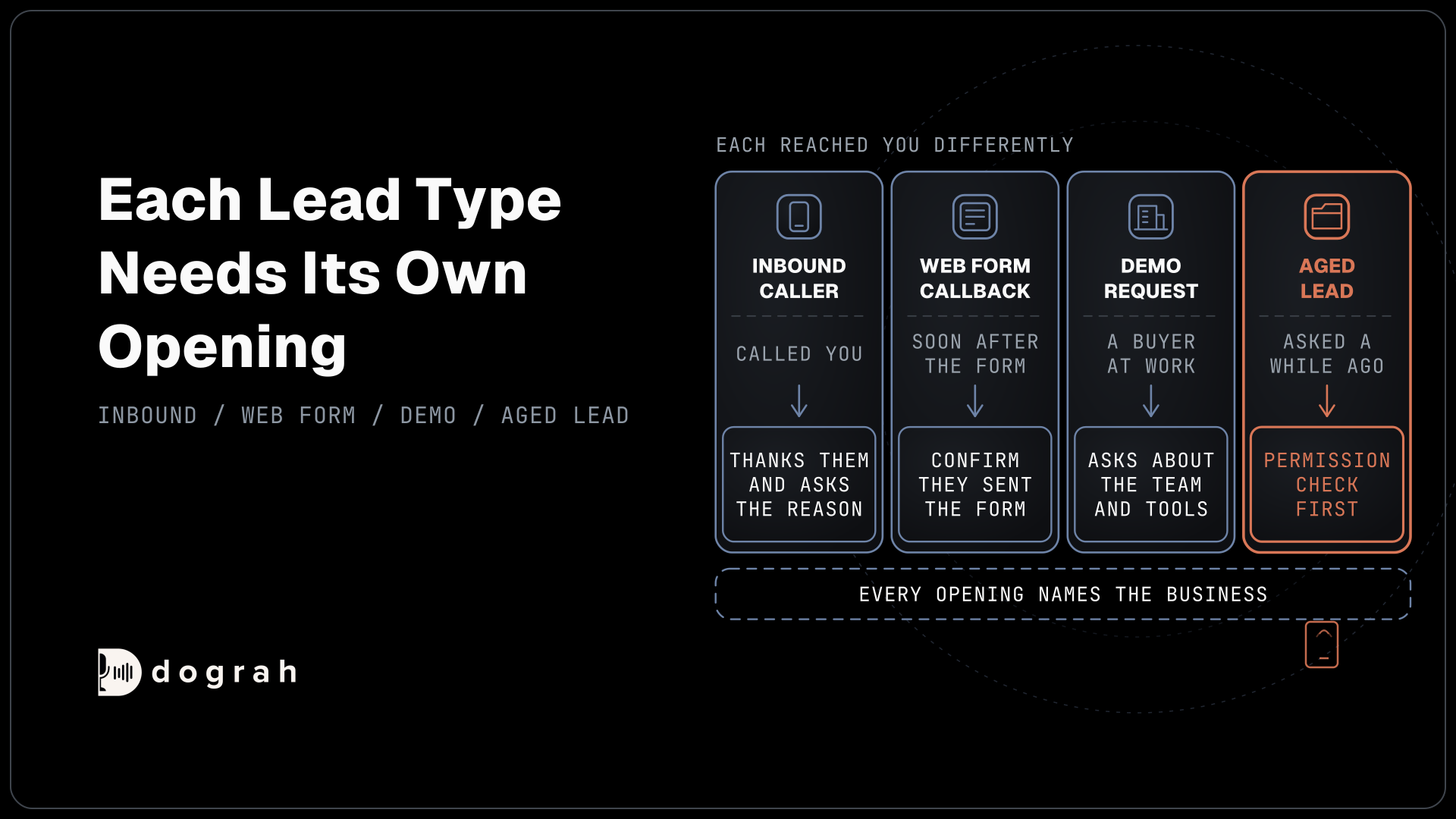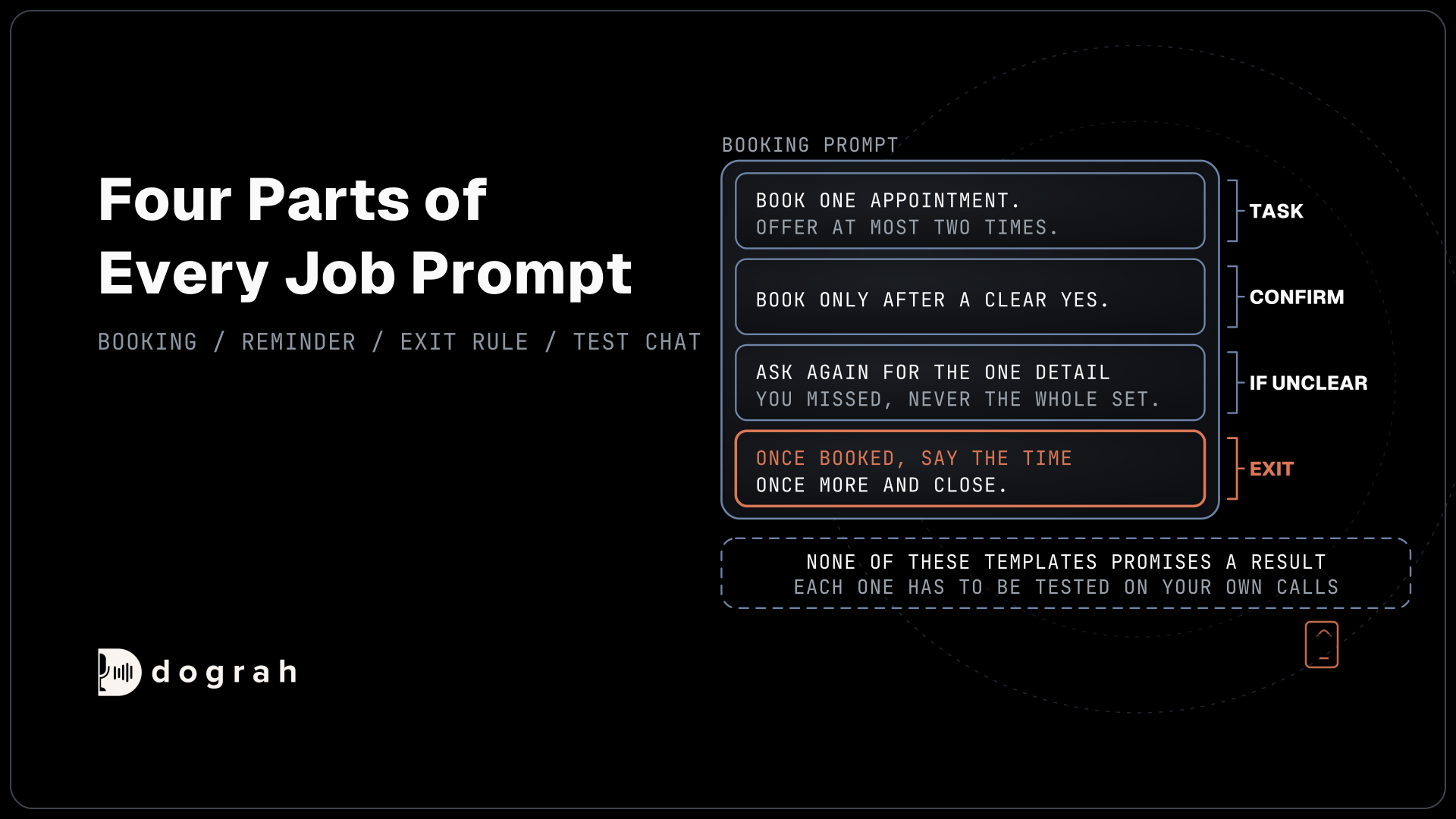

To build an AI survey caller, write three to six short questions for the ear, branch on the answers, save each answer, dial your list with retries and calling hours, and send results to your system. Dograh, the open-source AI voice agent platform, runs these survey calls from a campaign, on your own servers or on Dograh Cloud.
Key Takeaways
- Read the scale aloud in every question, and keep the call near three minutes.
- Set campaign retries with the call limit for your list in mind.
- In Dograh, saved answers reach your system through a Webhook node.
A phone survey is often won or lost in its introduction, when people decide whether to stay on the line. This guide builds an AI survey caller in Dograh, our open-source AI voice agent platform, one step at a time, and ends with consent basics and testing.
Write the survey for the ear
A survey on the phone has no page to look back at, so every question has to work after one hearing. Keep it to three to six questions, one idea in each, with one open question at the end, such as "What is one thing we could do better?". Aim for a call of about three minutes.
Read the scale in every question. "On a scale of 1 to 5, where 5 is very satisfied, how was your visit?" gives the caller everything in one breath. A scale explained only in the first question is forgotten by the third, and the answers drift. Keep each turn to a sentence or two, then let the person talk.
The introduction matters most. In an SSRS and VKL Research test with 104 panel members, 67% picked up the AI interviewer's call, but 41% of those hung up during the introduction, and 43% of those who picked up completed. Among people who stayed past the introduction, 73% finished. A short version of 46 questions was rated better than a long one of 123. The panel was small, and VKL builds AI interviewers, but the pattern is clear enough to design around. Say who is calling, why and how long it takes, in the first few seconds.
Large research firms are moving the same way. Gallup launched research on AI phone interviewing in February 2026, after pilots with more than half a million call attempts in seven languages.
What you need before you start
You need a contact list as a CSV file, a phone number on a carrier such as Twilio, Telnyx or Plivo, and a place to run Dograh, either your own server with Docker Compose or Dograh Cloud. You also need an endpoint that receives the results, such as a small backend service, an automation workflow or your survey tool's import API.
Clean the list before you build. Keep only people you have a reason and the consent to call, as the consent section below explains, and add a column for each detail the agent should use, such as a first name or a visit date.
Step 1: Start the canvas with a clear greeting
The canvas is the same on a self-hosted install of the current release and on Dograh Cloud, so build the survey there by hand. Open Voice Agents, choose Create Agent, then Blank Canvas. A single Start Call node appears on the new canvas, already filled with a starter greeting and prompt.
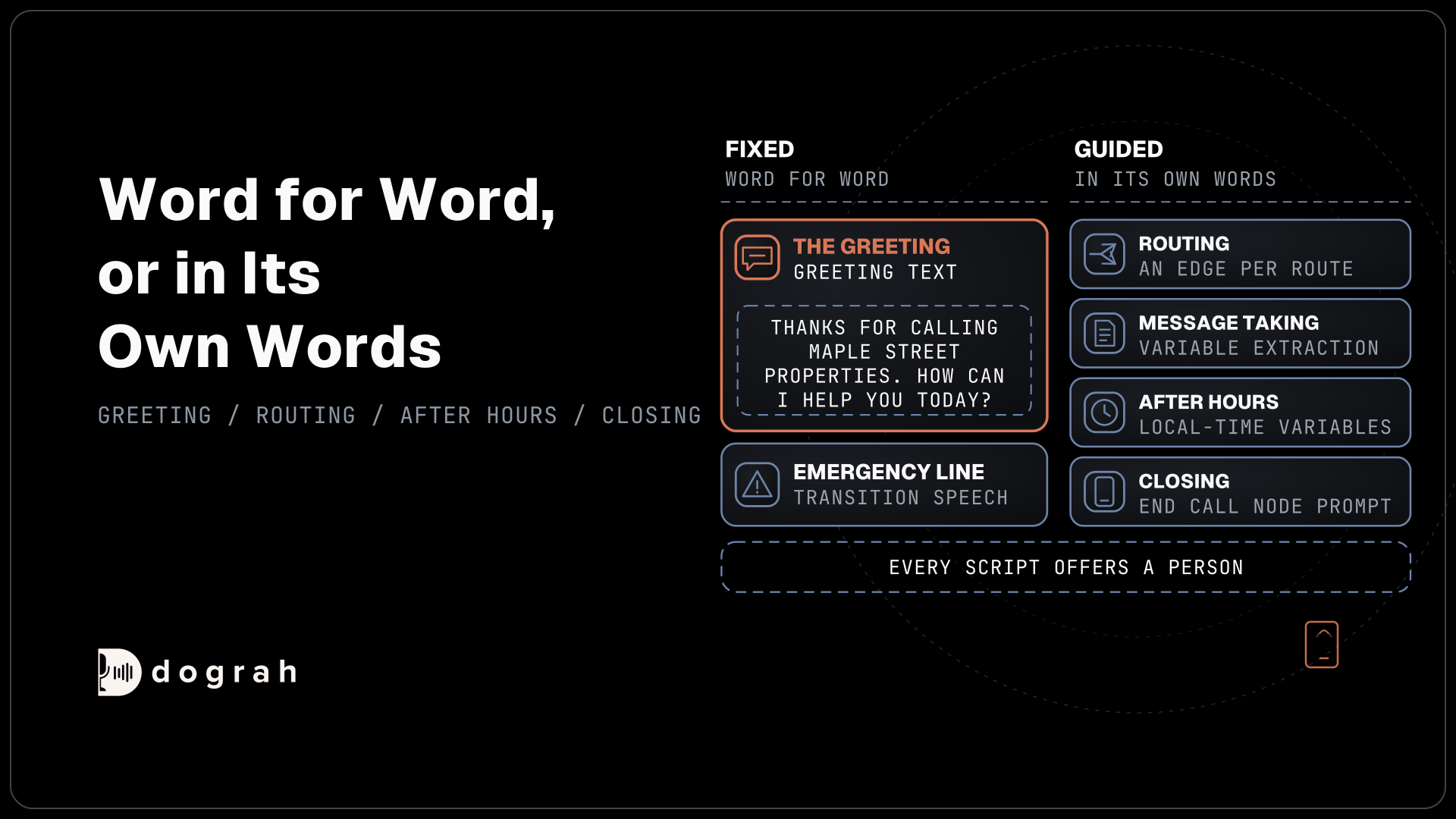
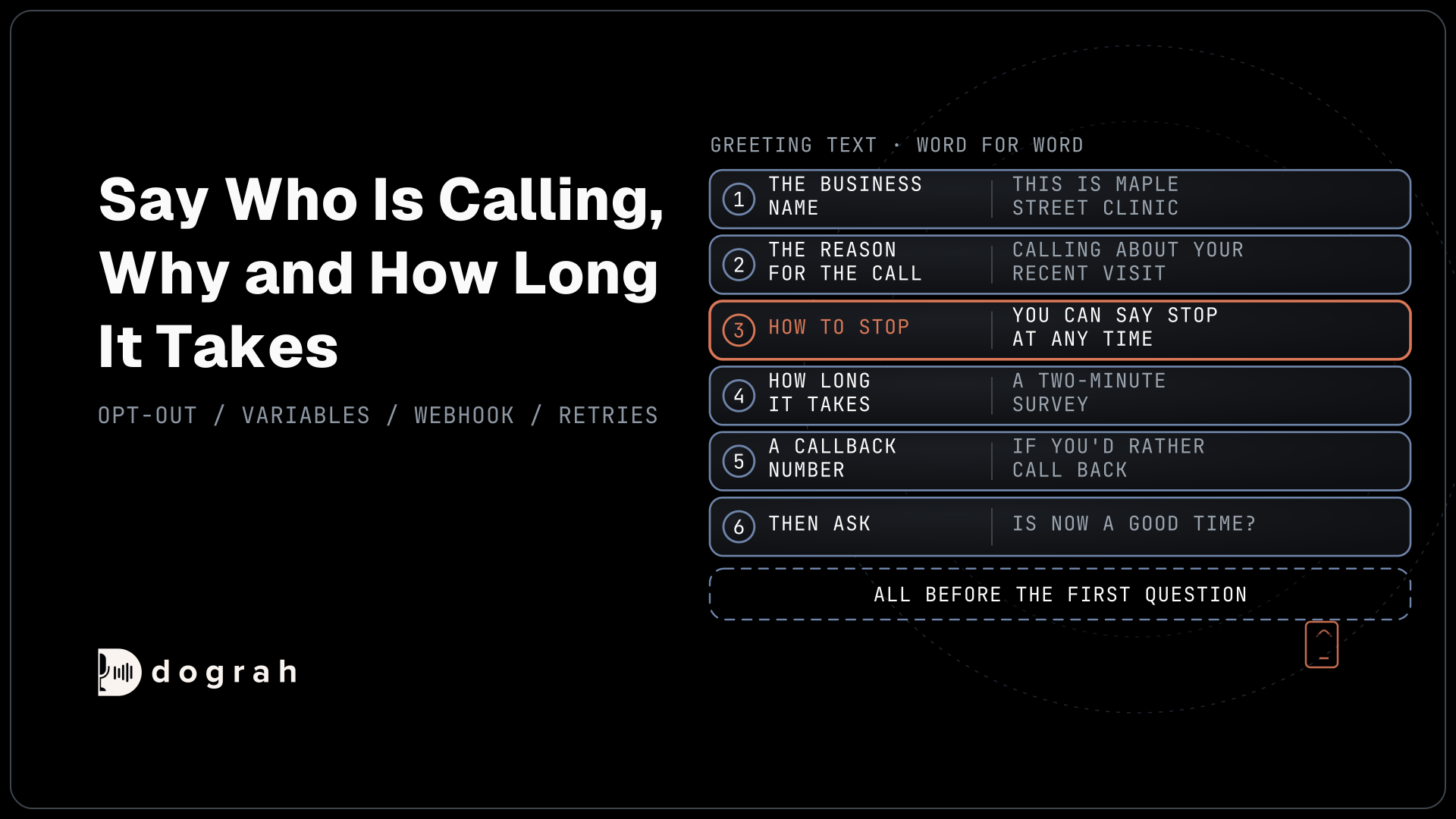
Double-click the Start Call node and write the Greeting Text. It plays word for word, so it is the right place for the business name, the reason for the call, how long it takes, how to stop and a callback number. The greeting below uses first_name from the CSV, with there as the fallback when a row has no name:
Hi {{first_name | there}}, this is Maple Street Clinic calling about your recent visit. You can say stop at any time. It's a two-minute survey, and our number is 415-555-XXXX if you'd rather call back. Is now a good time?
What this does: It names the business first, offers the way to stop right after, and gives a number, all before the first question. A missing first name is spoken as "there" instead of a blank.
In the Start Call Prompt, tell the agent to accept a yes and move on, or to thank the person and end the call if it is a bad time. On Dograh Cloud, the Agent Builder can also draft the agent from a plain description, and you still shape the questions on this canvas.
Check: A browser test from Test Agent, then Run Test, plays the greeting with "there" in place of the name.
Step 2: Branch on the answers with edges
Branching lives on the edges between steps. Select Add node at the top right of the canvas and add an Agent Node for each question block, such as Overall score, Low score follow-up and Suggestion, plus an End Call node. Give each node a short Prompt with its one question and the scale read in full.
Draw an edge from Overall score to Low score follow-up, double-click it, and in Edit Condition write "The caller gave a score of 1, 2 or 3." Draw a second edge to Suggestion with "The caller gave a score of 4 or 5." The follow-up node asks what went wrong, then its own edge leads to Suggestion. To start and finish the survey, draw an edge from Start Call to Overall score with "The caller agrees to take the survey", and one from Suggestion to End Call with "The caller has given a suggestion or has none".
Two more kinds of edge protect the caller. From Start Call and from every question node, draw an edge to End Call with "The caller asks to stop, opt out or not be called again." From the Start Call node, add one more with "The caller says now is not a good time." The model reads the conversation against each condition, so write what the caller would actually say, not a label such as "negative".
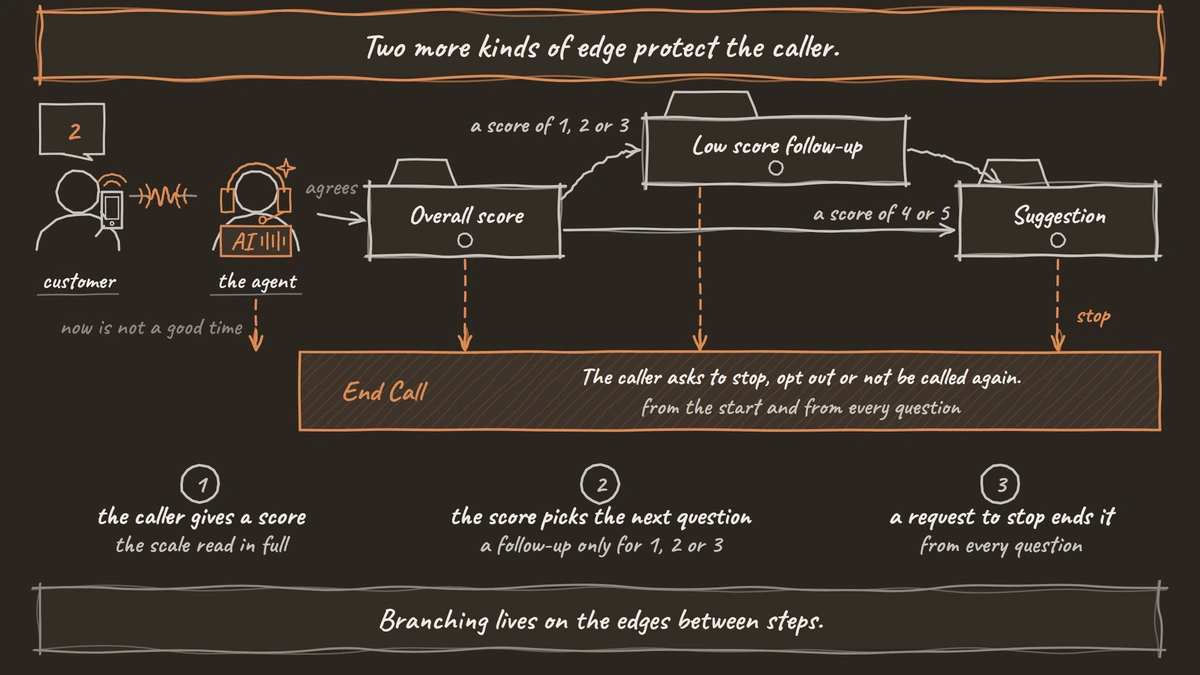
Check: In a browser test, a score of 2 leads to the follow-up question, and saying "stop" ends the call politely.

Open Source Alternative to Vapi / Retell
Self-hosted voice agent platform — no per-minute fees
dograh-hq/dograh
Star on GitHub
Step 3: Save each answer as a variable
Saved answers are what turn calls into data. Double-click Overall score, switch on Enable Variable Extraction, and under Variables to Extract add score with Type Number. On Low score follow-up add low_score_reason as a String, and on Suggestion add suggestion as a String. On the Start Call node, add agreed_to_take_part as a Boolean, and on End Call add opted_out as a Boolean, with the hint "true if the caller asked to stop or not be called again".
Use the Extraction Hint for answers that do not fit the type. For score, write "the 1 to 5 score the caller gave, as a number". In the node's Prompt, tell the agent that a word answer such as "pretty good" is not a score, so it asks once for a number and moves on if the person still gives none.
Variable extraction is an AI step that saves each answer. If you want the caller's own words kept, ask for that in the Extraction Prompt, and treat the recording as the exact record. Values with the same name merge across nodes into the call's results. They are not read by later prompts, which is why branching uses edge conditions, as the Agent Node page describes.
Check: After a test call, the run shows score as a number and both text answers filled in.
Step 4: Send the results out with a Webhook node
When each call ends, a Webhook node sends its answers to your endpoint. Select Add node, add a Webhook node, enter your Endpoint URL and write a Payload Template with {{gathered_context.score}}, {{gathered_context.low_score_reason}}, {{gathered_context.suggestion}}, {{gathered_context.opted_out}}, a CSV column such as {{initial_context.visit_date}}, the run's ID and the recording link.
The Webhook node retries temporary failures, such as timeouts, 429 and most 5xx replies, up to five attempts in all, so key each record on the run ID and ignore repeats. Our post on webhook-driven voice agents covers the receiving side. To check the agent's own conduct, add a QA Analysis node, which scores finished calls and keeps that grade apart from the caller's answers.
Check: A finished test call produces one record at your endpoint with the score and both text answers.
Join the Dograh Community
Dograh is an OSS alternative to Vapi. Join our Slack community for queries, releases, best practices & community interactions.
Step 5: Dial the list with a campaign
Campaigns dial the list for you. Open Campaigns in the sidebar and create a new campaign. On the Create New Campaign page, enter a Campaign Name, choose the survey agent under Agents & traffic split, pick your Telephony Configuration, and set Data Source Type to CSV File.
The CSV needs a phone_number column, and every other column reaches the call as a variable, such as first_name and visit_date here:
phone_number,first_name,visit_date
+1415555XXXX,Maria,12 November
+1415555XXXX,James,13 November
What this does: It gives the campaign two people to call, with the name and visit date each greeting and prompt can use. A row with an empty first name falls back to "there" in the greeting.
Upload the file, open Advanced Settings for the next step, then select Create Campaign. The Campaigns page covers optional greeting overrides per row. Nothing dials until you select Start Campaign on the campaign's page.
Check: The campaign page lists both contacts before you start it.
Step 6: Set retries, calling hours and voicemail
Retries and hours sit under Advanced Settings on the campaign. On a first campaign, Enable Retries is on, with Max Retries at 2 and Retry Delay (seconds) at 120. A new campaign copies the settings of your last one, so check them each time. Retries fire when the carrier reports a busy signal or no answer, and a call that voicemail detection ends counts as finished. Two retries mean up to three attempts per contact, so set retries with your list's call limit in mind.
Call Schedule is off by default, and a campaign with no time slots dials at any time. Switch it on, pick a Timezone and add Time Slots for each weekday you want to call. One campaign runs in one time zone, so split a national list into a campaign per time zone. Circuit Breaker stays on, pausing the campaign if too many calls fail in a short window.
Voicemail is a choice in the agent's Settings tab. Turn on "Enable voicemail and screening handling", and under "When voicemail is detected" choose "Disconnect the call" or "Leave a message". Neither one is retried, so a left message is the way to reach that person on this campaign. A left message is a prerecorded or artificial voice message, so it names the business and gives a number, and on an exempt call to a home line that number is a toll-free line for opting out. Our post on voicemail detection explains how the agent tells a person from a machine.
Check: The campaign shows your time slots and time zone, and a test call to a phone with voicemail switched off, or one you decline, is retried after the delay.
Step 7: Test two wordings with a traffic split
A traffic split tests two versions of the survey on the same list. Publish a second version of the agent with one change, such as a shorter introduction. Then, under Agents & traffic split on a new campaign, select Add agent, pick the two versions and set Traffic % for each, or choose Split evenly. Up to five agents fit in one split.
Percentages are approximate, so give each version enough calls before you compare completion rates. Change one thing at a time, or you will not know which change made the difference.
Consent basics for survey calls
Survey calls with an AI voice fall under the Telephone Consumer Protection Act (TCPA), and the rules depend on the line you call. Under the FCC's calling rules, a call with an artificial or prerecorded voice to a mobile number needs the person's prior express consent. The FCC's ruling on AI voices, released 8 February 2024, treats AI-generated voices as artificial under the TCPA.
Every such message must name the business at the start and give a phone number during or after the message, which the greeting in Step 1 does. A survey call to a home line made for a business purpose with no sales pitch can fall under an exemption, limited to three calls in any 30 days, and retries count toward it. Our post on AI voice agents for NPS and CSAT surveys covers that limit in full.
Calls made under that exemption to a home line must also offer an automated opt-out by voice or keypress, with brief instructions, within two seconds of the identification. An opt-out puts the number on your do-not-call list and ends the call, and a message left on voicemail adds a toll-free number that reaches the same opt-out. For this reason the greeting says "You can say stop at any time" right after the business name. Every question node also has an edge to End Call, and the webhook carries opted_out so your system adds the number to its list.
The 8 a.m. to 9 p.m. rule in the same regulation is written for telephone solicitations, so a survey with no sales pitch may sit outside it. Daytime local hours are still sensible practice, and some states add their own rules, so check yours. Confirm consent and calling rules for your list with counsel before you dial.
Before you ship it
Start with a list of your own phones. Run the campaign on three or four numbers, answer one, decline one on a phone with voicemail switched off and send one to voicemail. Check that the answered call produced a webhook record, the declined one retried after the delay and the voicemail did what you set. Listen to a few recordings for any question the agent rushed or reworded. Then run a small slice of the real list before the rest.
That leaves the question of where the survey runs. A survey on your own server pays Dograh no per-minute platform fee. The server, your model keys and the phone minutes every retry adds still cost money, and your team keeps the database and upgrades running. Support questions go to the open-source community, unless you are on Enterprise with a custom SLA. Run it on Dograh Cloud instead and the hosting is covered by a 1¢-a-minute platform fee, with models and phone minutes on top.
To recap, you wrote the questions for the ear, opened with a clear greeting, branched on the answers, saved them as variables, sent them out by webhook, dialed the list with retries, hours and voicemail set, and tested two wordings.
Glossary
- Traffic split
- A campaign setting that sends set shares of a contact list to different agents or published versions, up to five, to compare wordings.
- Extraction Hint
- A short note on a Dograh variable that tells the extraction step what to save, such as the 1 to 5 score as a number.
- Call Schedule
- The campaign setting that limits dialing to time slots in one time zone. Off by default, so a campaign dials at any time until you set it.
- Prior express consent
- The consent the TCPA requires before an artificial or prerecorded voice call to a mobile number, such as a number the person gave for this purpose.